Lesson 6 8 min read Completed
Connect an AI agent (MCP)
Connect Claude Code or another MCP client to Broadcast's built-in MCP server, choose a safe token, and let an agent work on your email marketing.
An AI agent can do in a minute what takes you ten clicks: find a subscriber, draft a broadcast, check last week’s stats. In this lesson you connect one through Broadcast’s built-in MCP server, and you set it up so the agent can only do what you allow.
Three ways in
Broadcast gives agents three routes, and they all use the same API tokens:
- The MCP server, at
/api/mcpon your installation. Every API operation the token allows becomes a native tool. Best for Claude Code and other MCP clients. - The
broadcastCLI, for agents that run shell commands. The previous lesson covered it. - The REST API, with discovery endpoints
GET /api/v1/whoami,/statusand/primethat tell an agent what it can do.
MCP server
/api/mcp
- Best for MCP clients
- Nothing to install
broadcast CLI
Shell commands
- For agents that run a shell
REST API
/api/v1
- Discovery with
whoami,statusandprime
This lesson focuses on MCP. There is nothing to install: the server is part of Broadcast. It needs Broadcast 2.35.0 or later.
Step 1: Choose the token first
The token decides everything the agent can do. Pick it before you connect:
- A read-only channel token for an agent that answers questions: stats, counts, subscriber lookups. It cannot change anything, whatever the agent decides to do.
- A channel token with specific write permissions for an agent that drafts broadcasts or tags subscribers in one channel.
- An admin API token only when the agent must work across channels or manage users. Tools that act on a channel then need a
broadcast_channel_id.
Create the token under Access Tokens and tick only what the job needs. Agents can make many calls quickly. If the agent hits the limit, raise the Rate limit on that token, not the default for the whole installation. Each MCP tool call counts once against the limit.
Step 2: Connect Claude Code
Run this once:
claude mcp add --transport http broadcast https://broadcast.example.com/api/mcp \
  --header "Authorization: Bearer YOUR_API_TOKEN"
Start Claude Code and run /mcp to check that the broadcast server is connected. By default the server is added for the current project on your machine only. Add --scope user to use it in every project.
Warning
Do not use --scope project unless the file stays out of your repository. It writes the server, with the Authorization header and your token, to .mcp.json.
Other MCP clients that support remote HTTP servers with custom headers connect the same way: the URL https://your-domain/api/mcp, type http, and an Authorization: Bearer header. The server uses the Streamable HTTP transport, one POST per request, with no session.
Step 3: Let the agent find its way
The tools are generated from your installation’s API, so they match the version you run. Each tool is one operation, with a name such as subscribers_find or broadcasts_create.
Three discovery tools are always there: whoami_show, status_show and prime_show. Start a session by asking the agent to call prime_show. It learns the token’s permissions, the channel’s status and every available operation. Then ask in plain language:
- “Find ada@example.com and show her tags.”
- “Draft a broadcast to the Engaged segment that announces our new pricing page. Do not send it.”
- “Compare the click rates of our last five broadcasts.”
The safety rails
The MCP server can do only what the API allows for its token, and every call goes through the API’s normal checks.
- Agent Calls a tool
- MCP server Part of Broadcast
- API checks Token, permissions, limits
- Result Or an error message
Destructive tools are marked as such: sending or scheduling a broadcast, deleting, deactivating, unsubscribing and redacting. Clients that support it ask you before they run one, and the server tells the agent to confirm with you first. Still, read what the agent proposes before you approve a send. A sent email cannot be recalled.
A refused call comes back as an error with the API’s message, so the agent can tell you what went wrong instead of failing without a word.
Other ways to hand over credentials
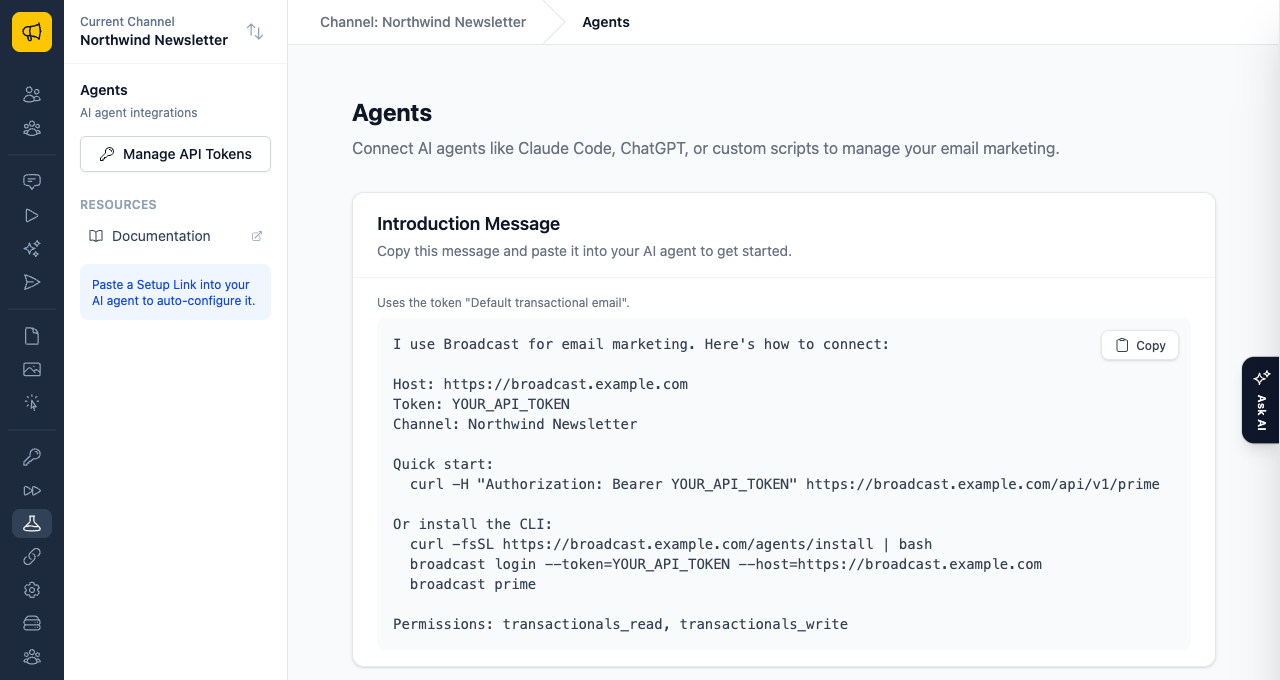
You do not always want to paste a token into a chat. The Agents page in your dashboard offers two other routes:
- A copy-paste introduction message with your instance URL, token, permissions and quick-start commands.
- A setup link: a URL that serves the agent its configuration. It expires after 1 hour and works only 3 times, so it is safe to share in a conversation.
When it does not connect
- Check that the URL ends in
/api/mcpand that you run 2.35.0 or later. Older versions answer404. - A
401means the token or the header is wrong. The header must be exactlyAuthorization: Bearer YOUR_API_TOKEN. - A
405means the client tried an older SSE transport. Set it to Streamable HTTP. - A missing tool means the token lacks that permission. Ask the agent to call
whoami_showto see what the token has.
See MCP server and Agents.
What you learned
- The MCP server is built in at
/api/mcpand uses your normal API tokens. - The token sets the limits. A read-only token cannot change anything.
- Start with
prime_showso the agent learns what it can do. - Destructive tools are marked, and you approve sends. Keep tokens out of
.mcp.jsonin git.
Go deeper in the docs
Check what you learned
PassedAnswer all 3 questions correctly to complete this lesson.