Lesson 7 9 min read Completed
Keep it running: upgrades, backups, monitoring
Upgrade Broadcast safely, make backups with an offsite copy, restore them on a new server, and find problems fast with Error Logs and Jobs.
A self-hosted install is yours to keep healthy. The good news is that the routine is short. In this lesson you learn to upgrade without breaking a send, to keep a backup that survives the loss of the server, and to find the cause of a problem in minutes.
Upgrades
Broadcast checks for a new version every hour. When one is out, you see an Update available notice in the bottom-right corner of the dashboard. Nothing upgrades by itself.
Warning
Make a backup before every upgrade.
To upgrade from the dashboard:
- Make a backup (see below).
- Go to Application → Check for updates.
- Click Check for updates again to ask the upgrade server.
- Click Upgrade now and confirm.
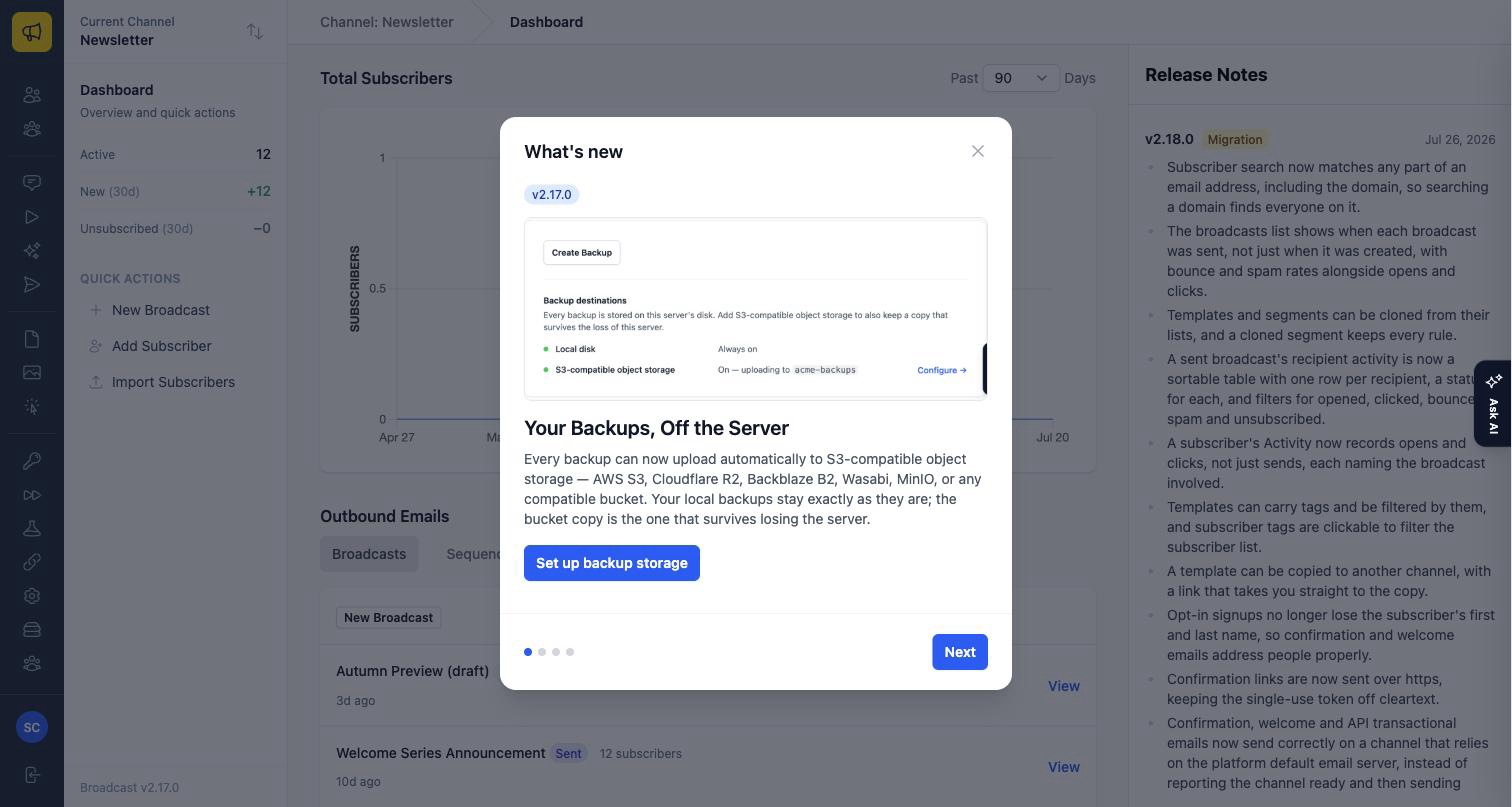
The upgrade takes 5 to 10 minutes, usually less. The dashboard is unavailable for a few minutes while the new version starts and runs its database updates. The first time you load it after, a What’s new dialog shows the highlights of every version you skipped.
Broadcast protects sends in progress. It will not start an upgrade while a broadcast is queueing or sending, or while a background job is part way through, because stopping the containers would cut that work off mid-batch. You see Upgrade not started with what is running. Wait for it to finish and try again. Work that is only queued does not block the upgrade: it waits in the database and runs after the restart.
From the server, the same upgrade is one command from /opt/broadcast:
./broadcast.sh upgrade
It runs the same safety check first. ./broadcast.sh preflight runs only the check. If an upgrade step fails, the previous version starts again automatically. See Upgrading and the CLI reference.
Backups
A backup holds your database: subscribers, broadcasts, sequences, templates and settings. To make one:
- Go to Application → Backups.
- Click Create backup.
- Wait a few minutes, then download the file if you want a copy.
Or run ./broadcast.sh backup_database from /opt/broadcast. The backup goes to /opt/broadcast/db/backups/ with a SHA-256 checksum file next to it.
Three facts shape your backup plan. First, scheduled backups are not set up by default. Add a cron job if you want a daily backup, for example at 2 AM:
0 2 * * * /opt/broadcast/broadcast.sh backup_database >> /opt/broadcast/logs/cron/backup.log 2>&1
Second, the server keeps only the newest backup. Each new backup deletes the one before it from /opt/broadcast/db/backups/, so a daily cron job does not build a history on the server.
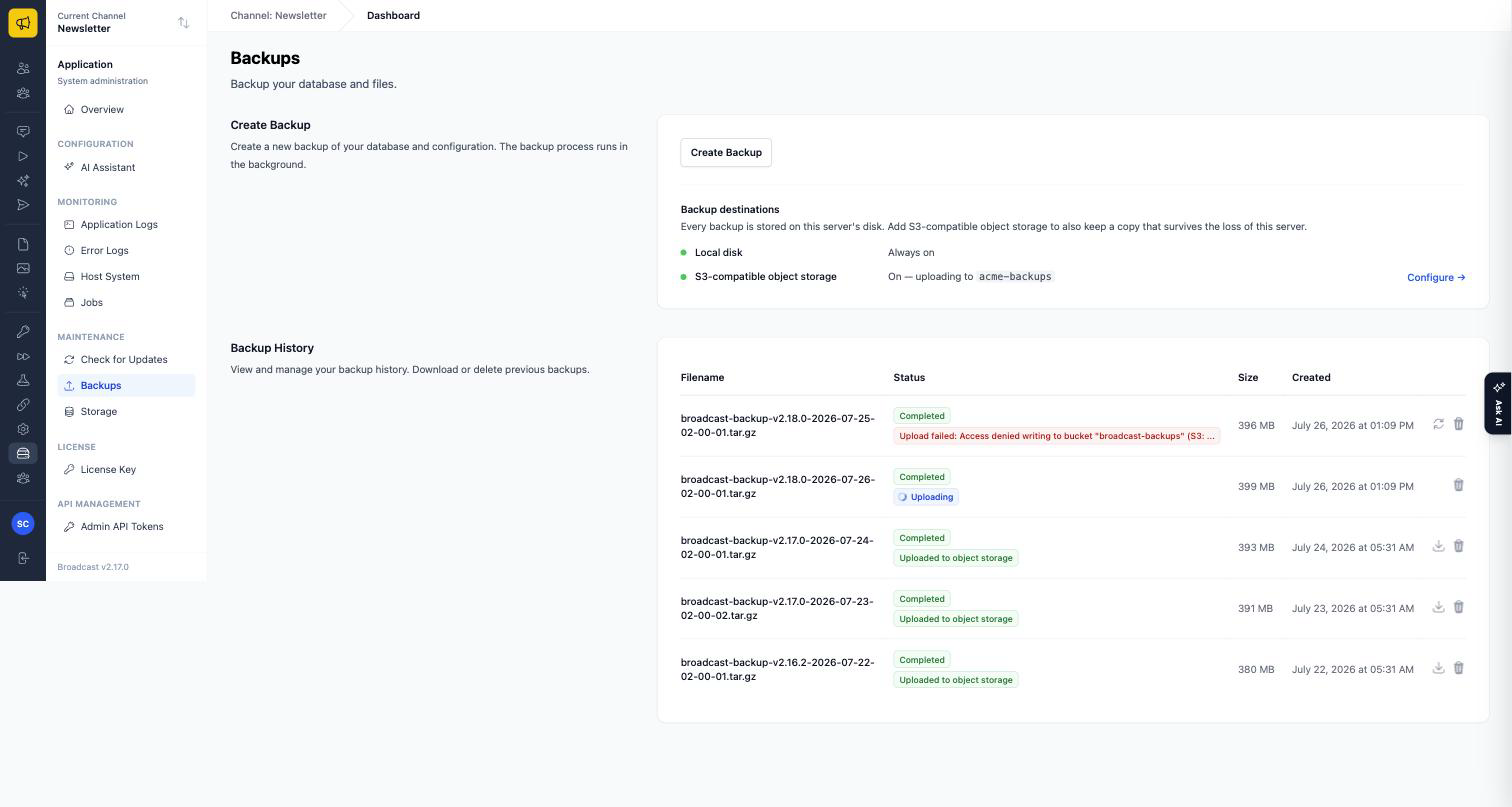
Third, the local backup is on the same disk as the database. If the server dies, the backup dies with it. An offsite copy fixes both problems. On the Backups page, click Configure under Backup destinations, enter an S3-compatible bucket (AWS S3, Cloudflare R2, Backblaze B2, Wasabi or MinIO), click Test connection, then save and turn on uploads. Every new backup now uploads in the background, and Remote copies to keep decides how many older backups stay in the bucket. Use credentials scoped to that one bucket.
Backup on the server only
- Keeps only the newest backup
- On the same disk as the database
- Lost if the server is lost
Backup with an offsite copy
- Copy goes to an S3-compatible bucket
- Builds a history in the bucket
- Survives the loss of the server
If you keep uploaded images on local storage, they live in /opt/broadcast/app/storage/ and are not in the database backup. Copy them separately.
Restores
A restore replaces all data in the database. You use it to move to a new server, or to recover from a disaster. The steps:
- Install Broadcast on the target server with the usual installer.
- Copy the backup file, and its
.sha256file, to/opt/broadcast/. - Run
sudo ./broadcast.sh restore <backup-file>.tar.gzand typeyes. - Log in with the credentials from the backup and check your channels and subscribers.
The restore checks the file against its checksum and refuses a corrupt backup before it touches anything. An older backup on a newer install is fine: the migrations run after the restore. A newer backup on an older install is blocked. Upgrade first. Test a restore now and then, so you know it works before you need it. See Backup and recovery.
Monitoring
When something looks wrong, open Application → Monitoring. Work through it in this order:
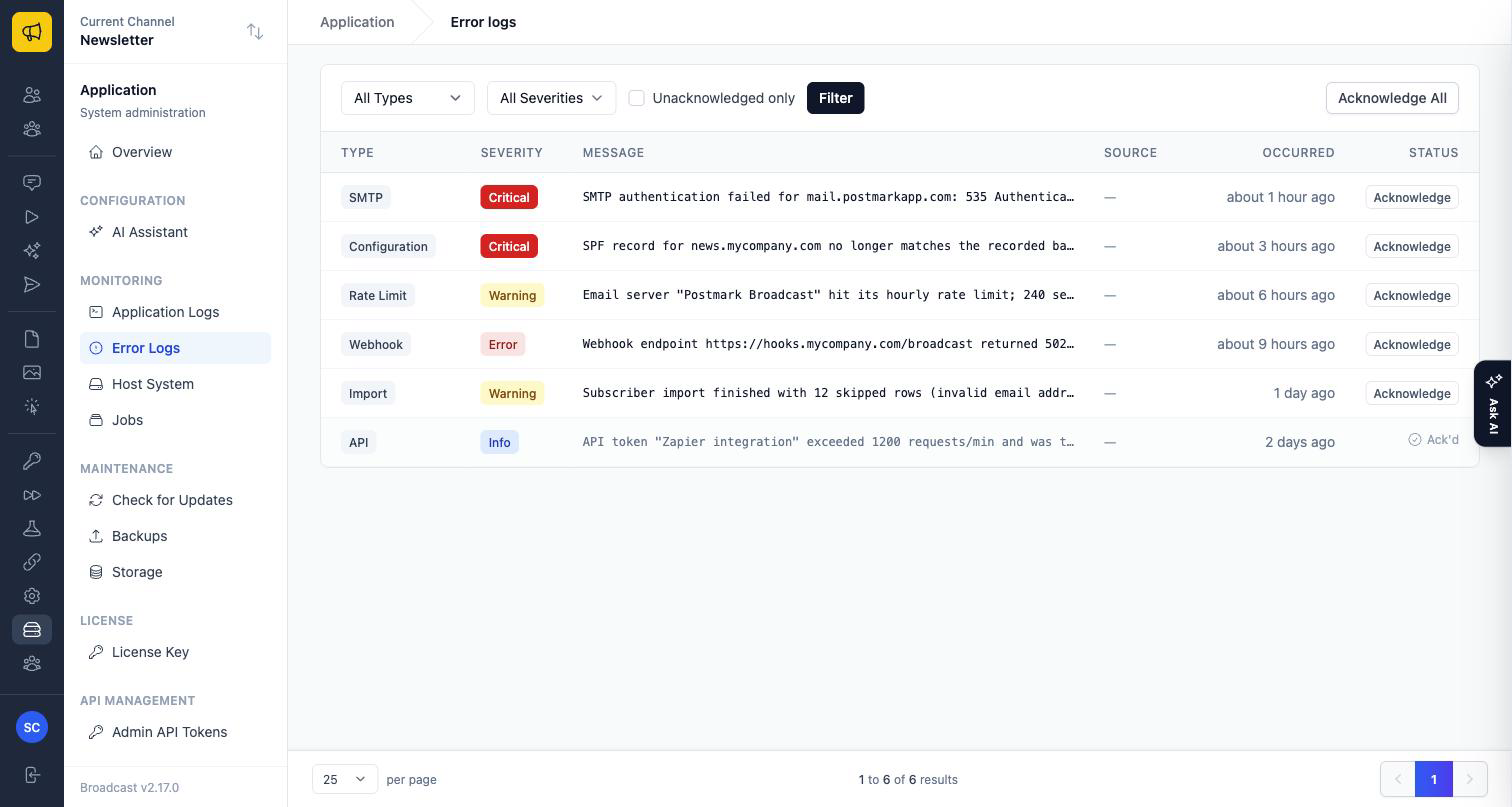
- Error Logs. Broadcast already decided these are problems: a rejected SMTP login, a webhook endpoint that keeps failing, a DNS record that drifted. Filter to Critical first. Acknowledge records that a person looked. It fixes nothing.
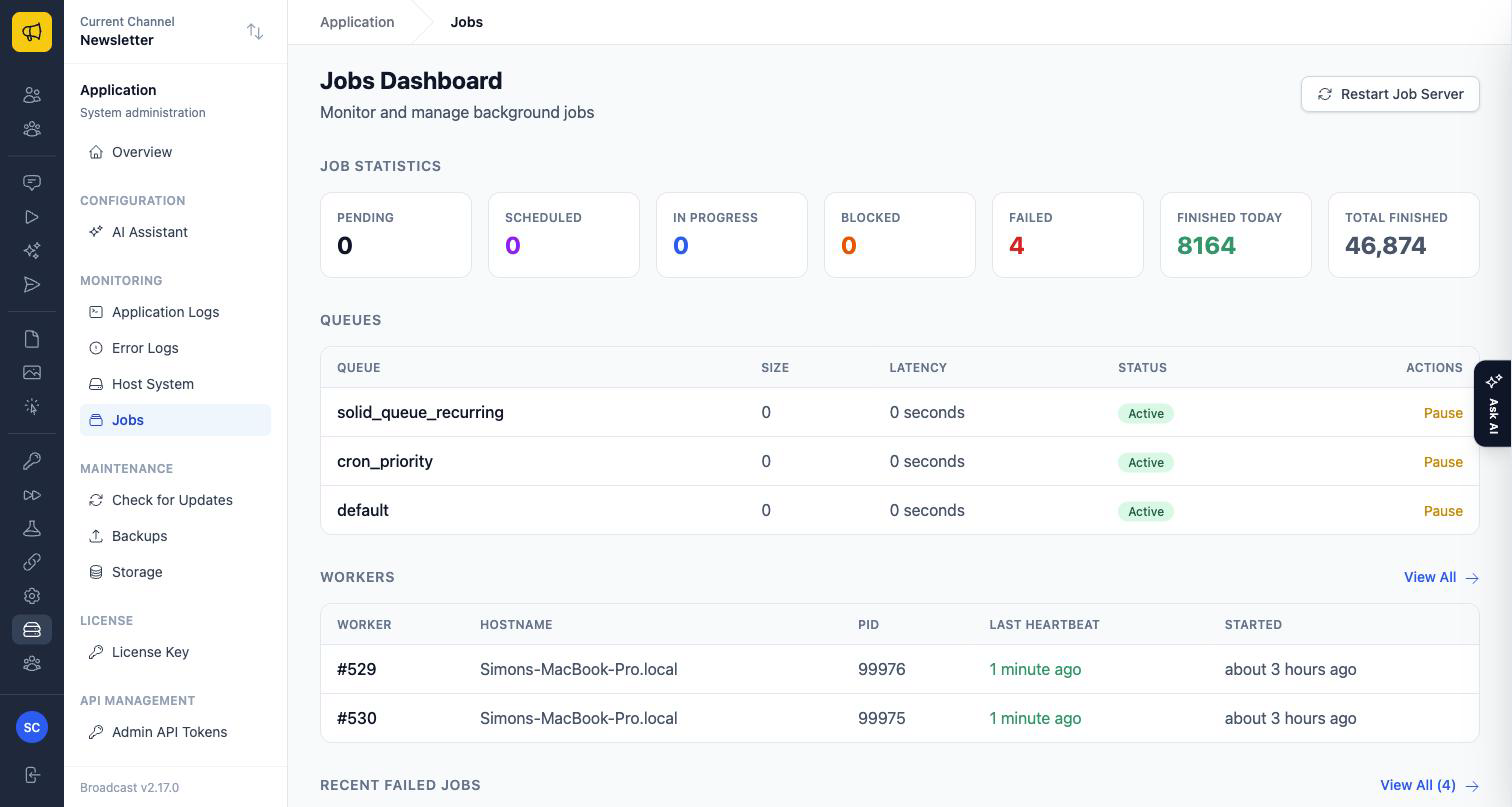
- Jobs. Almost everything slow runs as a background job. If there are no workers, or every heartbeat is old, nothing moves. A queue with growing latency is falling behind. A stuck broadcast is far more often a stalled worker than a bug.
- Application Logs. Watch the live log while you repeat the problem.
- If the cause is still not clear, send the logs to support. On Application Logs, click Start Tailing, repeat the problem, click Download, and email the file.
On the server, ./broadcast.sh diagnose collects a support bundle. Run it before you restart anything, because a restart destroys the container logs that explain what happened. See Monitoring and logs.
What you learned
- Back up, then upgrade from Check for updates or with
./broadcast.sh upgrade. Running sends block an upgrade. - Schedule backups with cron and upload them to an S3-compatible bucket.
- A restore checks the checksum and refuses a newer backup on an older install.
- Look at Error Logs first, then Jobs, then Application Logs.
Go deeper in the docs
Check what you learned
PassedAnswer all 3 questions correctly to complete this lesson.