Lesson 5 9 min read Completed
Choose and connect an email provider
Pick an email provider, connect it with the Guided Setup wizard, set up webhooks, and split broadcasts from transactional email across two servers.
Broadcast hands every email to a provider that you choose. In this lesson you pick one, connect it, and set it up so bounces and complaints come back to Broadcast. You also learn why two email servers are better than one.
Pick a provider
Broadcast integrates with Amazon SES, Postmark, SendGrid, Mailgun, Resend, SMTP.com and Inboxroad, and sends over plain SMTP to anything else. The short version of the choice:
- Amazon SES is the cheapest at volume and the most work to set up.
- Postmark is the easiest to get right, and strict about what you may send through it.
- SendGrid and Mailgun sit in between.
If you already have a provider you are happy with, keep it. Your reputation lives in that account. The provider guide and the providers overview go deeper.
Before you connect, verify your sending domain at the provider and publish the DNS records it gives you. Lesson 4 covered those records.
Warning
A new Amazon SES account starts in the sandbox: it sends only to verified addresses, at most 200 messages in 24 hours. Request production access before you send to a real list. The SES sandbox guide shows what to write.
Connect with Guided Setup
Guided Setup is the recommended route for Postmark, Amazon SES, SendGrid and Mailgun. It configures the domains, senders and webhooks for you.
- Open Settings → Email Servers and click Add email server.
- Choose Guided Setup.
- Select your provider.
- Paste the credentials it asks for.
- Follow the steps to the end.

Each provider wants a specific credential. Postmark needs the Account API token from Account → API Tokens, not a server token, because the wizard must discover your servers and domains. Amazon SES needs an access key ID, a secret key and the Region your SES identities live in. Credentials from one region do not see identities in another. Mailgun asks for your API key and the region, US or EU.
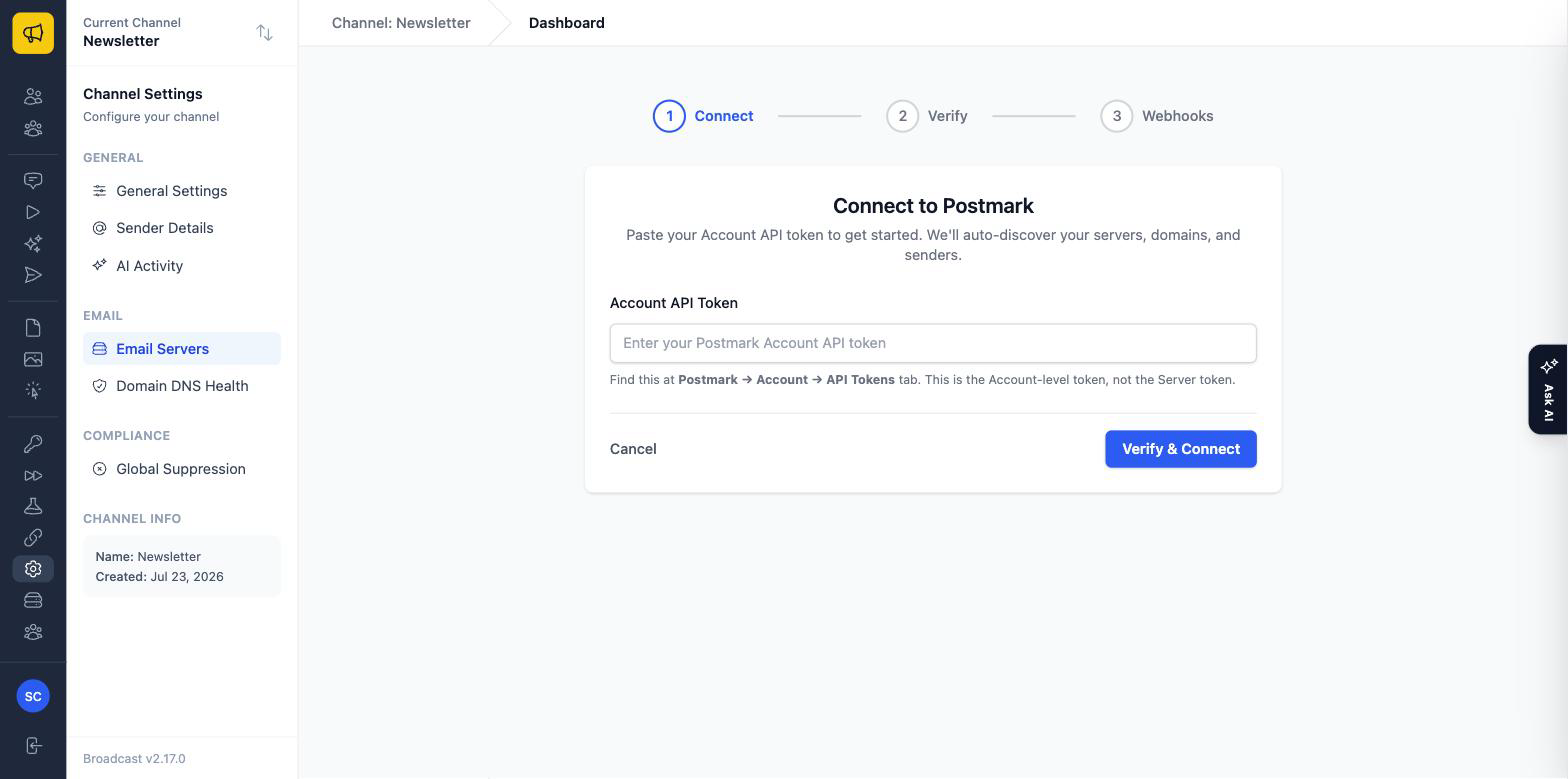
The wizard also sets up delivery over the provider’s API instead of SMTP. API delivery is faster and gives clearer error messages.
Manual Setup for other providers
For Resend, SMTP.com, Inboxroad or a custom SMTP server, choose Manual Setup and enter the SMTP host, port, username and password. Then set up webhooks at the provider by hand. The webhook URL for each server is on its detail page under Settings → Email Servers. ESP integrations has the steps for each provider.
Why webhooks are not optional
Broadcast tracks opens and clicks itself. It cannot see what happens after the provider takes the email. Only the provider knows that a message was delivered, bounced, or marked as spam, and it reports this through webhooks.
- Broadcast hands over the email
- The provider delivers it Or the email bounces
- A reader may report spam
↩ The provider reports each result to Broadcast through webhooks
With webhooks in place, Broadcast acts on each bounce and complaint. It deactivates the subscriber and adds the address to the channel’s suppression list, so you never mail them again. Without webhooks, you keep mailing dead addresses and people who complained, and your reputation drops. The wizards set webhooks up for you. With Manual Setup, set them up yourself.
Try it safely with the test server
Want to see a send before you trust real people with it? Add email server also offers a Test Server. It needs your license key. It captures every email in a private test inbox and never delivers it, not even to you. Open the server and click View Test Inbox to read what you sent. Captured mail is kept for 7 days.
When a real server becomes active in the channel, Broadcast switches the test server off, so real subscribers’ mail never lands in the test inbox.
Use two servers, not one
Each email server has its own hourly limit and, at the provider, its own reputation. A newsletter gets more unsubscribes and complaints than a password reset. If both share a server, a large broadcast uses the room that your login codes need, and complaints about the newsletter follow your receipts.
The docs recommend this split:
- On the first server, under Email Types, tick only Broadcasts.
- Add a second server. Under Email Types, tick Transactional emails and Automated sequences.
- Give each server its own emails per hour value, set to the provider’s real quota.
Server 1
- Broadcasts
Server 2
- Transactional emails
- Automated sequences
At the provider, put the two servers on separate streams or sub-accounts when it supports them, such as a separate Postmark server or message stream. See Email server rate limits.
What you learned
- Broadcast sends through Amazon SES, Postmark, SendGrid, Mailgun, Resend, SMTP.com, Inboxroad or any SMTP server.
- Guided Setup configures domains, senders and webhooks for the four providers it supports.
- Webhooks bring back deliveries, bounces and complaints, and turn on auto-suppression.
- Two servers keep broadcasts from using the limit and reputation of transactional mail.
Go deeper in the docs
Check what you learned
PassedAnswer all 3 questions correctly to complete this lesson.