Lesson 6 9 min read Completed
Send your first broadcast
Set your sender details, add a subscriber, write a broadcast, send a test, and send it for real. Then learn the statuses a broadcast moves through.
This is the lesson where email leaves your server. You set the sender details, add a subscriber, write a short broadcast, test it, and send it. You also learn what each status means, so you know what you see while it sends.
Step 1: Finish the setup checklist
The card in the bottom-right corner of the dashboard counts the setup steps still missing. Two of them matter now.
Sender details. Open Channel Settings → Sender Details and fill in:
- Sender name: what recipients see, such as “Ana from Acme”.
- Sender email: the From address, on the domain you authenticated in lesson 4.
- Physical address: recommended for CAN-SPAM and GDPR compliance.
- Email footer: added to every broadcast and sequence email. It includes an unsubscribe link by default.

An email server. You connected one in lesson 5. If you only want to look, use the test server: it captures every email in a private test inbox and delivers nothing.
Step 2: Add a subscriber
Broadcasts go only to subscribers in the current channel. For a first send, add yourself. Click Subscribers in the sidebar, then Add subscriber, fill in your email address and save. Import and forms come in the email marketing course.
Step 3: Write the broadcast
Click New Broadcast. Broadcast asks for a content format:
- Rich Text, the recommended visual editor for newsletters.
- HTML, if you write your own markup.
- Start from Template, to begin from a saved design.

Pick Rich Text. The editor has four tabs, and you move through them with Next.
- Content. Enter a Subject, which is required, and Preview Text, which shows beside the subject in the inbox. The Name is for you only. Leave it blank and it takes the subject. Write the body. The Inbox Preview shows how the email looks in an inbox as you type.
- Settings. Choose Track opens and Track clicks. Leave the email server on Use any email server unless you want a specific one.
- Audience. Choose All Subscribers, or one or more segments.
- Review. Check the summary and save.


Step 4: Send a test
Never skip this. On the broadcast’s detail page, click the dropdown arrow next to Send now and choose Send test email. Enter an address you can read and click Send test.
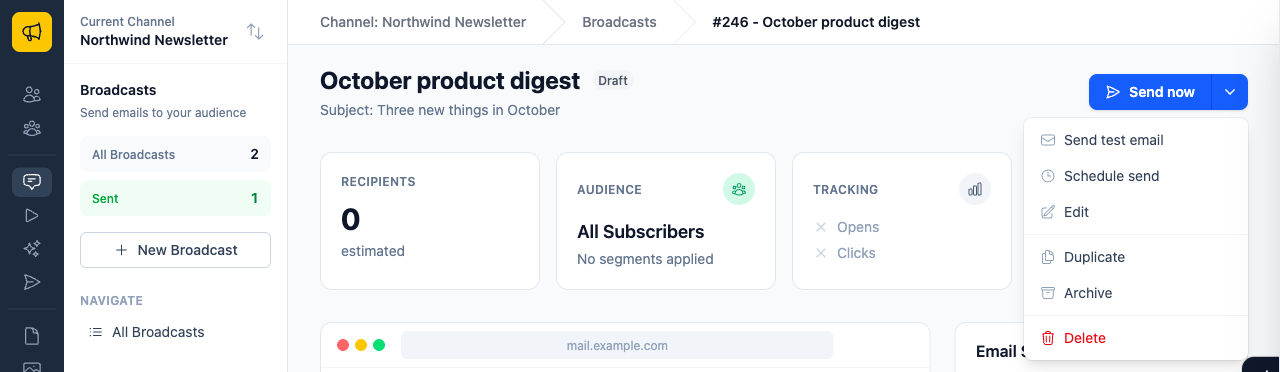

In the test, check the layout, every link, and any personalization such as the first name. Then open it on your phone too.
The detail page also shows the Recipients count, which is how many subscribers will get the email. Check it before you send.
Step 5: Send or schedule
Click Send now. The Send Broadcast? dialog tells you how many subscribers it goes to. Confirm it. To send later, choose Schedule send from the same dropdown and pick a date and time.
Broadcast refuses to send a broadcast with nobody to send to. If the segment matches nobody, you see This broadcast has no subscribers to send to, and the broadcast stays a draft. A scheduled broadcast is different: it can wait for its segment to fill, and it moves to Failed with the reason if it still matches nobody at send time.
What the statuses mean
A broadcast moves through a set of statuses. The badge next to its name always shows the current one.
- Draft You are working on it
- Scheduled Only if you pick a time
- Queueing, Sending Emails go out
- Sent Finished
- Draft: you are still working on it.
- Scheduled: it waits for its scheduled time. You can cancel the schedule to return it to draft.
- Queueing and Sending: recipients are assembled, then emails go out. A broadcast that waits for room in the hourly limit stays in Sending. It is not stuck.
- Sent: finished. Partial failure is also finished, but some recipients failed.
- Paused: you stopped it part way. Resume continues where it stopped, and nobody gets it twice.
- Failed: a channel or server error stopped it, such as a revoked API key. Fix the cause and click Resume.
- Aborted: you stopped it for good.
When something is wrong mid-send
Warning
A broadcast that has started sending is locked. You cannot edit its content, because half your list would get one version and half the other.
If you see a broken link, click Pause. At full speed, at most about 8 emails that were already on their way still go out. Then choose. If the mistake is small, Resume. If it is not, use Abort send, duplicate the broadcast, fix the copy, and send it. The Broadcast emails page explains how a retry of a failed broadcast reaches only the people the first send missed.


What you learned
- Fill in the sender details and connect a server before you send.
- A broadcast has four tabs: Content, Settings, Audience and Review.
- Send a test from the dropdown next to Send now, every time.
- Pause stops a send at once. A sending broadcast is locked, so fix mistakes in a duplicate.
Go deeper in the docs
Check what you learned
PassedAnswer all 3 questions correctly to complete this lesson.