Your List, Your Data Model
A subscriber is more than an email address and a first name. The person behind the address has a plan, a language, a signup date, a last purchase, a role at their company. Most of that lives in your head, or in some other system, and the email tool never sees it. Then the day comes when you want to send the right message to the right slice of people, and you can’t, because the tool only knows two things about everyone.
Broadcast treats a subscriber as a record you get to shape. Every subscriber carries a custom data field: plain JSON, where you store whatever structure fits your business. Over four releases this spring we built out the whole loop around that field. Collect the data at signup, import what you already have without a cleanup project, segment on all of it, and let those segments keep themselves current. This post walks the loop end to end.
I’ll use one running example the whole way through. Say you sell online courses. Each subscriber’s custom data looks something like this:
{
  "plan": "pro",
  "role": "designer",
  "preferences": { "language": "en" },
  "last_purchase_at": "2026-05-01"
}
Nothing about that shape is dictated by us. It’s your model. Here is how you fill it, and then how you put it to work.
Collect the real data at the moment someone signs up
The cleanest place to capture structured data is the opt-in itself, while the person is right there and motivated to tell you about themselves. So the form builder learned to write into custom data.
In v2.10.0 we added a Custom Field block. Drop it into an opt-in form, give it a label and a custom data key, and the answer lands directly in that subscriber’s custom data. It collects free text, and it can be multi-line when you need a longer answer, with a hint in the editor showing how to preserve those line breaks when you print the value back into an email template. There’s a guardrail underneath: a submission that tries to write a custom data value larger than 2KB is rejected with a per-field error, so a pasted essay can’t bloat a record. Small thing, but you want the platform to catch it, not you.
Free text is the right tool for some answers and the wrong tool for others. For the course business, “what’s your goal for the next month” wants a text box, but “which track are you here for” and “how would you rate your experience” want fixed choices you can rely on later. So v2.11.0 added four more block types to the form editor: Dropdown, Radio Group, Image, and Spacer. Dropdown and Radio Group give you constrained answers, which means the values in custom data stay consistent instead of arriving as fifteen spellings of the same thing. Image and Spacer are for the layout: an Image block can upload a new file or pick one from your existing asset library, and Spacer just gives the form room to breathe.
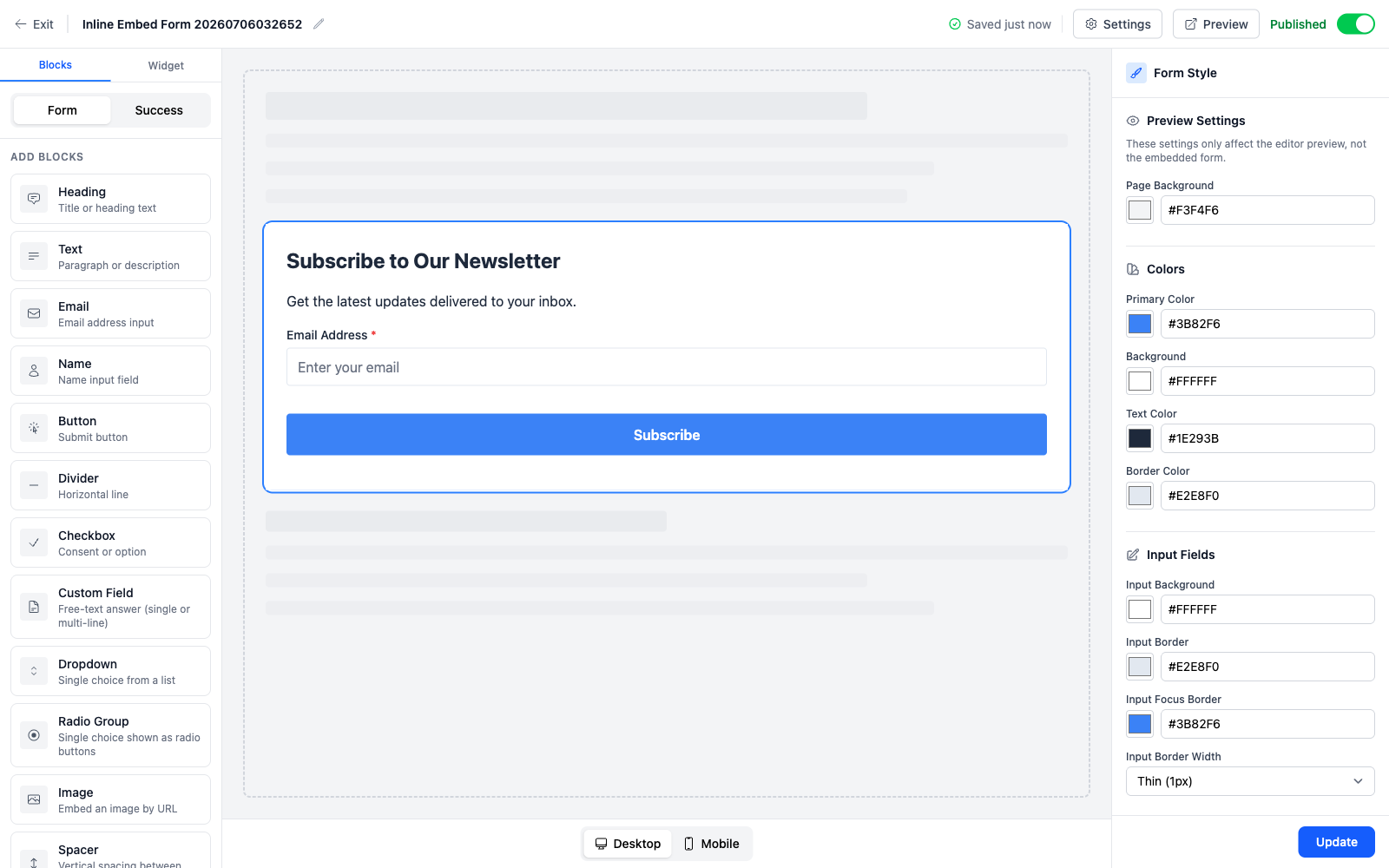
The same release moved the security and embedding-domain settings into a Settings modal inside the editor, so you configure where a form is allowed to be embedded without leaving the page you’re building. And if you drive your forms from code, the opt-in form read API now returns the full attribute set for every block, so what you get back matches what the editor sees.
Get your existing data in without a cleanup project
New signups are only half the list. Most people arrive with a spreadsheet, and that spreadsheet already has columns the old tool threw away.
The subscriber CSV and TSV upload in v2.11.0 shows you a preview before anything is imported. You see the first ten rows next to a column mapping table, and you decide, per column, what each one becomes: email, name, tags, a custom field, or ignored entirely. Map a column to a custom field using dot notation for the key, so a language column in your file can land at preferences.language in the record, matching the shape above. For the course example, that means your old export of plan, role, and language columns comes across as real, queryable custom data on the first pass, not something you patch up by hand afterward.
Tags got the same care. A CSV can now carry a dedicated tags column, and because everyone’s spreadsheet delimits differently, you tell Broadcast whether the tags inside that column are split by comma, pipe, or semicolon. The full walkthrough, including the mapping options and the tag separator choice, lives in the managing subscribers docs.
Segment on everything you collected
Now the data is in. This is where it pays off.
As of v2.5.0 you can segment by any key in a subscriber’s custom data, not just the standard fields. In the segment builder there’s a Custom Data Field option with an inline key input, a type selector, and an expandable help section for when you forget the syntax. You type the key, pick how it should be read (text, number, date, or boolean), and choose from the operators that make sense for that type. Dot notation reaches nested keys, so preferences.language is addressable directly.
For the course business, “everyone on the pro plan who reads English” is two rules: plan equals pro, and preferences.language equals en. Numbers compare as numbers, dates as dates, booleans as booleans, so a rule means what you’d expect rather than doing a string match on everything.
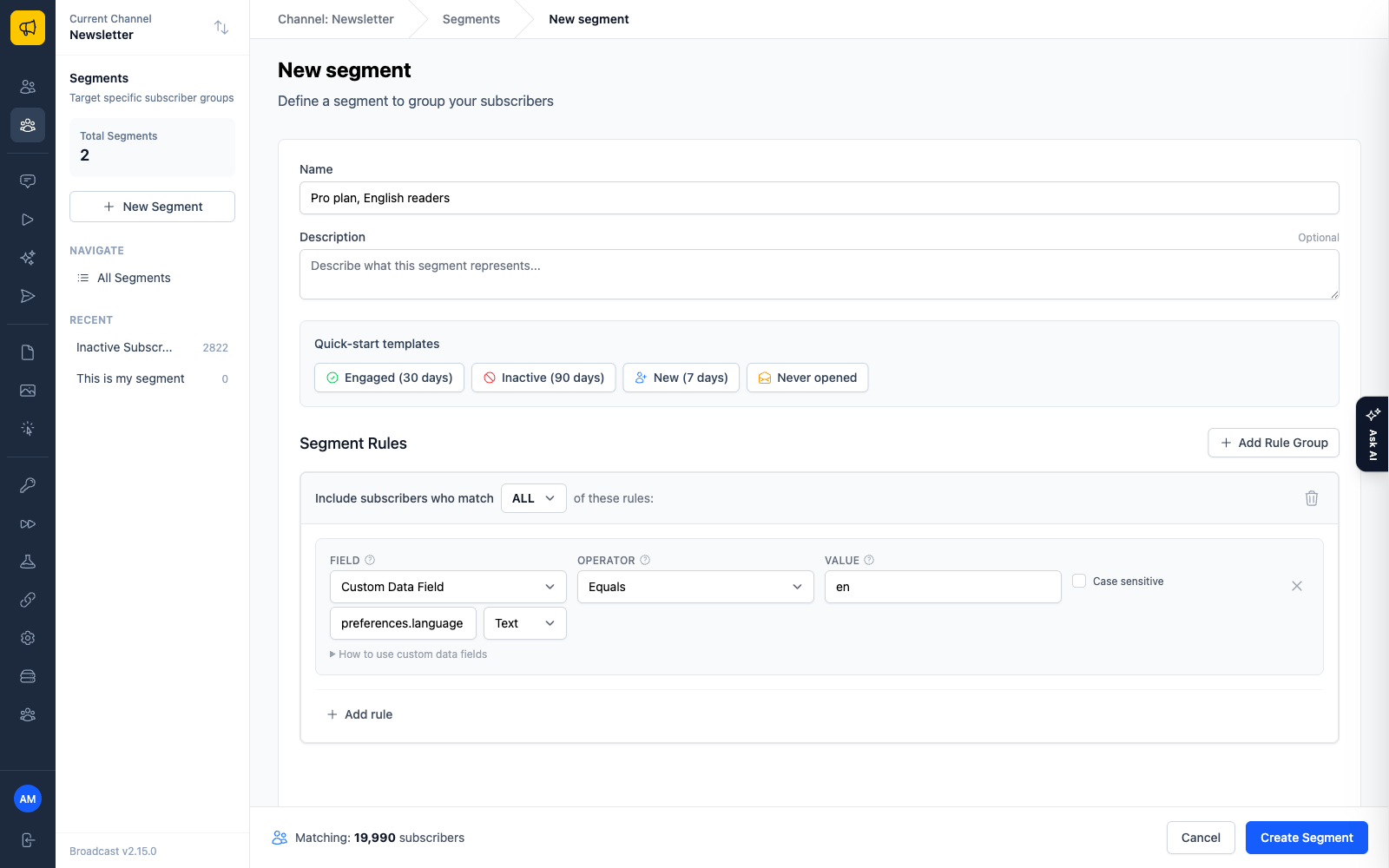
The part that makes this pleasant to actually use is the live preview count. As you change the custom data key or its type, the count of matching subscribers updates in place. You’re not building a segment blind and running it to find out you got the key wrong. You see the audience shrink and grow as you tighten the rules, which is how you learn what your own data actually contains. If you’d rather define segments from code, the same rules are available through the Segments API.
Let the segments keep themselves current
A static segment is a snapshot. The more useful ones are questions that should re-answer themselves every day, and most of those questions are about time.
v2.6.0 added relative dates to segment rules. Instead of pinning a rule to a specific calendar date, you can say “N days ago” and use it with the before, after, on or before, and on or after operators. A date mode selector switches a rule between a specific date and a relative one. So the course segment “customers who purchased in the last 30 days” becomes a single rule: last_purchase_at is after 30 days ago. Tomorrow that rule means something different than it does today, because “30 days ago” moves with the calendar, and the segment recalculates itself each day. Nobody has to remember to update it.
There’s validation keeping this honest, too. Relative dates only apply to the operators where they make sense, and the builder stops you from attaching one to an operator that can’t use it, so you don’t ship a rule that matches nothing. Rule descriptions spell out the intent with a “days ago” suffix, so a segment you built in April still reads clearly in August.
Chained together, these rules describe audiences that maintain themselves: pro subscribers who bought in the last 30 days and read English, evaluated fresh every time you use the segment. Define it once and it stays current.
Why this is just how the product works
All of this rests on one decision: every subscriber carries an open custom data field, and the tooling respects it at every step.
In a lot of email tools, custom fields and segmentation this deep are the reason to move up a tier. Here it’s just how subscriber records work, on the same one-time license as everything else. Your list, your data model.
More on the mechanics in the managing subscribers docs, and on the pricing philosophy behind “no feature gates” in why we sell a one-time license.