Lesson 2 9 min read Completed
Import and manage subscribers
Bring an existing list into Broadcast with a CSV import, carry over your suppressions first, and learn the difference between inactive and unsubscribed.
Most people do not start with an empty list. In this lesson you move an existing list into a channel without losing tags, dates or consent, and without mailing anyone who should not get mail. You also learn the subscriber statuses that decide who receives what.
What a subscriber holds
Each subscriber belongs to one channel. A subscriber has an email address, which is required, and can have a first name, last name, tags, a source, a subscribed date and custom data. Custom data is a JSON object for anything else you know, such as a plan, a country or a customer ID. Segments, topics and personalization can all read it.
Before you import: plan two things
Consent. Import only people who agreed to hear from you. If you export customers from a shop, keep only the rows that accept email marketing. Everyone else did not agree.
Suppressions. Your old platform knows which addresses hard bounced and which people complained. That history does not come across with the list. Import it first, as suppressions: go to Settings → Global Suppression, open the menu next to Add suppression and choose Upload email list. The file is plain text, one address per line. An import then skips those addresses on its own.
- Export Subscribers and suppressions from the old platform
- Import suppressions Settings, Global Suppression
- Import subscribers Into the right channel
- Send to the engaged first
Run the import
- Check the channel name in the sidebar. An import into the wrong channel puts everyone in the wrong place.
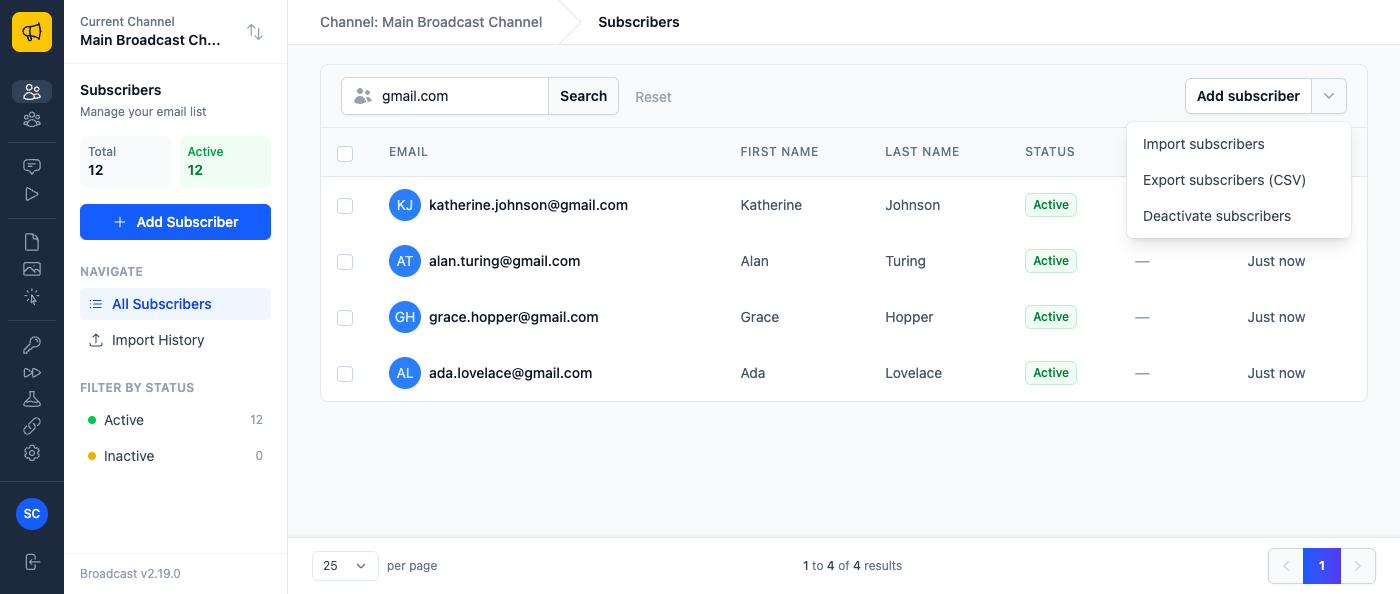
- Click Subscribers, open the menu next to Add subscriber, and choose Import subscribers.
- Upload a CSV or TSV file. Broadcast reads the separator from the header row.
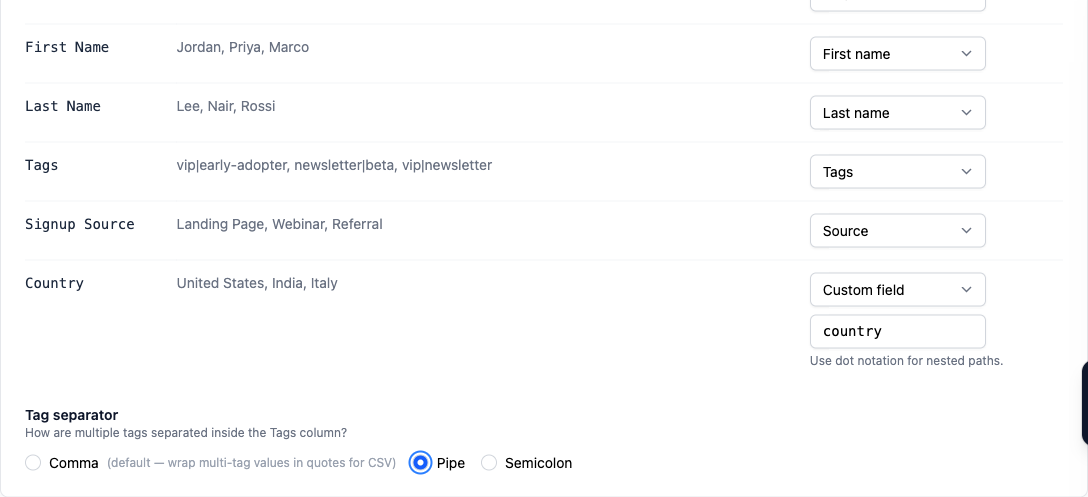
- Map each column. Broadcast guesses from your headers: check every guess. Map extra columns to Custom field with a key such as
planorprofile.age. At least one column must be Email. - If you map a Tags column, choose its separator: comma, pipe or semicolon.
- Check the preview and click Start import. It runs in the background.
Warning
Excel in some languages saves “CSV” files with semicolons. Broadcast refuses them. Save the file again as comma-separated CSV (UTF-8).
Dates need a format
01/02/2026 is the 1st of February in most of the world and the 2nd of January in the United States. Broadcast does not guess. Every column you map to Subscribed at, Unsubscribed at or a custom field has a Format dropdown. Pick the one your file uses. Use four-digit years.
This also matters later. Custom date fields are stored in ISO format, so a segment rule such as “signed up in the last 30 days” can read them.
Fewer subscribers than rows
An import that adds fewer people than your file has rows is usually correct. Broadcast skips suppressed addresses, duplicates and malformed addresses. Check the suppression list before you decide rows were lost. If a large import seems stuck, check Application → Jobs instead of running it again. A second run risks a partial duplicate pass. The import problems guide covers the rest.
Other ways in
You can add one subscriber by hand from Add subscriber. Your own app can add people through the Subscribers API, which the developer course covers. Opt-in forms let people add themselves, which is the next lesson.
Three statuses that decide who gets mail
- Active: the subscriber receives email from the channel.
- Inactive: the subscriber receives nothing. You set this. Use it to pause someone without removing them. Deactivate subscribers in the same menu deactivates a whole file of addresses at once.
- Unsubscribed: the subscriber receives no email from the channel, whatever the active flag says. The subscriber sets this, usually with an unsubscribe link.
The split is the point. You control active. Only the subscriber controls unsubscribed, and for data protection you cannot edit the unsubscribed date.
Active
Receives email
- You set this
Inactive
Receives nothing
- You set this
- Pauses someone without removing them
Unsubscribed
Receives nothing from the channel
- The subscriber sets this
- You cannot edit the date
Delete and export
To delete a person, open their page, scroll to Danger Zone and click Remove Subscriber. This is a GDPR redaction. Broadcast permanently removes the personal data but keeps the campaign statistics. It cannot be undone.

To export, choose Export subscribers (CSV) from the same menu. The export is what the list shows now, so a search or a tag filter narrows the file. Clear filters to export everyone. Redacted subscribers are never exported.
The first send to an imported list
Opens and clicks from your old platform stay there. Segments based on engagement start empty and fill as people interact with your new mail. If you also send from a new domain, mailbox providers have no history for you. Start with your most engaged people, not the whole list. The deliverability course covers warm-up. See bring your existing list.
What you learned
- Import suppressions first, then subscribers, into the right channel.
- Map every column, and pick a date format for each date column.
- Fewer subscribers than rows is usually skipped duplicates or suppressions.
- You set active and inactive. The subscriber sets unsubscribed.
Go deeper in the docs
Check what you learned
PassedAnswer all 3 questions correctly to complete this lesson.