Lesson 4 9 min read Completed
Segments and topics
Target the right people with segments, and let subscribers choose the kinds of email they get with topics and a preference page.
Sending everything to everyone is the fastest way to lose readers. Broadcast gives you two tools to avoid it. Segments let you choose who gets an email. Topics let subscribers choose what they get. In this lesson you build both and learn when to use which.
A segment is a question, not a list
A segment is a saved question about your subscribers. You describe who you want with rules, and Broadcast answers the question again every time it needs to, including at the moment a broadcast sends. Someone who matches tomorrow is included tomorrow, with no work from you.
Every segment leaves out subscribers who are inactive, unsubscribed or hidden. You never need a rule for “still subscribed”.
Build your first segment
- Open Segments and click New Segment.
- Give it a name and a description. Write the description: in six months “Engaged” will not tell you which definition you meant.
- Start from a quick-start template if one is close: Engaged (30 days), Inactive (90 days), New (7 days) or Never opened.
- Add or change rules. The counter at the bottom shows how many people match as you edit.
- Save, then open the segment and check the list. Search for a person you expect to see.

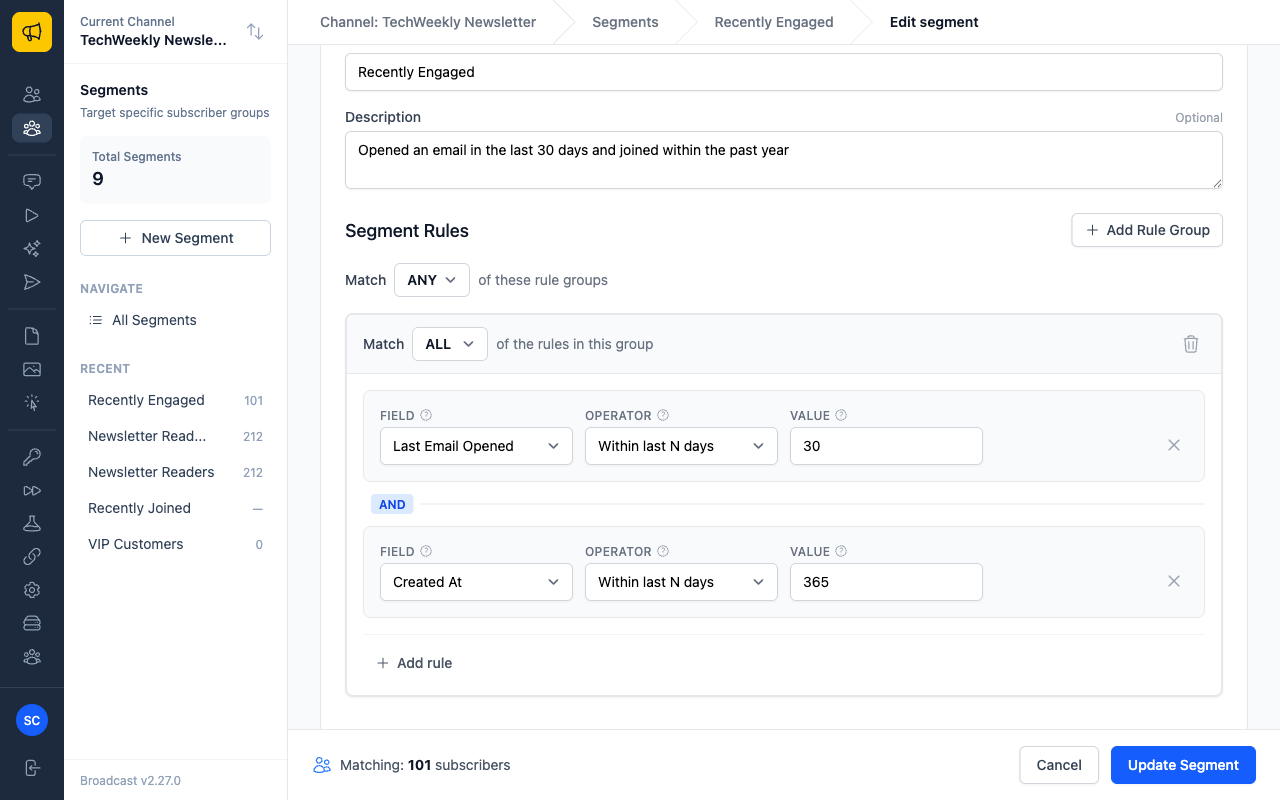
Rules sit inside groups. Match ALL in a group means AND. Match ANY means OR. To say “tagged vip and opened in the last 30 days”, put both rules in one group set to ALL. To say “VIPs, or anyone who spent over 500”, put each rule in its own group and set the outer match to ANY.
Match ALL (AND)
Must pass every rule
- Tagged
vip - and opened in the last 30 days
Match ANY (OR)
Passes with one rule
- Tagged
vip - or spent over 500
You can match on subscriber fields, tags, email activity, engagement windows, custom data and topics. Prefer relative dates, such as “within the last 30 days”, for anything you keep using. A fixed date stops meaning anything as it gets older.
Two kinds of tag rule
The Tags field asks two different questions:
- Has subscriber tag asks who someone is: the tag is on their record.
- Clicked an email tagged asks what someone did: they clicked a link in a broadcast or sequence step that carries that tag.
The second one is a free interest tracker. Tag a broadcast pricing, and “Clicked an email tagged pricing” gives you everyone who showed interest. But it matches nobody until such an email goes out and someone clicks. If a tag segment matches zero people, check which of the two you picked.
Use a segment
On a broadcast’s Audience tab, pick one or more segments. A person who matches any of them gets the email once. Under Exclude, tick segments to remove people, such as a list of competitors. A sequence can also use a segment as its entry point, so people enroll as they come to match it.
A topic is a choice the subscriber makes
A topic is one kind of email a subscriber can opt in to or out of: webinars, product updates, offers. Instead of one yes or no for the whole list, each person has a choice per topic.
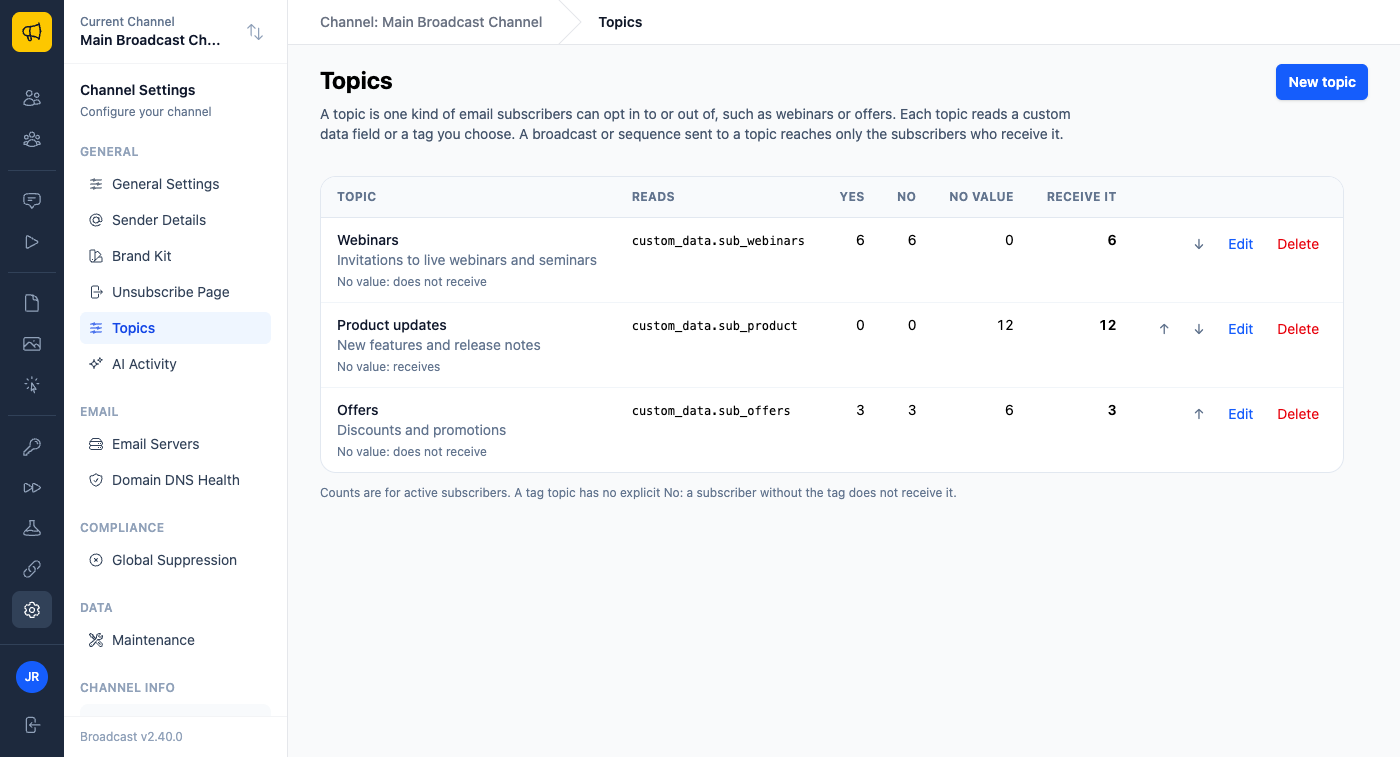
You decide where the value lives. A topic reads either a custom data field, such as sub_webinars set to true or false, or a tag, such as webinars. Broadcast does not create a new field.
To set one up, open Settings → Topics and click New topic. Give it a name subscribers will understand, pick where the value is stored, and choose Subscribers with no value.
Warning
Subscribers with no value decides what happens to people who never chose. Receive sends the topic to all of them. If you may only email people who agreed to a topic, keep it at Do not receive. A tag topic must stay at Do not receive.
Send to a topic
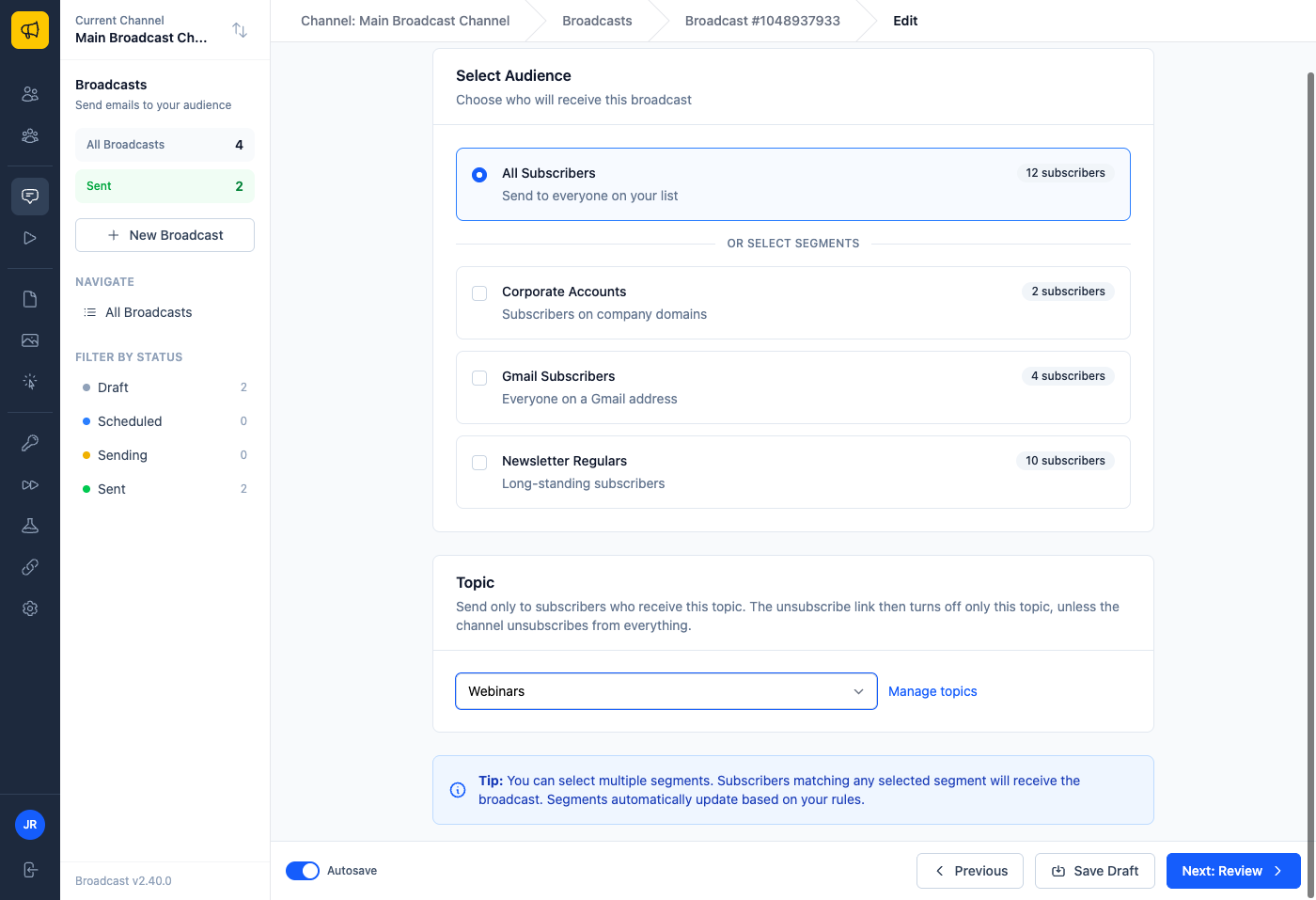
On a broadcast’s Audience tab, choose a topic under Topic. The audience becomes your segments, or all subscribers, AND the topic. A sequence can take a topic in its settings too. Enrolled people who do not receive it skip those emails and carry on.
Unsubscribe and the preference page
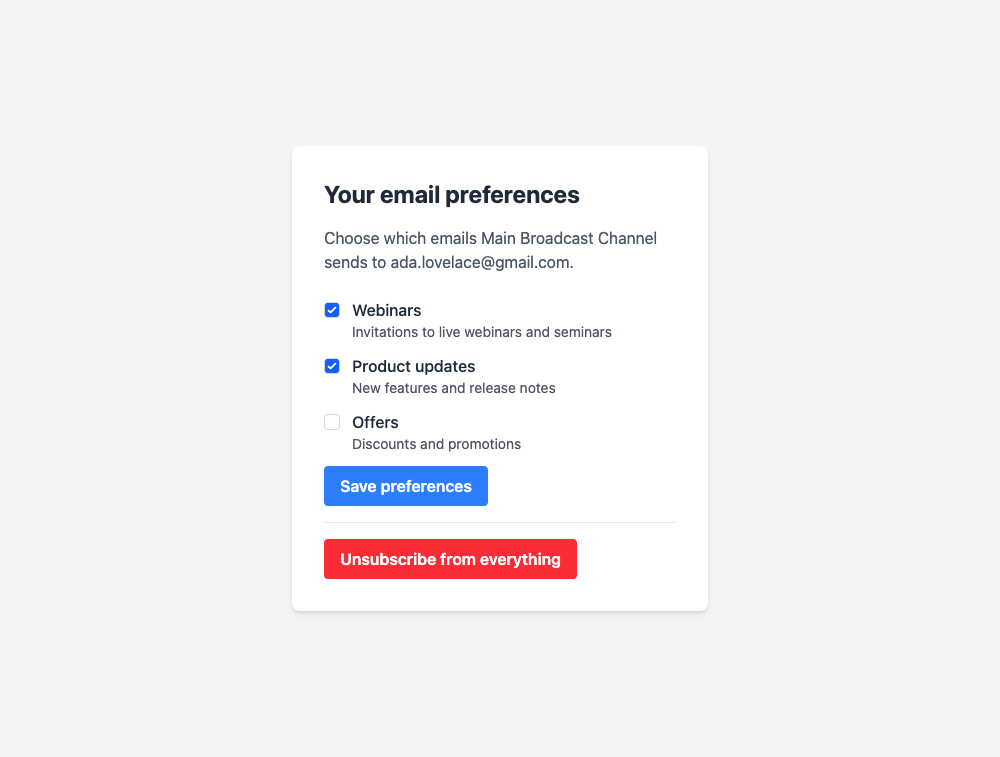
On an email sent to a topic, the unsubscribe link and the one-click Unsubscribe button in Gmail and Yahoo turn off only that topic. The person stays on your list and keeps their other topics. The page also offers Unsubscribe from everything. You can change this under Settings → Unsubscribe Page.
Every subscriber also has a hosted preference page with a checkbox per topic. Link to it with {{ preferences_url }} in any broadcast or sequence email. A reader who can turn down one topic is a reader you keep for the others.
Each change to a topic is recorded in the subscriber’s activity and sent to your webhooks as subscriber.preferences_updated, with where it came from. That is your consent record. See Subscriber topics.
Segments or topics?
Use a segment when the rule is yours: engagement, purchases, location, plan. Use a topic when the choice belongs to the subscriber: “I want webinars, not offers”. Many sends use both: a topic for consent, and a segment for relevance.
Segment
You choose
- Engagement, purchases, location, plan
- Good for relevance
Topic
The subscriber chooses
- I want webinars, not offers
- Good for consent
What you learned
- A segment re-evaluates every time. It already leaves out inactive and unsubscribed people.
- “Has subscriber tag” is who someone is. “Clicked an email tagged” is what they did.
- A topic is a per-subscriber choice, stored in a custom data field or a tag.
- Topic emails unsubscribe from that topic only, by default. The preference page uses
{{ preferences_url }}.
Go deeper in the docs
Check what you learned
PassedAnswer all 3 questions correctly to complete this lesson.