Lesson 8 8 min read Completed
Read your email metrics
Learn what opens, clicks, bounces and complaints really tell you, where Broadcast shows them, and which numbers deserve your trust.
Numbers are only useful when you know what they measure. In this lesson you learn where each metric comes from, which ones you can trust, and how to answer real questions with the reports in Broadcast.
Two sources of data
Broadcast gets its numbers from two places.
Broadcast itself tracks opens and clicks. Turn on Track opens and Track clicks in a broadcast’s or sequence’s Settings tab. Opens use an invisible pixel. Clicks use rewritten links that pass through your Broadcast server and then send the reader on to the real URL.
Your email provider reports what happens after it takes the email: delivered, bounced, or marked as spam. It sends these through webhooks. Without webhooks, Broadcast has no delivery confirmation and no complaint data, and auto-suppression cannot work. If your bounce and spam columns are always zero, check the webhooks before you celebrate. The getting started course covers the setup.
From Broadcast
Needs tracking on
- Opens
- Clicks
From your provider
Needs webhooks
- Delivered
- Bounced
- Marked as spam
Opens: a signal, not a count
The open rate is the least reliable number on the page. Two things distort it.
Some email clients block the pixel, so a real read can go uncounted. In the other direction, Apple Mail Privacy Protection loads every email in the background when it arrives. Your software sees that load as an open, whether or not anyone looked at the message. The more of your list uses Apple Mail, the higher your open rate reads, and the less it means.
So use opens to compare your own sends with each other, not to judge one send on its own. Our open rate benchmarks explain the numbers in more depth.
Clicks: the number to trust
A click takes a deliberate act by a person. The click rate is the best measure of whether an email worked. Write each email with one clear thing to click, and judge it on that.
Click data also feeds your targeting. Tag a broadcast, and a segment rule “Clicked an email tagged” finds everyone who showed interest in that subject. Lesson 4 covered this.
The numbers that protect your reputation
Three rates tell you about list health, not content:
- Bounce: the share of emails that could not be delivered. A rising bounce rate means old or bad addresses on the list.
- Spam: the share of recipients who marked the email as spam. This is the most important number for your sending reputation. Keep it as close to zero as you can.
- Unsub rate: the share who unsubscribed after this email. Some unsubscribes are normal and healthy.
These rates are a percentage of all recipients. The broadcasts list shows them as columns next to Open Rate and CTR, once a broadcast has finished sending.
Where to look
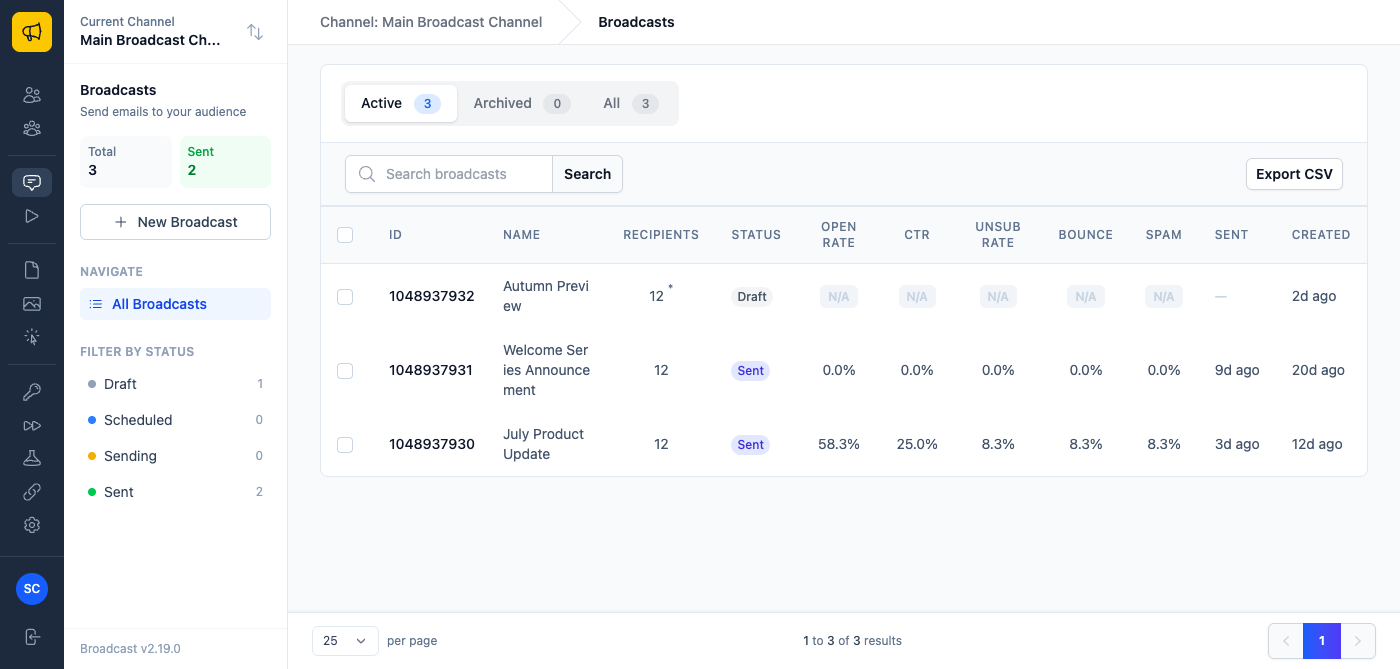
The broadcasts list. One row per broadcast with Open Rate, CTR, Unsub Rate, Bounce, Spam, and both the Sent and Created dates. Read rates against the Sent date, the day people really got the email. Use this view to compare sends over time.
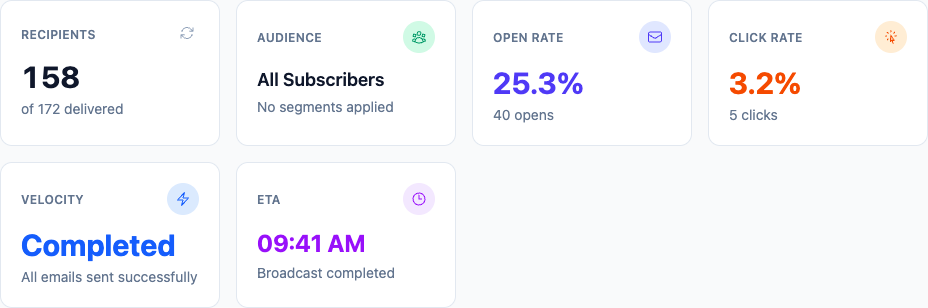
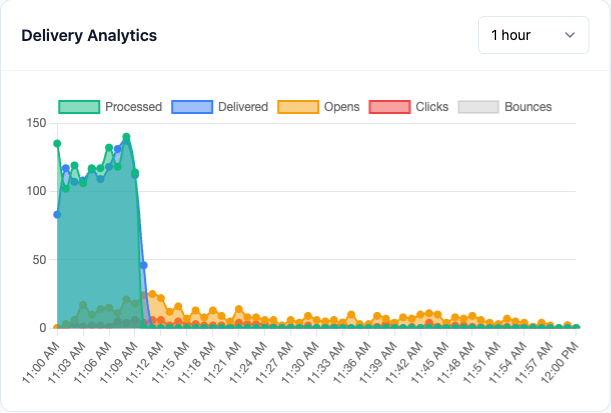
The broadcast page. The Recipients card reads “X of Y delivered”. Below it, the Delivery Analytics chart shows processed, delivered, opens, clicks and bounces over time.
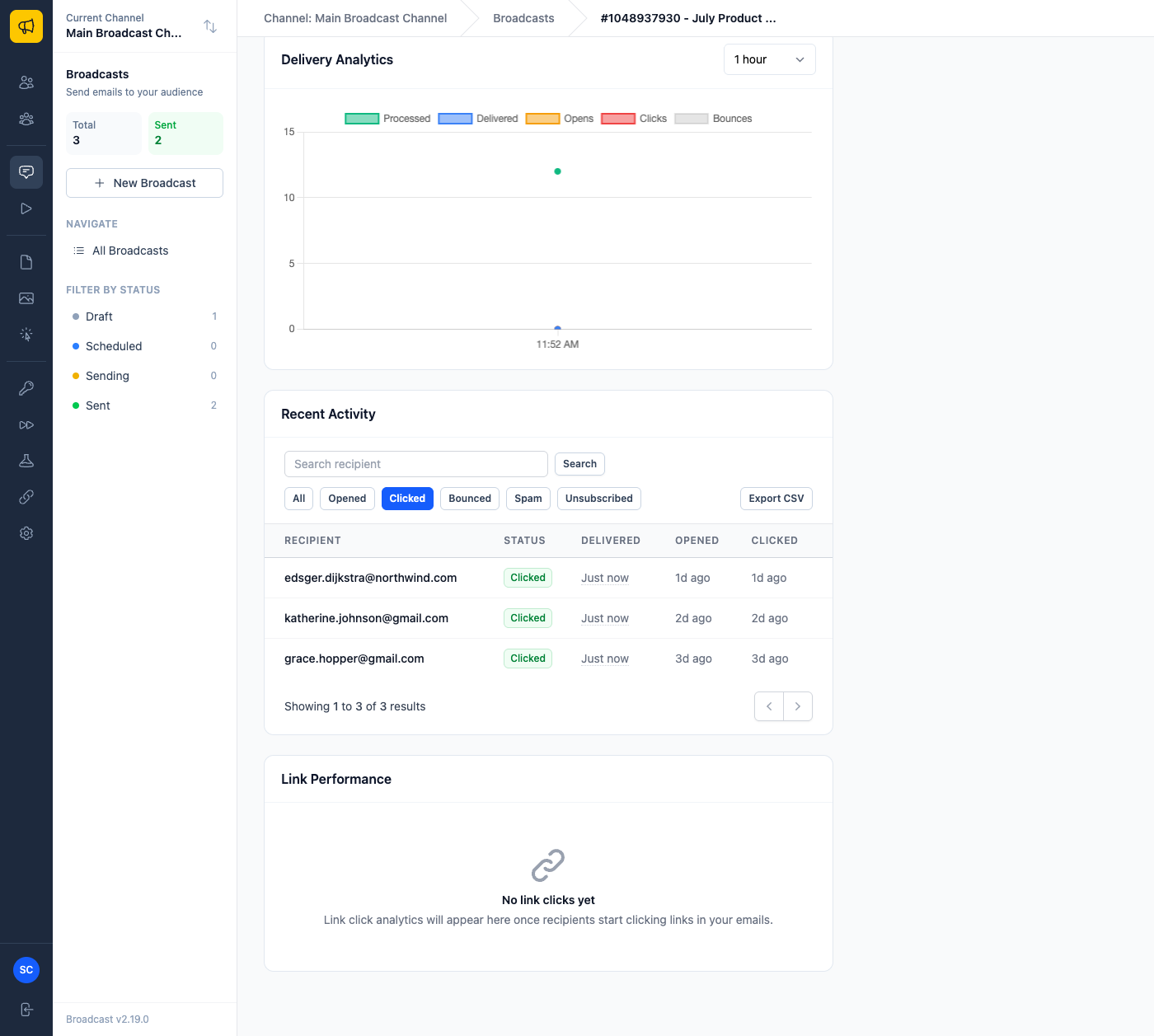
Recent Activity. One row per recipient, with when they were delivered, opened and clicked. The event filters (Opened, Clicked, Bounced, Spam, Unsubscribed) answer “who did this?” in one click. Search by a domain such as northwind.com to see one company. Export CSV downloads exactly what the filters show.
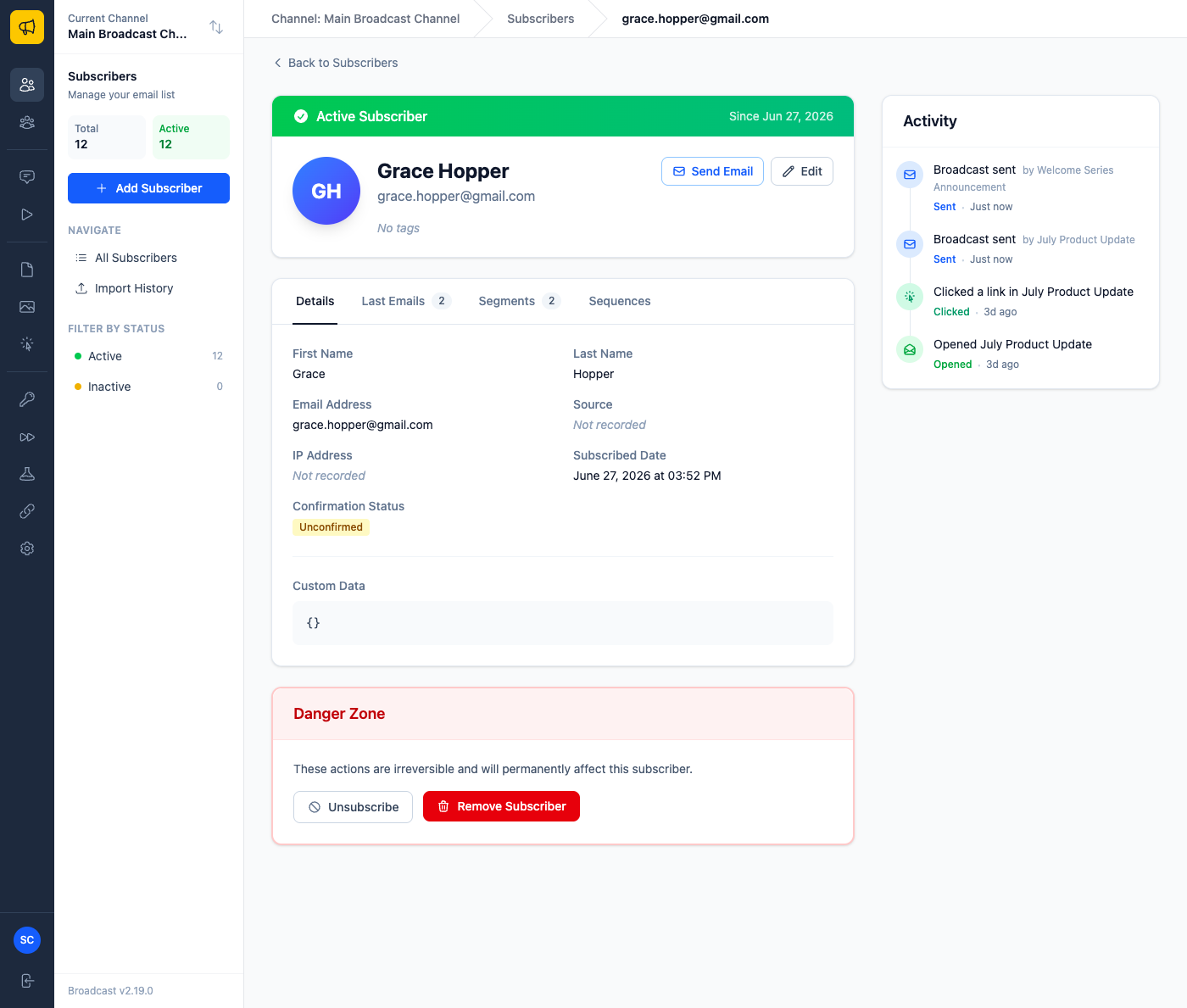
The subscriber page. The Activity sidebar lists one person’s sends, opens and clicks in order, which answers “did they get it, and did they read it?”.
Sequences. In the sequence editor, each Send Email step shows Sent, Opened and Clicked, with rates. Use it to find the step where people lose interest.
Read the numbers with care
A few rules keep you from wrong conclusions:
- Wait for a broadcast to finish sending. Rates read
N/Auntil then, and opens keep coming in for days. - Compare like with like: the same kind of email, to a similar audience.
- Mail sent through the test server is not in the open and click figures, because nobody really received it.
- If the recipient total looks wrong because people left before they were reached, the circular arrow on the Recipients card recalculates it. This is permanent. Use it only when you are sure.
The Statistics API returns the same figures, for your own dashboards. See Email metrics and Broadcast emails.
What you learned
- Broadcast tracks opens and clicks. Deliveries, bounces and complaints come from provider webhooks.
- Opens are distorted by blocked pixels and Apple Mail Privacy Protection. Trust clicks more.
- The spam rate is the number that matters most for your reputation.
- Recent Activity filters and exports answer “who did what” for one broadcast.
Go deeper in the docs
Check what you learned
PassedAnswer all 3 questions correctly to complete this lesson.