Lesson 3 9 min read Completed
Opt-in forms and confirmation pages
Build a signup form, embed it on your site, turn on double opt-in, and write the confirmation page people see after they click the link.
A signup form is where your list grows on its own. In this lesson you build one, put it on your site, protect it from bots, and set up double opt-in with a confirmation page that sounds like you.
Choose a widget type
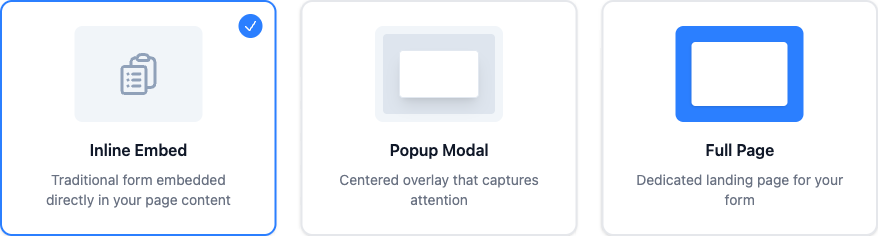
Open Opt-In Forms in the sidebar and click New Form. Broadcast asks how the form appears:
- Inline Embed sits inside your page, where you paste the script. Use it in a sidebar, at the end of a post, or in a footer.
- Popup Modal is an overlay on top of the page. Use it for a lead magnet or an offer.
- Full Page is a page of its own, linked directly. Use it as a landing page.
You can change the type later from the editor’s Widget tab.
Build the form
The editor has three panes: blocks on the left, the form in the middle, settings on the right. Work saves on its own.
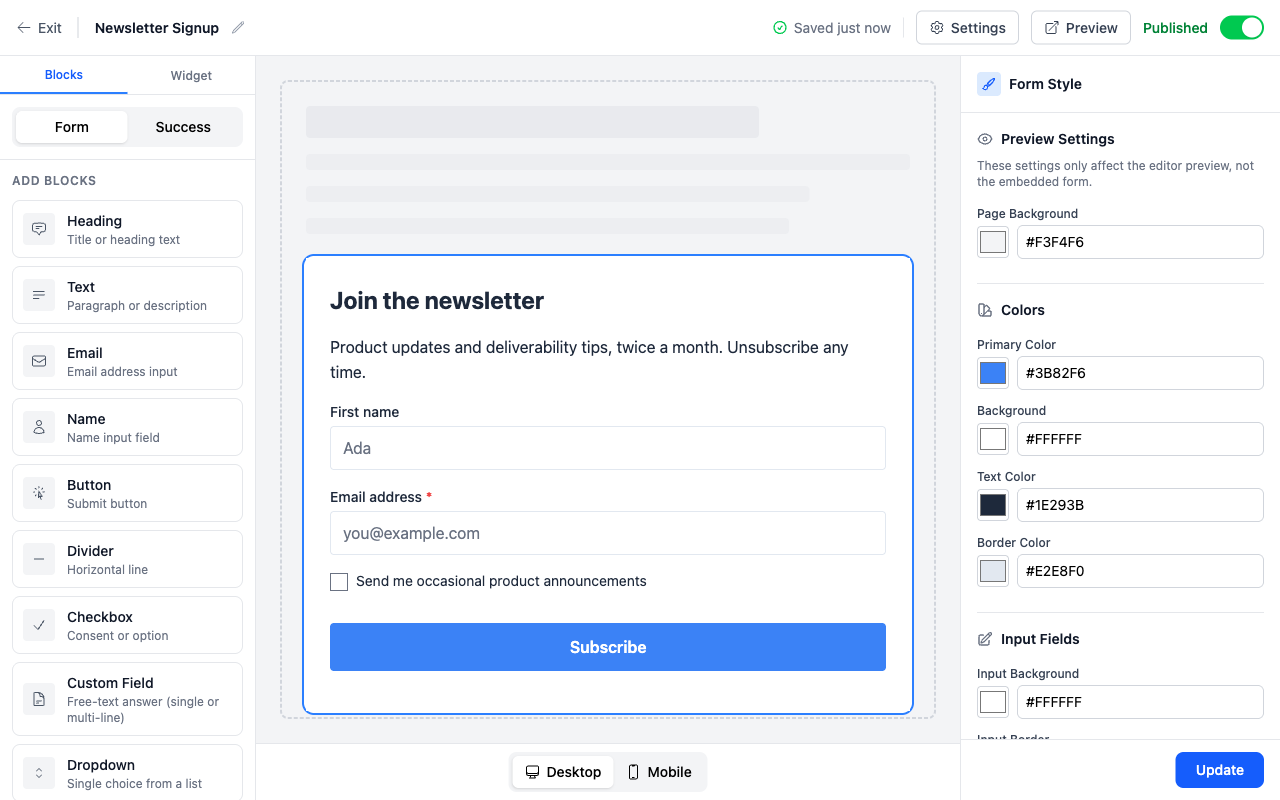
Click a block to add it and drag it to reorder. Every form needs an Email block and a Button block. Add a Name block if you want to greet people by name. Add a Custom Field, Checkbox, Dropdown or Radio Group to collect more. Their answers go into the subscriber’s custom data under a key you choose, such as signup_source. Use the same key across forms and you can segment on it later.
Ask for little. Every extra field costs you signups.
Popup triggers
A popup has a Show widget trigger: immediately, after a time delay, after the visitor scrolls part of the page, or on exit intent. Show frequency decides how often the same visitor sees it again, from every visit to only once. Show on devices lets you run a popup on desktop only, which is worth doing because mobile popups are more intrusive.
Install it
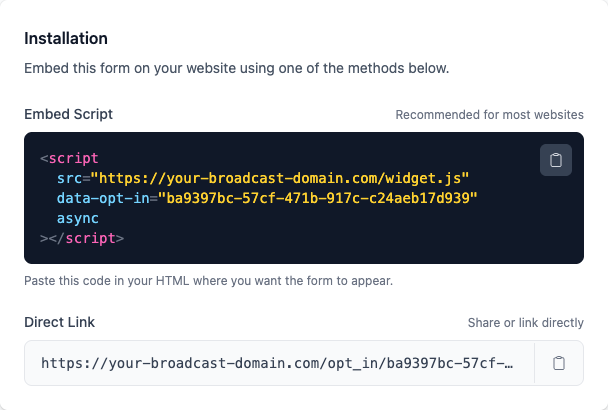
The form’s page gives you two ways in:
- Embed script. Paste the script tag into your HTML where the form goes. It is the recommended method and the only one that supports popup triggers. The form renders in an iframe, so your site’s CSS cannot break it.
- Direct link. Every form also works as a page at
/opt_in/<identifier>. Share it in a bio link, a QR code or an email.
Once the form is live, add your site under Allowed Embedding Domains in the form’s Settings, so nobody can copy your script onto another site.
Keep the bots out
Public forms attract bots. Broadcast turns on three defences by default: a hidden honeypot field, time-based validation that rejects submissions faster than 3 seconds, and rate limiting at 5 submissions per IP per hour. Leave them on. Add Cloudflare Turnstile only if bots still get through.
Turn on double opt-in
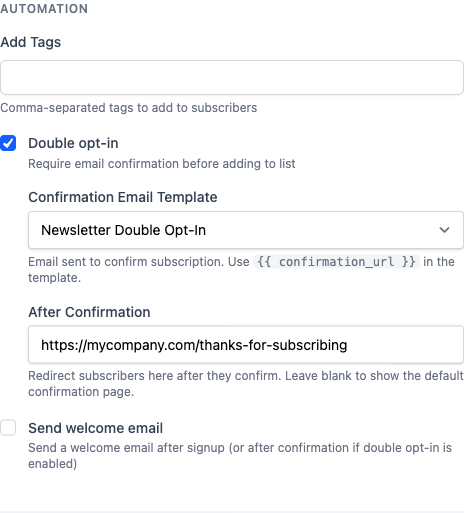
In the form’s Settings, under Automation, you find the settings that run after a signup:
- Add Tags: tags for every subscriber from this form, such as the form’s name.
- Double opt-in: the subscriber must click a link in a confirmation email before they join the list.
- Confirmation Email Template: the email with the link. It must include
{{ confirmation_url }}. Leave it empty to use the channel’s default confirmation template. - After Confirmation: a URL on your own site to send people to after they confirm.
- Send welcome email: a welcome template after signup, or after confirmation when double opt-in is on.
Leave double opt-in on unless you have a specific reason. It costs you some signups and buys you a list of people who really want your mail. An address with a typo, or one that a bot typed in, never confirms, so it never joins the list. Your sending reputation is built on that list.
- Submits the form
- Gets the confirmation email With
{{ confirmation_url }} - Clicks the link Within 24 hours by default
- Joins the list Sees your confirmation page
Write the confirmation page
After the click, the subscriber lands on the confirmation page. Its text lives on the confirmation template, not on the form:
- Go to Templates → Confirmation and open the template your form uses.
- Click Edit, then Edit Page on the Confirmation page card.
- Pick a language tab and open an outcome, such as Confirmed.
- Write a Heading and a Body. You can use
{{ first_name }}and{{ channel_name }}. - Add a Button label and Button link if you want to send people on to your site.
- Click Save.
The page has six states, not one. Write at least Confirmed and Link Expired, because those are the two people see most. A blank field uses Broadcast’s built-in text.
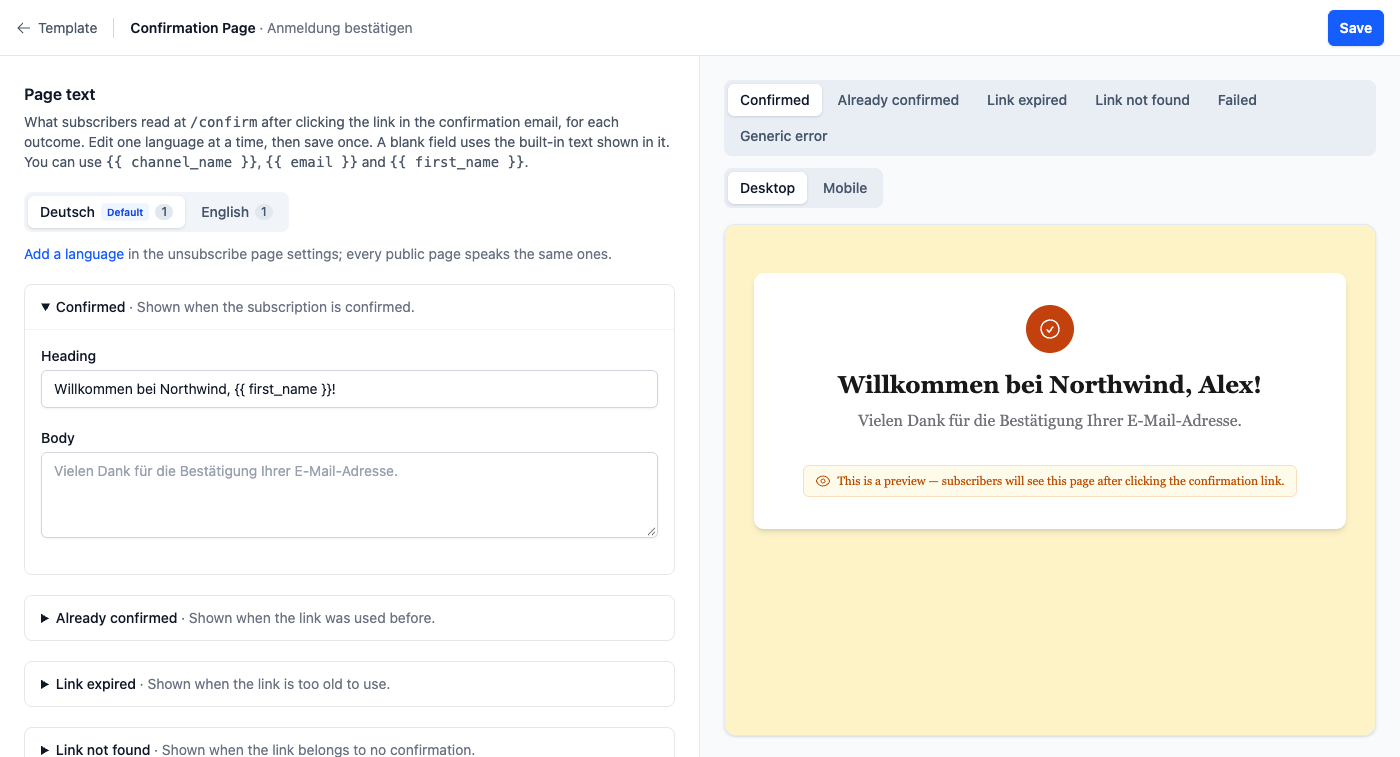
If you set After Confirmation on the form, subscribers who confirm go to your URL instead and never see the page. An expired or invalid link still shows Broadcast’s page.
Link expiry
A confirmation link expires 24 hours after it is sent. Change it under Settings → General Channel Settings → Confirmation Page → Confirmation link expiry, to 48 hours, 7 days, 30 days or Never. A person with an expired link submits the form again for a fresh one. Avoid Never: a link that never expires still works years later, and from a forwarded email.
Test before you publish
Click Preview in the editor and submit the form with your own address. Check that the subscriber lands in the right channel with the right tags, that the confirmation email arrives, and that the link opens the page you wrote. After launch, the form’s page shows Views, Submissions and Conversion. See Opt-in forms and Confirmation pages.
What you learned
- Every form needs an Email block and a Button block. Install it with the embed script.
- Double opt-in sends a confirmation email first. Leave it on.
- The confirmation page text lives on the confirmation template, with six states.
- Confirmation links expire after 24 hours by default.
Go deeper in the docs
Check what you learned
PassedAnswer all 3 questions correctly to complete this lesson.