Lesson 5 9 min read Completed
Templates and the block email builder
Set up a brand kit, design an email with drag-and-drop blocks, personalize it with Liquid, and save it as a template you reuse.
Good design is not decoration. It makes your email easy to read and recognizably yours. In this lesson you set up a brand kit once, build an email with blocks, personalize it, and save it as a template so the next email takes minutes.
Three ways to write an email
When you create a broadcast, a template or a sequence email, Broadcast offers three editors:
- Rich Text: a visual editor with a formatting toolbar. Best for plain, letter-style newsletters.
- HTML: full code control, for your own designs.
- Drag and drop: the block editor. You build the layout from blocks, with no HTML.
The block editor renders your design on the server into table-based HTML with inline styles. What you see on the canvas is what is sent, and it holds up in Outlook, Gmail and Apple Mail. This lesson focuses on it.
Step 1: Set up the brand kit
Go to Settings → Brand Kit. Set your logo and its width, your website, your social links, your colours and your font. A sample email on the right follows every change.
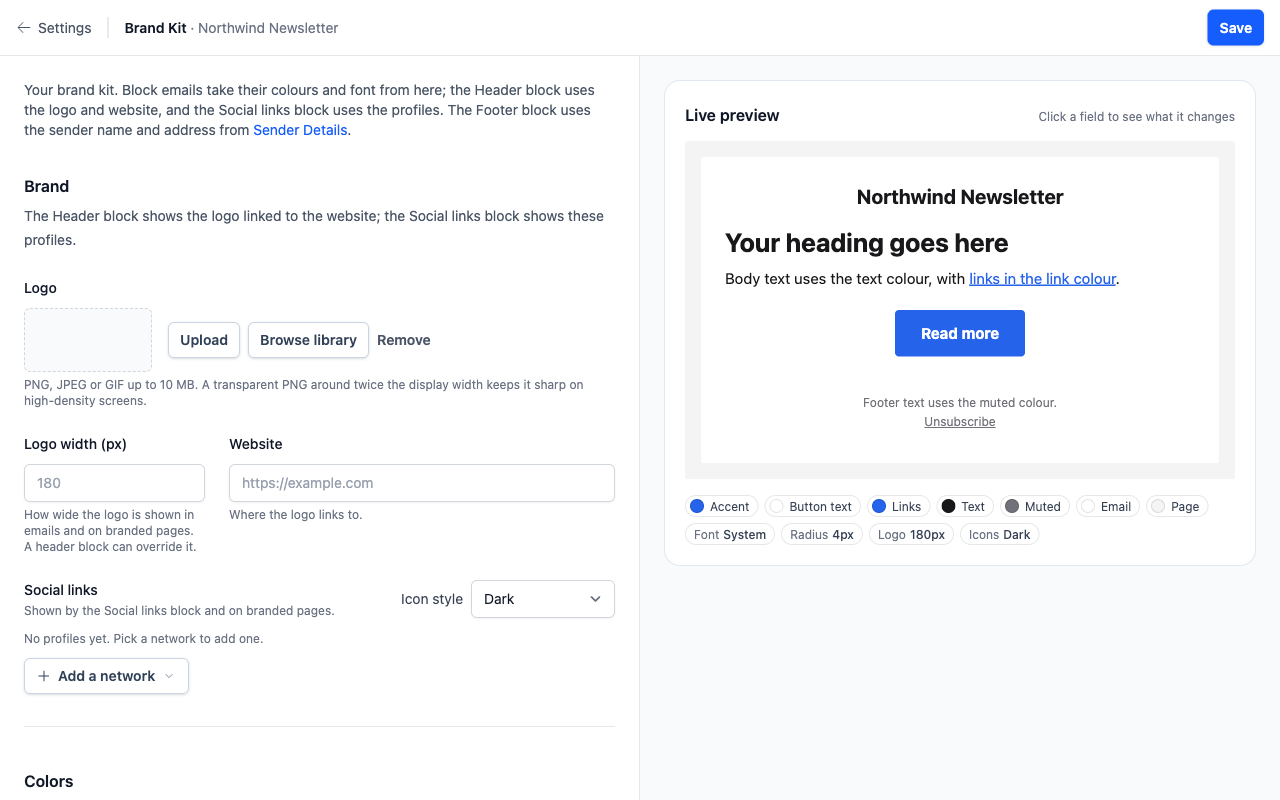
Every new block email starts from the brand kit, and three blocks read from it directly. The Brand header shows your logo, linked to your website. The Footer shows your sender name, physical address and unsubscribe link. Social links shows your profiles. Change the brand kit, and every draft picks up the new colours the next time it is saved. Emails already sent keep their HTML.
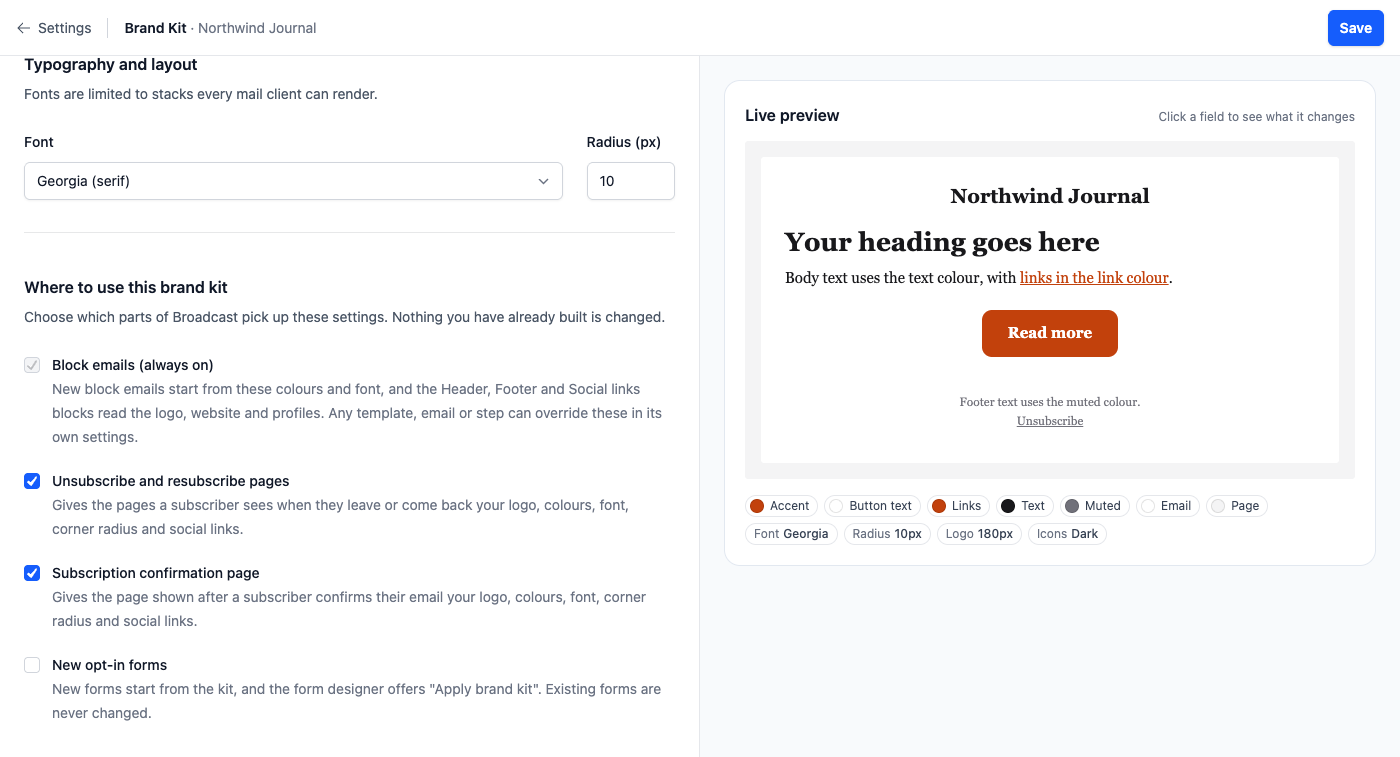
Fonts are limited to stacks every mail client can render. Custom web fonts do not work in email.
Step 2: Build the email
Create a new broadcast and choose Drag and drop. Pick a layout: Blank, or one of the ready-made layouts such as a newsletter or a product launch. Each one starts in your brand kit.
The editor has three panes:
- Blocks on the left. Drag a block onto the email, or click it to add it after the selected block.
- The canvas in the middle. Click a block to select it. Its toolbar moves, duplicates or deletes it.
- The inspector on the right. It shows the selected block’s settings, or the email’s name, subject and preview text when nothing is selected.
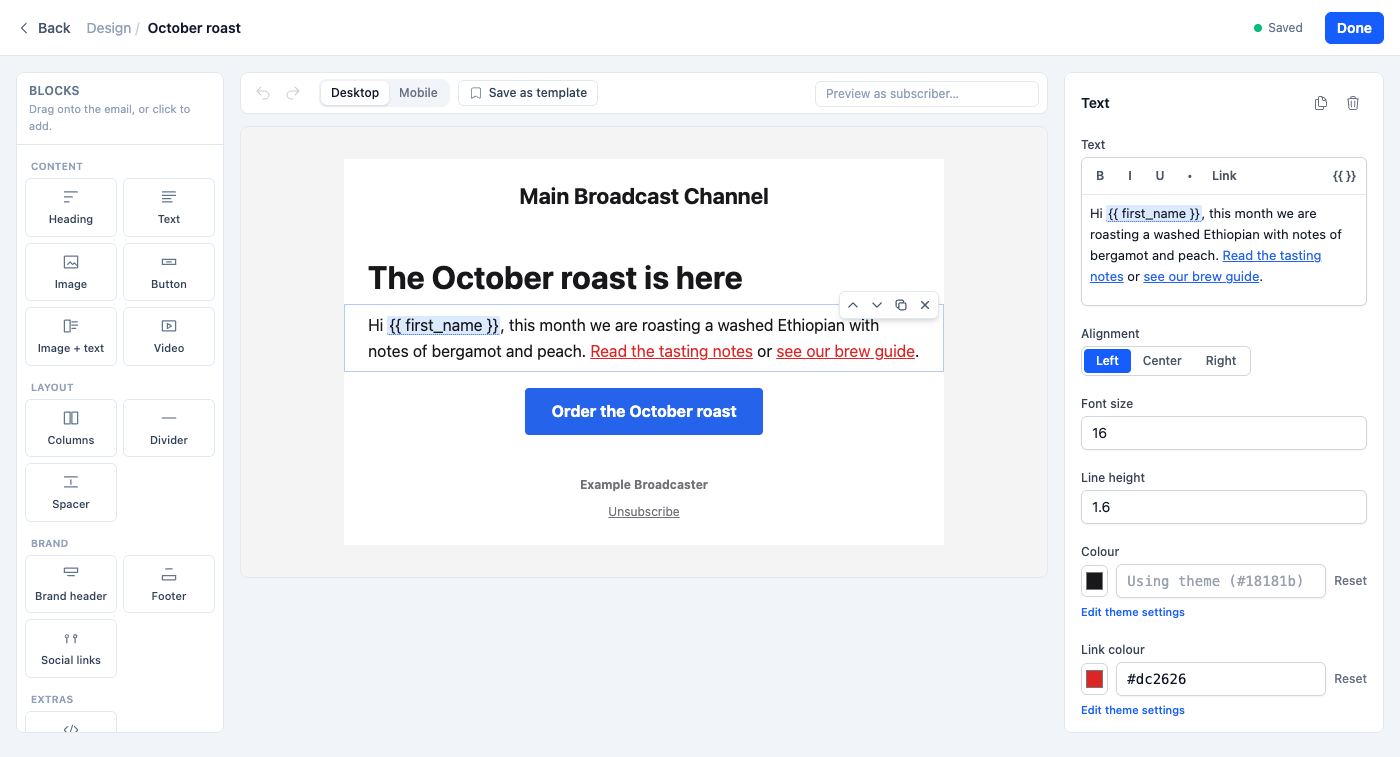
The editor saves as you go. Above the canvas, switch to the mobile width to check how the email looks on a phone. Columns blocks stack on phones, so check them there.
A few block notes. The Button block renders correctly in Outlook. The Video block is a linked thumbnail, because email clients do not play video. The HTML block takes your own markup, and Broadcast removes scripts and forms from it.
Step 3: Personalize
Any text field with a tag button can insert a personalization tag, such as {{ first_name }} or {{ custom_data.company }}. Always give a fallback for fields that can be empty:
Hi {{ first_name | default: "there" }},
To check the result, type a subscriber’s name or email into Preview as subscriber above the canvas. The canvas renders with that person’s real data. Choose Sample data to preview without a real subscriber.
For content that only some people should see, use the Visibility setting at the bottom of any block’s inspector. Enter a tag, and only subscribers with that tag receive the block. Everyone else gets the email without it. Use it for a members-only section or a regional notice.
Step 4: Save it as a template
Click Save as template above the canvas. The design appears under Templates with a “Drag and drop” badge.
A template stores a label, a subject, preview text and the body. When you start a broadcast or a sequence email from a template, Broadcast copies the content into the new email. You then change the email on its own. Editing the template later does not change emails you already made from it.
- Template Label, subject, preview text, body
- Copy When you start a broadcast or sequence email
- New email Later template edits do not reach it
From a template’s page, Create Broadcast starts a new broadcast filled with its content. Make separate templates for separate purposes: a weekly newsletter, an announcement, a welcome email. One generic template ends up fitting nothing.

The footer and unsubscribe link
A Footer block replaces the channel footer that Broadcast adds to other emails, so nobody sees two footers. Leave the footer block out, and the channel footer is added as usual. Either way, your marketing email carries an unsubscribe link.
Test before you trust it
Send a test email to yourself from the broadcast’s Send now dropdown. Read it on a phone and on a desktop. Click every link. Check that each personalization tag shows real values, not braces. See the block email builder and templates.
What you learned
- Set up the brand kit first. Block emails, headers, footers and social links read from it.
- The block editor sends exactly what you see, as email-safe HTML.
- Use
default:fallbacks in Liquid, and Visibility to show a block to one tag. - A template is copied into each new email. Editing it later does not change those emails.
Go deeper in the docs
Check what you learned
PassedAnswer all 3 questions correctly to complete this lesson.