Lesson 7 8 min read Completed
Autopilot and the AI assistant
Connect your own AI key, let Autopilot draft newsletters from your sources, and use Ask AI to query and act on your channel with confirmation.
Broadcast has two AI features, and both use your own AI provider key. Autopilot writes newsletter drafts from your sources on a schedule. Ask AI is an assistant in the dashboard that answers questions about your channel and can act on it. In this lesson you set up both and learn the guard rails that keep you in control.
Step 1: Add your AI key
Broadcast does not include an AI service. You bring your own key, so you control the model and the cost.
- Go to Application → AI Settings.
- Choose a Provider: Anthropic (Claude), OpenAI or OpenRouter.
- Paste your API key. It is stored encrypted and never shown again.
- Pick a Model, or leave the provider default.
- Click Save AI settings.
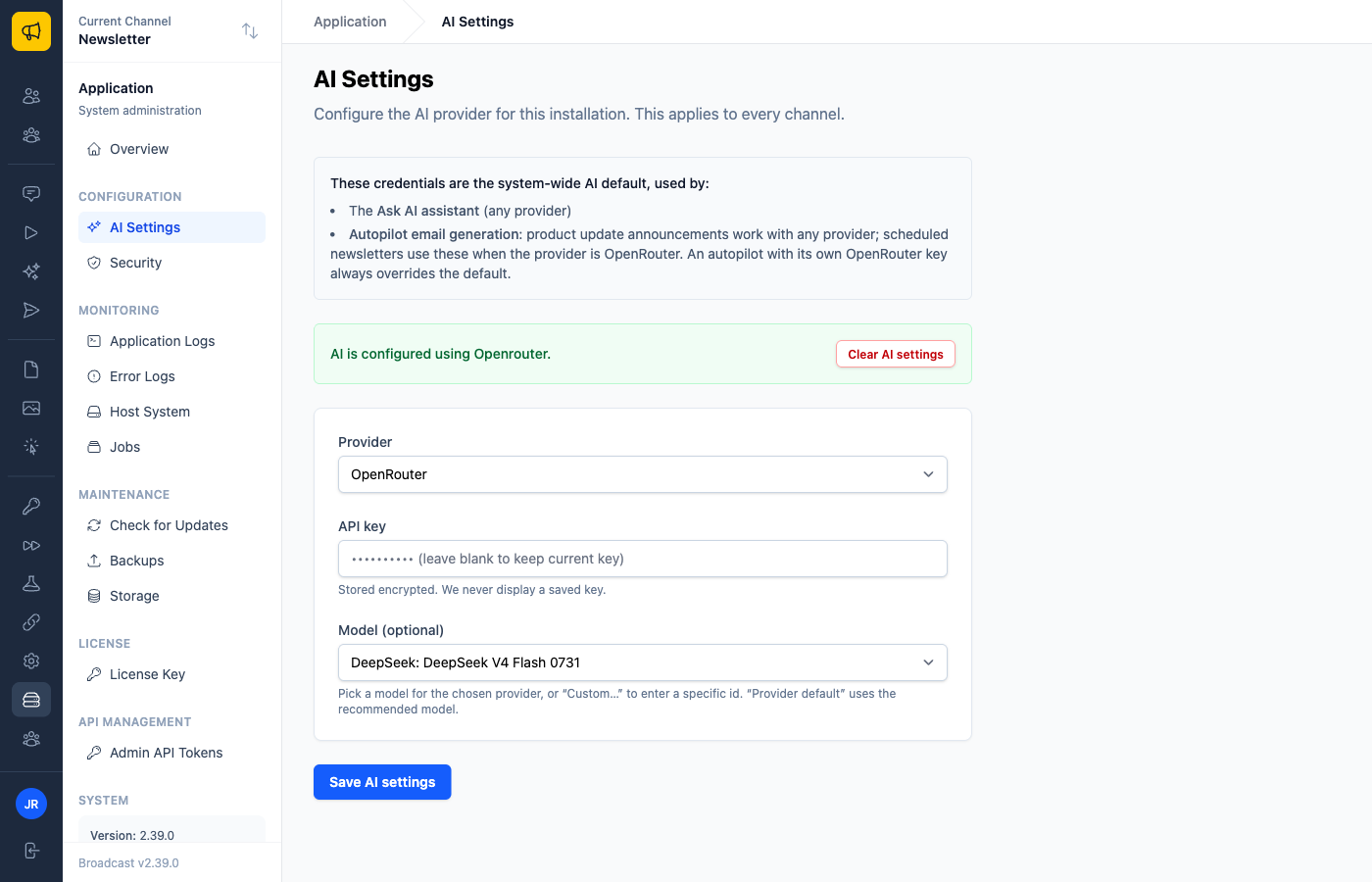
The key applies to the whole installation, and Ask AI becomes available in every channel. Autopilot writes newsletters through OpenRouter. If your installation’s provider is OpenRouter, an autopilot can use these settings. Otherwise, give the autopilot its own OpenRouter key in its settings. A separate key also lets you bill one newsletter on its own.
Autopilot: drafts from your sources
Autopilot collects content from sources you choose and writes newsletter drafts from it. It is for the newsletter that summarizes what happened: posts on your blog, releases of your product, activity in a repository.
To create one:
- Open Autopilot in the sidebar and click New Autopilot.
- Give it a Name that says what it produces, such as “Weekly product digest”.
- Optionally tick Target Segments. Leave it blank to target the whole channel.
- Add content sources: RSS feeds, GitHub repositories, webpages or a Releases API endpoint.
- Set the schedule: daily, weekly, biweekly or monthly, at a time in your time zone.
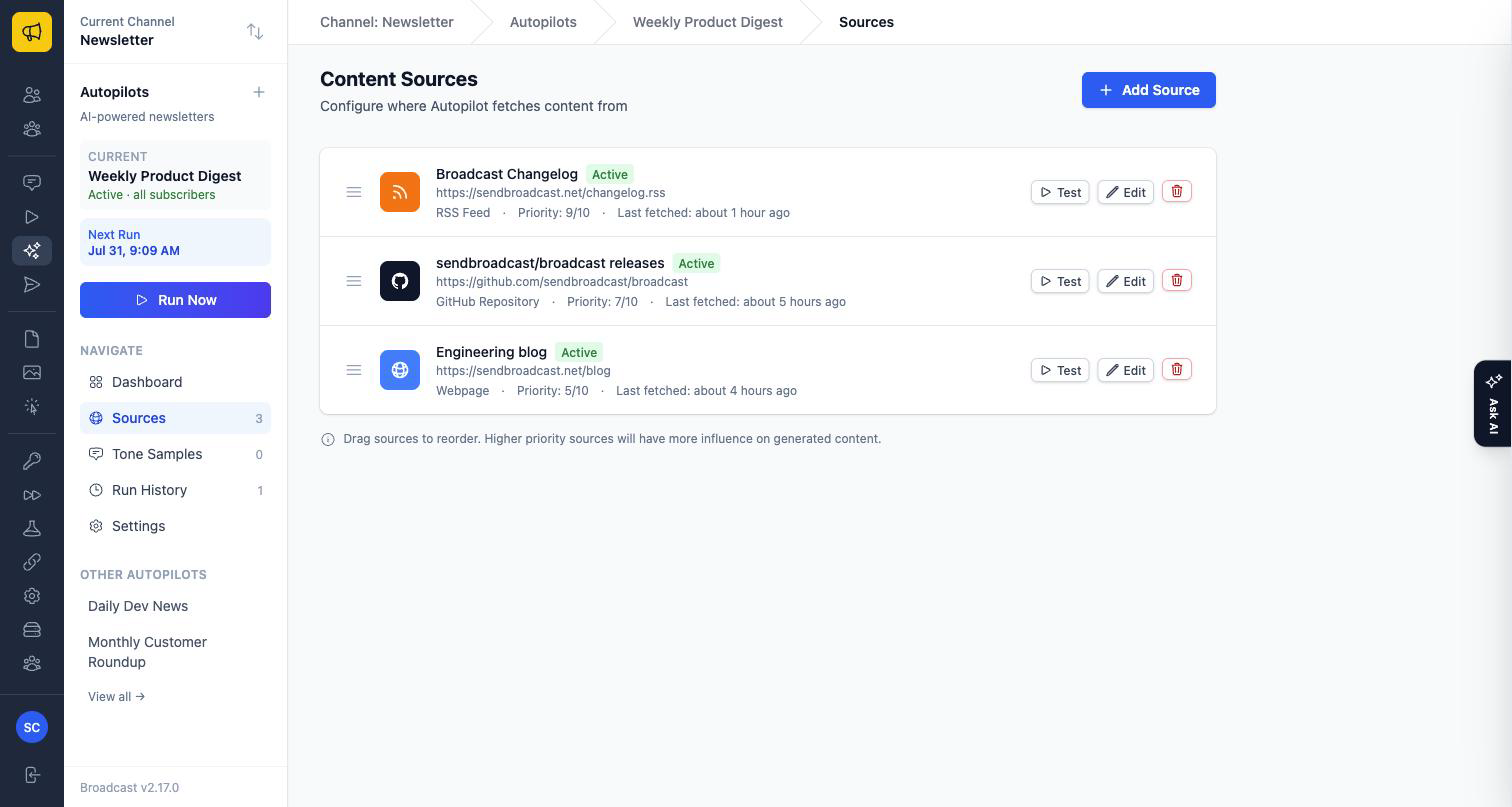
A channel can run as many autopilots as you like, each with its own sources, tone, schedule and segments. A weekly digest for everyone and a monthly roundup for one segment run side by side.
Teach it your voice
The difference between a generic draft and one that sounds like you is in three settings:
- Tone Description: describe the style plainly. “Friendly, short sentences, no jargon.”
- Content Instructions: tell it what to prioritize and what to skip. “Lead with new features. Skip minor bug fixes.”
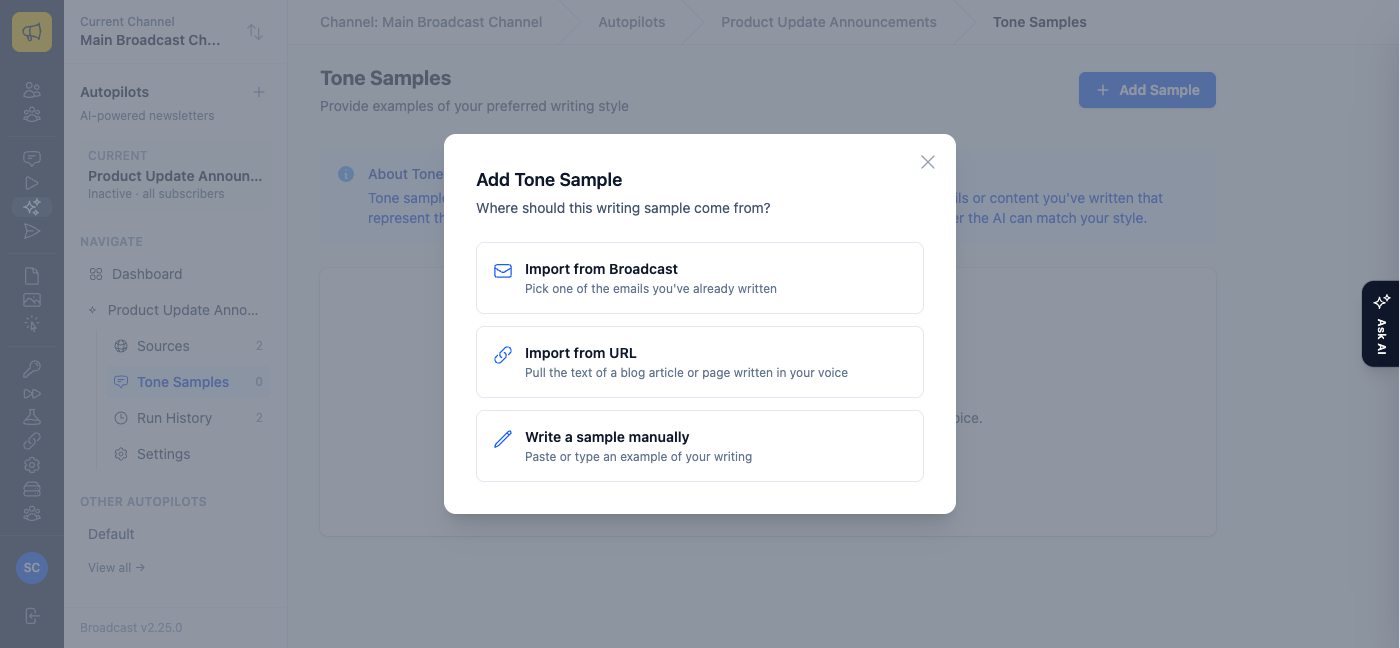
- Tone Samples: 1 to 3 examples of your own writing. Import from Broadcast turns emails you already sent into samples. This is the fastest way to teach your voice.
Copies to Generate asks for 1 to 5 variations per run. More copies give more choice and use more tokens.
Review, then send
Click Run Now to test the setup at once. Each run fetches the sources, analyzes them, and generates the copies. Then it waits for you.
- Fetch sources
- Analyze them
- Generate copies
- You pick one Create Broadcast from This Copy
Compare the copies, each on its own tab. The run details show the tokens used and an estimated price. When you pick one, click Create Broadcast from This Copy. Broadcast creates a draft broadcast with the autopilot’s target segments as the audience. Edit it, send a test, then send or schedule it.
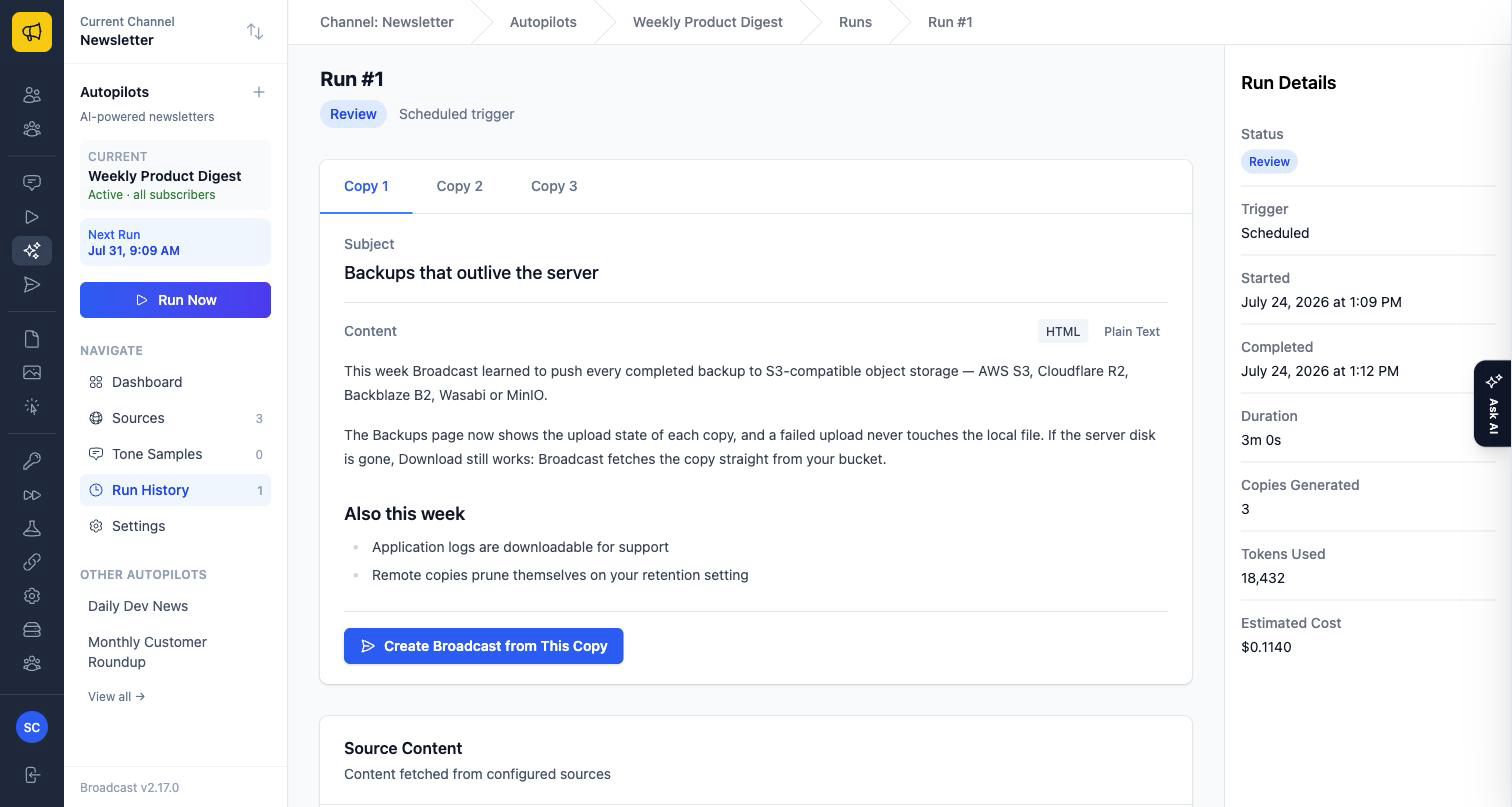
An autopilot never sends anything on its own. That is by design: a person reads every email before it reaches your list.
There is a second trigger mode. Set Trigger to When a product update ships, and the autopilot checks your release sources on a schedule and drafts an announcement only when a new version appears. A check with nothing new makes no AI call, so it costs nothing.
Ask AI: questions and actions
Click the Ask AI tab on the right edge of any dashboard page. The drawer stays open as you move around the app.
Ask questions in plain language: “How did last week’s broadcast do?”, “How many subscribers would match people who clicked in the last 30 days?”, “Are there any recent errors?”. Read-only lookups run at once, from live channel data.
Ask it to do something, such as draft a re-engagement broadcast, create a segment, tag subscribers or enroll people in a sequence, and it works differently. It proposes the action, shows a summary of exactly what will happen, and waits. Nothing runs until you click Confirm.

Warning
Read the confirmation summary before you approve a send or schedule. Those deliver real email to real subscribers and cannot be undone once sent.
Ask AI can make mistakes. Check anything important against the dashboard.
Every AI action is logged
Every lookup and action Ask AI performs is recorded under the channel’s Settings → AI Activity: when it ran, whose conversation triggered it, whether it read or wrote, and who approved it. Use the Writes only filter to see what changed data. Each user is limited to 15 messages a minute and 200 an hour by default, which keeps costs predictable.

What you learned
- Both features use your own key, set once under Application → AI Settings.
- Autopilot drafts newsletters from your sources, in your voice, on a schedule.
- An autopilot never sends. You create the broadcast from the copy you pick.
- Ask AI reads at once, but every change waits for your Confirm and is logged.
Go deeper in the docs
Check what you learned
PassedAnswer all 3 questions correctly to complete this lesson.