AWS SES Integration
Amazon Simple Email Service (SES) is a cloud-based email sending service designed for high-volume email delivery. Broadcast provides deep integration with AWS SES, including automatic resource setup, webhook tracking, and suppression list synchronization.
Features
| Feature | Supported |
|---|---|
| SMTP Delivery | |
| API Delivery | |
| Automatic Setup | |
| Webhook Tracking | |
| Suppression List Sync | |
| Open Tracking | |
| Click Tracking |
Delivery Methods
Broadcast supports two delivery methods for AWS SES:
API Delivery (Recommended)
API delivery uses the AWS SDK to send emails directly through the SES API. Benefits include:
- Faster sending: No SMTP handshake overhead
- Better error handling: Detailed error messages from AWS
- Reduced infrastructure: No need to open SMTP ports
- Direct access: To SES-specific features
SMTP Delivery
Traditional SMTP delivery works with standard email infrastructure. Use this if:
- You have existing SMTP infrastructure
- Your network restricts API calls
- You need maximum compatibility
Both methods support full webhook integration for tracking email events.
Setting Up AWS SES
Prerequisites
Before you begin, ensure you have:
- An AWS account with SES access
- A verified domain or email address in SES
- SES out of sandbox mode (for production sending)
- An IAM user with appropriate permissions
Creating an IAM User
Create a dedicated IAM user for Broadcast with the following policies:
Security Best Practice
Create a dedicated IAM user for Broadcast. Never use your root account or a user with broad access.
Required IAM Policies:
| Policy | Purpose |
|---|---|
AmazonSESFullAccess |
Email sending & suppression list sync |
AmazonSNSFullAccess |
Webhook event notifications (automatic setup) |
Guided Setup (Recommended)
The fastest way to connect a new AWS SES server is the Guided Setup wizard, which walks through Connect, Verify, and Webhooks in three steps:
- Navigate to Settings → Email Servers
- Click Add email server → Guided Setup
- Select AWS SES
- Enter your Access Key ID, Secret Access Key, and the Region your SES account is in
- Click Verify & Connect. Broadcast checks the credentials and auto-discovers the domains and senders already verified in your SES account, then continues to the Verify and Webhooks steps.
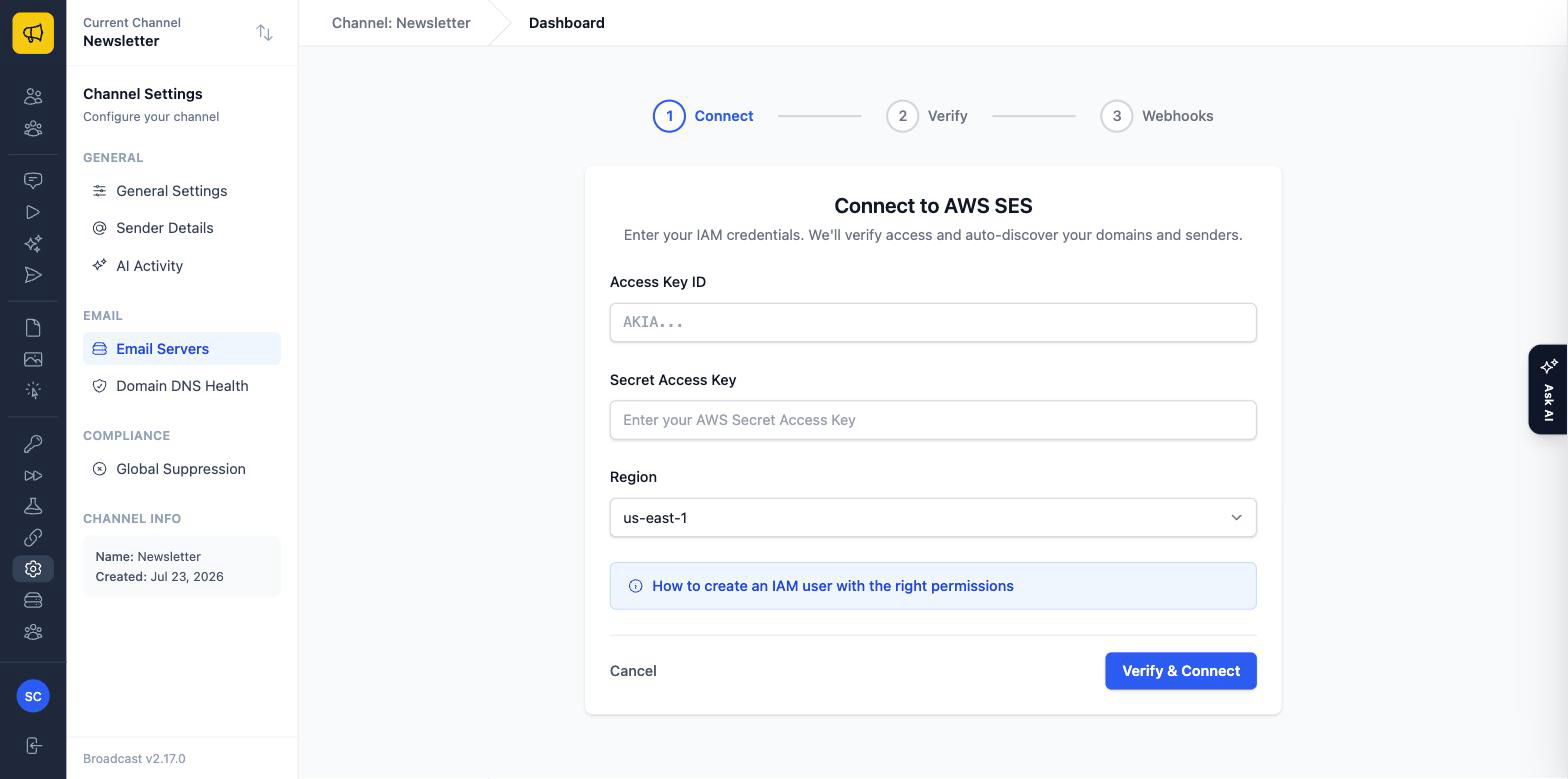
The Region dropdown covers the 18 regions where SES is available, and must match the region your SES identities live in: credentials that work in one region will not see identities in another. The How to create an IAM user with the right permissions link on that screen expands the exact policy required.
If you already have an AWS SES email server in Broadcast and only want to add webhook resources to it, use the automatic setup below instead.
Automatic Setup
Broadcast can automatically create all the necessary AWS resources for webhook integration. This is the easiest way to get started.
What Broadcast Creates
The automatic setup process creates:
- SES Configuration Set: For email tracking and event routing
- SNS Topic: For receiving email event notifications
- SNS Subscription: Connects the topic to your Broadcast webhook endpoint
- Event Destinations: Routes sends, bounces, complaints, deliveries, opens, clicks, and rejects
Running Automatic Setup
- Go to Settings → Email Servers
- In the Amazon SES integration section, select your AWS SES email server
- Click Integrate Selected Server
- Enter your AWS credentials:
- AWS Access Key ID
- AWS Secret Access Key
- AWS Region (must match your SES region)
- Click Setup AWS Integration
Broadcast will create all resources and configure your email server automatically. Once complete, you’ll see an “Integrated” badge next to your server.
Reconfiguring an Existing Integration
If you set up AWS SES integration before and want to update your AWS resources with new event types, you can reconfigure:
- Go to Settings → Email Servers
- Find your integrated server (shows “Integrated” badge)
- Click Reconfigure next to the badge
- Confirm your AWS credentials
- Click Reconfigure Integration
The setup service is idempotent: it will reuse existing resources and only create or update what’s needed.
Configuring Email Delivery
API Delivery Setup
To use API delivery instead of SMTP:
- Go to Settings → Email Servers
- Click New Email Server or edit an existing AWS SES server
- Configure:
- Vendor: AWS SES
- Delivery Method: API
- AWS Access Key ID: Your IAM user’s access key
- AWS Secret Access Key: Your IAM user’s secret key
- AWS Region: Your SES region (e.g., us-east-1)
- AWS SES Configuration Set: (Optional) For webhook tracking
- Select which email types to send (Broadcasts, Sequences, Transactional)
- Save your configuration
SMTP Delivery Setup
For SMTP delivery:
- In AWS Console, go to SES → SMTP settings
- Click Create SMTP credentials
- Note the SMTP endpoint, username, and password
- In Broadcast, go to Settings → Email Servers
- Create or edit an email server:
- Vendor: AWS SES
- Delivery Method: SMTP
- SMTP Address: Your SES SMTP endpoint
- SMTP Port: 587 (recommended) or 465
- SMTP Username: From AWS
- SMTP Password: From AWS
- AWS SES Configuration Set: (Optional) For webhook tracking
- Click Test SMTP settings to verify
- Save your configuration
Suppression List Sync
AWS SES maintains an account-level suppression list of email addresses that have bounced or complained. Broadcast can sync this list to ensure you don’t send to these addresses.
How It Works
When you trigger a sync, Broadcast:
- Queries your AWS SES account’s suppression list
- Imports each address (whether AWS suppressed it for a bounce or a complaint) as a channel suppression for the channel that owns the email server
- Records the sync timestamp and any errors
Imported addresses appear under Settings → Global Suppression on the Channel tab, not the Global tab. If you want an address blocked across every channel, add it to the Global tab yourself, see Suppression Lists.
This ensures that addresses suppressed at the AWS level are also suppressed in Broadcast, preventing wasted sends and protecting your sender reputation.
Running a Sync
- Go to Settings → Email Servers
- Scroll to Suppression List Sync section
- Find your integrated AWS SES server
- Click Sync Suppression List
- Confirm the sync
You’ll see the results showing how many addresses were added and skipped.
Sync Information
For each server, Broadcast displays:
- Last synced: When the suppression list was last synchronized
- Sync errors: Any errors from the most recent sync attempt
When to Sync
Run a sync before major campaigns to ensure your suppression list is up to date. This is especially important if you’re migrating from another platform or have been sending emails outside of Broadcast.
Auto-Suppression
When Broadcast receives bounce or complaint webhooks from AWS SES, it automatically:
- Marks the outbound receipt as bounced (recording the AWS bounce type and sub-type) or as a complaint
- Deactivates the subscriber: they are set inactive with an unsubscribed timestamp, and a history entry is written reading “Bounced (Unsubscribed) [Webhook]” or “Reported Spam (Unsubscribed) [Webhook]”
- Adds the email to the channel suppression list for the channel that sent the message
This triple protection ensures:
- The specific subscriber won’t receive emails
- The email address won’t receive emails from that channel even if re-added
- Your sender reputation is protected
Where to See Suppressed Bounces
Auto-suppression is channel-scoped. Bounced and complained addresses appear under Settings → Global Suppression on the Channel tab. The Global tab only holds addresses you have blocked across every channel by hand, so a bounce will never show up there: that is the most common reason auto-suppression looks like it isn’t working.
The bounce itself is visible in three other places:
- On the broadcast’s activity, using the Bounced and Spam filters
- In the Bounce and Spam columns on the broadcasts list
- In the subscriber’s Activity section
Bounces also fire the subscriber.bounced and subscriber.unsubscribed webhook events, see Webhooks.
Testing the Integration
Using the AWS SES Simulator
AWS provides simulator addresses for testing without affecting your reputation:
| Address | Purpose |
|---|---|
success@simulator.amazonses.com |
Successful delivery |
bounce@simulator.amazonses.com |
Hard bounce |
complaint@simulator.amazonses.com |
Spam complaint |
suppressionlist@simulator.amazonses.com |
On suppression list |
Test Procedure
- Add a test subscriber with
bounce@simulator.amazonses.com - Create and send a test broadcast
- Check the subscriber’s detail page
- Verify:
- Bounce event was received
- Subscriber was deactivated
- Email was added to Settings → Global Suppression → Channel tab
Webhook Events
AWS SES sends the following event types through SNS:
| Event Type | Description |
|---|---|
Bounce |
Email bounced (hard or soft) |
Complaint |
Recipient marked as spam |
Delivery |
Email successfully delivered |
Send |
Email sent to SES |
Reject |
SES rejected the email |
Open |
Recipient opened the email |
Click |
Recipient clicked a link |
Subscription |
Subscription-related event |
Broadcast automatically processes these events and updates:
- Outbound receipt records
- Subscriber status
- The channel suppression list (for bounces/complaints)
How Events Are Matched to a Send
SNS delivers events to Broadcast at https://your-broadcast-domain/wh/ses. Broadcast then has to tie each event back to the message it came from:
- API delivery: the send carries a
broadcast_message_idmessage tag, which SES returns on the event. (SES overwrites theMessage-IDheader on API sends, which is why the tag is used.) - SMTP delivery: the identifier is read from the
Message-IDheader.
An event that matches no outbound receipt is discarded. That means bounces for mail sent outside Broadcast, or sent before the integration was configured, will appear in the SES message log but never in Broadcast. Use Suppression List Sync above to bring those addresses across.
Troubleshooting
Common Issues
“AWS credentials invalid” error
- Verify your Access Key ID and Secret Access Key are correct
- Ensure the IAM user has the required permissions
- Check that you’re using credentials for the correct AWS region
Webhooks not being received
- In the AWS console, open the SNS topic and check the subscription to
https://your-broadcast-domain/wh/ses. Its status must be Confirmed: a subscription left at PendingConfirmation silently drops every event, and it is by far the most common cause - Check that the configuration set is assigned to your email server in Broadcast
- Ensure the event destination includes all event types, in particular Bounce and Complaint
- Verify your Broadcast instance is accessible from the internet
Bounces appear in the AWS SES message log but nowhere in Broadcast
A received bounce always does all three things listed under Auto-Suppression, so if none of them happened the event never reached Broadcast or never matched a send.
- Work through the webhook checks above first
- Confirm you are looking at the Channel tab under Settings → Global Suppression, not the Global tab
- Check whether the affected mail was sent through Broadcast at all, and after the integration was set up, see “How Events Are Matched to a Send” above
- To bring across bounces AWS already knows about, run a Suppression List Sync
Suppression sync failing
- Ensure your IAM user has
ses:ListSuppressedDestinationspermission - Check that AWS SES is configured in the correct region
- Verify your credentials haven’t expired
“Configuration set not found” error
- Verify the configuration set name matches exactly (case-sensitive)
- Ensure the configuration set exists in the same region as your SES account
Verifying Webhook Delivery
- Go to your SNS topic in AWS Console
- Check Monitoring for delivery metrics
- Look for failed deliveries or throttling
- In Broadcast, check the subscriber or broadcast detail pages for event activity
Getting Help
If you’re experiencing issues:
- Check AWS CloudWatch logs for SES and SNS errors
- Review the Broadcast Email Servers page for error messages
- Verify all configuration steps were completed
- Contact support at simon@sendbroadcast.net