Autopilot - AI Newsletter Generation
Autopilot is an AI-powered newsletter generator that automatically creates newsletter drafts from your configured web sources. It aggregates content from RSS feeds, GitHub repositories, and webpages, then uses AI to transform that content into polished newsletter copy.
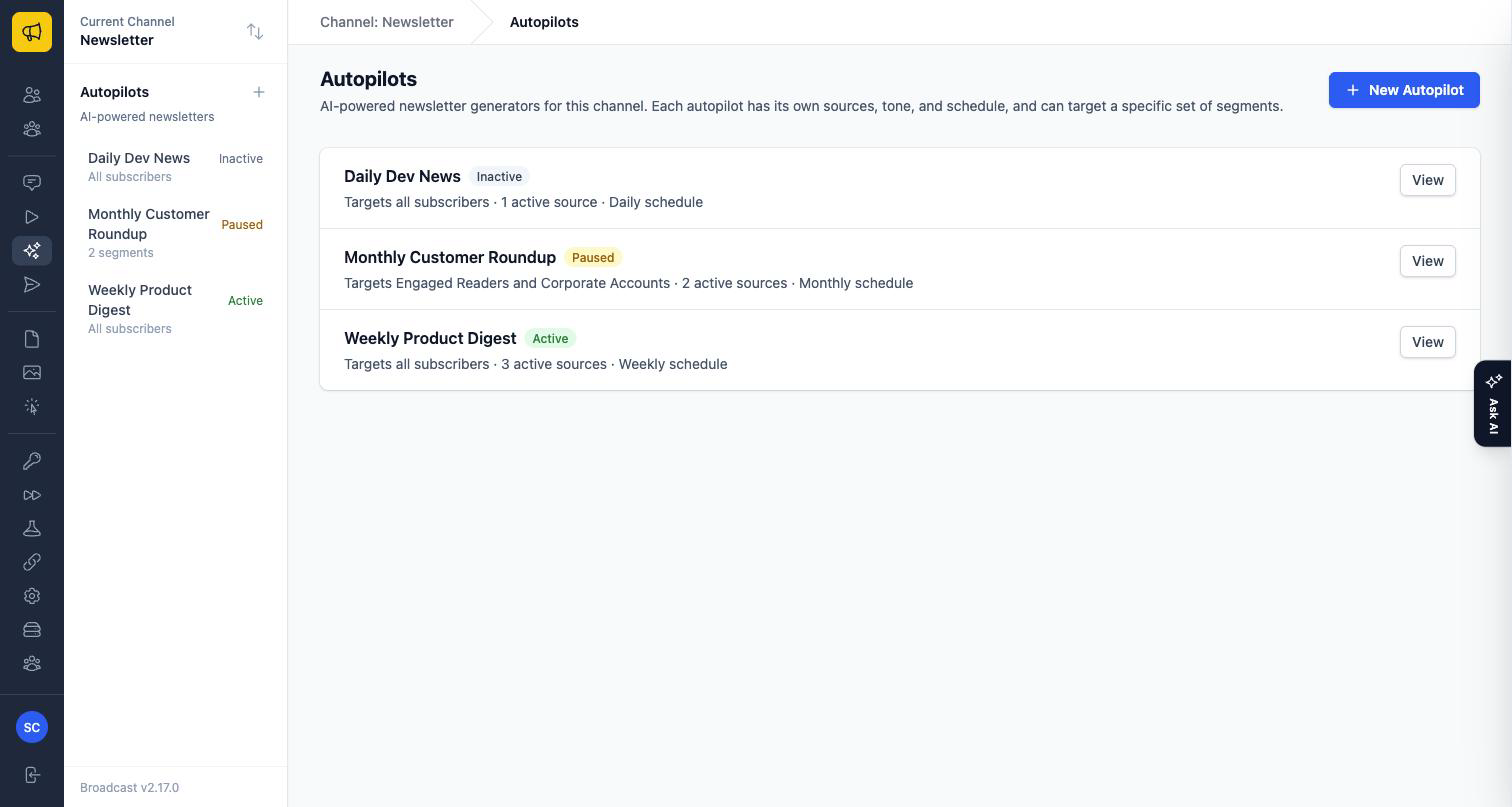
A channel can run as many autopilots as you like, and each one is independent: its own sources, tone, instructions, AI model, schedule, and target segments. That’s what makes it useful to run a weekly product digest for everyone and a monthly roundup for your enterprise segment on the same channel, without either one interfering with the other.
Every autopilot works in one of two trigger modes:
- On a schedule: the classic newsletter generator: write an email from your sources on a fixed cadence.
- When a product update ships: a release watcher: check your release sources on a cadence, and draft an announcement email only when a new version appears. Nothing is written on a check that finds nothing new. See Product update announcements below.
In both modes, drafts always wait for your review: an autopilot never sends anything on its own.
Key Benefits
- Save Time: Automatically gather and synthesize content from multiple sources
- Consistent Output: Generate newsletters on a regular schedule without manual effort
- Multiple Variations: Get several draft versions to choose from for each run
- One Channel, Many Newsletters: Run separate autopilots for separate audiences, each on its own schedule
- BYOK Model: Bring Your Own Key with OpenRouter for full control over AI costs
Prerequisites
Before setting up Autopilot, you’ll need:
- AI credentials - Either the installation’s system-wide AI default (Application → AI Settings) or a per-autopilot OpenRouter key (openrouter.ai/keys, free tier available)
- Content Sources - At least one RSS feed, GitHub repository, webpage, or Releases API endpoint to pull content from
- A Schedule - How often to generate newsletters (or, in product-update mode, how often to check for new releases)
Getting Started
Step 1: Create an Autopilot
Navigate to Autopilot in your sidebar menu. The page lists every autopilot on the current channel; on a channel with none yet, you’ll see a welcome screen explaining what you need.
Click New Autopilot (or Create Your First Autopilot) and give it two things:
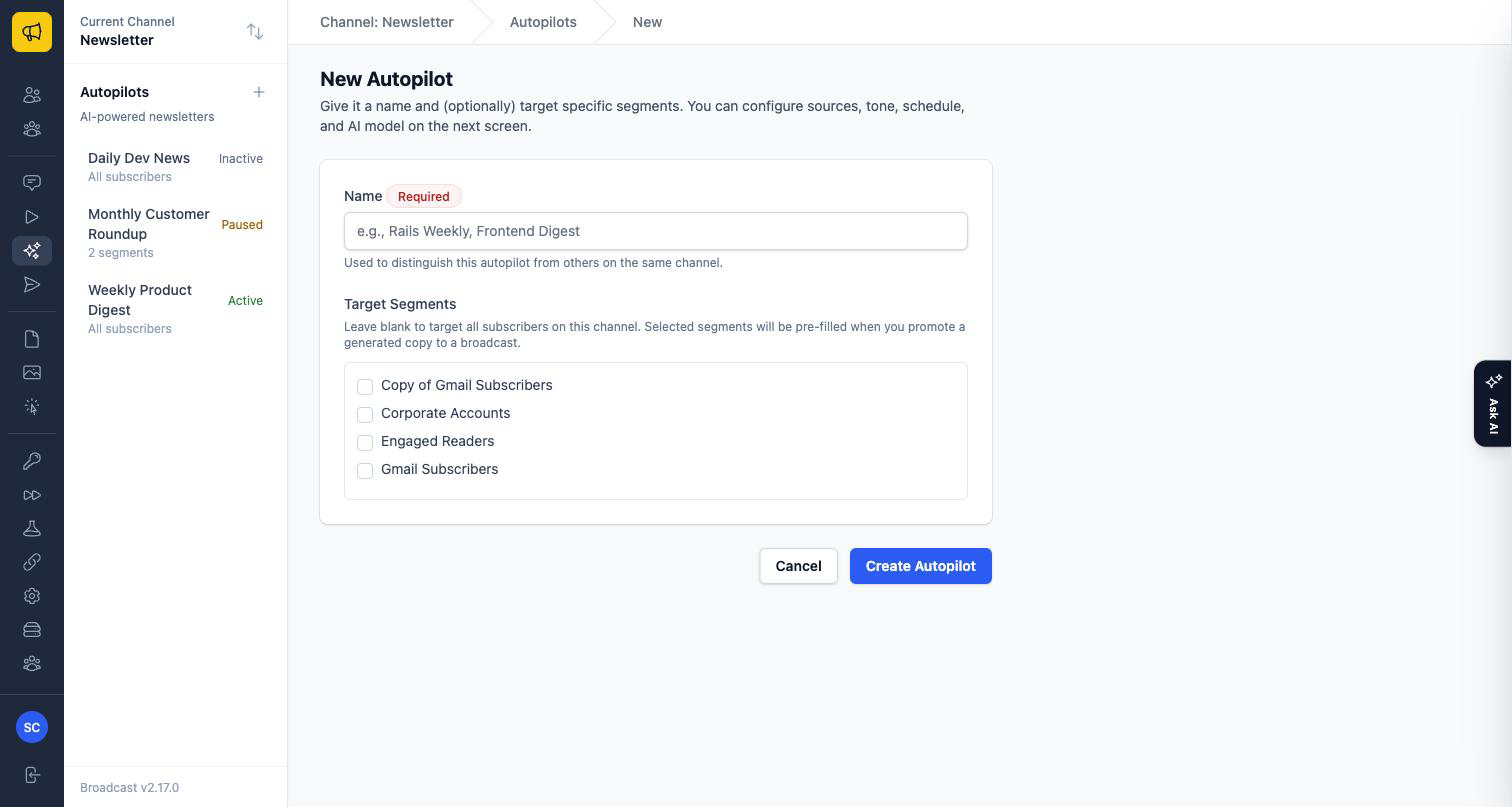
- Name: required, and unique on the channel. This is how you’ll tell your autopilots apart, so name them after what they produce: “Weekly Product Digest”, “Monthly Customer Roundup”.
- Target Segments: optional. Leave it blank to target every subscriber on the channel. Any segments you tick are pre-filled as the audience when you promote a generated copy to a broadcast.
Everything else (sources, tone, schedule, AI model) is configured on the next screen, and can be changed at any time.
Step 2: Choose Your AI Credentials
When a system-wide AI default is configured (Application → AI Settings) with OpenRouter as its provider, a scheduled autopilot offers an explicit choice in Settings → API Configuration:
- Use application AI settings: the default. The autopilot rides the installation’s OpenRouter key and model; nothing to paste.
- Use a custom OpenRouter key for this autopilot: reveals the key and model fields, so you can bill this newsletter to its own key. If another autopilot on the channel already holds a key, a dropdown lets you copy it securely: the key value is copied server-side and never displayed.
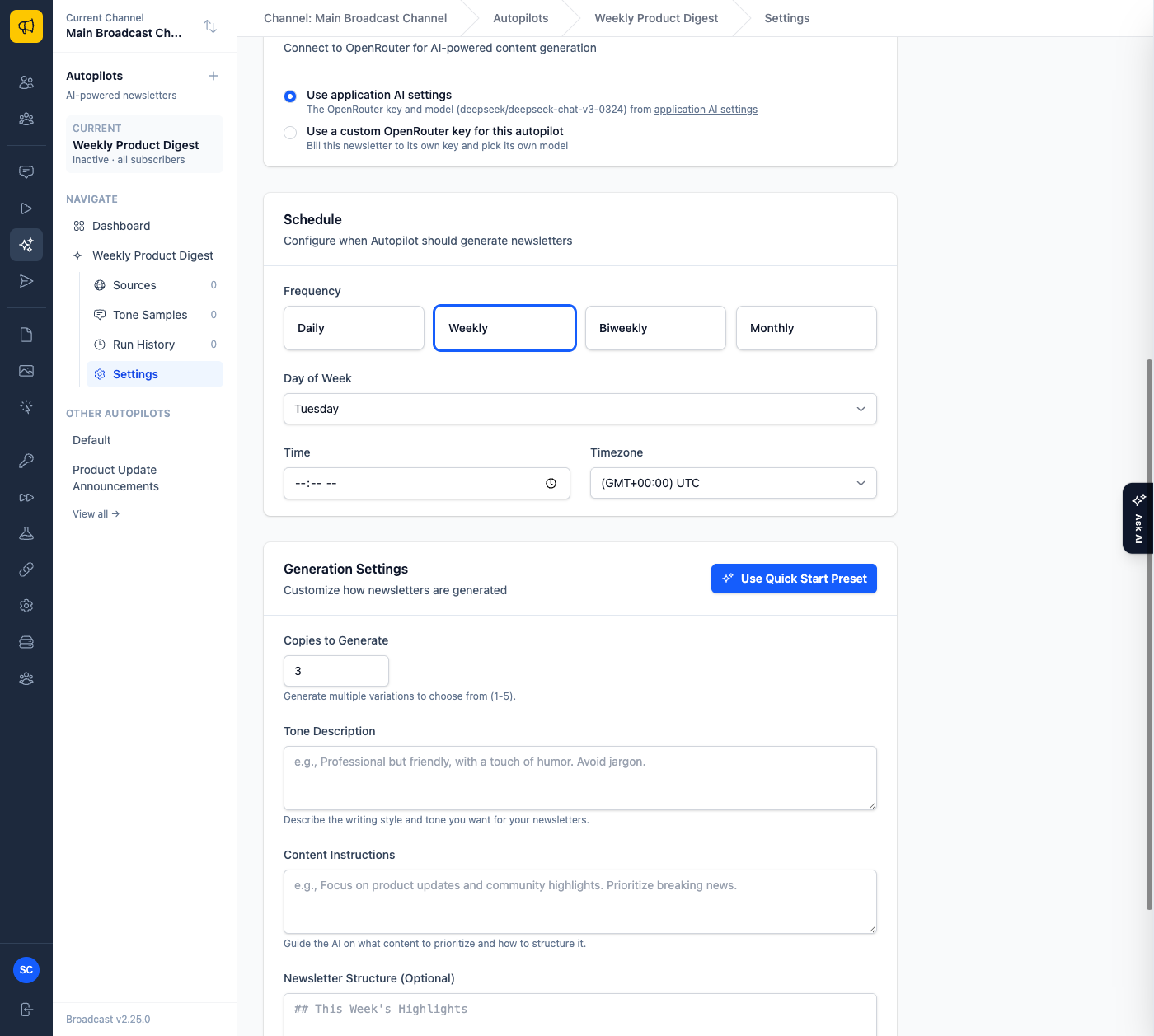
To use your own key: pick the custom option, enter the key, click Verify, and the AI model dropdown populates with available models. Without a system-wide default, the key and model are simply required fields.
Step 3: Select an AI Model
Once your API key is verified, the model dropdown is grouped into three sections so you can quickly find the right trade-off between cost and quality:
⭐ Recommended (Budget-Friendly)
A small, hand-picked set of paid models that offer the best cost-to-quality ratio for newsletter generation. These are always available and are a safe default for most users.
| Model | Best For |
|---|---|
| DeepSeek V3 | Best overall value, recommended default |
| Gemini 2.0 Flash | Very fast and cheap, large 1M-token context |
| Claude 3.5 Haiku | High-quality writing at a moderate price |
| GPT-4o Mini | Reliable, well-rounded general-purpose model |
🚀 Top Quality (OpenAI · Anthropic · Google)
Flagship paid models from the major AI providers: Claude Opus / Sonnet / Haiku 4.x, GPT-5, GPT-4.1, the o-series, Gemini 2.5 Pro, and so on. Pick from this group when writing quality matters more than per-token cost. The list is generated dynamically from OpenRouter’s catalog, so newer flagship releases from these providers appear automatically without a Broadcast update.
Other Models
Everything else OpenRouter exposes: primarily free-tier models from various providers. Useful for experimentation, but free models often produce lower-quality output and stricter rate limits, so we don’t recommend them for production newsletters. The list is capped to keep the dropdown manageable.
Tip: If you’re not sure where to start, leave the default DeepSeek V3 selected. You can change the model at any time in Autopilot settings without losing your sources, schedule, or tone configuration.
Step 4: Add Content Sources
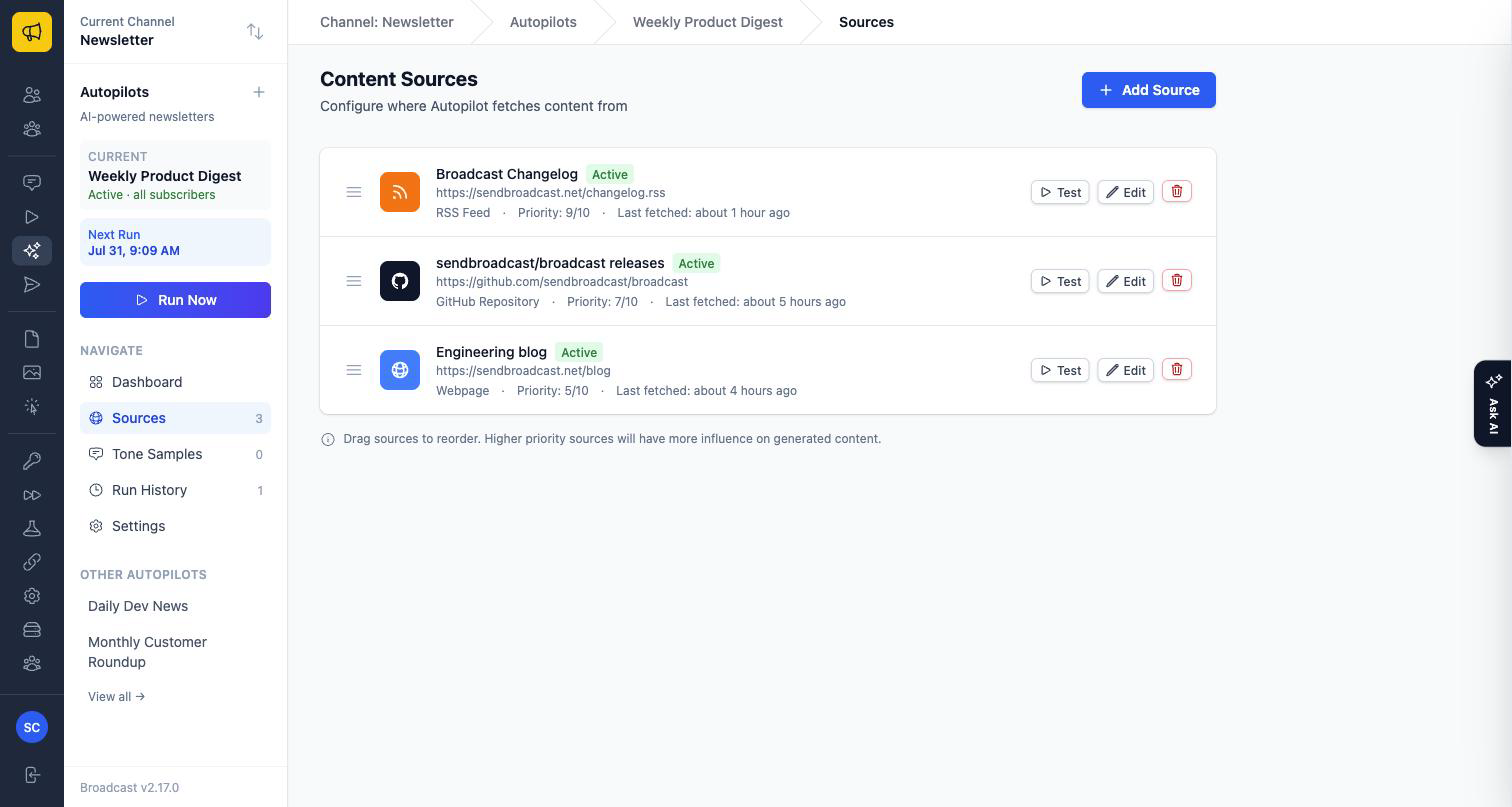
Go to Sources and click Add Source to configure where this autopilot should pull content from. Sources belong to one autopilot: adding a feed here does not affect any other autopilot on the channel.
Product Update Announcements
Switch an autopilot’s Trigger to “When a product update ships” (in Settings) and it stops being a scheduled newsletter and becomes a release watcher:
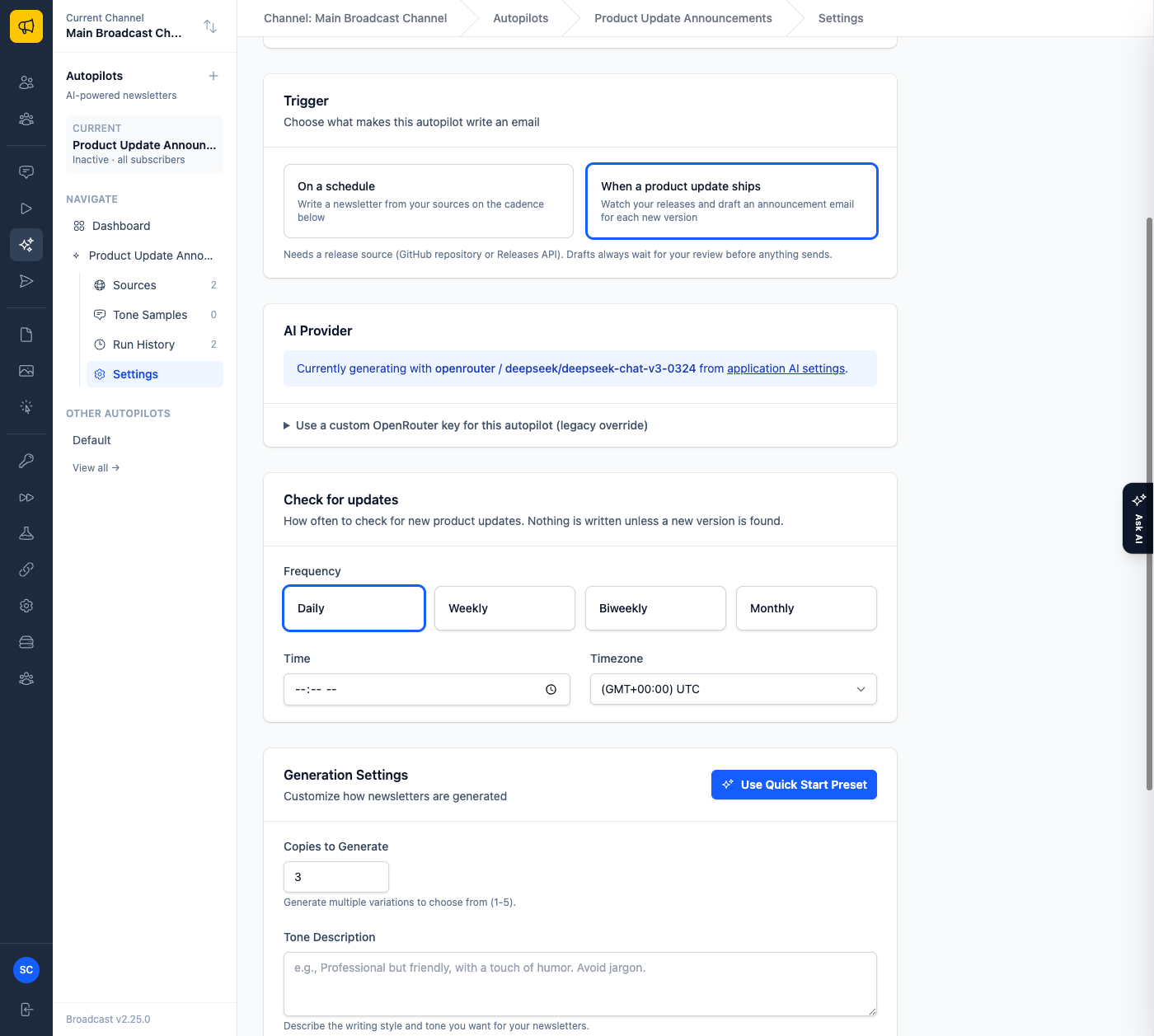
- On each check (the schedule section becomes Check for updates, the cadence of the checks), it fetches your release sources.
- If the newest release is one it has already announced, the check is recorded as skipped, with the reason shown on the run: no AI call is made, so checks cost nothing.
- When a new version appears, it drafts an announcement email from the release notes plus any supporting sources (your blog RSS, a changelog page), staged for review like any other run. The run is titled after the release, e.g. “Product update for v2.26.0”.
What counts as a release source
Release-mode autopilots need at least one source that can surface versions:
- A GitHub repository with Releases enabled in its content options, or
- A Releases API source: any JSON endpoint that returns your releases (see Content Sources below).
Other sources (RSS, webpages) aren’t watched for versions, but their content is handed to the AI as supporting context: point one at your blog feed and the announcement can link to the matching post.
Screenshots and links in announcements
When your releases endpoint provides more than notes, the announcement uses it: feature highlights with screenshot URLs are embedded as images in the email, call-to-action links and release-tagged blog posts are linked as further reading. Only images and links that actually appear in your release data are used. Anything the AI invents is stripped before the draft reaches you.
Reviewing, converting, and dismissing
Release drafts land in the same review screen as newsletters. The run is titled after the release, with a Dismiss action alongside the usual copies:
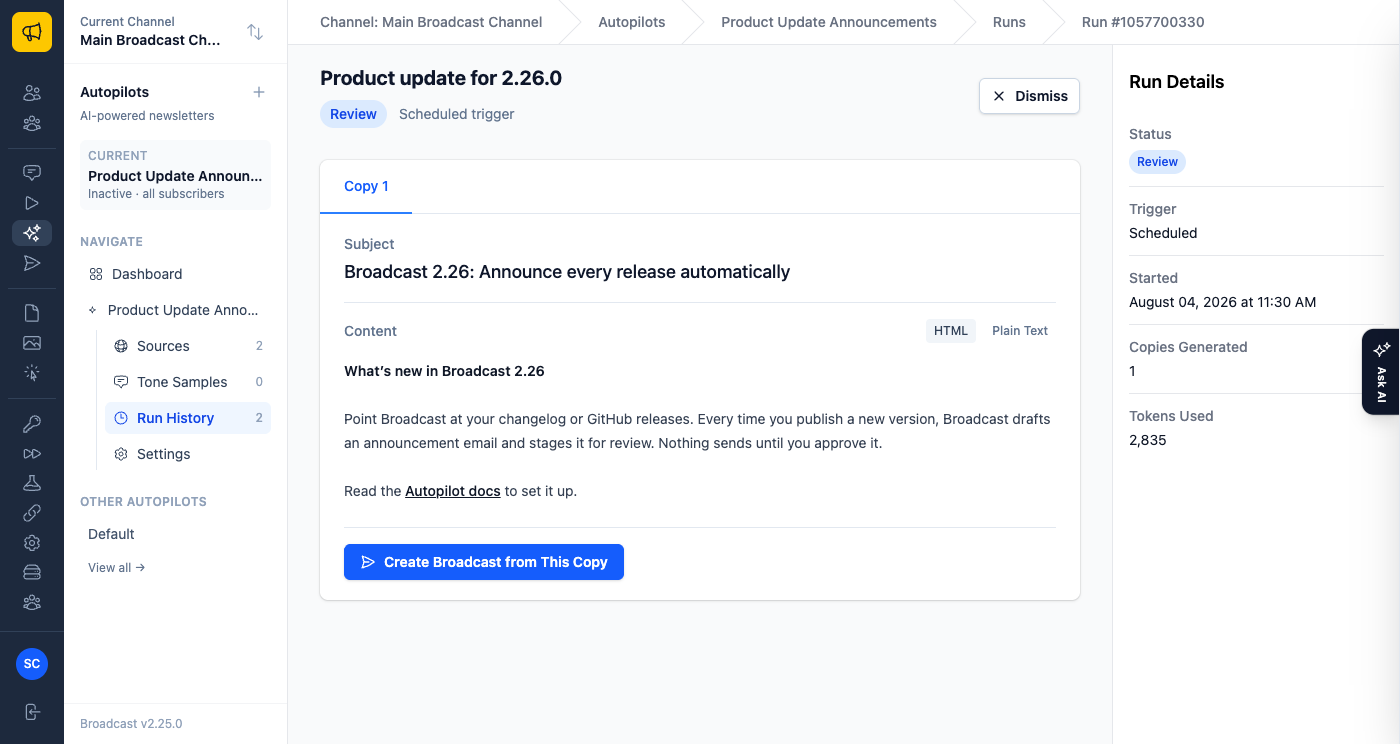
Two actions decide a release’s fate:
- Create Broadcast from This Copy: converts the draft and marks the version announced.
- Dismiss: closes the draft without sending and also marks the version announced, so the same release is never drafted again.
Until you do one or the other, the pending draft simply waits; checks in the meantime skip rather than piling up duplicates.
Announcing a specific version
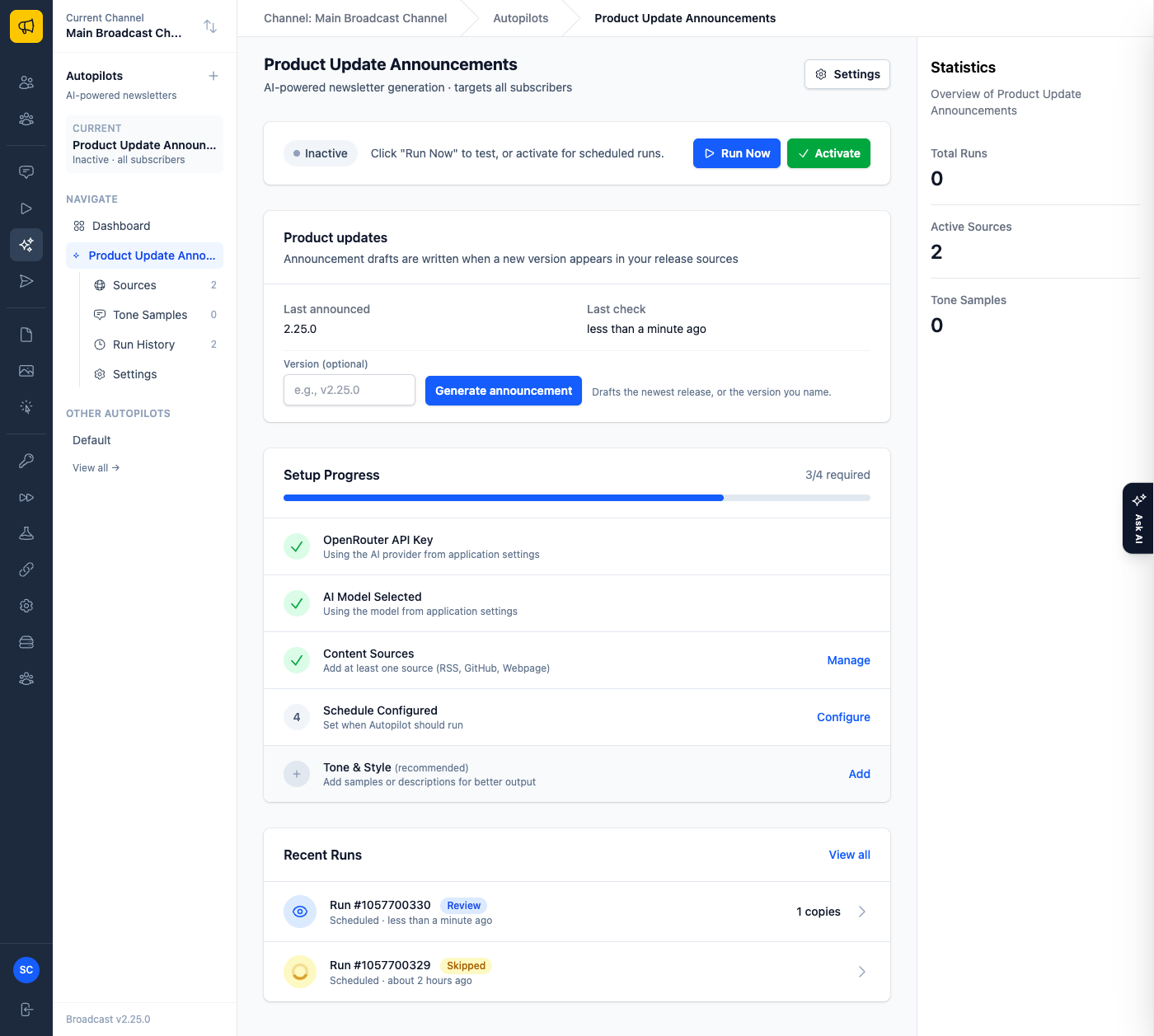
The autopilot’s page gains a Product updates card in release mode, showing the last announced version, the result of the last check, and a Generate announcement action. Leave the version field blank to draft the newest release (even one already announced, useful for a re-send), or name a version to draft that exact release from your sources.
Which AI is used
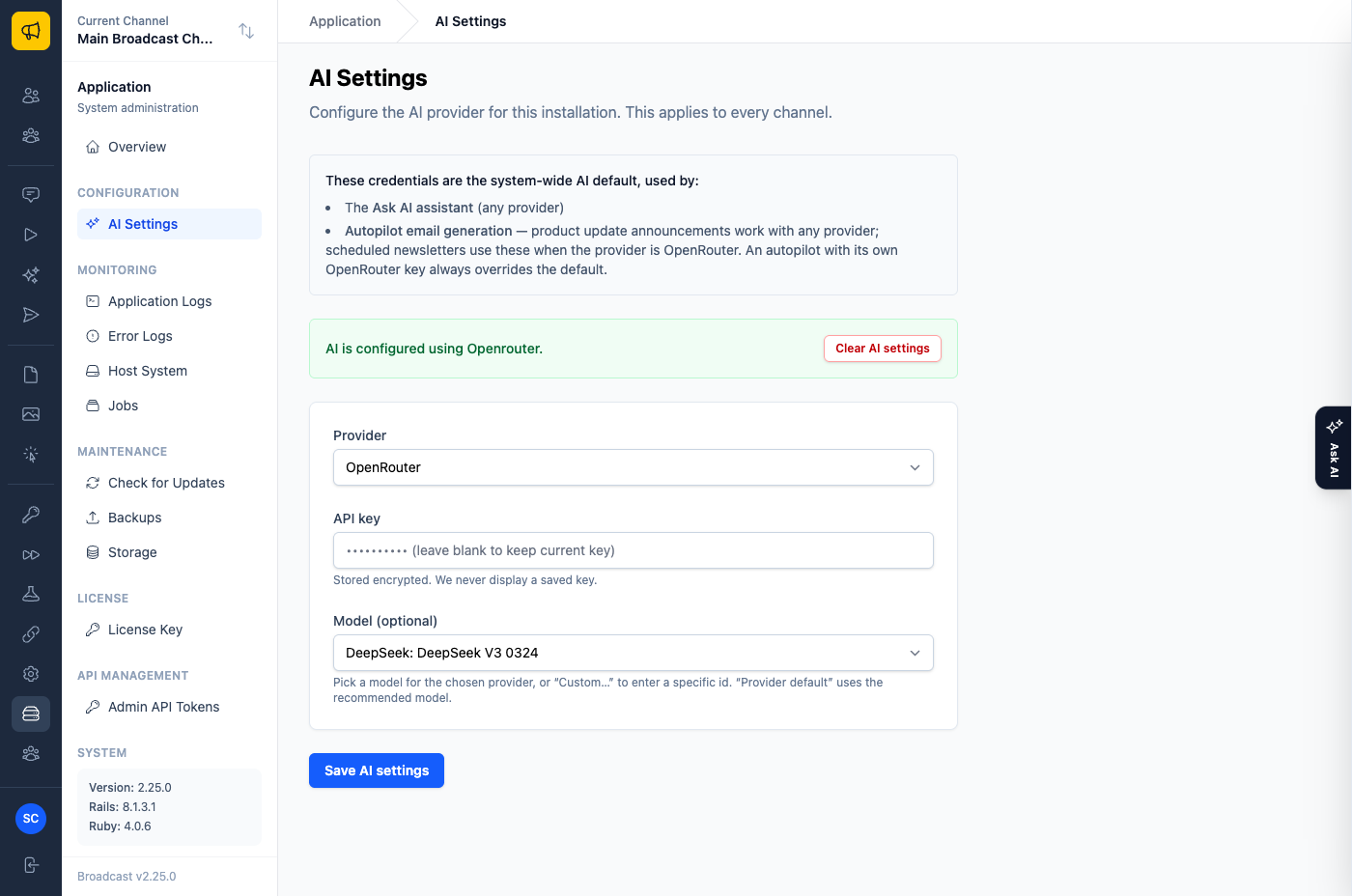
Release-mode autopilots don’t need their own OpenRouter key. If a system-wide AI default is configured for your installation (Application → AI Settings), announcements generate through that provider automatically (any provider works for announcements) and the autopilot’s Settings show which provider and model are in effect. A per-autopilot OpenRouter key still works as an override: it’s tucked behind a “legacy override” disclosure in Settings.
The AI Settings page spells out everything the system-wide default powers, and offers a Clear AI settings action. Clearing it breaks nothing silently: release checks keep running (finding “nothing new” needs no AI), and any run that actually needs to generate fails with a visible reason until AI is configured again.
Content Sources
Autopilot supports four types of content sources:
RSS Feeds
Perfect for blog posts, news sites, and any publication with an RSS/Atom feed.
Configuration options: - Maximum items - How many recent items to fetch (1-50) - Days to look back - Only include items from the last N days
Example sources: - Company blogs - Industry news sites - Product announcement feeds
GitHub Repositories
Track activity from any public GitHub repository (or private repos with a personal access token).
Configuration options: - Content to include - Choose from Commits, Pull Requests, Issues, and Releases - Days to look back - How far back to search for activity - Personal Access Token - Required only for private repositories
Example sources: - Your product’s repository - Open source projects you follow - Dependency libraries for update tracking
Webpages
Extract content directly from any webpage.
Configuration options:
- CSS Selector - Target specific elements (e.g., article, .content, #main)
- Exclude Selectors - Remove unwanted elements (e.g., .sidebar, .comments, .ads)
Example sources: - Product changelog pages - Company news pages - Event announcement pages
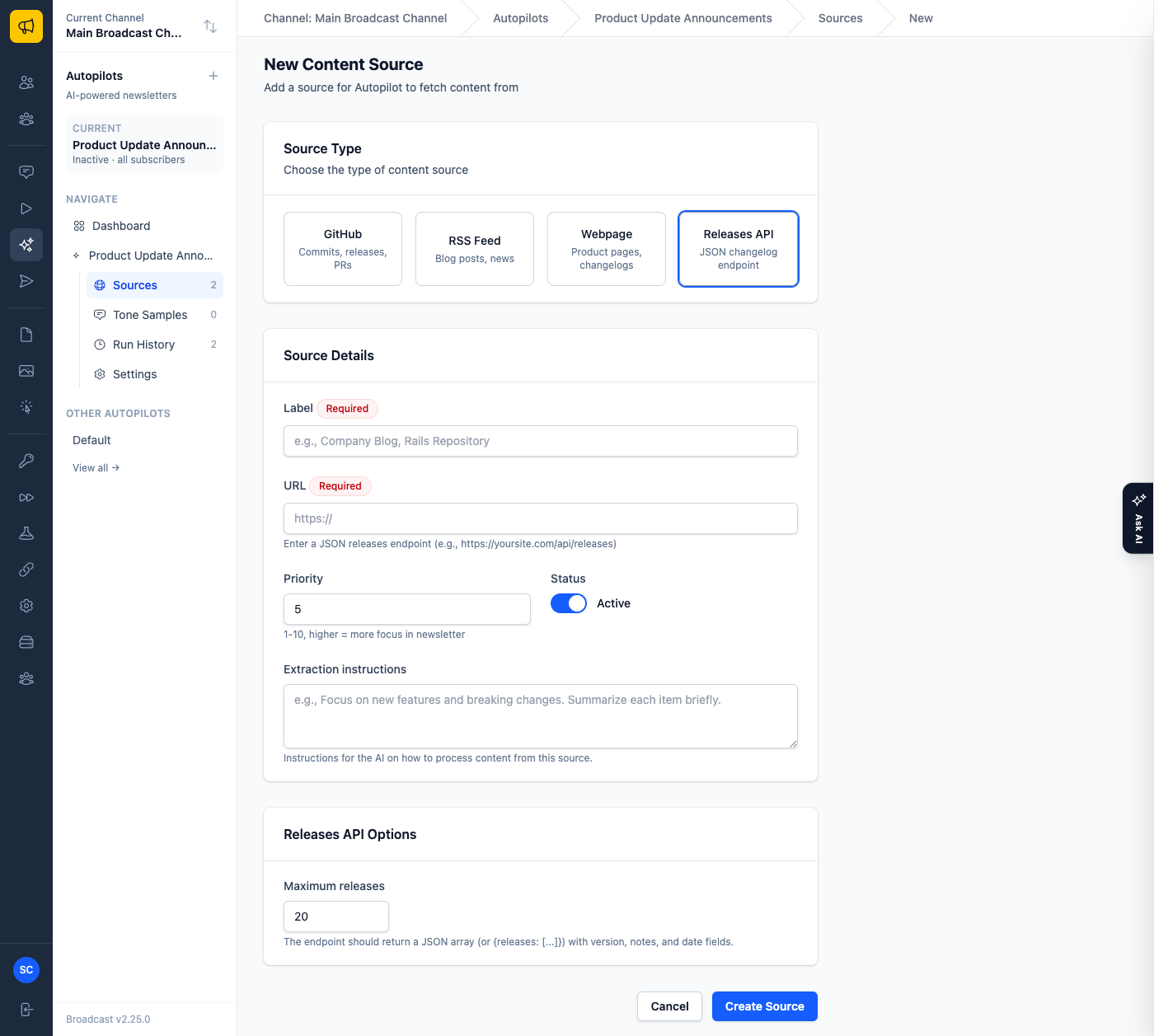
Releases API
For release-mode autopilots: point this at a JSON endpoint that lists your releases: a changelog API, or anything shaped like it.
Configuration options: - Maximum releases - How many recent releases to fetch (1-50)
The endpoint should return a JSON array (or an object wrapping one under releases, data, or items). Field names are matched flexibly: the version can be version, tag, or tag_name; the notes notes, body, description, or changelog; the date released_at, published_at, date, or created_at; an optional link url, link, or html_url.
Example response:
[
  {
    "version": "2.26.0",
    "notes": "What shipped, in Markdown or plain text.",
    "released_at": "2026-08-03T09:00:00Z",
    "url": "https://example.com/changelog"
  }
]
Releases can optionally carry highlights (title, body, screenshot_url, cta_label, cta_url) and blog_posts (title, url). Announcements embed the screenshots and link the further reading.
Source Priority
Each source has a priority setting (1-10). Higher priority sources get more focus in the generated newsletter. Use this to ensure your most important content appears prominently.
Testing Sources
After adding a source, use the Test button to verify it’s working correctly. This fetches content without affecting your newsletter runs.
Generation Settings
Fine-tune how Autopilot generates your newsletters.
Copies to Generate
Generate 1-5 variations of each newsletter. More copies give you more options but use more AI tokens.
Tone Description
Describe the writing style you want. Be specific about: - Formality level (professional, casual, friendly) - Voice characteristics (witty, serious, encouraging) - What to avoid (jargon, certain topics)
Example:
Professional but approachable. Use clear, concise language. Include occasional humor but keep it appropriate for a business audience. Avoid overly technical jargon.
Content Instructions
Guide the AI on how to process and prioritize content:
Example:
Focus on product updates and new features. Highlight breaking changes prominently. Include community contributions when relevant. Skip minor bug fixes unless they affect many users.
Newsletter Structure
Provide a template for the newsletter format using section headings:
## This Week's Highlights

{highlights}

## Product Updates

{updates}

## Community Spotlight

{community}

## Quick Links

{links}
The AI will fill in each section based on your sources and instructions.
Quick Start Presets
Not sure where to start? Use a preset to auto-fill your generation settings.
Available presets:
| Preset | Description |
|---|---|
| Tech/Developer | Technical updates, changelogs, code-focused news |
| Company Update | Professional business communications |
| Community Digest | Friendly updates celebrating members and activities |
| Product Changelog | Clear release notes for features and fixes |
| Curated Links | Link roundups with commentary |
| Industry News | News roundups with analysis |
Click Use Quick Start Preset in the Generation Settings section to apply one.
Tone Samples
Tone samples help the AI match your existing writing style. Provide 1-3 examples of newsletters or content you’ve written before.
Adding Tone Samples
Go to Tone Samples in the autopilot’s menu and click Add Sample. A chooser offers three ways in:
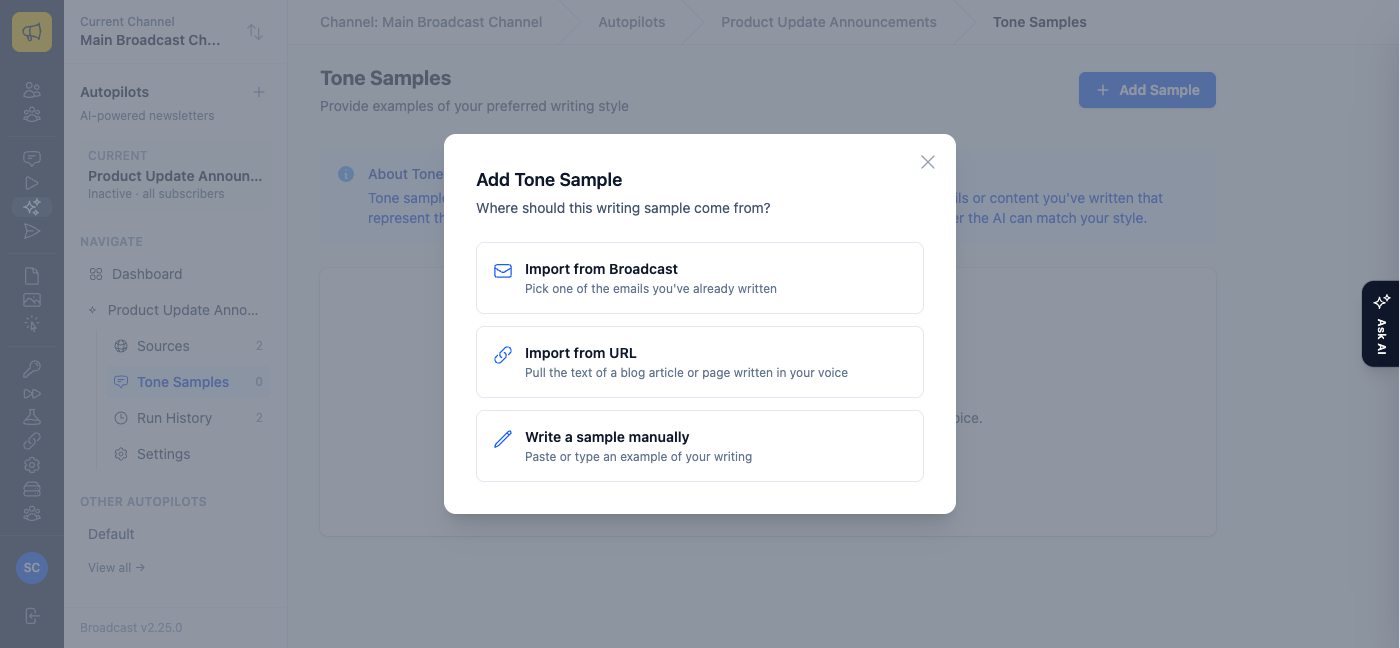
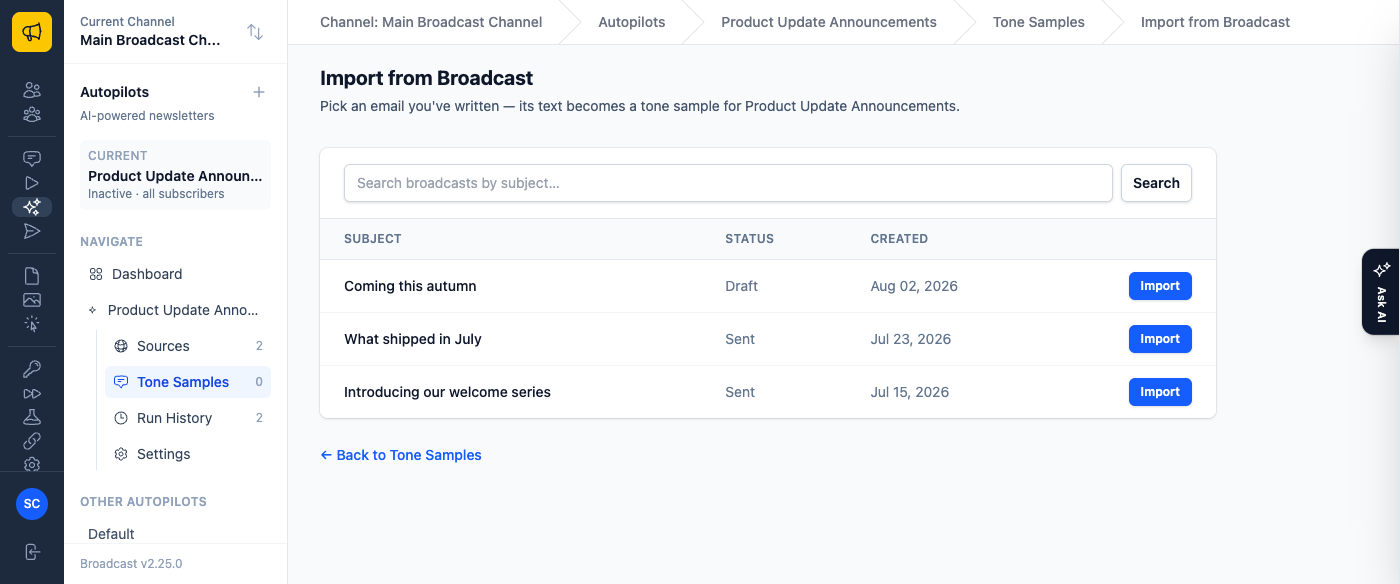
- Import from Broadcast: pick from a searchable table of the channel’s emails; the broadcast’s text becomes the sample, labeled with its subject. The fastest way to teach the AI your voice is the emails you’ve already sent.
- Import from URL: point at a blog article or page written in your voice; its readable text is extracted and saved (page chrome like navigation and footers is stripped). Edit afterwards to trim anything off-voice.
- Write a sample manually: the classic form: a label and pasted text.
Best Practices
- Include complete examples, not just excerpts
- Use samples that represent your ideal tone
- Provide variety if you have different styles for different content types
Schedule Configuration
Frequency Options
| Frequency | Description |
|---|---|
| Daily | Run once per day at your specified time |
| Weekly | Run once per week on your chosen day |
| Biweekly | Run every two weeks |
| Monthly | Run once per month on your chosen day |
Schedule Settings
- Day of Week - For weekly/biweekly schedules, which day to run
- Day of Month - For monthly schedules, which day (1-31)
- Time - What time to run (in your selected timezone)
- Timezone - Your local timezone for scheduling
Running an Autopilot
Each autopilot runs on its own schedule, independently of the others on the channel.
Scheduled Runs
Once activated, an autopilot runs automatically according to its schedule. Its dashboard shows: - Status - Active, Paused, or Inactive - Next Run - When the next scheduled run will occur - Last Run - When it last generated content
Manual Runs
Click Run Now on the dashboard to trigger an immediate run. This is useful for: - Testing your configuration - Generating content outside the regular schedule - Creating additional newsletter options
Run Pipeline
Each run goes through these stages:
- Fetching - Gathering content from all active sources
- Analyzing - Processing and understanding the collected content
- Generating - Creating newsletter drafts using AI
- Review - Presenting generated copies for your selection
Reviewing Generated Content
After a run completes, you’ll see the generated newsletter copies.
Comparing Copies
Each copy is a complete newsletter draft, shown on its own tab. Compare them to find the one that best fits your needs: - Check the overall structure and flow - Review how key information is presented - Look at the tone and writing style
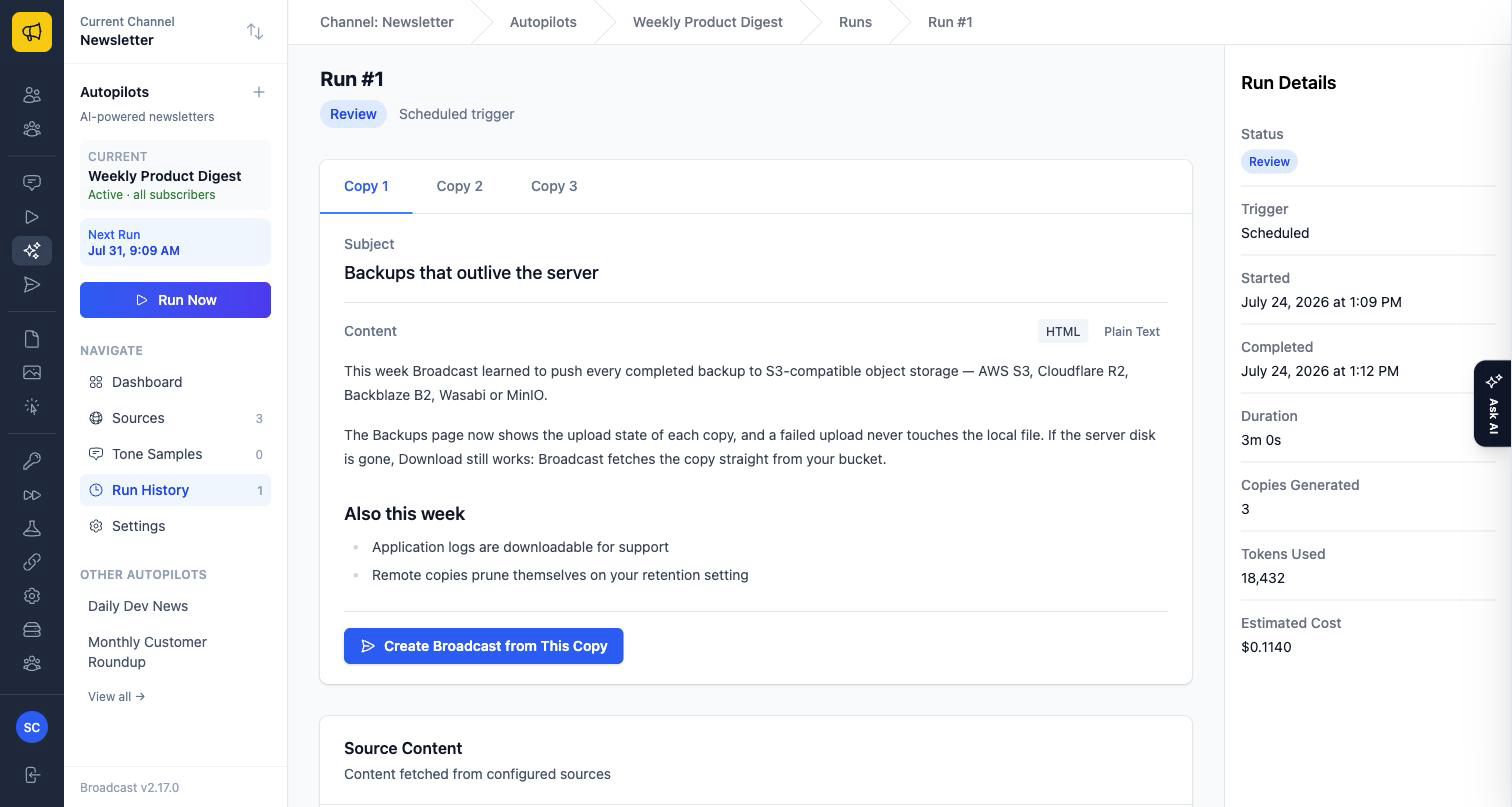
Each copy can be previewed as HTML or Plain Text. The Run Details panel alongside records what the run cost you: tokens used and an estimated price, so you can see whether a model choice is worth its output.
Creating a Broadcast
Once you’ve picked the copy you want:
- Click Create Broadcast from This Copy
- The content is transferred to a new broadcast draft, pre-filled with this autopilot’s target segments
- Make any final edits
- Schedule or send your broadcast
The copy you promoted is marked Used on its tab, so a run you come back to later still shows which draft became the broadcast.
The Autopilot Dashboard
Each autopilot has its own dashboard, reached by clicking its name in the Autopilots list.
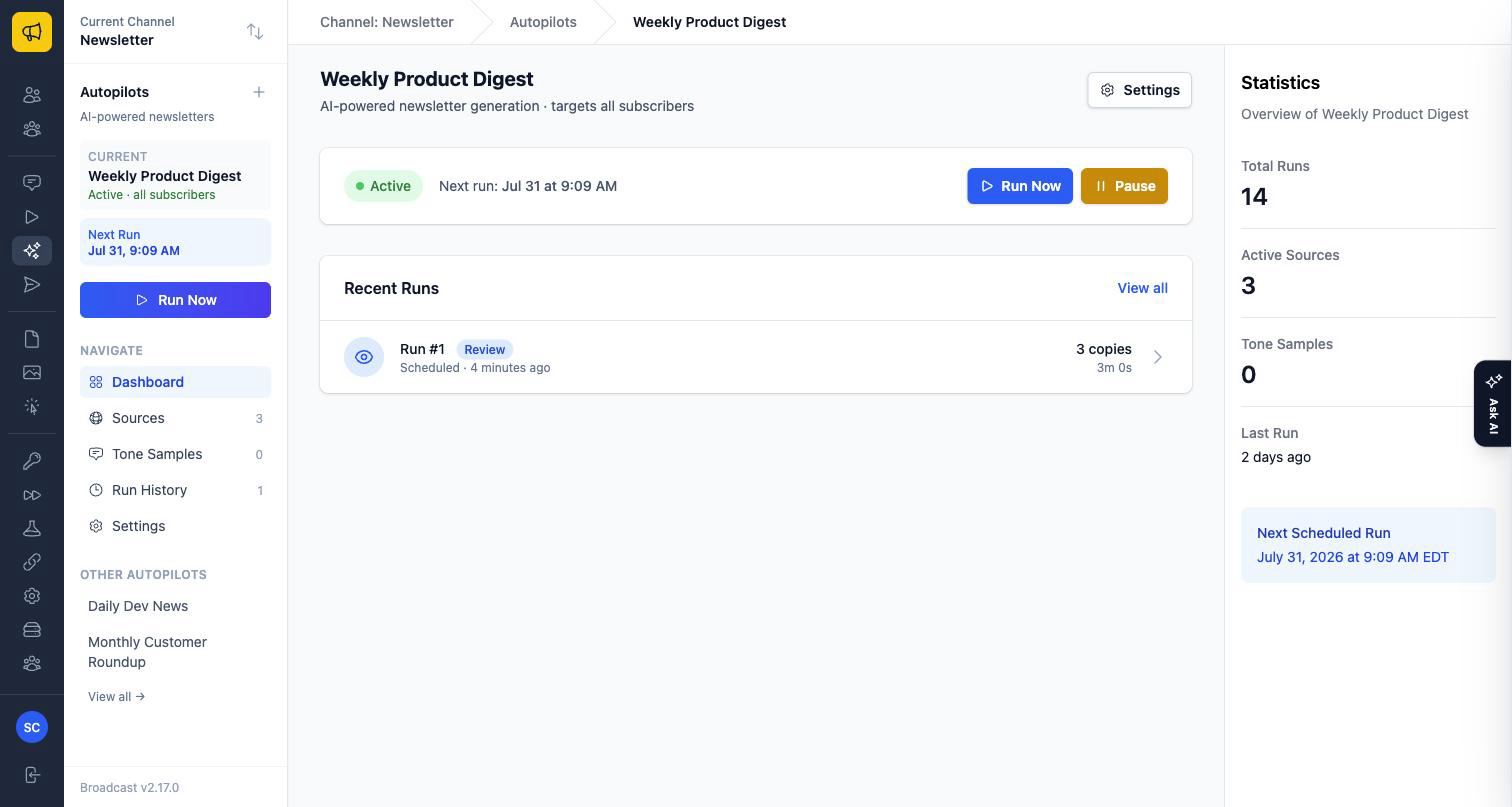
Status Card
Shows the current status and quick actions: - Activate/Pause/Deactivate buttons - Run Now for manual triggers - Settings link
An autopilot is in one of three states. Active runs on its schedule. Paused keeps all its configuration but skips scheduled runs. Inactive has no scheduled next run at all. Pausing one autopilot has no effect on the others.
Statistics
- Total Runs - How many times this autopilot has run
- Active Sources - Number of configured sources
- Tone Samples - Number of writing samples provided
- Last Run - When the last run completed
Recent Runs
A list of recent runs with their status and links to view results.
Switching Between Autopilots
In the sidebar’s Navigate menu, Dashboard takes you to the autopilots index, and the current autopilot appears as its own entry with its pages (Sources, Tone Samples, Run History, Settings) nested beneath it. Below that, Other Autopilots lists the rest of the channel’s autopilots so you can jump straight across without going back to the index.
Running Several Autopilots on One Channel
Because sources, tone, schedule, and targeting are per-autopilot, the useful pattern is one autopilot per newsletter rather than one per channel:
- A weekly product digest to all subscribers, pulling from your changelog feed and repository releases.
- A monthly customer roundup to your engaged and enterprise segments only, with a warmer tone and different sources.
- A daily internal digest left Inactive most of the time and triggered manually with Run Now when you need it.
Two things to keep in mind:
- Names must be unique on a channel. They’re how you and your teammates tell autopilots apart in the list and the sidebar.
- Each autopilot bills its own key. They can share one OpenRouter key or use different keys; costs show per run in Run Details either way.
Note
Upgrading from a version with a single Autopilot per channel? Your existing configuration was preserved as the channel’s first autopilot, and the old /autopilot URL redirects to it. Nothing needs migrating.
Best Practices
Source Selection
- Quality over quantity - A few good sources beat many poor ones
- Diverse content - Mix source types for richer newsletters
- Active sources - Choose sources that update regularly
- Relevant content - Only include sources your audience cares about
Writing Effective Instructions
- Be specific about what to include and exclude
- Mention your audience so the AI can adjust complexity
- Specify any required sections or formats
- Note any sensitive topics to avoid
Optimizing Results
- Start with presets, then customize
- Review generated content and adjust settings based on what works
- Use tone samples if the AI isn’t matching your style
- Adjust source priorities based on newsletter quality
Troubleshooting
Common Issues
“Cannot activate: At least one active source is required” Add and enable at least one content source on this autopilot before activating it.
“Cannot activate: OpenRouter API key is required” Enter and verify your OpenRouter API key in Settings. (Release-mode autopilots can skip this when a system-wide AI default is configured for the installation.)
“Cannot activate: A release source (GitHub repository or Releases API) is required” Release-mode autopilots need at least one active source that surfaces versions: a GitHub repository with Releases enabled, or a Releases API source.
“Cannot activate: AI model is required” Select an AI model from the dropdown after verifying your API key.
Source fetch failed - Verify the URL is correct and accessible - For GitHub sources, check if a personal access token is needed - For RSS feeds, confirm the feed URL is valid
Getting Help
If you encounter issues not covered here, check that: 1. Your OpenRouter API key has available credits 2. Your sources are publicly accessible (or have proper authentication) 3. Your schedule settings are configured correctly
What’s Next?
- Broadcast Emails - Learn how to send your generated newsletters
- Managing Subscribers - Build your audience and target specific groups with segments
- Email Templates - Reuse a consistent design for the broadcasts you promote