Postmark Integration
Postmark is a transactional email service known for its exceptional deliverability and detailed analytics. Broadcast provides full integration with Postmark, including API delivery and webhook tracking.
Features
| Feature | Supported |
|---|---|
| SMTP Delivery | |
| API Delivery | |
| Guided Auto-Setup | |
| Webhook Tracking | |
| Open Tracking | |
| Click Tracking | |
| Message Streams |
Guided Setup (Recommended)
The fastest way to get started with Postmark is the Guided Setup wizard, which automatically configures API delivery, sender verification, and webhooks in three steps:
- Navigate to Settings → Email Servers
- Click Add email server → Guided Setup
- Select Postmark
- Enter your Postmark Account API Token
- Broadcast will automatically:
- Configure API delivery
- Verify your sender signature
- Set up DKIM DNS records (if needed)
- Configure webhook tracking
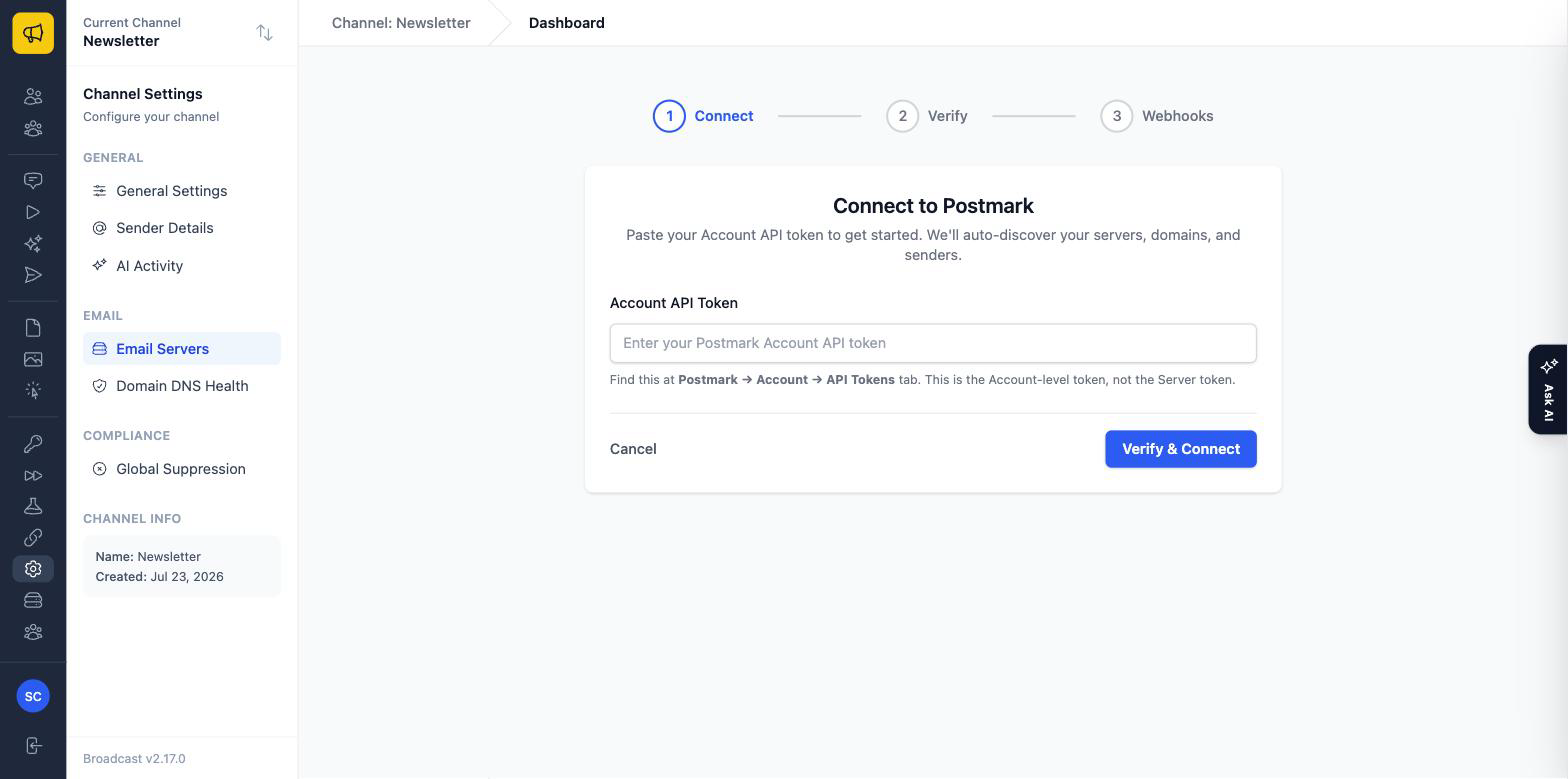
Step 4 wants the Account-level token, not a Server token: find it in Postmark under Account → API Tokens. An account token is what lets Broadcast discover your servers, domains, and senders; a server token only reaches one server and the wizard will not get past this step with one.
Reconnecting, or adding a second server
Once a channel already sends through Postmark, the wizard asks what this run is for before it asks for anything else:
- Reconnect an existing server re-runs setup for a server you already have. Use this to refresh its credentials or re-check its senders. It never creates anything in Postmark.
- Add another server creates a second Postmark server for the same channel, and asks what to
call it. Give it a name that says what it carries (
Acme Invoices), because the name is how you will tell your servers apart in both Broadcast and Postmark.
A channel can run as many Postmark servers as you need. That is worth doing when one channel sends genuinely different kinds of mail: a server’s reputation is its own, so putting invoices on a separate server from your newsletter means a bad week for one cannot drag down the other. Bind each server to the email types it should carry in the server’s settings, and pin a sequence to a specific server from the sequence’s own settings.
If you prefer manual control or need SMTP delivery, follow the manual setup instructions below.
Delivery Methods
Broadcast supports two delivery methods for Postmark:
API Delivery (Recommended)
API delivery uses Postmark’s REST API for sending emails. Benefits include:
- Faster sending: Direct API calls without SMTP overhead
- Better error handling: Detailed error messages from Postmark
- Message streams: Full support for transactional and broadcast streams
- Reduced infrastructure: No need to open SMTP ports
SMTP Delivery
Traditional SMTP delivery for maximum compatibility with existing infrastructure.
Both methods support full webhook integration for tracking email events.
Setting Up Postmark
Prerequisites
Before you begin, ensure you have:
- A Postmark account
- A verified sender signature (domain or email address)
- A server created in Postmark
Finding Your Credentials
Server API Token
- Log into your Postmark account
- Select your server
- Go to Settings → API Tokens
- Copy your Server API Token
Security Best Practice
Use a Server API Token, not an Account API Token. Server tokens have limited scope and are safer to use.
SMTP Credentials
- In your Postmark server, go to Settings → SMTP
- Note the following:
- Server: smtp.postmarkapp.com
- Port: 587 (or 25, 2525)
- Username: Your Server API Token
- Password: Your Server API Token
Configuring Email Delivery
API Delivery Setup
To use API delivery (recommended):
- In Broadcast, go to Settings → Email Servers
- Click New Email Server
- Configure:
- Label: A descriptive name (e.g., “Postmark Production”)
- Vendor: Postmark
- Delivery Method: API
- Postmark Server API Token: Your server’s API token
- Select which email types to send:
- ✅ Broadcasts
- ✅ Sequences
- ✅ Transactional Emails
- Click Create Email Server
SMTP Delivery Setup
For SMTP delivery:
- In Broadcast, go to Settings → Email Servers
- Click New Email Server
- Configure:
- Label: A descriptive name
- Vendor: Postmark
- Delivery Method: SMTP
- SMTP Address: smtp.postmarkapp.com
- SMTP Port: 587
- SMTP Username: Your Server API Token
- SMTP Password: Your Server API Token
- SMTP Authentication: Login
- Enable STARTTLS: Yes
- Click Test SMTP settings to verify connectivity
- Select which email types to send
- Click Create Email Server
Webhook Setup
Postmark webhooks allow Broadcast to receive real-time notifications about email events. This enables accurate tracking of deliveries, bounces, opens, and clicks.
Finding Your Webhook URL
- In Broadcast, go to Settings → Email Servers
- Find the Postmark section
- Copy your webhook URL (e.g.,
https://broadcast.yourdomain.com/wh/postmark)
Configuring Webhooks in Postmark
- Log into your Postmark account
- Select your server
- Go to Settings → Webhooks
- Click Add webhook
- Configure the webhook:
Webhook URL: Your Broadcast webhook URL
Events to send: - ✅ Delivery - ✅ Bounce - ✅ Spam Complaint - ✅ Open (if using Postmark’s open tracking) - ✅ Click (if using Postmark’s link tracking)
- Click Save webhook
Webhook Password (Optional)
Broadcast uses a webhook password to verify incoming requests from Postmark:
- In Broadcast, go to Settings → Email Servers
- Find the Postmark section
- Note the webhook password displayed
- You can click Refresh Password to generate a new one
When configuring your webhook in Postmark, append the password to your webhook URL:
https://broadcast.yourdomain.com/wh/postmark?password=YOUR_PASSWORD
Webhook Security
While the password is optional, it’s recommended for production use to prevent unauthorized webhook submissions.
Message Streams
Postmark uses message streams to separate different types of email. This helps maintain deliverability by keeping transactional emails separate from marketing emails.
Default Streams
Postmark provides two default streams:
| Stream | Type | Use Case |
|---|---|---|
outbound |
Transactional | Order confirmations, password resets |
broadcast |
Broadcast | Newsletters, marketing emails |
Using Message Streams with Broadcast
When using API delivery, Broadcast sends each email on the stream that matches what it is:
| What Broadcast is sending | Stream |
|---|---|
| Transactional emails | outbound |
| Opt-in confirmations | outbound |
| Broadcasts | broadcast |
| Sequences | outbound (bulk is opt-in per sequence) |
Sequences default to the transactional stream: a sequence step goes to one person and is triggered by something that person did, which is how Postmark describes transactional mail.
A sequence whose content is marketing, an onboarding series or a re-engagement campaign, is better placed on the bulk stream, so its unsubscribes and spam complaints cannot damage the reputation carrying your receipts and password resets. Open the sequence’s Settings and change Message Stream to Bulk (broadcast). The setting only appears for channels that have a Postmark server, since no other provider separates streams this way.
Warning
Postmark requires an unsubscribe link on every email sent through a bulk stream, so a sequence with unsubscribe links switched off does not belong there. Bulk streams are also not guaranteed to exist: a server can be missing one, or use a custom stream, and Postmark rejects a send naming a stream its server does not have. If sends start failing after you change this, check the server’s streams in Postmark.
You can also configure different Postmark servers for different email types. See Reconnecting, or adding a second server.
Tracking Features
With Postmark webhooks enabled, Broadcast automatically tracks:
Delivery Events
- Delivered: Email successfully delivered to recipient’s mailbox
- Bounced: Email bounced (hard or soft)
- Spam Complaint: Recipient marked email as spam
Engagement Events
- Opened: Recipient opened the email
- Clicked: Recipient clicked a link
Automatic Actions
When certain events occur, Broadcast takes automatic action:
| Event | Action |
|---|---|
| Hard Bounce | Subscriber deactivated, email added to suppression list |
| Spam Complaint | Subscriber marked as complained, email suppressed |
| Soft Bounce | Recorded for monitoring (subscriber remains active) |
Open and Click Tracking
Postmark offers its own open and click tracking, or you can use Broadcast’s native tracking.
Using Postmark’s Tracking
- In Postmark, enable Open Tracking and Link Tracking in your server settings
- Configure your webhook to include Open and Click events
- Broadcast will receive and record these events
Using Broadcast’s Native Tracking
- When creating broadcasts or sequences, enable Track opens and Track clicks
- Broadcast will insert tracking pixels and rewrite links
- Tracking works independently of Postmark webhooks
Which Should I Use?
| Approach | Pros | Cons |
|---|---|---|
| Postmark tracking | More accurate (server-side), works with all delivery methods | Requires webhook setup |
| Broadcast tracking | Works without webhooks, provider-agnostic | Requires tracking enabled per broadcast |
For best results, you can use both: Broadcast deduplicates events automatically.
Testing the Integration
Sending a Test Email
- Create a test subscriber with your own email address
- Create a test broadcast
- Send to your test subscriber
- Verify in Postmark’s activity feed that the email was sent
- Check your inbox for the email
- In Broadcast, verify delivery events appear on the broadcast detail page
Testing Webhook Events
- Open the test email to trigger an open event
- Click any links to trigger click events
- In Broadcast, check the subscriber’s activity log
- Verify events are recorded with correct timestamps
Testing Bounces
Testing in Sandbox
Use Postmark’s sandbox mode for testing bounces and complaints without affecting your sender reputation.
To test bounce handling:
- Add a test subscriber with an invalid email format
- Send a test broadcast
- Postmark will return a bounce
- Verify:
- Bounce event appears in Broadcast
- Subscriber is deactivated
- Email is added to suppression list
Webhook Events
Postmark sends the following webhook events:
| Event | Description | Broadcast Action |
|---|---|---|
Delivery |
Email delivered successfully | Records delivery timestamp |
Bounce |
Email bounced | Deactivates subscriber, adds to suppression |
SpamComplaint |
Marked as spam | Marks as complained, suppresses email |
Open |
Email opened | Records open timestamp |
Click |
Link clicked | Records click with URL |
Troubleshooting
Common Issues
“Invalid API Token” error
- Verify you’re using a Server API Token, not an Account API Token
- Check that the token hasn’t been rotated or deleted
- Ensure there are no extra spaces in the token
Webhooks not being received
- Verify the webhook URL is correct and includes HTTPS
- Check that your Broadcast instance is publicly accessible
- Verify the webhook is enabled in Postmark
- Check Postmark’s webhook logs for delivery failures
Emails not sending
- Verify your sender signature is verified in Postmark
- Check that the “From” address matches your verified signature
- Review Postmark’s activity feed for rejection reasons
- Ensure your Postmark account isn’t in sandbox mode (for production)
Open/click tracking not working
- If using Postmark tracking: Verify tracking is enabled in server settings
- If using Broadcast tracking: Ensure tracking is enabled on the broadcast
- Check that webhooks include Open and Click events
Viewing Postmark Activity
- Log into Postmark
- Go to your server’s Activity feed
- Search for specific emails by recipient or subject
- Click on an email to see detailed delivery information
Webhook Debugging
In Postmark:
- Go to Settings → Webhooks
- Click on your webhook
- View Recent deliveries for success/failure status
- Check response codes and any error messages
Getting Help
If you’re experiencing issues:
- Check Postmark’s status page for service issues
- Review Postmark’s activity logs for detailed error messages
- Verify all configuration steps were completed
- Contact support at simon@sendbroadcast.net
Best Practices
Sender Signatures
- Verify your sending domain (not just an email address) for better deliverability
- Set up SPF, DKIM, and DMARC records as recommended by Postmark
- Use a consistent “From” address across all emails
Message Streams
- Use the broadcast stream for newsletters and marketing
- Keep transactional emails in the transactional stream
- Don’t mix marketing content in transactional emails
Monitoring
- Regularly check your Postmark reputation score
- Monitor bounce rates and address issues promptly
- Review spam complaints and adjust content if needed
Webhook Reliability
- Use the webhook password for security
- Monitor webhook delivery in Postmark’s dashboard
- Set up alerts for webhook failures