Storage
Everything you upload to Broadcast, meaning the images in File Assets and anything inserted directly into an email, has to live somewhere. By default that is the server’s own disk. This page lets you move it to S3-compatible object storage instead.
Find it under Application in the sidebar, then Storage.
Note
This is not the same setting as the backup destination. Storage decides where your uploaded files live day to day and is read on every page that shows an image. A backup destination is where compressed database dumps get copied for safekeeping. They are configured separately and can point at different buckets. See Backup & Recovery.
Storage Statistics
The top of the page tells you where your files currently are.

Files on Disk and Files on S3 are counted separately because both can be true at once. During a migration the numbers move from one to the other, and comparing them is how you confirm the migration finished.
Why Move to Object Storage
Disk is fine to start with and needs no configuration. Object storage is worth the setup once any of these apply:
- You rebuild or replace servers. Files on local disk are lost with the machine unless they are inside a mounted volume you have thought about. Files in a bucket survive the server entirely
- Your library is growing. Disk fills up, and resizing a server to hold images is an expensive way to buy storage
- You want your backups smaller. Uploads on disk are part of what you have to capture; uploads in a bucket are already durable and replicated
Supported Providers
Anything speaking the S3 API works. The panel lists the settings each one needs:
| Provider | Endpoint | Force Path Style |
|---|---|---|
| AWS S3 | Leave empty, set your region | No |
| MinIO | Your server, for example http://minio:9000 |
Yes |
| DigitalOcean Spaces | https://[region].digitaloceanspaces.com |
No |
| Cloudflare R2 | https://[account_id].r2.cloudflarestorage.com |
Yes |
| Backblaze B2 | https://s3.[region].backblazeb2.com |
No |
Force Path Style controls URL shape: on, Broadcast builds endpoint/bucket; off, it builds bucket.endpoint. Providers that do not issue per-bucket subdomains need it on. If uploads fail with DNS or “no such host” errors after everything else looks right, this is the setting to flip.
Configuring a Bucket
Tick Enable S3 Storage and fill in the connection details.
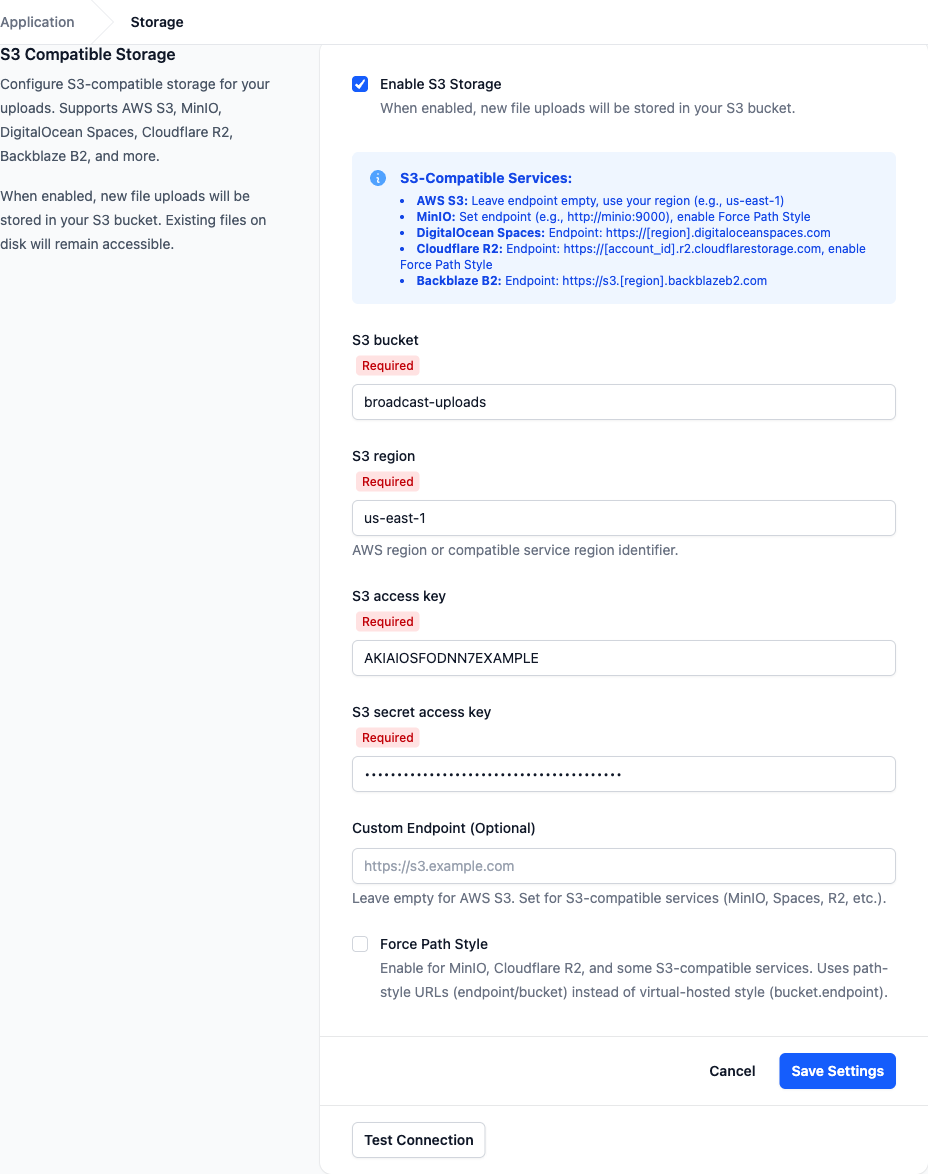
| Field | Notes |
|---|---|
| S3 bucket | The bucket name. Create it at your provider first, Broadcast does not create it for you |
| S3 region | The region identifier, such as us-east-1. Required even for providers where it is nominal |
| S3 access key and secret access key | Credentials for a key pair with read and write access to that bucket |
| Custom endpoint | Leave empty for AWS S3. Set it for everything else |
| Force path style | See the table above |
Click Save Settings, then Test Connection. The test writes and reads back a small object, so a pass means the credentials really can write, not just authenticate.
Warning
Scope the credentials to this one bucket. Broadcast only ever needs to read and write objects there, so a key with account-wide access buys you nothing and would turn a leaked key into a much larger problem.
Once saved, new uploads go to the bucket. Files already on disk stay on disk and keep working, so nothing breaks at the moment you switch. Moving those older files across is a separate, deliberate step.
Migrating Existing Files
With S3 enabled and configured, a File Migration section appears showing how much is still on disk.

Migration is three steps, in order, and each one is deliberately separate so nothing is deleted before it has been proven safe.
1. Migrate Files to S3
Copies every file currently on disk into the bucket and repoints Broadcast at the new location. It runs in the background, so you can leave the page. A file that fails to copy is recorded and skipped rather than aborting the whole run, which means a partial failure leaves you with a mix rather than a broken library.
Nothing is deleted at this stage. Every file exists in both places.
2. Verify S3 Files
Walks every file Broadcast believes is on S3 and confirms it is actually there and readable. Run this before the next step, because it is what makes the next step safe.
3. Cleanup Local Files
Deletes the local copies. It checks each file exists on S3 immediately before removing it from disk and skips anything it cannot confirm, so a file that failed to migrate is never deleted.
Warning
Do the three steps in order and do not skip verification. Cleanup is the only irreversible step, and skipping the check ahead of it is the one way to lose files here. If you are unsure, leave the local copies in place: they cost disk space and nothing else.
All three run as background jobs. Watch their progress, and read the error detail for anything that failed, in Monitoring and Logs.
After Migrating
Existing image URLs keep working. The public /files/ URLs in File Assets are stable identifiers that Broadcast resolves to wherever the file currently lives, so emails you sent before the migration still render afterwards.
The Storage column in the File Assets library shows where each file now sits, which is the quickest confirmation that a migration did what you expected.
Troubleshooting
Test Connection fails. Work through it in this order: the bucket exists and the name is spelled exactly right; the region matches the bucket’s actual region; the key pair has write permission and not just read; the endpoint matches your provider’s format from the table above; and Force Path Style is set correctly for that provider.
Uploads fail after enabling S3. Almost always a permissions problem on the key rather than a Broadcast problem. Confirm the key can PutObject into the bucket. Check Monitoring and Logs for the provider’s own error message, which is usually specific.
Migration finished but files are still counted on disk. Those are files that failed to copy. Their errors are in the logs. Fix the cause, then run the migration again: files already on S3 are not copied twice.
Images are broken after cleanup. Cleanup only removes files it confirmed on S3, so this points at the bucket being unreadable rather than the file being gone. Check that the credentials are still valid and the bucket’s access policy has not changed.