Polls
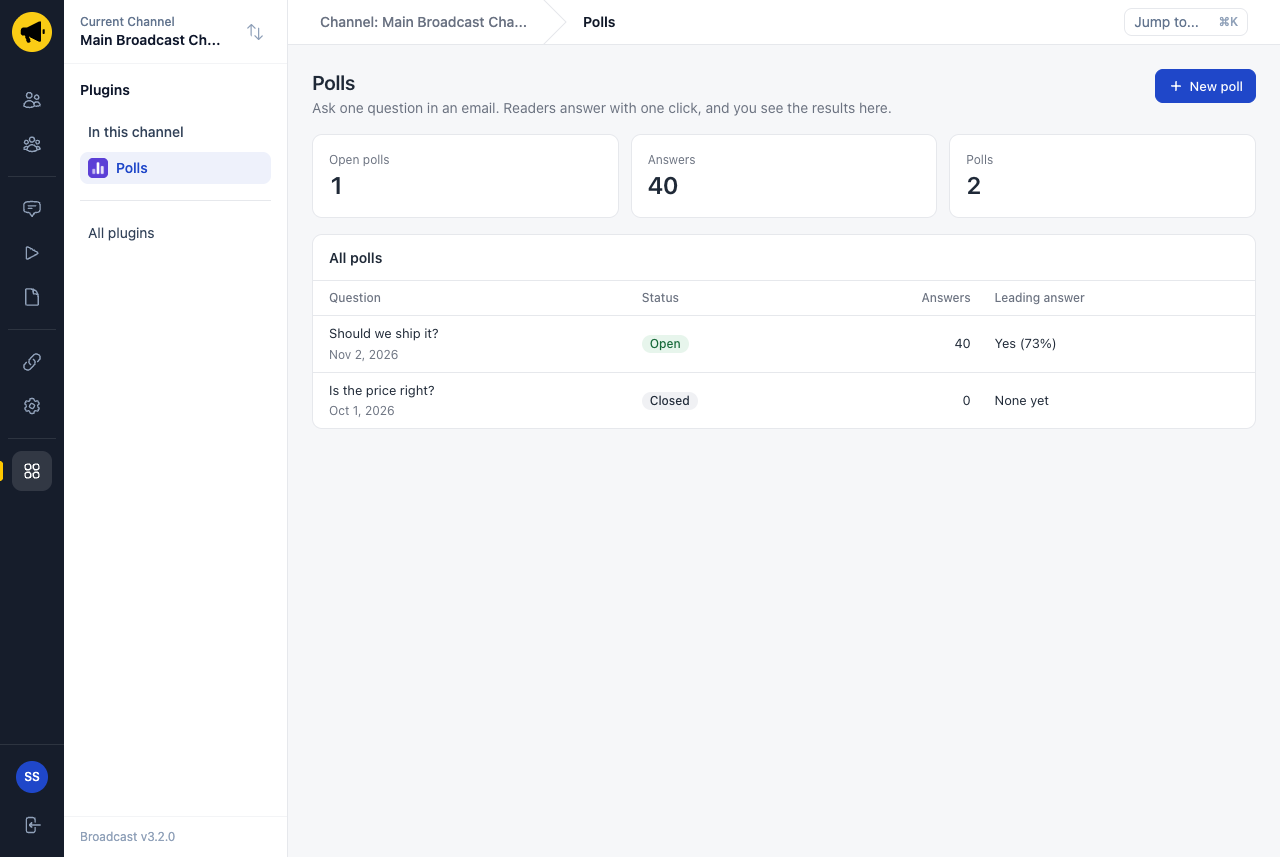
Polls is an official Broadcast plugin. You ask one question in an email. Each answer is a button. A reader votes with one click, and you see the results in Broadcast.
This page is for the owner of a newsletter and describes Polls 1.6. To run polls from another system, see Polls API.
Before you start
Install the Polls plugin and turn it on in the channel. See Install, Update and Publish Plugins. Then open Polls in the plugins menu of the channel.
Create a poll
- Select New poll.
- Enter the question.
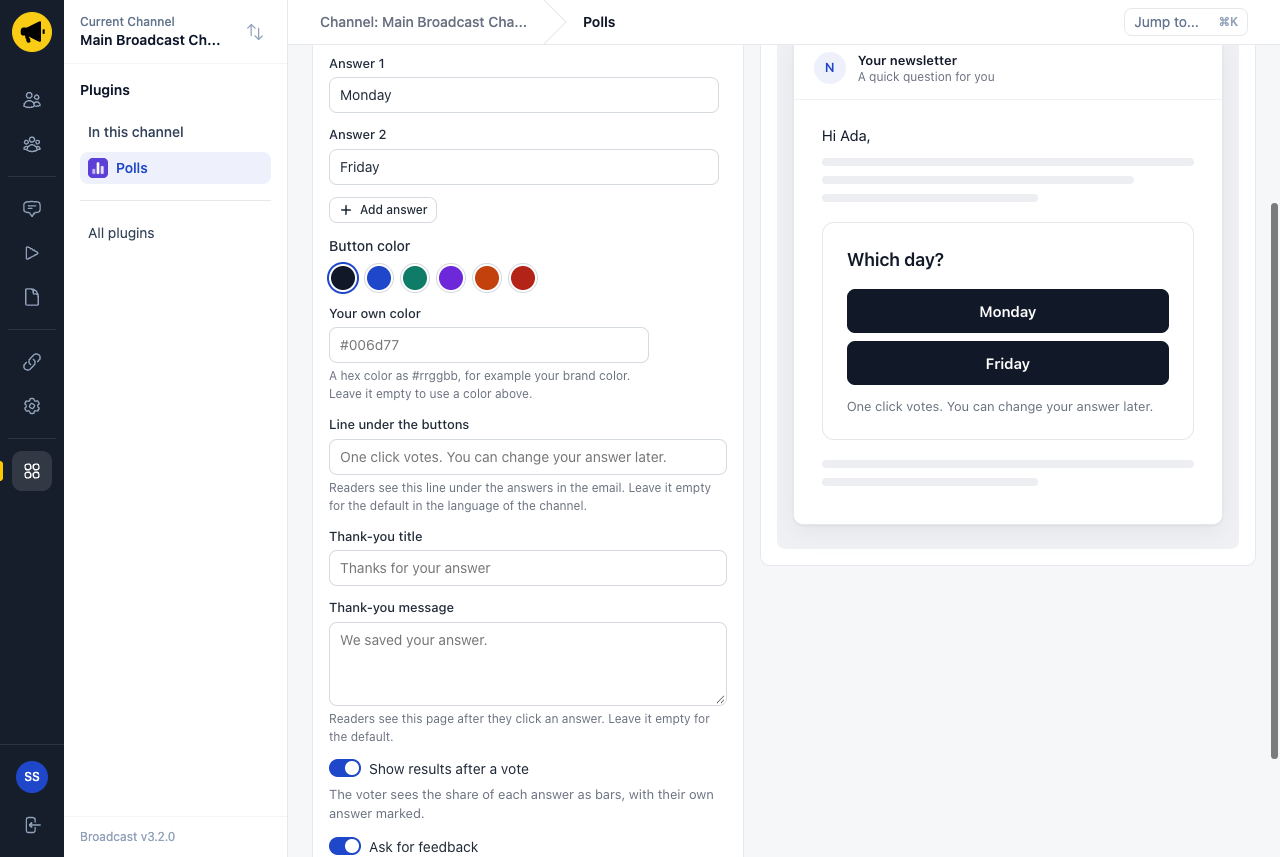
- Enter 2 to 6 answers. Add answer adds a field.
- Select Create poll.
The preview at the right shows the poll as a reader sees it in the email. It changes as you type. Desktop and Phone change the width of the preview.
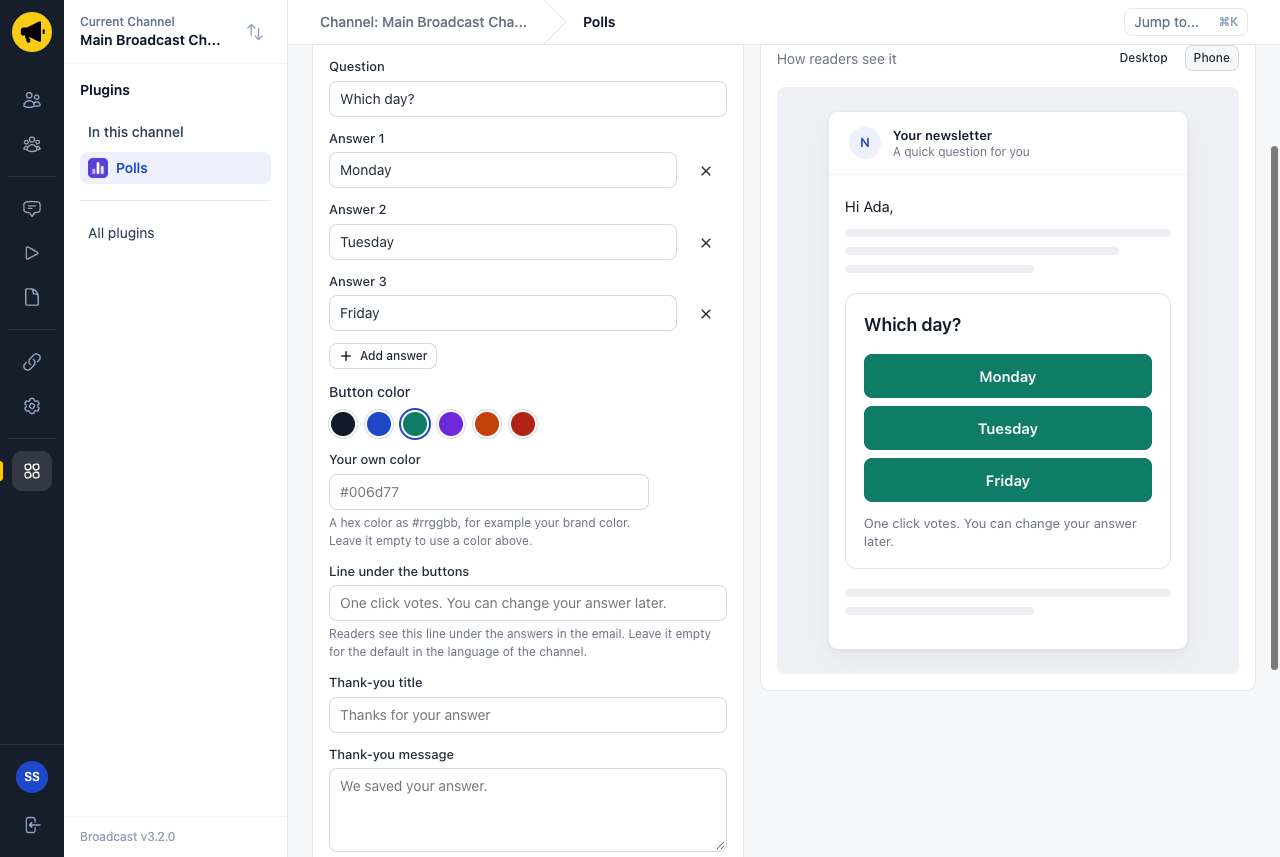
| Field | Required | Meaning |
|---|---|---|
| Question | Yes | Up to 200 characters |
| Answer 1 to Answer 6 | Two or more | Up to 200 characters each. Each answer must be different |
| Button color | No | One of the color choices |
| Your own color | No | A hex color, for example #006d77 |
| Line under the buttons | No | Up to 200 characters |
| Thank-you title | No | Up to 200 characters |
| Thank-you message | No | Up to 500 characters |
| Show results after a vote | No | A switch, off by default |
| Ask for feedback | No | A switch, off by default |
| Feedback question, Feedback placeholder, Title after feedback, Message after feedback | No | Shown with Ask for feedback on. Up to 200 characters each, 500 for the message |
You cannot change a poll after you create it. To change a question, make a new poll.
The button color
Select one of the color choices, or type a hex color in Your own color. The # is optional. Broadcast chooses white or dark text for the button, which one is easier to read on your color.
- A text that is not a hex color shows an error, and the poll keeps the last color.
- A color choice that you select after that empties the field.
Your brand color
A new poll starts with the brand color of the channel. This is the accent color of your brand kit, when you saved one. It is the first color choice, with the name “Your brand color”.
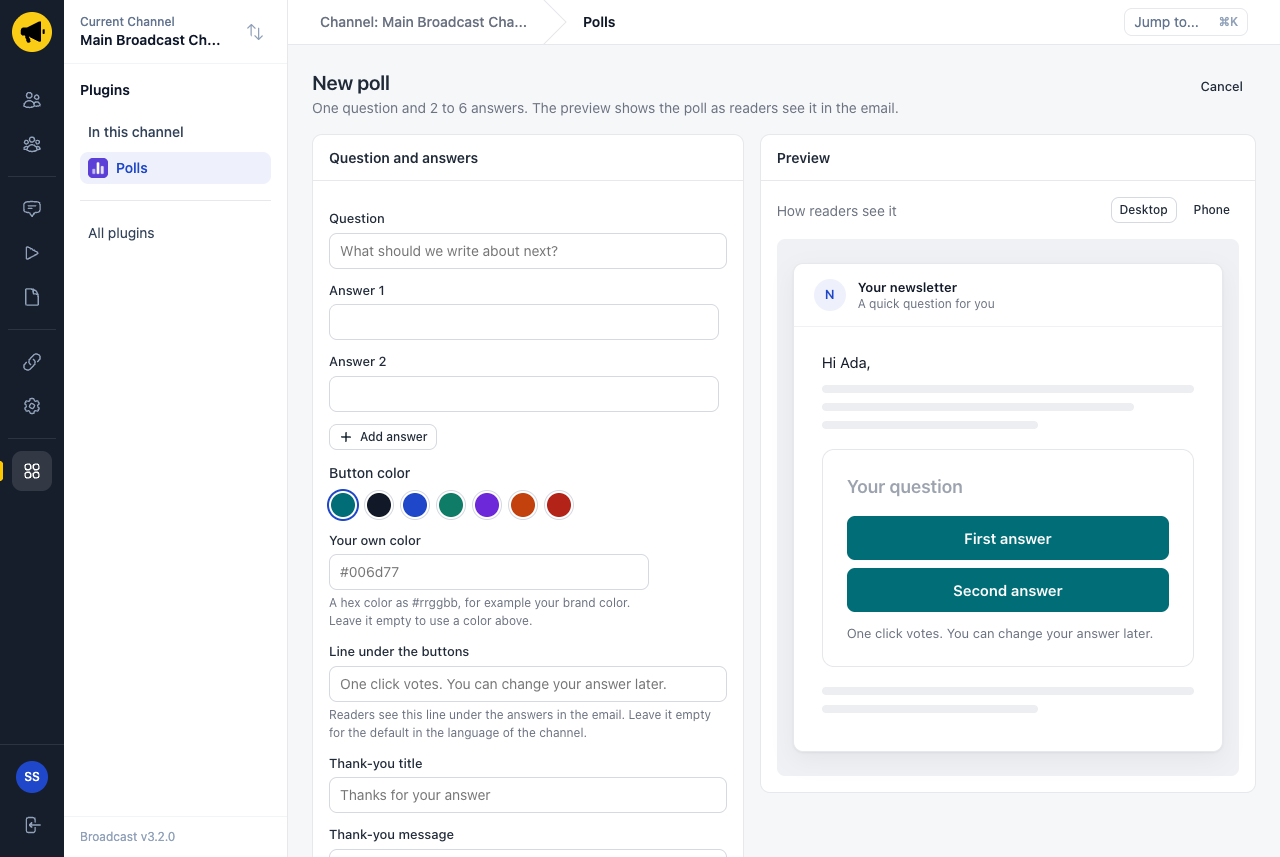
- A channel with no accent color in its brand kit starts with ink (
#111827). - A poll keeps the color it was made with. A later change of the brand kit does not change the polls that you already made.
The line under the buttons
Under the answers, the email has one line. The default is “One click votes. You can change your answer later.”, in the language of the channel.
To use your own words, type them in Line under the buttons. Use this for your own tone, for example the informal “du” in German.
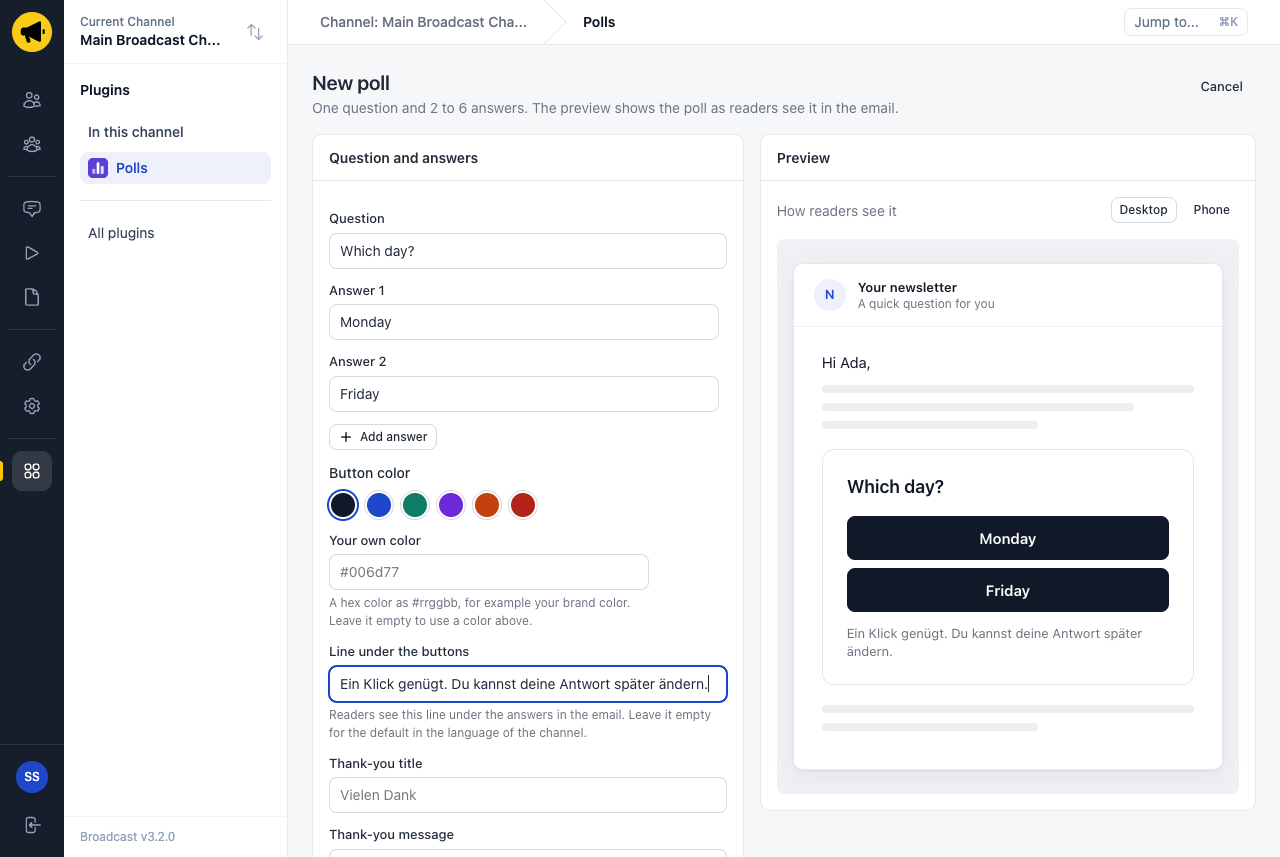
- An empty field uses the default. A poll always has a line.
- The line is shown as text. HTML and merge tags in it do not work.
Add the poll to an email
- Open a broadcast, a sequence email or a template in an editor.
- Select Insert from a plugin. In the block editor, the block is under From plugins.
- Select Poll.
- Select a poll, or select New poll to make one here.
- Select Insert poll.
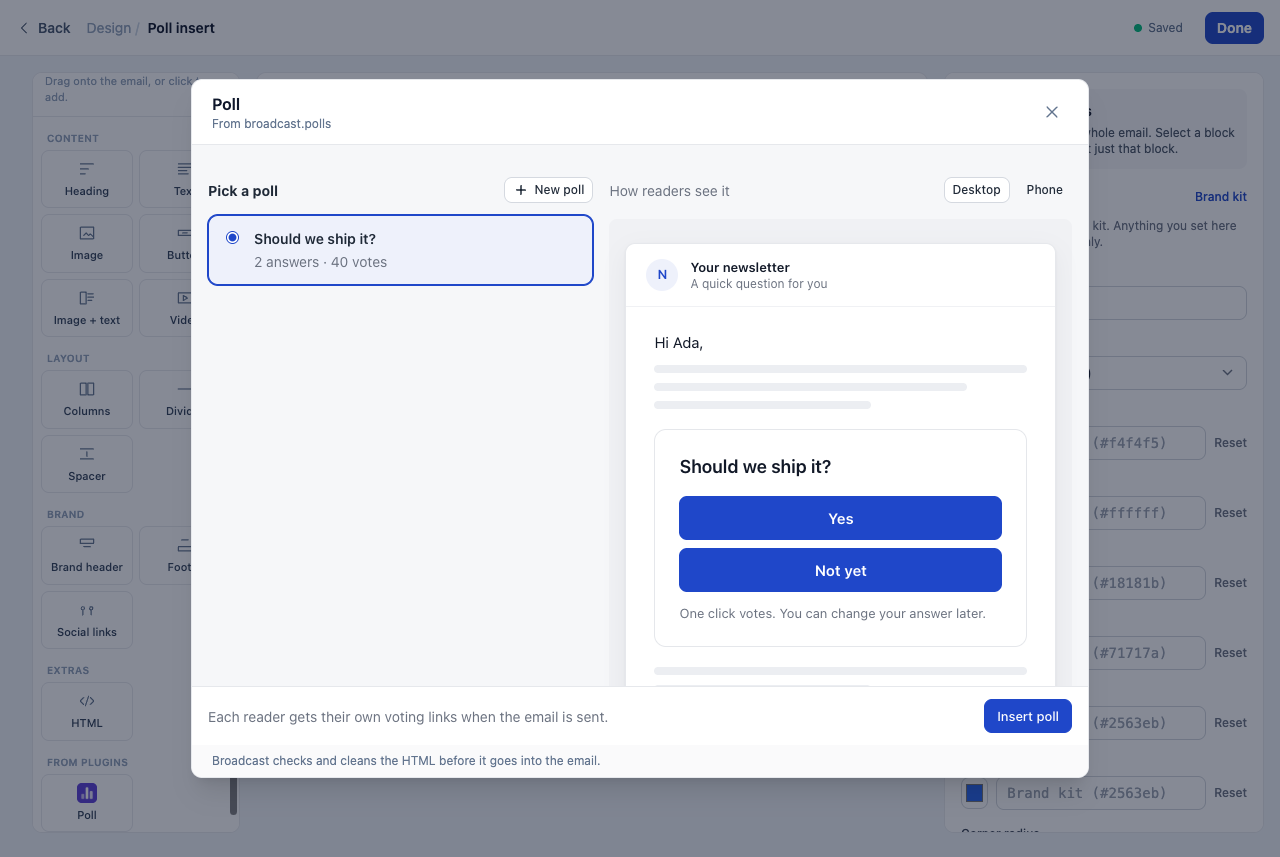
You can also copy the HTML from the page of a poll (Copy HTML) and paste it into an HTML block.
Each reader gets their own voting links when the email is sent.
- The links work in broadcasts and sequence emails.
- The links do not work in transactional emails.
- In a test send, a click shows “This is a test email” and saves no answer.
The page after a vote
After a click on an answer, the reader sees a page with your thank-you title and message. Empty fields use “Thanks for your answer” and “We saved your answer.”
Each poll has two switches for this page. Both are off until you turn them on when you create the poll.
| Switch | What the reader gets |
|---|---|
| Show results after a vote | The question and the share of each answer as bars, with their own answer marked |
| Ask for feedback | A text field “Additional feedback” and a send button |
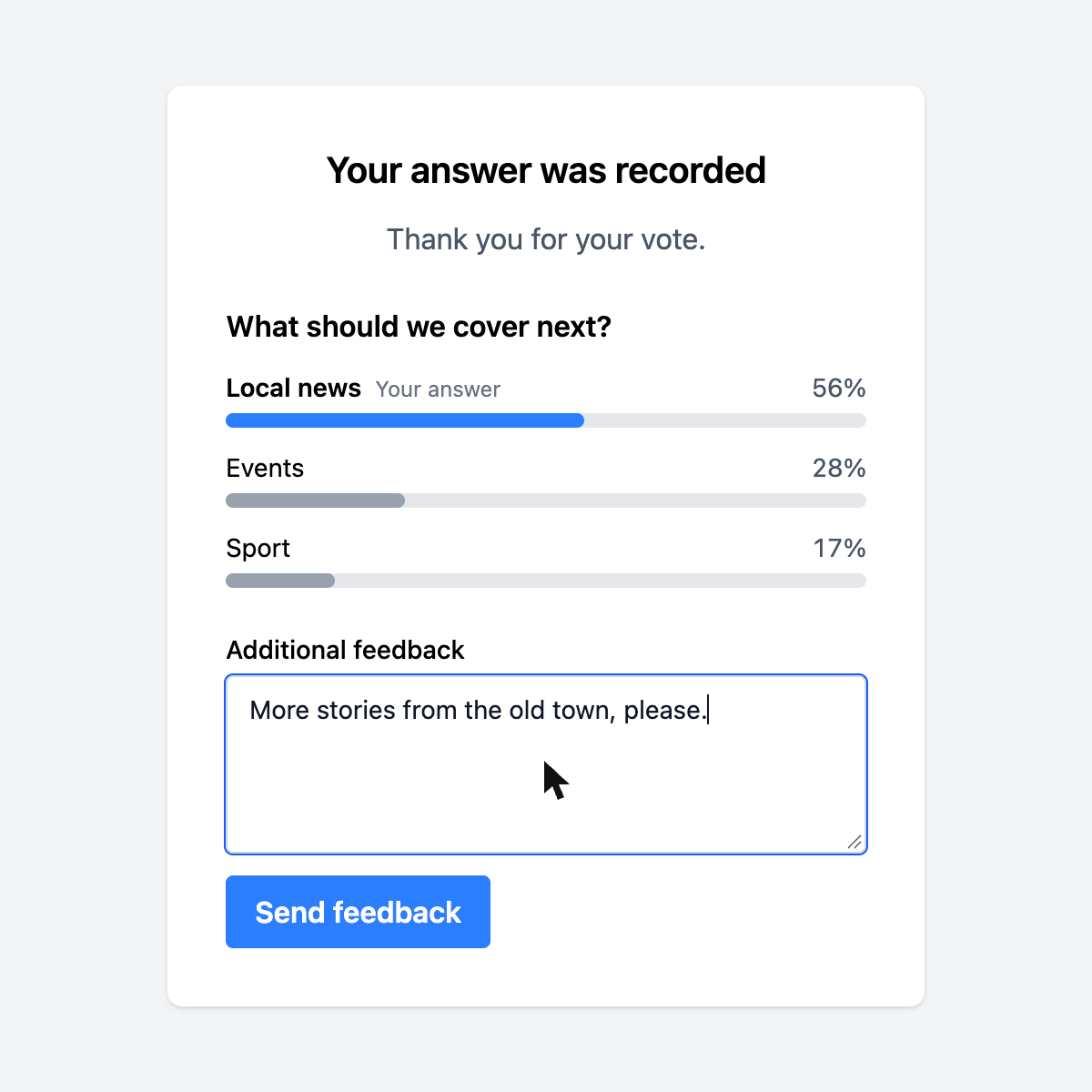
With Ask for feedback on, the form shows four more fields. Use them for your own words, for example an informal tone:
| Field | Default |
|---|---|
| Feedback question | “Additional feedback” |
| Feedback placeholder | “Tell us more about your answer” |
| Title after feedback | “Thanks for your feedback” |
| Message after feedback | “We saved your feedback.” |
An empty field uses the default, in the language of the page.
- The page shows shares in percent, not the number of votes.
- A reader can write up to 1,000 characters of feedback.
- A second feedback text from the same person replaces the first.
- The page has the branding of your channel and no other footer.
Read the results
Select a poll in the list to open its page.
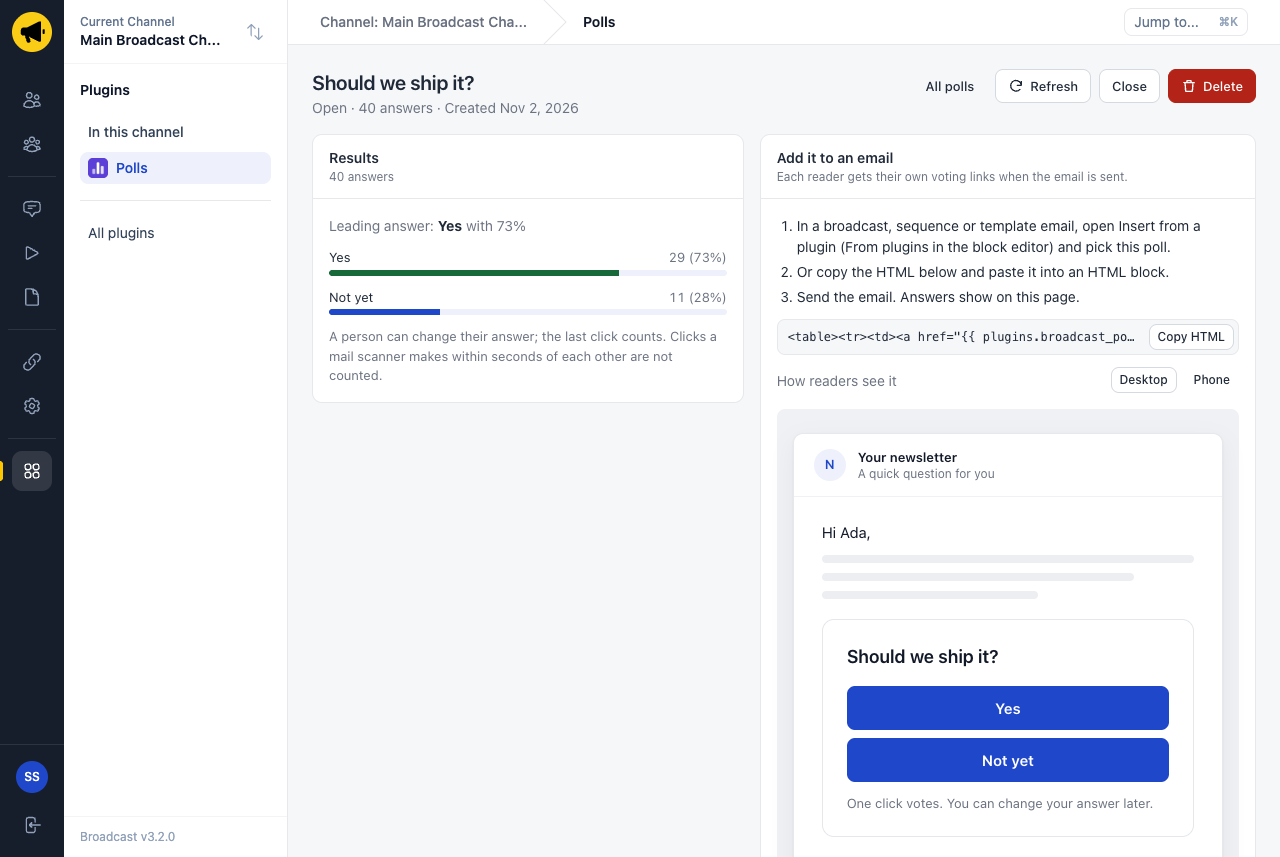
The Results card shows the count and the share of each answer. Refresh reads the numbers again. Close stops the poll: it keeps its results and takes no more answers. Delete removes the poll, its counts and its feedback.
How votes count
- A person can change their answer. The last click counts.
- Clicks that come within 10 seconds of each other count as no vote. A mail scanner clicks each link in this way. The person’s own later click counts.
Feedback
When a poll asks for feedback, its page has a Feedback card. It shows the texts, newest first, each with the answer of that person.
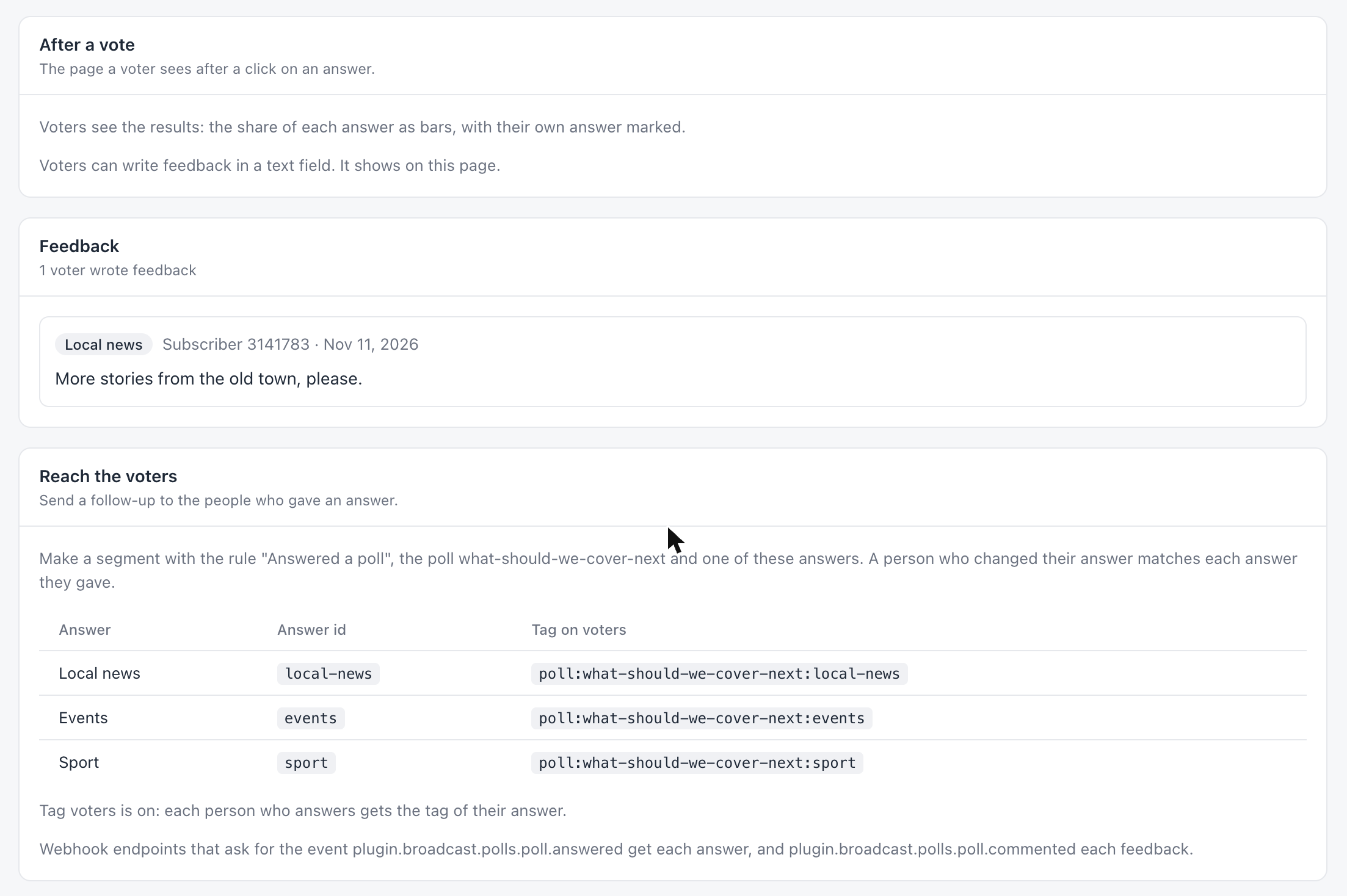
- The card shows the newest 100 texts.
- The page of a subscriber has a panel “Poll feedback” with the texts of that person.
- When you delete a subscriber, their feedback is deleted too.
Reach the voters
Segments
Make a segment with the rule Answered a poll, the poll and one of its answers (see Segments). The Reach the voters card on the page of a poll shows the poll id and the answer ids.
A person who changed their answer matches each answer that they gave.
Tags
Turn on the Tag voters setting of the plugin. A vote then adds the tag poll:<poll id>:<answer id>, for example poll:what-should-we-cover-next:events. A changed answer removes the earlier tag. The setting is off by default.
A tag that is a topic is refused, because a topic is consent. The plugin log shows the refusal, and the vote still counts.
Webhooks
In the form of a webhook endpoint, tick an event under Plugin events (see Webhooks).
| Event | Sent for | Data |
|---|---|---|
plugin.broadcast.polls.poll.answered |
Each answer | The poll id, the answer id and the subscriber id |
plugin.broadcast.polls.poll.commented |
Each feedback text | The poll id, the answer id of that person, the first 500 characters of the text and the subscriber id |
A webhook never has an email address.
Languages
What readers see is in their language. Polls has its reader texts in English, German, French, Spanish, Italian, Portuguese, Dutch, Polish, Swedish, Danish, Norwegian, Finnish and Japanese.
| Text | Language |
|---|---|
| The line under the buttons in the email | The language of the channel |
| The page after a vote, with the feedback field | The language of that page: the channel’s, or the reader’s browser language when the channel matches browser languages |
| Your own line, thank-you texts and feedback texts | As you wrote them, in every language |
With Broadcast 3.1
Polls 1.6 also runs on Broadcast 3.1, with these differences:
- The reader texts are in English.
- The page after a vote shows the thank-you title and message only. It has no results and no feedback field.
- A new poll starts with ink, not with the brand color.