File Assets
File Assets is Broadcast’s image library. Upload an image once and it gets a permanent public URL that any email can point at, which is what email needs: mail clients cannot read images out of your app, so every image in an email has to be hosted somewhere reachable without a login.
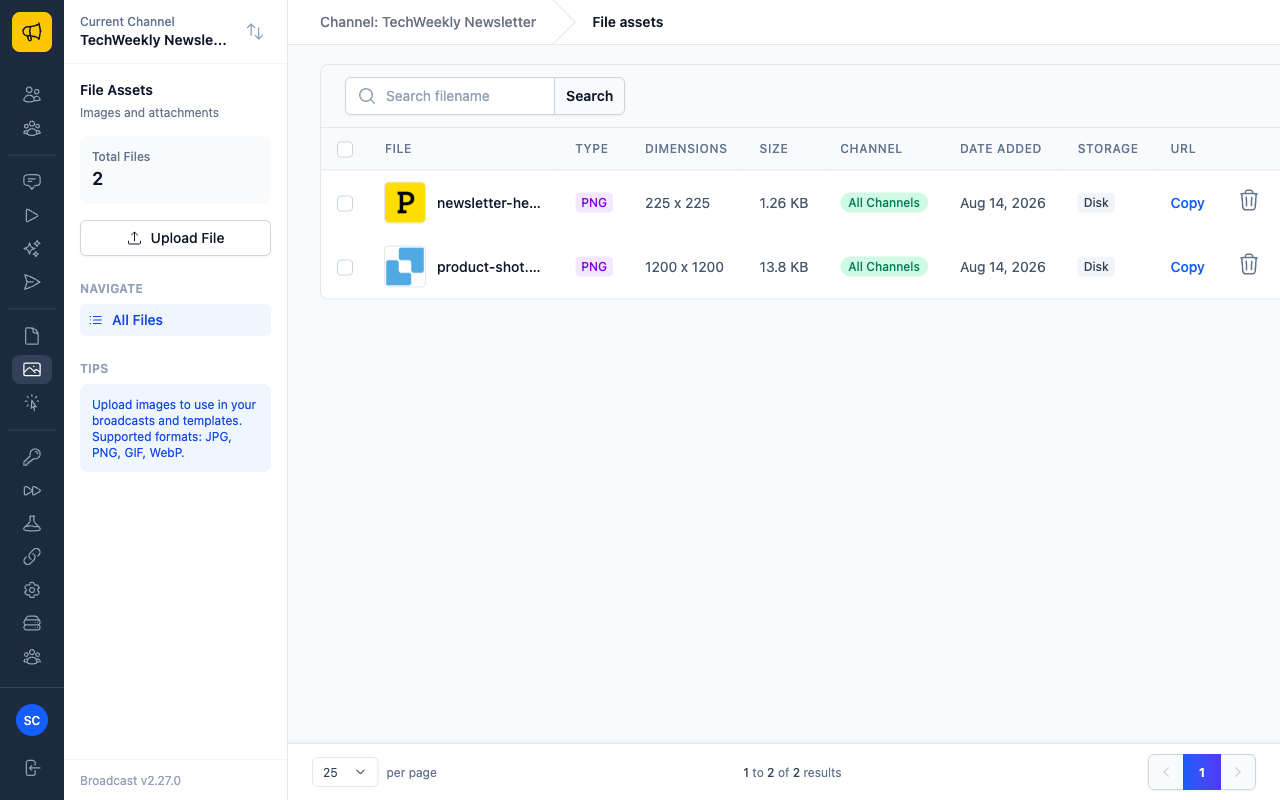
Each row shows the file’s type and dimensions, its size, which channels can use it, where it is stored, and a Copy link that puts the public URL on your clipboard.
Uploading a File
Click Upload File, then either drop a file onto the panel or browse for one.
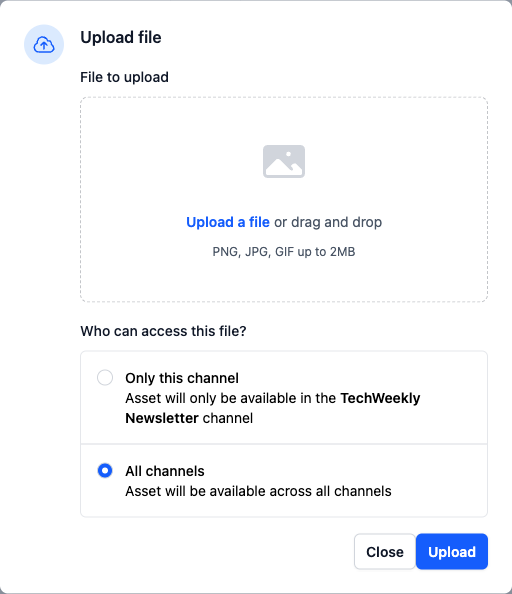
Broadcast accepts PNG, JPEG, and GIF, up to 10 MB per file. Anything else is rejected when you upload it.
Note
10 MB is the ceiling, not a target. An image that large will slow every open, and some mail clients will refuse to fetch it at all. Aim for well under 200 KB per image, and resize to the width you actually display rather than shipping a full-resolution original.
Who Can Access This File
Every upload asks whether the file belongs to one channel or all of them:
| Choice | Effect |
|---|---|
| Only this channel | The file appears only in the channel you uploaded it from |
| All channels | The file appears in every channel, which is the default |
Use All channels for anything shared, like a logo or a footer icon. Use Only this channel when channels belong to different brands or clients and you do not want one channel’s assets showing up in another’s picker.
The Channel column on the list tells you which is which at a glance.
Using an Image in an Email
You do not have to visit the library first. Both the broadcast and template composers can reach it from the image button in the toolbar.
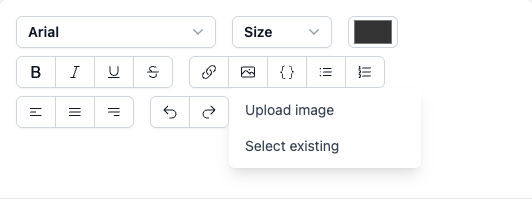
- Upload image uploads a new file and inserts it in one step, adding it to the library at the same time
- Select existing opens the picker so you can reuse something already uploaded
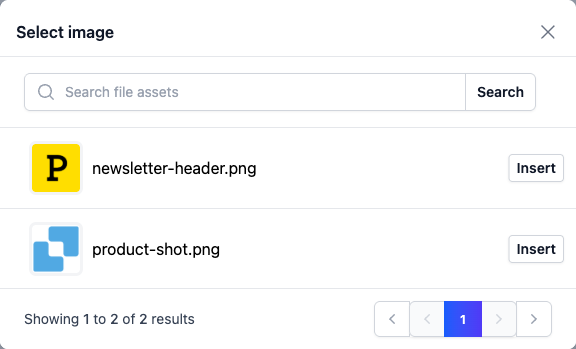
Search by filename if the library has grown, then click Insert. Broadcast places an <img> tag pointing at the file’s public URL, so the image resolves for every recipient.
Public URLs
The Copy link on each row gives you the file’s permanent URL, which looks like this:
https://your-broadcast-domain.com/files/<signed-id>-newsletter-header.png
That URL is worth understanding, because it has three properties that matter:
- It needs no login. Mail clients fetch images anonymously, so it has to be reachable by anyone who has the link
- It is signed and unguessable. The long token is a cryptographic signature over the file’s identity. Alter it and the URL returns 404, so nobody can enumerate your library by guessing
- It never expires. An email you sent two years ago still renders its images today
Use it anywhere you need a stable image URL, including hand-written HTML templates, Opt-In Forms image blocks, and content outside Broadcast entirely.
Warning
Anyone with the link can view the file, so treat the library as public hosting. Do not upload anything confidential, and remember that deleting a file breaks it in every email already sent that references it.
The trailing filename in the URL is cosmetic and only the signature is verified, so a URL still works if the filename part is altered. Do not read anything into that: the signature is the security boundary.
Storage
The Storage column shows where each file physically lives. Disk means the server’s own filesystem, which is the default.
If you have configured S3-compatible object storage, new uploads go there instead and the column reflects it. Moving to object storage keeps images serving even if you rebuild the server, and it is the better option once the library grows. See Storage.
Deleting Files
Hover a row and use the delete icon, or tick several rows and use the bulk delete action to remove them together. Both ask for confirmation first.
Warning
Deletion is permanent and Broadcast does not check whether an image is still in use. Any email that references a deleted file, including broadcasts already delivered to inboxes, will show a broken image from that point on. Archive rather than delete if you are unsure.
Permissions
Two channel permissions control the library:
- View file assets (
file_assets_read) to browse and insert images - Upload & manage file assets (
file_assets_write) to upload and delete them
Both are part of the built-in Editor role. See Users & Permissions.
Troubleshooting
Images do not appear in delivered emails. Most mail clients block remote images until the reader clicks “show images”, so this is usually normal rather than broken. Check the URL loads in a private browser window to rule out a real problem, and make sure the image is not carrying meaning on its own: alt text and surrounding copy should still make sense with images off.
An upload is rejected. Confirm the file is a PNG, JPEG, or GIF under 10 MB. Other formats, including WebP and SVG, are not accepted.
A thumbnail is missing in the library. Thumbnails are generated on the server. If they are missing across the board on a self-hosted install, check Monitoring and Logs for image-processing errors.