Ask AI
Ask AI is a built-in assistant that answers questions about the current channel in plain language and can take actions on your behalf. It reads your live channel data ( subscriber counts, broadcasts, segments, sequences, analytics, and system status) and can create, update, schedule, and send broadcasts, build segments, enroll subscribers, and more.
Read-only lookups run instantly. Any action that changes data requires your explicit confirmation before it runs, and every read and write is recorded in a per-channel activity log.
Opening the assistant
Click the Ask AI tab on the right edge of any dashboard page to slide open the
assistant drawer. The drawer stays open as you navigate, so you can keep a conversation
going while you move around the app. Use the expand button to widen it, or press
Escape to close it.

The empty state offers a few suggested prompts based on the page you’re on, for
example, summarizing your last broadcast’s performance or drafting a re-engagement
email. Click one to get started, or type your own question. Press Enter to send and
Shift+Enter for a new line.
Conversations and history
Each thread is scoped to you and the current channel. Click the title at the top of the drawer to open the history switcher, where you can jump back into a recent conversation or start a new one. Conversations are titled automatically from your first message.

Reopening a past conversation restores the full exchange:

What Ask AI can look up
Read-only questions are answered immediately, without confirmation. The assistant can:
- Count and search subscribers, and preview how many subscribers a segment would match
- List broadcasts, segments, and sequences
- Pull analytics for a broadcast (opens, clicks, deliveries)
- Report system health, available updates, and a summary of recent errors
- Report license status, and list API token scopes and tokens
- Explain how your subscribers’ personal data is stored and protected
Tip: Read-only answers come from your live channel data, so they always reflect the current state. Ask AI can still make mistakes; double-check anything important.
Taking actions (confirmation required)
When you ask Ask AI to change something, it doesn’t act silently. It proposes the action and pauses for your approval with a clear summary of exactly what will happen. Nothing runs until you click Confirm.

Actions that require confirmation include:
- Creating, updating, scheduling, and sending broadcasts
- Creating segments and sequences, and adding a step to a sequence
- Enrolling subscribers into a sequence
- Tagging subscribers
Because send and schedule deliver real email to real subscribers, read the confirmation summary carefully before approving: these can’t be undone once sent. Click Cancel to dismiss a proposed action without running it.
Activity log
Every lookup and action the assistant performs in a channel is recorded under channel Settings → AI Activity. Each entry shows when it ran, which user’s conversation triggered it, the action and whether it was a read or a write, its status, the affected record, and, for confirmed writes, who approved it. Use the Writes only filter to focus on actions that changed data.

Configuring a provider
Ask AI uses your own AI provider key (bring-your-own-key). Configure it once for the whole installation under Application → AI Settings:
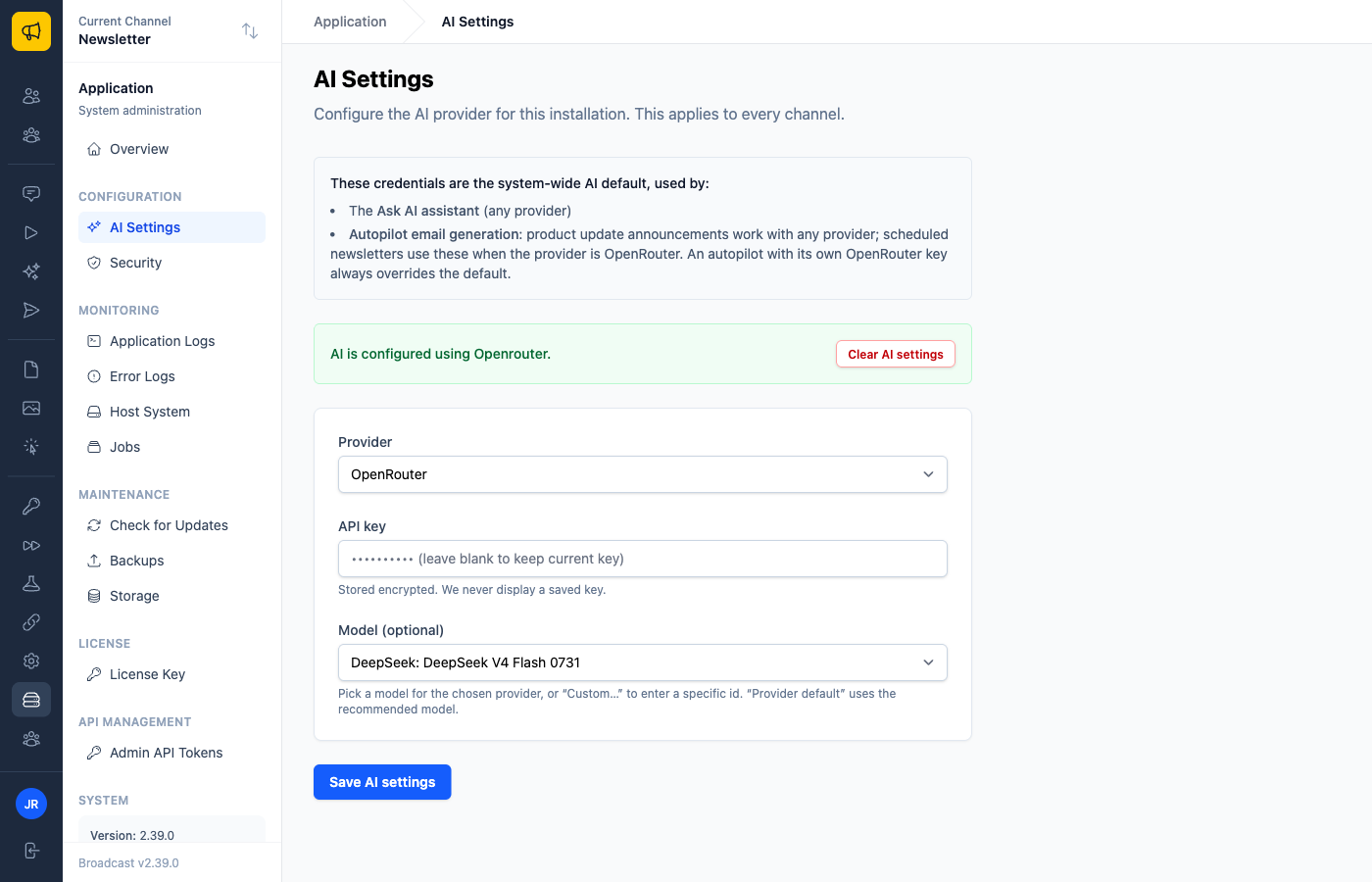
- Choose a Provider: Anthropic (Claude), OpenAI, or OpenRouter.
- Paste your API key. It’s stored encrypted and never displayed again.
- Optionally pick a Model for that provider, or leave it on the provider default.
- Click Save AI settings.
Once a provider and key are saved, the Ask AI tab becomes available in every channel. The key applies to the whole installation, so you only configure it once. The same settings also power Autopilot email generation. Clear AI settings removes them.
Configuring with environment variables
Instead of the settings page, you can configure the provider in /opt/broadcast/app/.env
and restart. Broadcast uses these only when nothing is saved on the AI Settings page;
a saved setting always wins.
| Variable | What it sets |
|---|---|
AI_PROVIDER |
anthropic (the default), openai, or openrouter |
ANTHROPIC_API_KEY, OPENAI_API_KEY, OPENROUTER_API_KEY |
The key for the chosen provider |
AI_MODEL |
Optional. A model ID for the chosen provider; leave it out to use the provider default |
AI_PROVIDER=anthropic
ANTHROPIC_API_KEY=sk-ant-...
Rate limits
To keep usage and costs predictable, Ask AI limits how many messages can be sent per
signed-in user: 15 per minute and 200 per hour by default. Adjust these with the
ASK_AI_MESSAGES_PER_MINUTE and ASK_AI_MESSAGES_PER_HOUR environment variables.
What’s Next?
- Managing Subscribers: build and organize your audience
- Broadcast Emails: send the broadcasts Ask AI helps you draft
- Autopilot - AI Newsletter Generation: automate newsletter drafts from your content sources