Segments
A segment is a saved question about your subscribers, not a saved list. You describe who you want in rules, and Broadcast answers the question fresh every time it needs to, including at the moment a broadcast sends. Someone who matches tomorrow is included tomorrow without you touching anything.
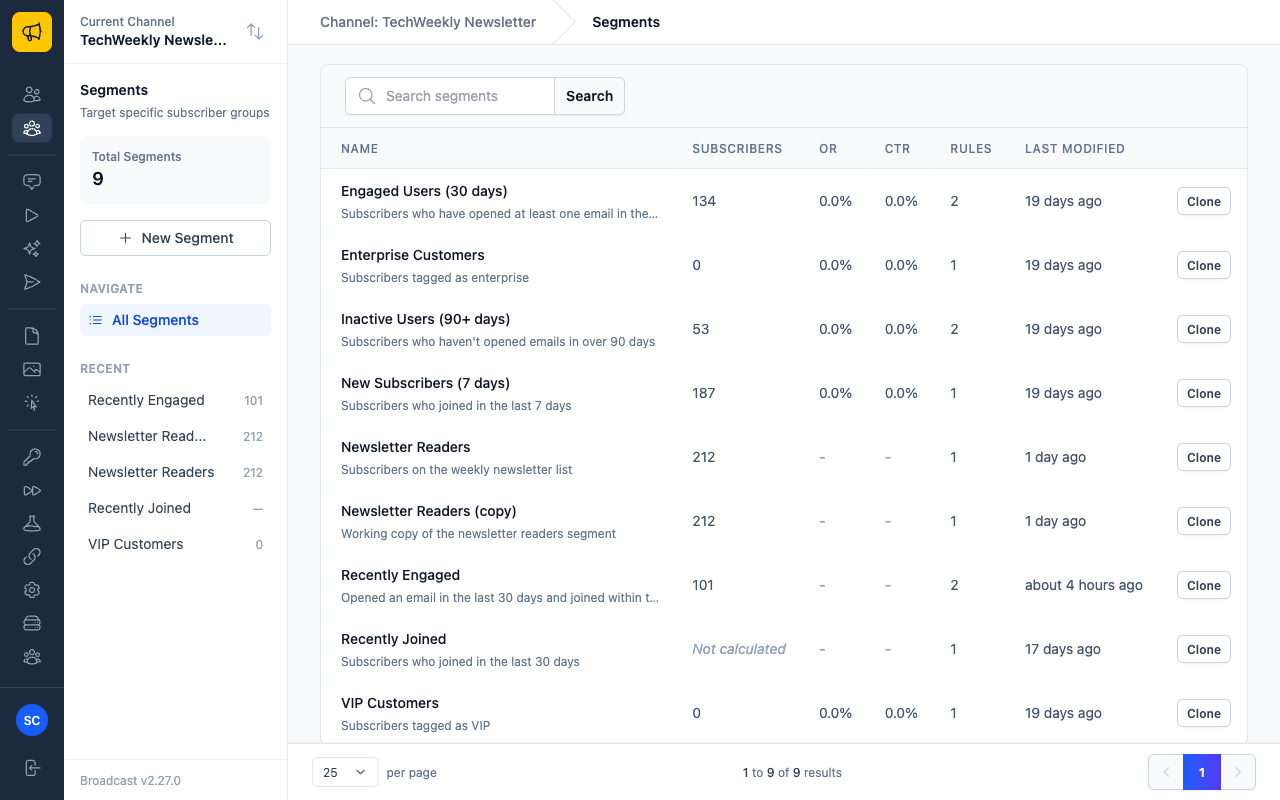
The list shows each segment’s cached subscriber count, its open and click rates, and how many rules it uses.
Note
Every segment implicitly excludes subscribers who are inactive, unsubscribed, or hidden. You never need a rule for “is still subscribed”, and adding one gains you nothing.
Creating a Segment
Click New Segment, give it a name, and optionally a description. The description is worth writing: six months later “Engaged Users (30 days)” will not tell you which definition of engaged you meant.
Quick-start Templates
Four buttons build the most common segments for you, complete with rules.

| Template | Who it matches |
|---|---|
| Engaged (30 days) | Opened an email in the last 30 days |
| Inactive (90 days) | Has not opened anything in 90 days |
| New (7 days) | Joined in the last week |
| Never opened | Has never opened any email |
Pick the closest one and edit its rules rather than starting from an empty builder.
The Rule Builder
Rules are arranged in two levels: rules inside a group, and groups inside the segment. That is what lets you express conditions that neither AND nor OR alone can.
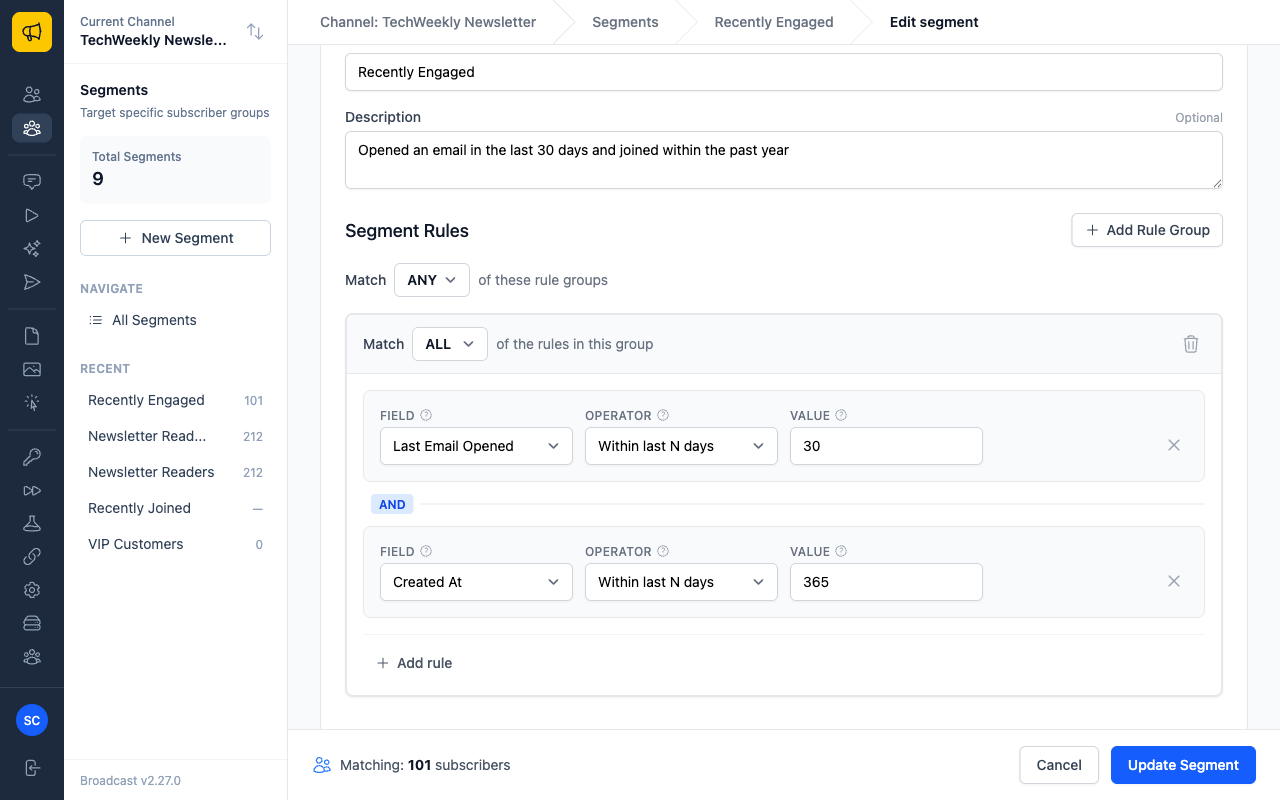
- Match ALL / ANY of the rules in this group sets the logic within a group. ALL means AND, ANY means OR
- Match ALL / ANY of these rule groups sets the logic between groups
- The counter at the bottom updates as you edit, so you can see how many subscribers a rule change costs you before saving
To express “VIPs, or anyone who spent over £500”, put each condition in its own group and set the outer match to ANY. To express “opened recently AND tagged vip”, put both rules in one group and set that group to ALL.
Fields You Can Match On
| Group | Fields |
|---|---|
| Subscriber fields | Email, First Name, Last Name, Tags, Created At |
| Email activity (date) | Last Email Sent / Opened / Clicked, Any Email Sent / Opened / Clicked |
| Email activity (count) | Total Emails Sent / Opened / Clicked |
| Engagement window | Emails Opened (in days), Emails Clicked (in days) |
| Subscriber status | Is Confirmed |
| Engagement status | Has Opened Any Email, Has Clicked Any Email |
| Custom data | Any key you store on a subscriber, typed as text, number, date, or boolean |
The difference between Last Email Opened and Any Email Opened matters. Last is the most recent event and answers “are they still engaged”. Any asks whether an event ever happened in a window, and is what you want for “opened something during the campaign”.
Operators
Which operators are offered depends on the field’s type:
| Field type | Operators |
|---|---|
| Text | is, is not, contains, does not contain, starts with, ends with, is empty, is not empty |
| Number | is, is not, greater than, less than, greater than or equal, less than or equal |
| Date | is, is not, before, after, on or before, on or after, is empty, is not empty, never happened, within the last N days, not within the last N days |
| Boolean | is true, is false |
| Engagement window | at least N within N days, fewer than N within N days |
Text rules have a Case sensitive checkbox, off by default, so VIP and vip match each other unless you say otherwise.
Date rules can compare against either a fixed date or a relative one such as “within the last 30 days”. Prefer relative dates for anything you intend to keep using: a fixed date silently stops being meaningful as it recedes.
Tags Match Two Different Things
The Tags field is the one place where the operator changes what is being asked about, so it gets its own four options rather than the generic text ones:
| Operator | Asks about | Matches when |
|---|---|---|
| Has subscriber tag | The tag on the subscriber | The subscriber carries that tag |
| Does not have subscriber tag | The tag on the subscriber | The subscriber does not carry it |
| Clicked an email tagged | The tag on a broadcast or sequence step | The subscriber clicked a link in an email carrying that tag |
| Has not clicked an email tagged | The tag on a broadcast or sequence step | They never clicked one |
The first pair is about who someone is, as recorded on their subscriber record. The second pair is about what they did, and is how you build interest-based segments: tag a broadcast pricing, and “Clicked an email tagged pricing” gives you everyone who showed interest in pricing without you tracking anything yourself.
Warning
These read almost the same in a sentence and mean entirely different things. A segment on “Clicked an email tagged vip” returns nobody until a broadcast tagged vip has gone out and someone has clicked it, which looks identical to a broken segment. If a tag segment surprises you by matching zero people, check which of the two you picked first.
Reviewing a Segment
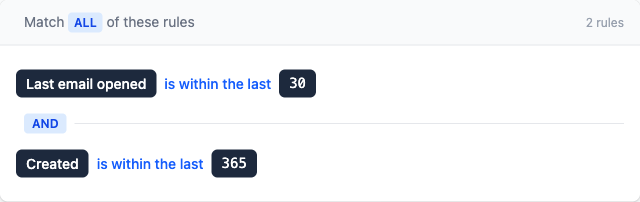
The segment’s page restates its rules as sentences, which is the quickest way to check a segment does what its name claims.
Below that, Subscribers lists everyone currently matching, with a search box for checking whether one specific person is included. This is the fastest way to debug a segment that returns the wrong number: search for someone you expect, and if they are missing, the rules are wrong rather than the data.
Statistics
Open and click rates are not computed continuously, because doing so across every segment on every page load would be slow. A new segment says so plainly.
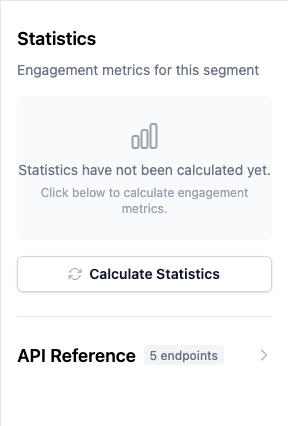
Calculate Statistics works out open and click rates over the last 30 days, the last 90 days, and all time, and records the subscriber count at the same moment.
The Subscribers column on the list page shows that same cached count, with the age of the figure on hover. A segment nobody has calculated yet reads Not calculated rather than 0, so you can tell “no count has been taken” apart from “genuinely matches nobody”. A segment’s own page always counts its matches live.
Warning
These figures are a snapshot. Segment membership itself is always live, so a broadcast sent to a segment reaches whoever matches at that moment, not whoever matched when you last pressed the button. Recalculate before reading anything into the numbers.
Using a Segment
Segments are how you target a send:
- Broadcasts take one or more segments on the Audience tab. Choose several and a subscriber matching any of them receives it, counted once. See Broadcast Emails
- Sequences can use a segment as an entry point, enrolling subscribers as they come to match it. See Email Sequences
- Autopilot can target a subset of a channel by segment, so several newsletters can run on one channel. See Autopilot - AI Newsletter Generation
Duplicating a Segment
Clone on any row of the Segments list copies it.
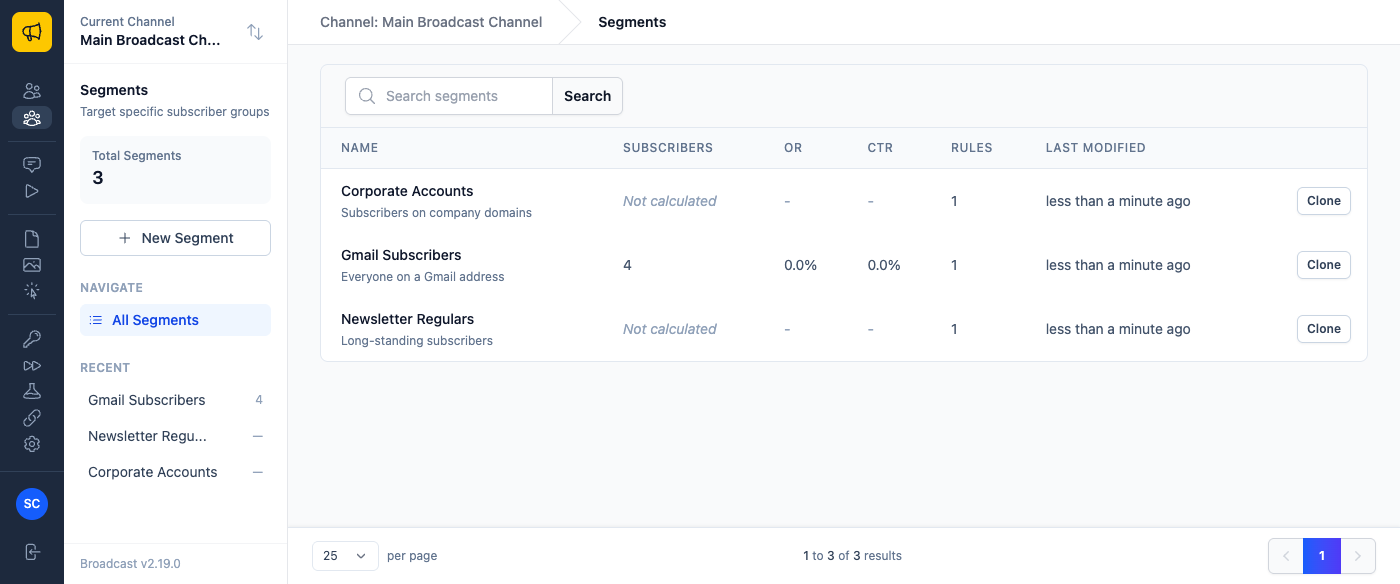
The copy is named Copy of <original name> and carries over the description and every rule group and rule, so it matches exactly the same subscribers until you change something. Statistics are not copied: the new segment starts uncalculated and works out its own count and rates.
Complex segments tend to be small variations on each other. Cloning and changing one rule is faster and less error-prone than rebuilding a rule set from scratch, and it leaves the original intact while you experiment.
Cloning requires the Write segments permission on the channel.
Permissions
- View segments (
segments_read) - Create & edit segments (
segments_write)
Both are in the built-in Editor role. See Users & Permissions.
API Access
Segments are fully available over HTTP, including creating them with nested rule groups. See Segments API, which also documents custom data segmentation in more detail than this page does.
Troubleshooting
The segment matches nobody. Check the rules are not mutually exclusive: a group set to ALL with two rules that cannot both be true returns nothing. Switch the group to ANY to confirm each rule matches on its own, then decide which one is wrong.
The count differs from what I expected. Remember the implicit filter. Inactive, unsubscribed, and hidden subscribers are excluded before your rules are applied, so a segment will usually match fewer people than a raw count of the same condition.
The number on the list page looks stale. It is. Open the segment and press Calculate Statistics.