Subscriber Topics
A topic is one kind of email your subscribers can opt in to or out of: webinars, product updates, offers. Instead of one yes or no for your whole list, each subscriber has a choice per topic, and every email you send to a topic reaches only the people who chose it.
Topics change nothing until you use them. A channel with no topics, and every email sent without a topic, works exactly as before.
How a topic stores its value
You decide where each topic’s value lives. Broadcast does not invent a new field for it.
- A custom data field. Pick a top-level key in the subscriber’s custom data, such as
sub_webinars. The value istrue,false, or not set.true,"true",1and"1"count as yes; any other value counts as no. - A tag. Pick a tag, such as
webinars. Tagged subscribers receive the topic; everyone else does not.
Any other custom data stays private. Fields like origin or consent_basis never show to subscribers, because only the fields you turn into topics do.
Subscribers with no value
A subscriber who has never chosen has no value for the topic. Each topic has one setting for that case: Subscribers with no value either receive the topic or do not. New topics start as do not receive.
The setting is read when an email is sent. A value that is set always wins over it, and Broadcast never writes a default into a subscriber’s custom data. That means:
- A contact created through the API, a form or an import keeps exactly the values you sent.
- If you add a topic to an existing list and set it to receive, everyone who has not chosen yet keeps getting those emails, and anyone who says no is recorded as no.
- If you may only email people who agreed to a topic, keep it at do not receive. A contact then gets that topic only after an explicit yes.
Warning
If some of your contacts may only receive certain topics (for example contacts from a partner who agreed to webinars only), keep every other topic at do not receive. Setting a topic to receive sends it to every contact with no value for it.
A tag topic has no explicit no: an untagged subscriber is simply not tagged. That is why a tag topic must stay at do not receive.
Setting up topics
Open Settings → Topics and click New topic.
- Name is what subscribers see on the preference and unsubscribe pages. Description is optional and shows under the name on the preference page.
- Where the value is stored: a custom data field or a tag. Both fields suggest the keys and tags your channel already uses.
- Subscribers with no value: receive or do not receive (see above). An existing topic shows how many active subscribers have no value right now.
- Show on the preference page: turn this off for a topic subscribers should not change themselves.
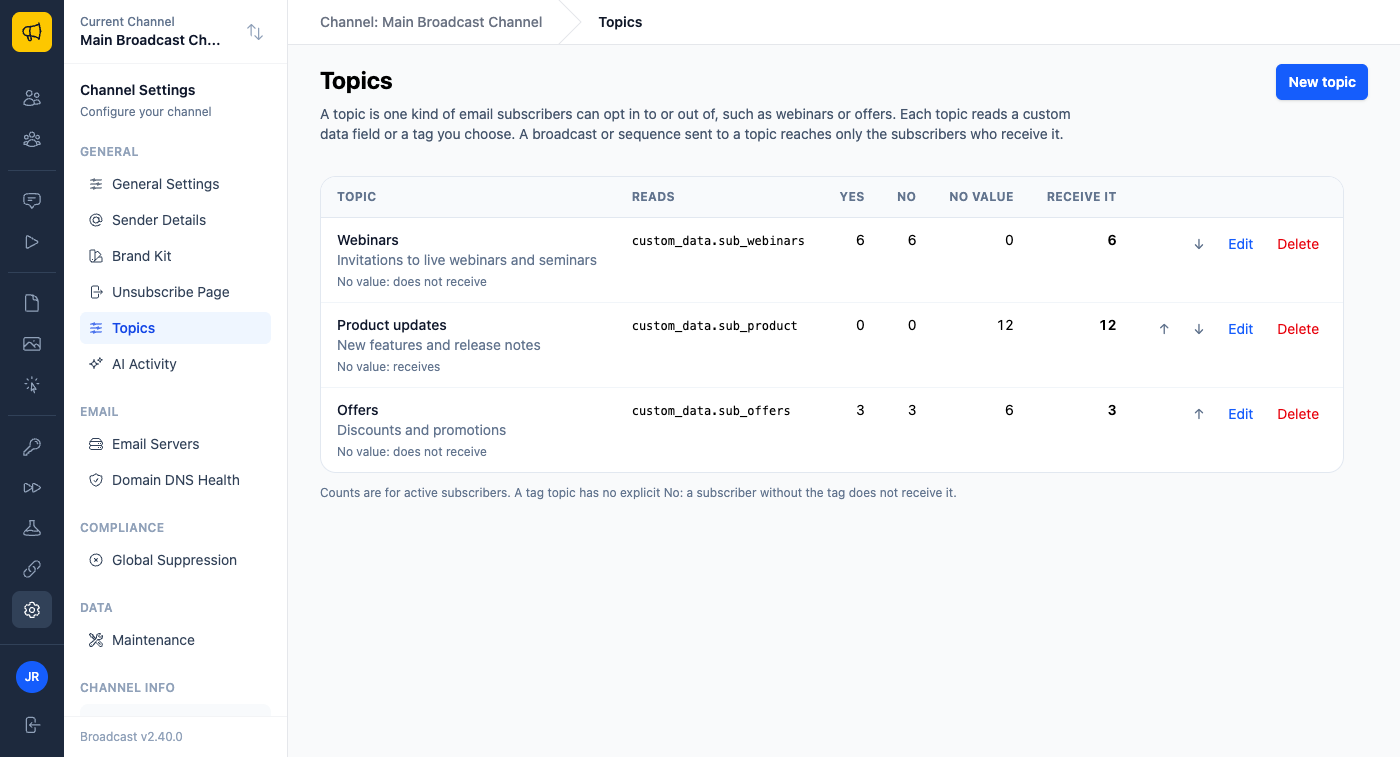
The list shows, for each topic, how many active subscribers have yes, no and no value, and how many receive it. Use the arrows to set the order the preference page shows. A topic that a broadcast or sequence uses cannot be deleted, so a send never widens to everyone it targets.
Sending to a topic
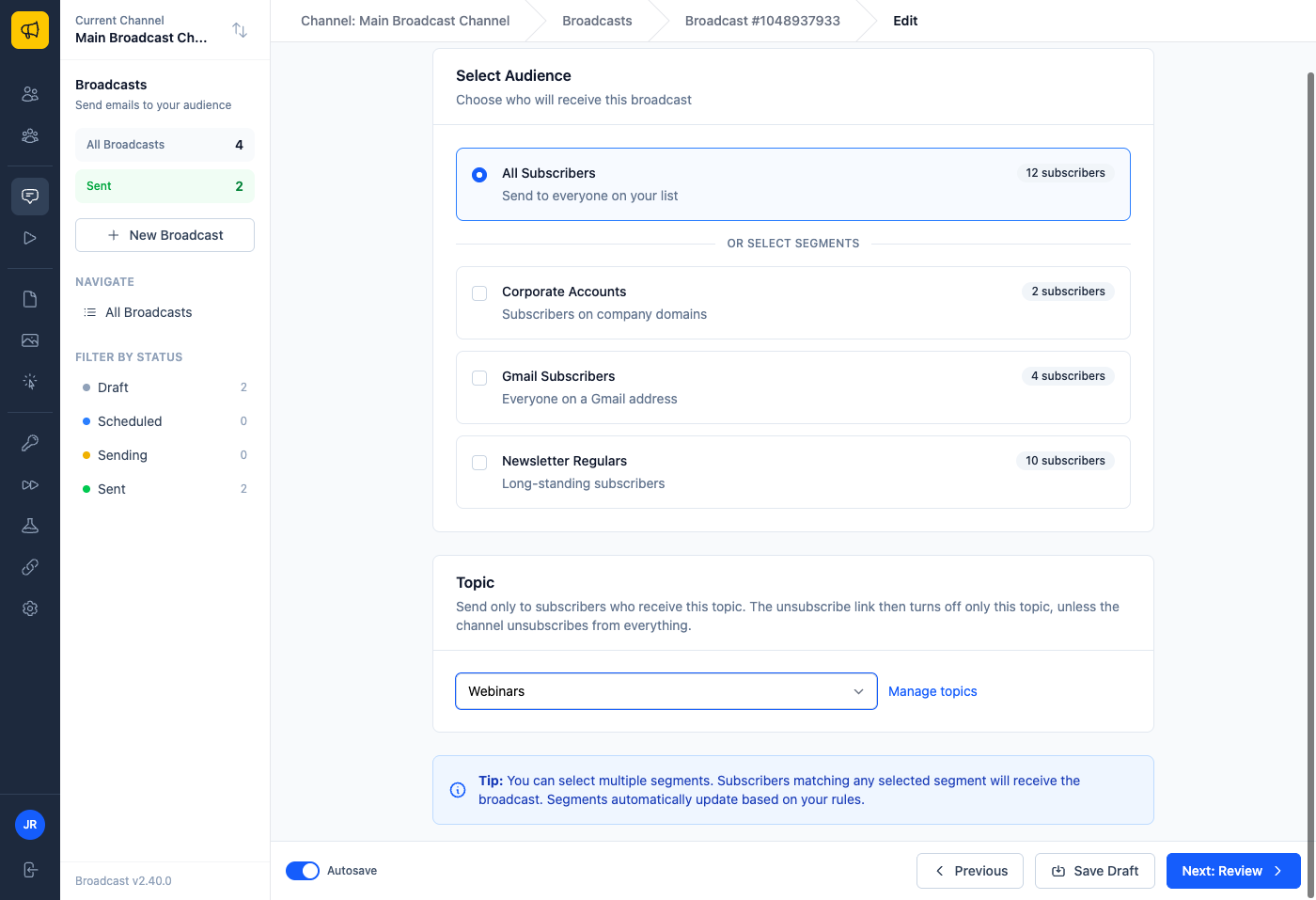
Broadcasts. On the Audience tab, choose a topic under Topic. The audience becomes your segments (or all subscribers) AND the topic. The live count and the Review tab show the result before you send.
Sequences. In a sequence’s settings, choose a topic. Each email step then reaches only enrolled subscribers who receive the topic; the others skip that email and carry on through the sequence. A subscriber who switches the topic off mid-sequence stops getting its emails from the next step.
Unsubscribing from a topic
On an email sent to a topic, the unsubscribe link and the one-click Unsubscribe button in Gmail and Yahoo turn off only that topic. The subscriber stays subscribed and keeps their other topics. The unsubscribe page names the topic and also offers Unsubscribe from everything and a link to the preference page.
You can change this in Settings → Unsubscribe Page → On an email sent to a topic: choose Unsubscribe from everything to make topic emails unsubscribe from the whole channel instead.
Emails with no topic, sequence emails and transactional emails always unsubscribe from everything, as before. See Unsubscribe Settings.
The preference page
Every subscriber has a hosted preference page where they switch topics on and off. Link to it with the {{ preferences_url }} merge tag in any broadcast or sequence email, or fill in Preference page link text on the footer block of the Drag-and-Drop Email Builder.
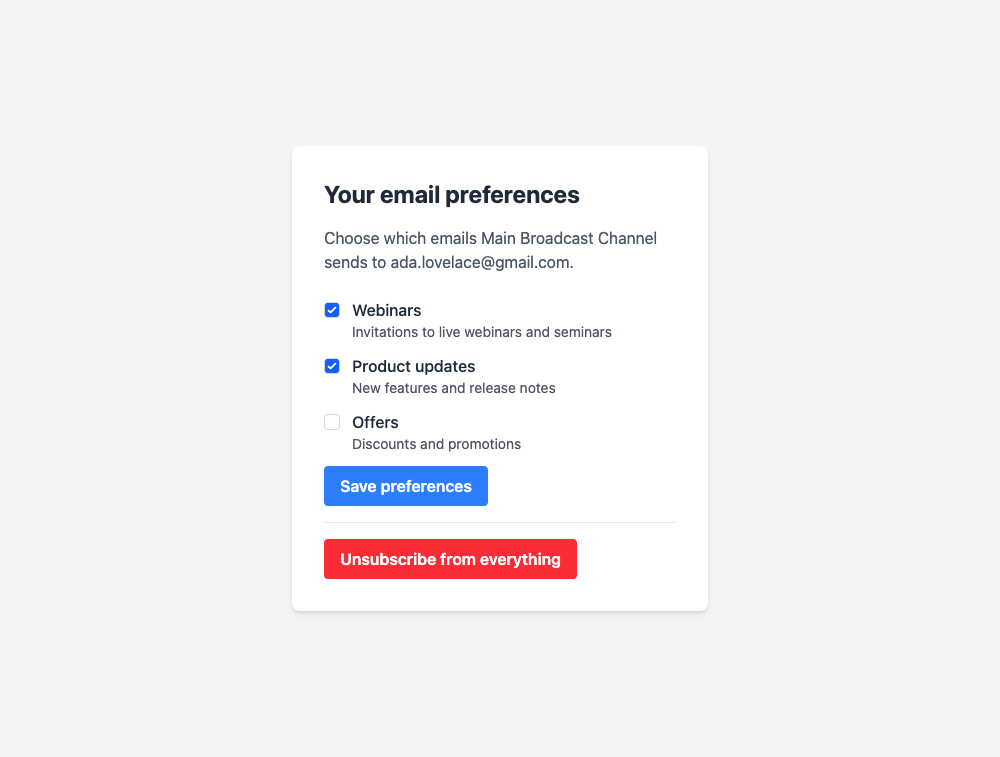
- It shows only topics marked Show on the preference page, ticked when the subscriber receives them.
- Saving records an explicit yes or no for each topic the subscriber changed. It never touches other custom data and never unsubscribes them.
- Unsubscribe from everything is on the page too.
- It uses the same branding, languages and custom text as your unsubscribe pages. Edit its text under Settings → Unsubscribe Page → Page text → Preference page.
The link is signed and personal, like the unsubscribe link. Anyone who has the email can use it, so do not forward emails that contain it.
Consent records
Every change to a topic value is recorded in the subscriber’s activity and sent to your webhooks:
subscriber.preferences_updatedlists each topic that changed with its old and new value, the time, andchange_source: where the change came from (preference page, unsubscribe link, one-click unsubscribe, API, admin, import, opt-in form).subscriber.updatedstill fires, now withchange_sourcetoo.
See Webhooks for the payloads.
API and CLI
Manage topics with the Topics API or broadcast topics in the Agents CLI. Broadcasts and sequences take a topic_id, and the subscriber JSON shows each topic’s value. To change one topic without resending the whole custom data object, update the subscriber with "custom_data_mode": "merge".