A Backup on the Same Server Isn’t a Backup
Broadcast has taken backups for a long time. They landed on the server’s own disk, which covers the failure people actually plan for: you ran the wrong command, a migration went sideways, you want last Tuesday’s data back.
It does not cover the failure that ends businesses. The droplet is gone. The disk is corrupt. The provider account got locked. Every one of those takes your backups with it, and a backup that dies alongside the thing it was backing up was never a backup. It was a copy.
Version 2.17 fixes the gap: every backup can now upload automatically to S3-compatible object storage.
Any bucket you like
AWS S3, Cloudflare R2, Backblaze B2, Wasabi, MinIO, or anything else that speaks the S3 API. That list is not an accident. It’s the point. Self-hosting is a choice about who holds your data, and it would be a strange kind of self-hosted if the only supported backup destination were one hyperscaler.
R2 has no egress fees, B2 is cheap, MinIO runs on a box in your own rack, and if you’re already deep in AWS then S3 is one less account to manage. The setting doesn’t care.
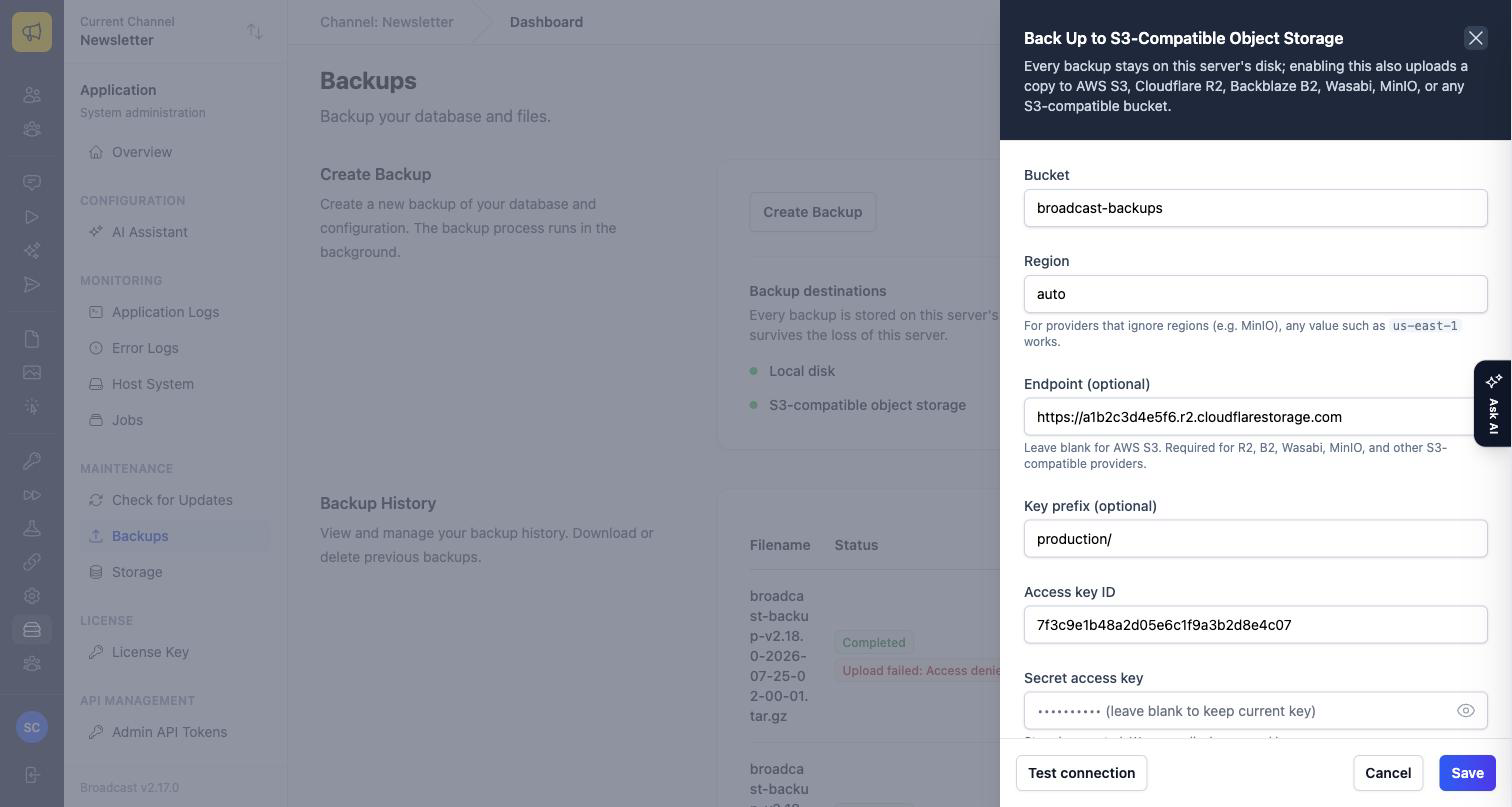
Bucket, region, an optional endpoint (blank for AWS, required for R2, B2, Wasabi and MinIO), an optional key prefix so backups can live under production/ in a bucket you use for other things, and your credentials. It’s configured from the Backups page itself, not a config file you have to redeploy to change.
Test before you trust
The worst possible time to discover that your bucket credentials are wrong is the day you need the backup. So there’s a Test connection button, and it doesn’t just check that the credentials parse. It runs a step-by-step check that your bucket is actually reachable and actually writable, before you save.
Test it now, once, while nothing is on fire. That’s the whole feature: catching the misconfiguration on the day you set it up rather than on the day you’re restoring.
Status you can see, and act on
Each backup shows what happened to its upload right in the history.
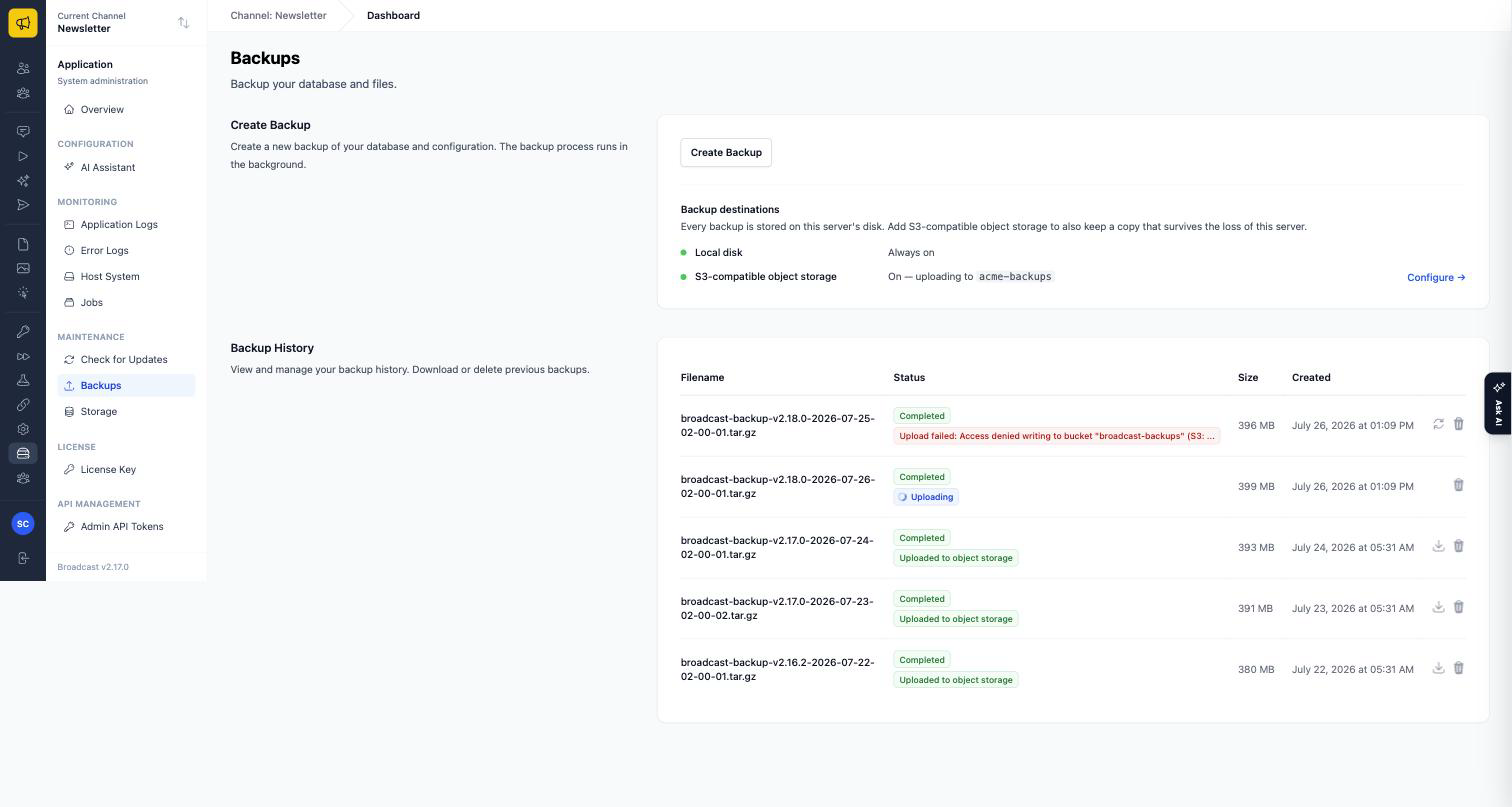
Uploaded to object storage, Uploading, or a failure with the actual reason attached: an access-denied on the bucket says access-denied on the bucket, not “something went wrong”. Failed uploads retry with one click.
Two things follow from having the copy off-server. Old copies in your bucket are pruned automatically according to your remote retention setting, so the bucket doesn’t grow forever and cost you money for a 2024 snapshot nobody will ever restore. And deleting a backup in Broadcast removes its bucket copy too, so “delete” means deleted rather than “hidden from this list”.
Best of all: a backup can be downloaded even after the local file is gone, fetched straight from your object storage. That’s the moment the feature stops being a checkbox and starts being disaster recovery: your server’s disk is not part of the restore path any more.
What that looks like in practice
The 3am one. Your VPS provider has an incident and the volume doesn’t come back. You spin up a new box, install Broadcast, pull the most recent backup out of R2, restore. Your subscriber list, your sequences, your sending history. The old server being unrecoverable is now an inconvenience rather than an extinction event.
The boring one. You point it at a bucket, set remote retention to 30 days, and never think about it again. Every nightly backup lands in two places, old ones age out on their own, and the Backups page tells you at a glance that yesterday’s is there.
The compliance one. You need backups in a specific jurisdiction. Point the endpoint at a European R2 or Wasabi region (or at MinIO running in your own rack) and your backups live exactly where your lawyer says they must. Same feature, no special edition.
The smaller fixes
A few sharp edges went with it. Creating a backup now reports failure immediately when it can’t start, instead of leaving a row stuck in Pending forever, which is the kind of bug that quietly convinces you backups are running when they aren’t. The manual backup instructions for unmanaged installations now produce a file that actually shows up in your backup history and works with the restore command. Previously they produced something restore didn’t recognise. Backup pages and downloads now require the system backups permission, because a database dump is every subscriber you have in one file. And long filenames stopped forcing the history table to scroll sideways.
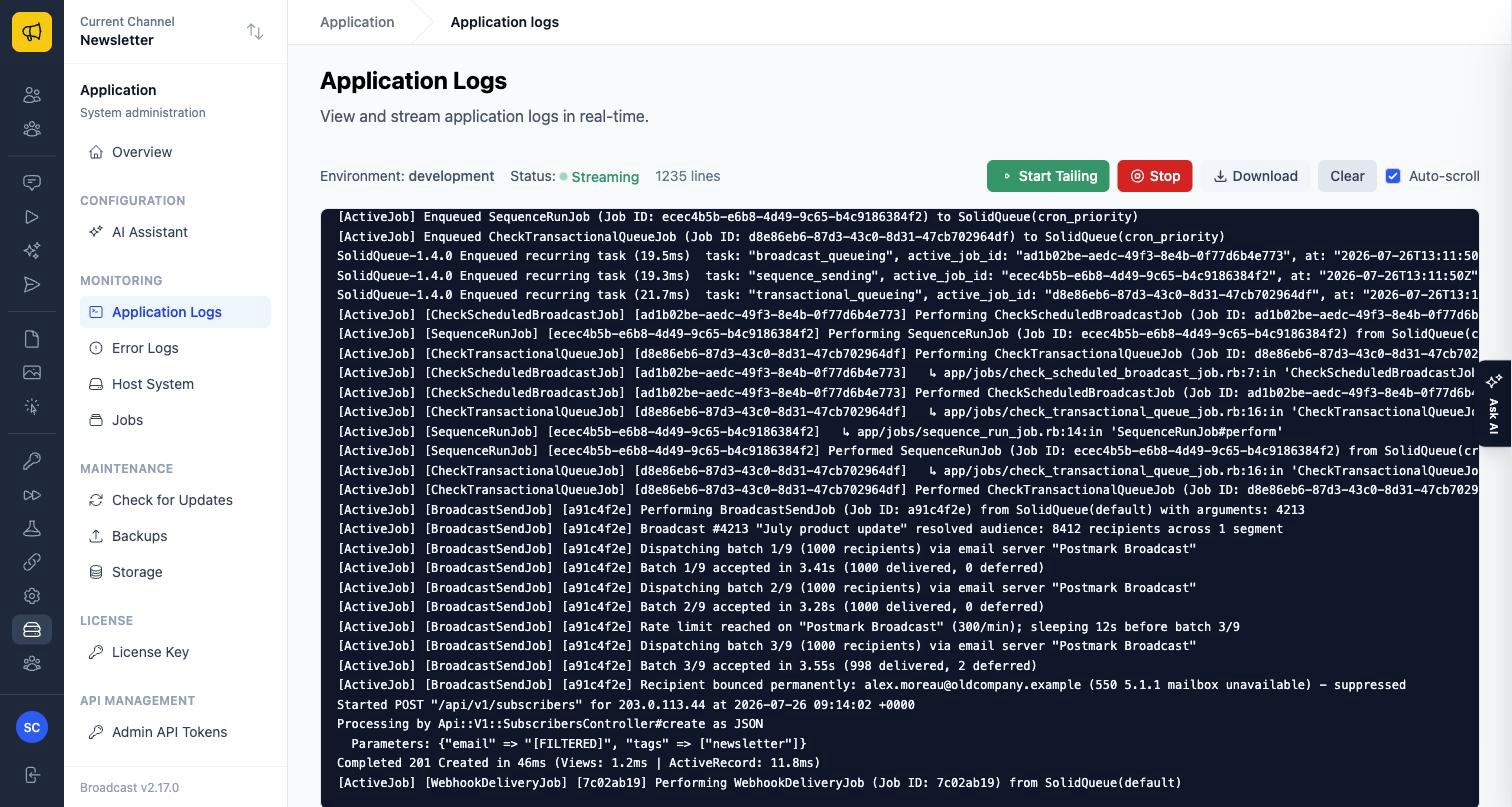
One more thing shipped alongside: you can download your application logs from the Application Logs page, which mostly exists so that “can you send me your logs?” is a click rather than an SSH session.
If you run Broadcast and you haven’t set up a bucket yet, that’s the ten minutes of this month worth spending. Test connection, save, done.
See the backup documentation for setup and restore steps, or read about the design decisions behind self-hosting Broadcast for why the app is built to be run on a box you control.