Permissions You Can Read at a Glance, and Grant Twenty Channels at a Time
Broadcast has always had fine-grained permissions: thirty-seven individual switches per user, per channel, covering everything from viewing subscribers to configuring email servers. That granularity is the right foundation. The page that displayed it was not.
The old Channel Permissions page printed every one of those thirty-seven switches for every channel a user could access, granted ones in green, denied ones in red. For a user on two channels it was dense. For a user on twenty-five it was a wall of nearly a thousand lines that nobody could actually read. And granting access meant working through a dropdown one channel at a time, filling in the same checkboxes again and again.
Where this came from
A customer running dozens of channels wrote in and said the page was too complicated to look at, and that applying the same permissions across his channels took far too many clicks. He asked for exactly the right thing: select multiple channels, pick a permission profile, apply it once.
While rebuilding it we also looked hard at how Beehiiv, Mailchimp, and Klaviyo present the same problem. The lesson from all of them: lead with a named role in plain words, and keep the switch matrix one level down for when you actually need it.
One row per channel, in words
The page is now a table: one row per channel, a role badge, and a plain-language summary of what that role can do.
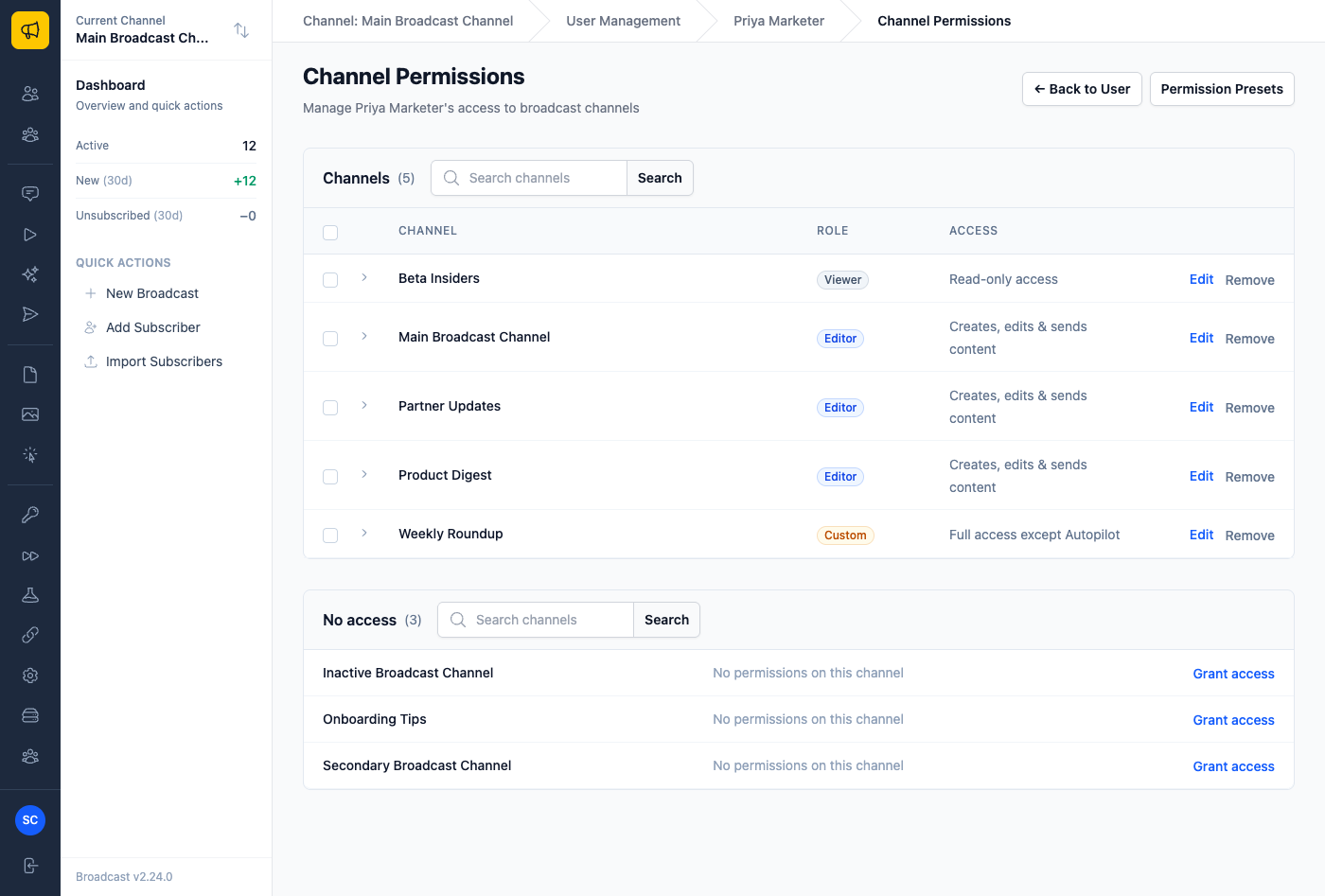
The badges are not stored anywhere. Broadcast computes them by comparing the user’s actual switches against the built-in roles, so the badge is always telling the truth. When permissions match nothing exactly, the summary describes the difference instead of shrugging: a user with everything except automation shows as Custom, “Full access except Autopilot”. Expanding a row shows the full breakdown, grouped by area, with everything not granted collapsed into a single quiet line.
Channels the user cannot touch sit in their own No access table underneath, each with a Grant access link. Both tables are searchable, because “dozens of channels” was the whole point.
Apply a role to twenty channels in one step
Select channels with the checkboxes and an apply bar appears: choose a built-in role or one of your saved presets, confirm, done. One submit stamps the same permissions onto every selected channel.
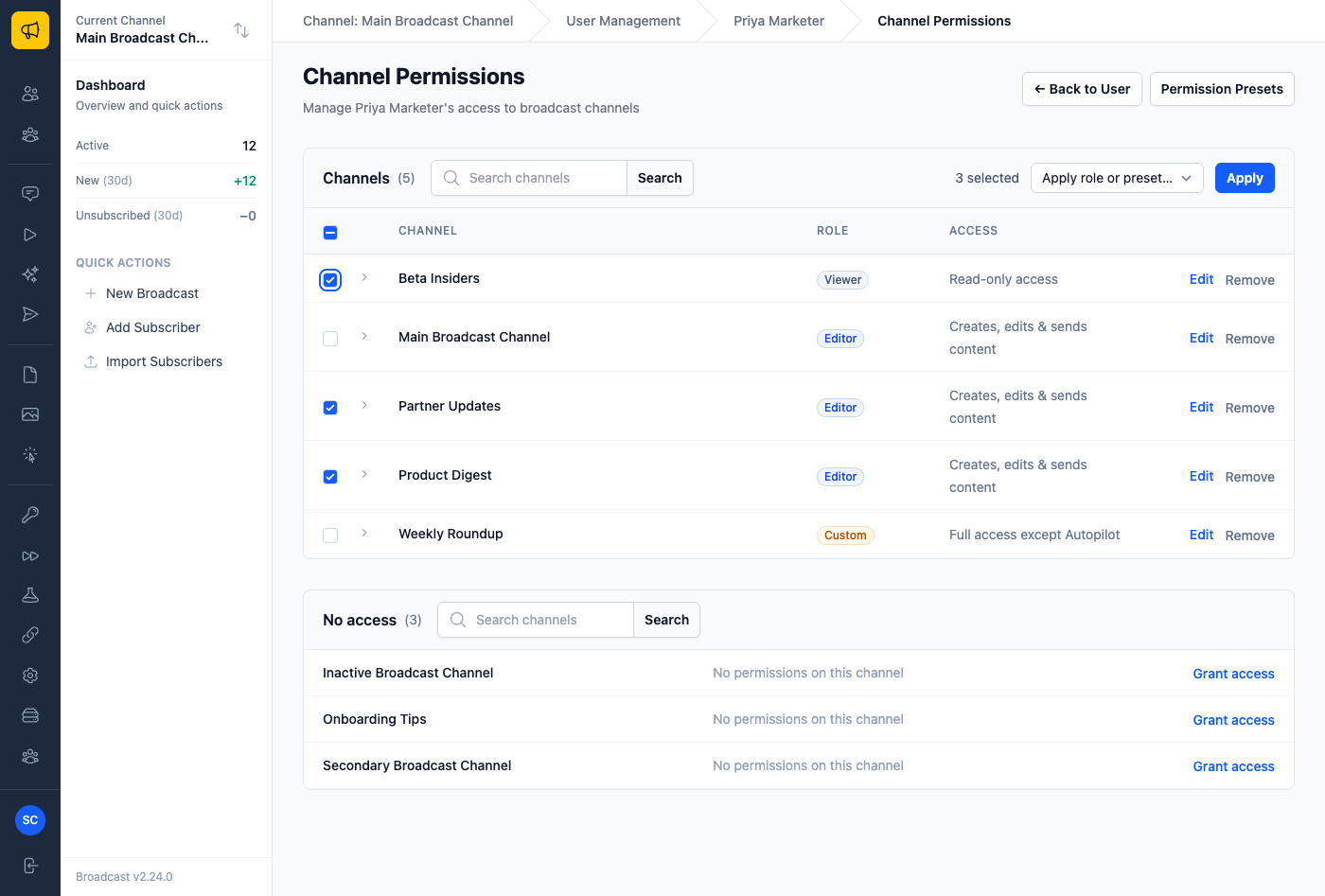
Presets picked up a description field in the same release, so “Campaign Editor: creates and sends campaigns, no settings access” reads the same to every admin on your team. Applying replaces the selected channels’ permissions rather than adding to them, and the confirmation says so before anything is written.
The user page reads like a sentence now
A user’s own page used to repeat the same wall in miniature. It now groups channels by the access they share:
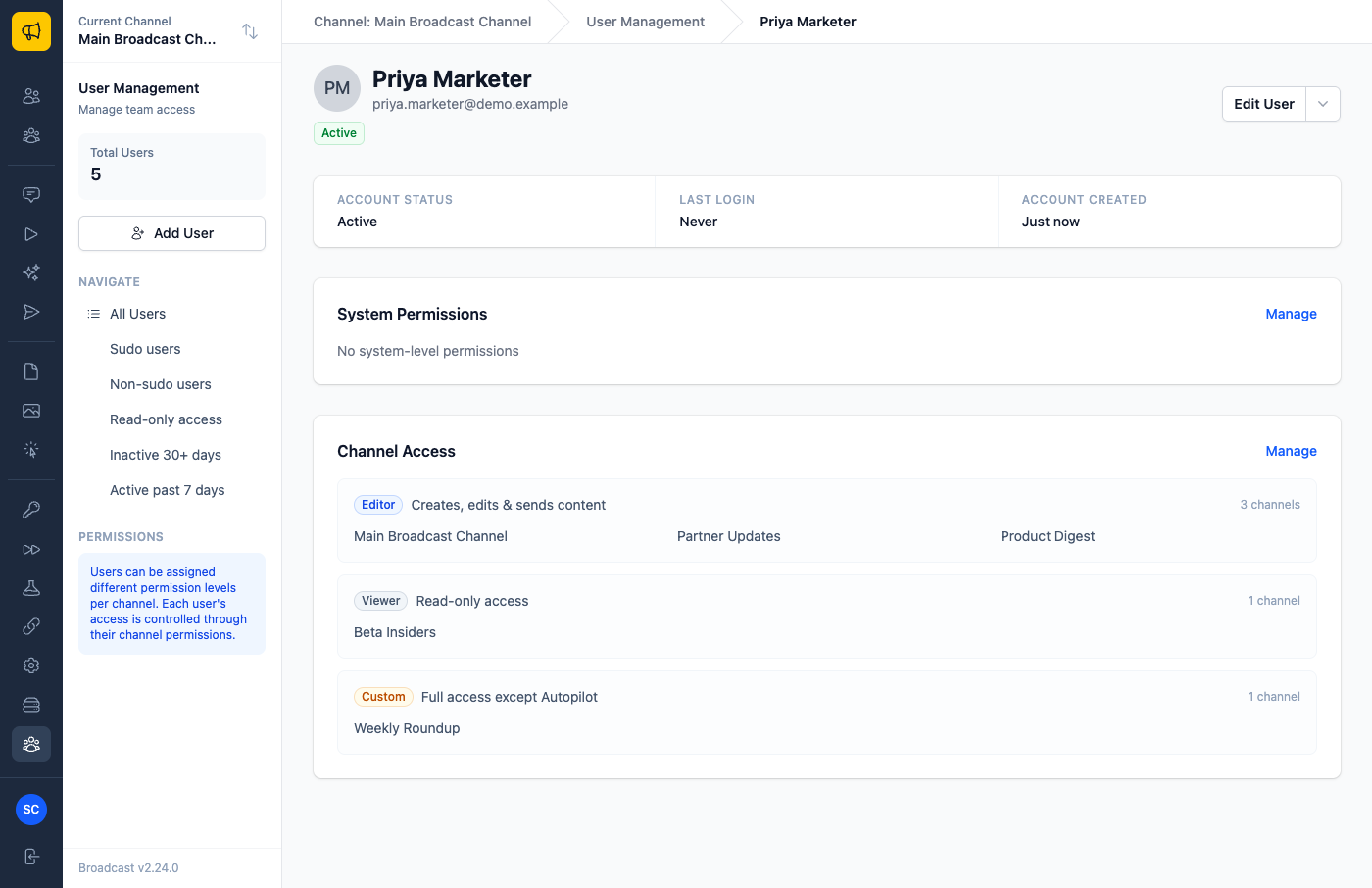
Twenty-five channels collapse into a handful of lines an admin can read in two seconds: Editor here, Viewer there, and one custom arrangement that explains itself.
Some concrete shapes this takes, all shipped in 2.24. A freelance writer joins for a month: select the twelve newsletters they will write for, apply your Campaign Editor preset, one confirmation, done. A compliance review asks what your analyst can actually touch: their user page answers in one screen, in words, without anyone decoding checkboxes. An automation goes wrong and you need to pull autopilot rights from someone everywhere: the role badges show exactly which channels grant it before you change a thing.
The users list got the same treatment while we were in there: search by name or email, and quick filters for sudo users, read-only users, people who have not signed in for a month, and people active this week.
See users and permissions in the documentation, or read about the release that came out of a week of customer feedback.