Broadcast Fits on a 2 GB Server Again
Broadcast lists 2 GB of RAM as its minimum. For a long time that was comfortable. Then the last release made it tight.
In 2.43 I gave login codes and password resets their own worker, so they never wait behind a large newsletter. That worker is a separate process, and every process in the job server is a full copy of the application. On my own server, memory use went up by 150 to 200 MB the day it shipped. On a 4 GB server that is nothing. On a 2 GB server it is the difference between a quiet send and a server that swaps.
I tested it on a 2 GB virtual server with a real automatic installation. During a send to 8,000 people with an import running at the same time, the server got down to about 570 MB of free memory and wrote to swap at up to 3,700 pages a second. The email still went out, but nobody wants a server working that hard.
One process instead of five
Broadcast’s job server can now run in two ways. Standard works as before: one process for each worker. Low memory runs all of the background work in one process, with the workers as threads inside it. Login codes keep their own thread, so they still never wait for a newsletter.
You choose on the Jobs page, under Application > Jobs. If the server has little memory, the page says so and recommends Low memory mode.
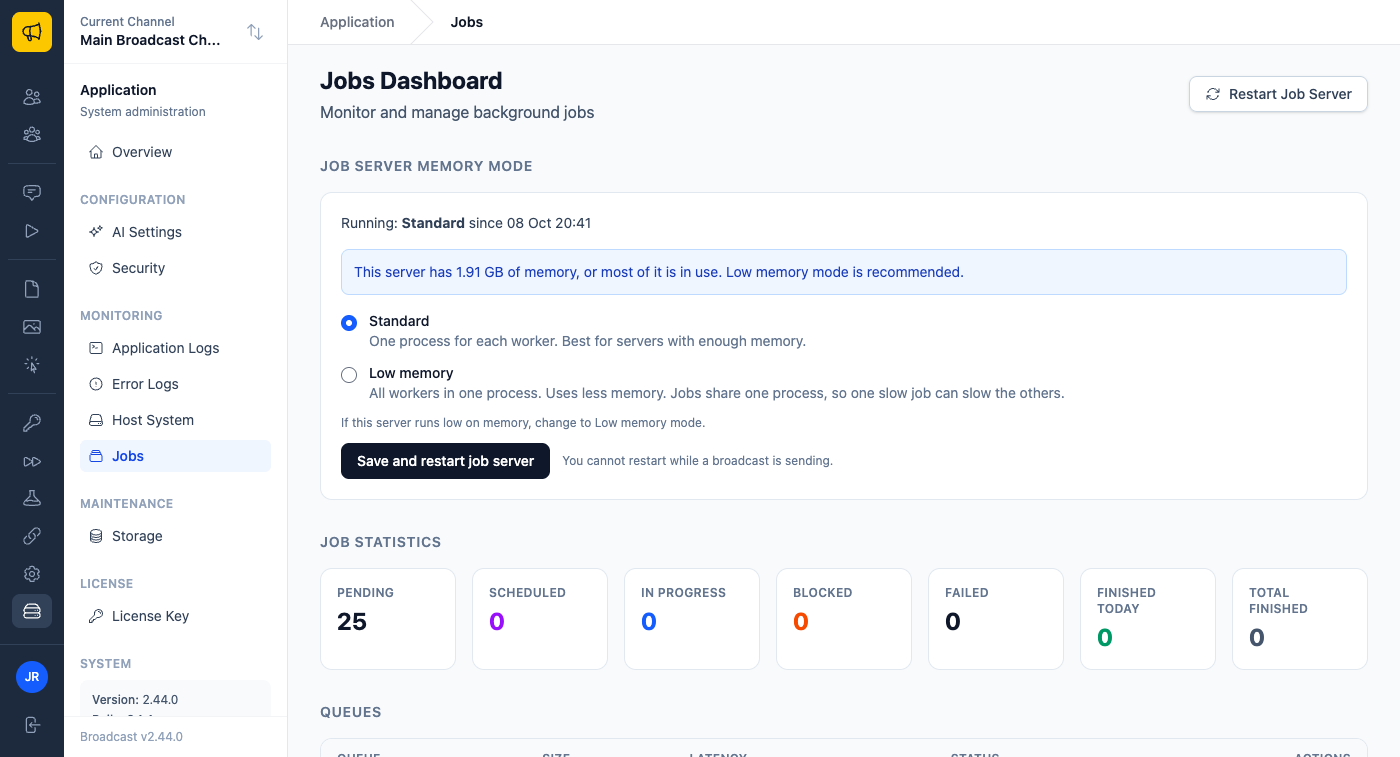
On the same 2 GB server and the same send, Low memory mode kept about 1,100 MB free, twice as much as before. Swap writes stayed under 500 pages a second. The job server peaked at 375 MB instead of 686 MB, and the send took the same time. I then left it running for three hours with a new broadcast every 15 minutes: 24,060 emails, every one delivered, and the job server’s memory stayed flat the whole time.
Standard stays the default, and no installation changes mode on its own. If your server has room, nothing about it changes.
Changing it without SSH
The job server reads its mode when it starts, so a change needs a restart of the job server. You do not need to open a terminal for that.
On an automatic installation, click Save and restart job server. Broadcast restarts only the job server, within a minute or two. The dashboard and the API keep running. Until the restart, the panel says so.
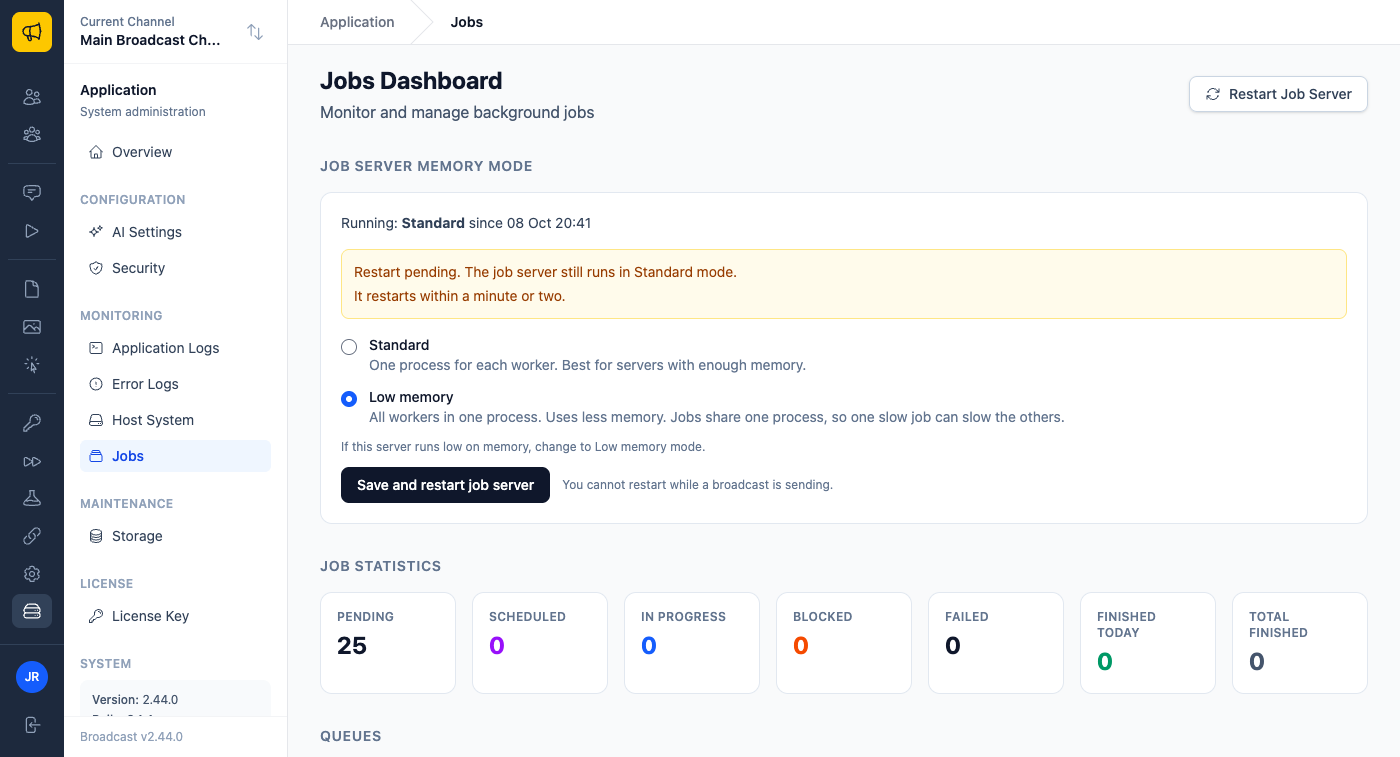
A restart can cut off a send partway through a batch. So while a broadcast is sending, or any job is running, Broadcast refuses the change and tells you what is running. Try again when it finishes.
After the restart, the panel shows the mode the job server actually runs in. It reads that from the running job server, not from what you saved, so the page cannot claim a mode that is not running.
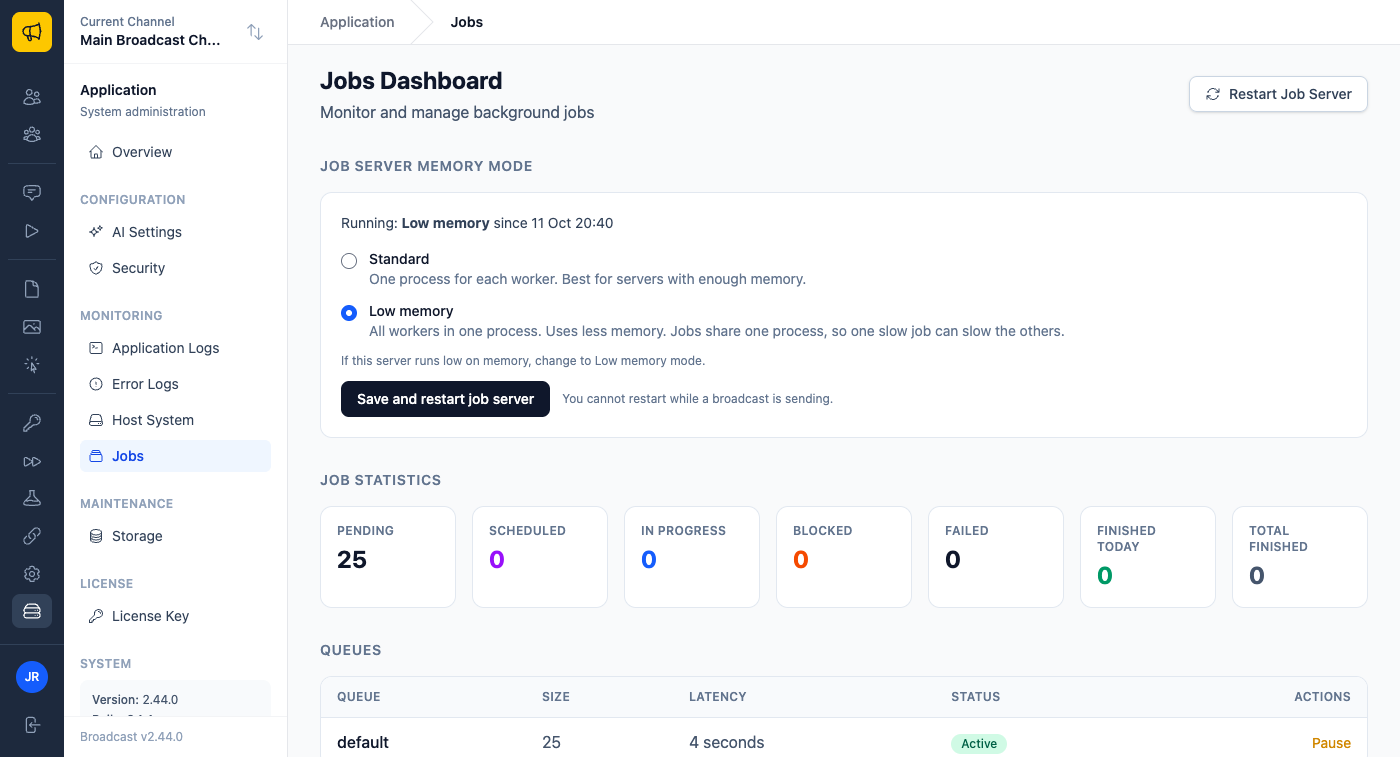
On a manual installation, Broadcast saves the setting and shows the command to restart the job container. If you prefer configuration files, SOLID_QUEUE_SUPERVISOR_MODE=async in your .env file does the same thing and takes priority over the page.
What Low memory mode is not for
Low memory mode always runs one process. On a large server with many cores, Standard mode can run several job processes at once and send faster, so Low memory mode is the wrong choice there. All jobs also share one process, so a very heavy job, like a large import, can slow the others a little. On a small server that trade is worth it.
Who this helps
Someone runs a newsletter for a local club on the smallest server their provider sells. A send to 3,000 members used to make the server slow for a few minutes. They open the Jobs page, follow the recommendation, and the next send is quiet.
A freelancer runs Broadcast for three small clients on one 2 GB server and does not want to log in over SSH to tune it. One click on the Jobs page, and a minute later the panel shows Low memory.
A company starts on 2 GB to keep costs down while the list is small. When the list grows and they move to a bigger server, they switch back to Standard on the same page.
This shipped in 2.44.
The performance tuning guide explains both modes, the trade-offs and the .env setting. For the change that made this necessary, see login codes no longer wait behind your newsletter.