Two-Factor Authentication, and Letting Cloudflare Do It for You
An agency evaluating Broadcast wrote to say it was working well, with one thing standing between them and rolling it out to their clients: most of those clients require a second factor, or single sign-on, before they will let a tool near their subscriber lists. In the meantime they had put Cloudflare Access in front of the dashboard, so a one-time PIN stood guard where Broadcast itself could not.
That is a reasonable thing to ask of a tool that can send email to everyone you have ever collected an address from. A leaked or reused password should not be enough to get in. So 2.32 adds three pieces, each usable on its own.
A second step with an authenticator app
Every user can now turn on two-factor authentication from their own profile. Scan a QR code with 1Password, Google Authenticator, Authy, Microsoft Authenticator or anything else that speaks the standard, type in the six-digit code it shows, and you are enrolled.
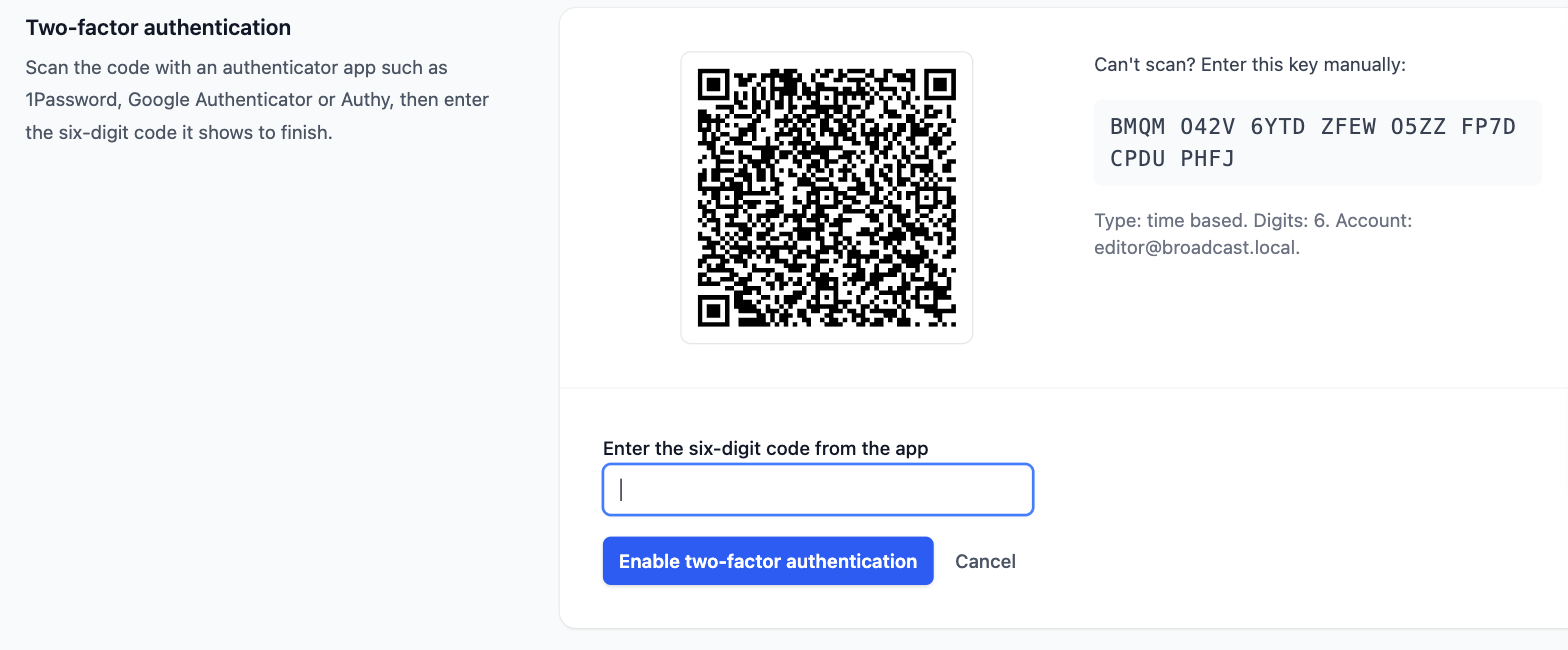
From then on, signing in is your password first and a code second. Codes are good for thirty seconds, with some tolerance for a phone whose clock drifts, and a code that has already been used is refused even inside that window. Wrong codes count against the same limit as wrong passwords, so guessing them locks the account just as guessing a password would.
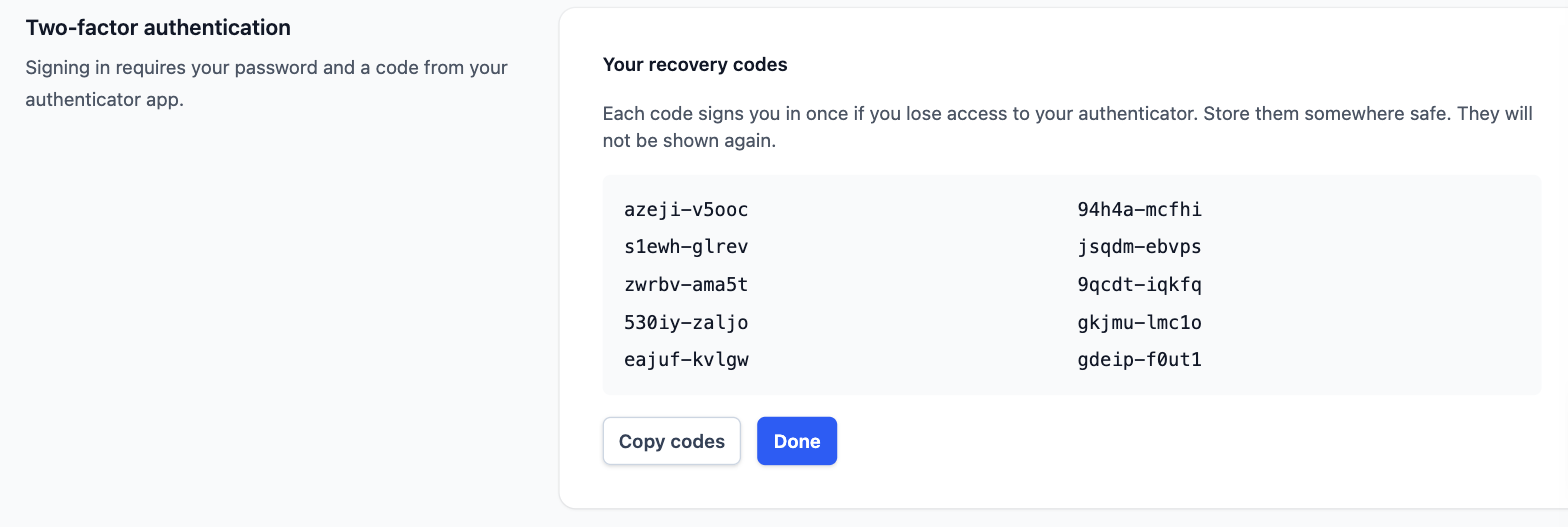
Enrolment ends with ten recovery codes, shown once. Each signs you in a single time if your phone is lost or broken, and you can generate a fresh set whenever you like, which invalidates the old ones.
I chose authenticator apps over emailed codes deliberately. Broadcast is an email tool, so its mail path is precisely the thing an attacker might already control, and a second factor that arrives in the same inbox as the password reset link adds very little. Authenticator codes work offline and depend on nothing but the device in your pocket.
Requiring it for everyone
Enrolling yourself is one thing. An agency needs to promise its clients that everyone with access has a second factor, and a promise like that needs a switch, not a policy document.
Under Application → Security, an administrator can require two-factor authentication for every user on the installation, with a grace period of 7, 14 or 30 days, or none at all.
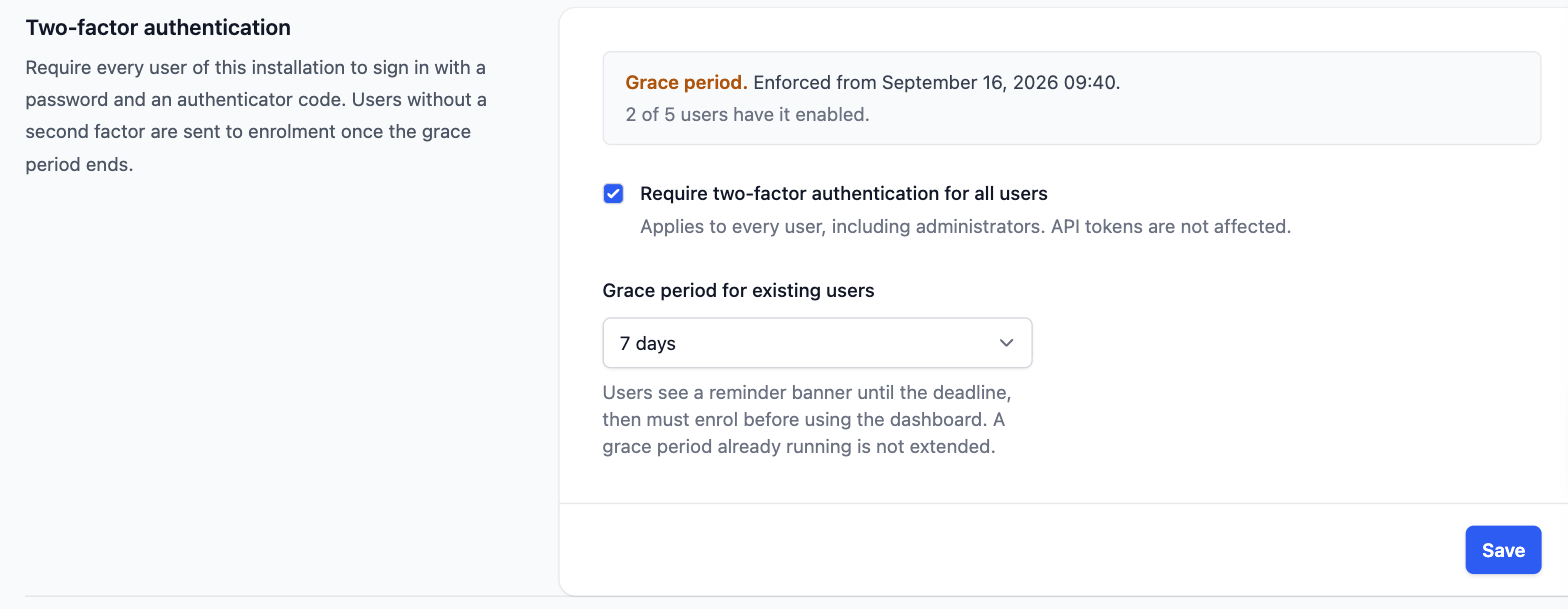
During the grace period, anyone who has not enrolled sees a banner on every page naming the deadline, with a link to get it done.

Once the deadline passes, a user without a second factor is sent to enrolment on every request and can do nothing else in the dashboard until they finish. That includes administrators; there is no exempt account, because an exempt account is the one an attacker would go after. API tokens are untouched, so integrations keep working.
When someone is locked out
Lost phones happen, and so do people who never wrote their recovery codes down. An administrator with user-management permission opens the person’s page under Users and chooses Reset Two-Factor. They sign in with their password alone and enrol again.
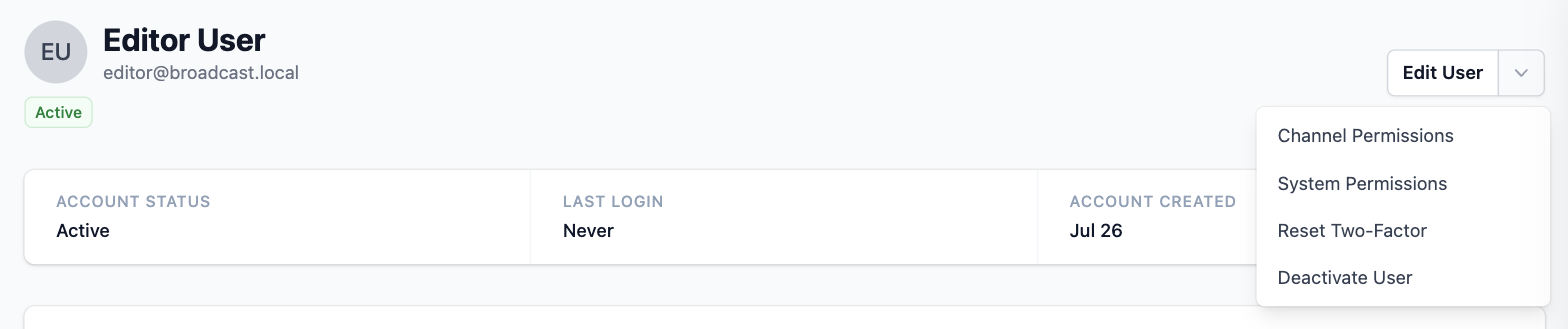
You cannot reset yourself from that page. Your own two-factor is managed from your profile, and disabling it needs your current password and a live code, so a session left open on a shared machine cannot quietly weaken the account.
The hardest case is the only administrator losing both device and codes, or switching enforcement on before anyone able to switch it off had enrolled. For that there is a command on the server: ./broadcast.sh two_factor reset <email> clears one user, and ./broadcast.sh two_factor disable_enforcement turns the requirement off. Anyone with a shell on the server can run these, which is as it should be; whoever controls the machine controls the database too.
Letting Cloudflare Access do the work
The agency’s workaround was, in fact, a good idea. Cloudflare Access is free for up to fifty users, it handles one-time PINs, Google and Microsoft sign-in, and hardware keys, and a lot of teams already have it in front of their internal tools. The trouble was only that Broadcast did not know about it, so users passed Cloudflare’s check and then typed a Broadcast password anyway.
Now it does. When a request arrives through your Access application, Cloudflare attaches a signed assertion naming the user. Broadcast verifies the signature against your team’s published keys, checks the audience tag and expiry, and signs in the Broadcast user with that email. No password, no code, because Cloudflare already did the second factor.
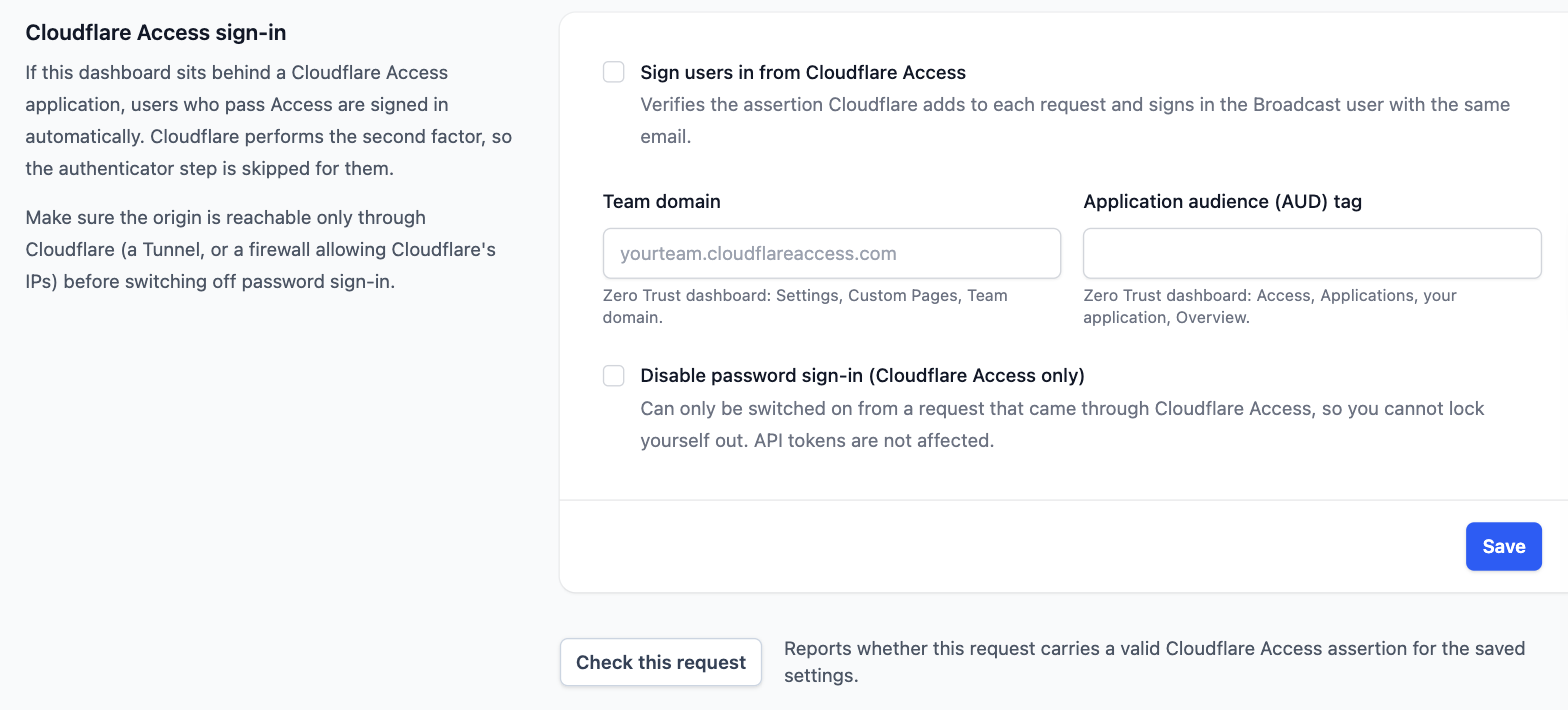
Two details worth knowing. First, Cloudflare can only vouch for requests that actually pass through it, so this is only as good as your origin’s isolation: put the server behind a Cloudflare Tunnel or allow only Cloudflare’s addresses at the firewall. Second, once you have done that, you can switch password sign-in off entirely and make Access the only door. Broadcast only lets you flip that switch from a request that itself came through Access, so a typo in the audience tag cannot lock you out of your own installation. A Check this request button on the same page tells you what Cloudflare verified before you rely on it.
Three ways this plays out
An agency onboarding a client sets a 14 day grace period the morning the client’s team gets their logins. Everyone sees the banner, most enrol in the first week, the stragglers are pushed to enrolment on day fifteen, and the agency can tell the client, truthfully, that every account is protected.
A solo sender enrols from their profile in two minutes, prints the recovery codes and puts them in the drawer with the passport, and never thinks about it again until a phone upgrade, when one recovery code gets them in and a new QR code gets them re-enrolled.
A team already living inside Cloudflare Zero Trust enters two values on the Security page, presses Check this request, sees their own email come back, and turns password sign-in off. From then on, joining or leaving the team is an Access policy change, not a Broadcast one.
This shipped in 2.32. Nothing changes on upgrade until someone opts in: enforcement is off by default, Cloudflare Access sign-in is off by default, and every existing password keeps working exactly as before.
The full setup, including the server-side recovery commands, is in the two-factor authentication documentation. For how users and permissions fit together, see Users & Permissions, and for the other half of keeping a self-hosted install safe, what an error report sends.