A Dashboard You Arrange Yourself, and Bounces That Say Why
The Broadcast dashboard used to show the same figures to everyone: subscribers, sign-ups and the last send, in a fixed row. That works for a person who checks list growth each morning. It does not work for the person in the same company who looks after deliverability and wants bounce rates first, or for a channel that runs on sequences and hardly sends broadcasts.
I did not want to guess which figures matter to you. So in 3.9 the dashboard is a grid of cards, and you decide which ones are on it.
Cards you pick, in the order you want
Click Customize Dashboard in the sidebar. The card library takes the place of the sidebar, and the cards stay where they are, so you arrange the real page and not a copy of it. Drag a card by its title to move it, open its menu to make it larger or smaller, and add cards from the library: open rate, click rate, bounce rate, countries, top links, sending room, sequences, transactional volume, form conversion and more.
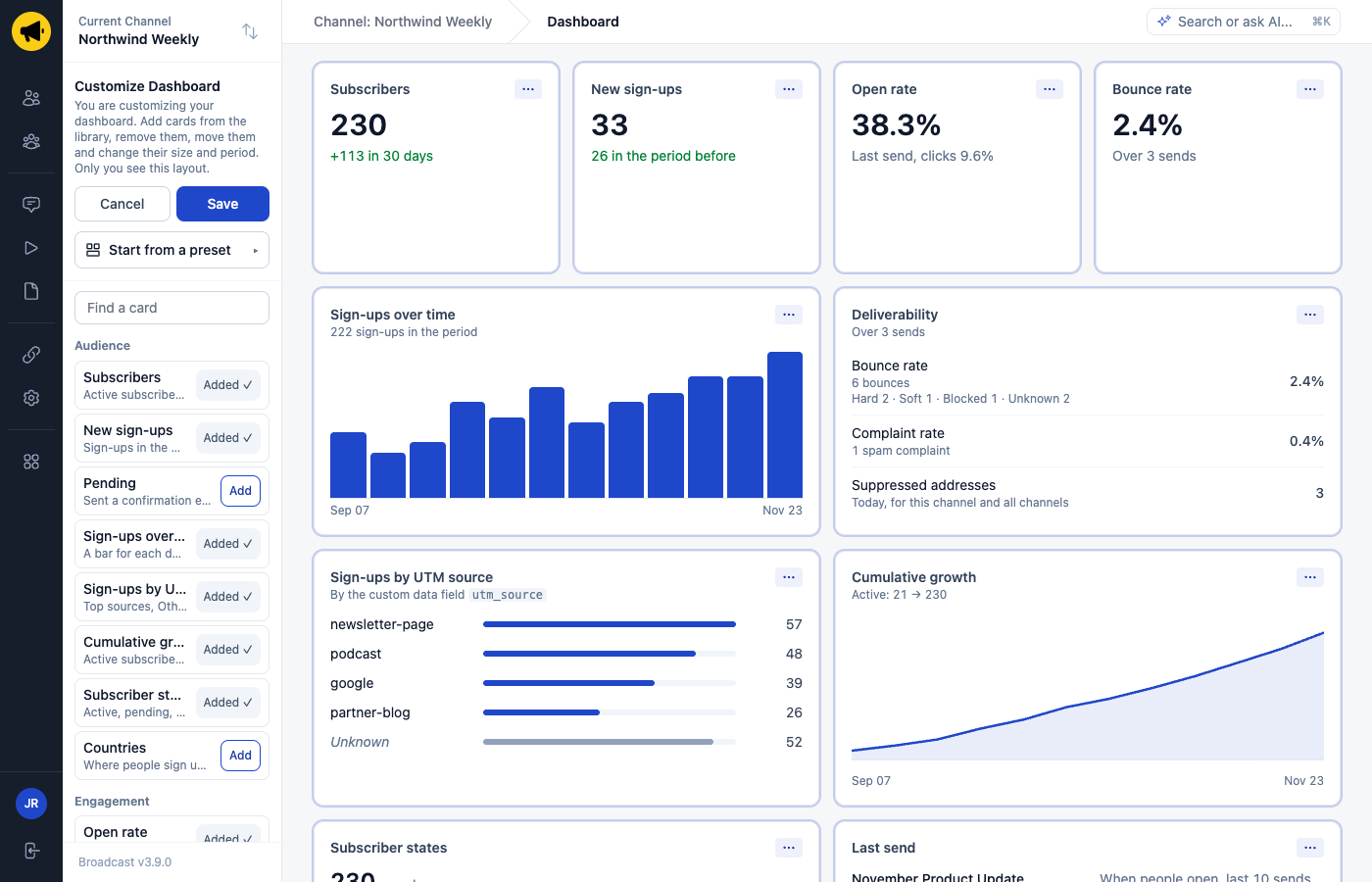
If you do not want to start from nothing, start from a preset: Overview, Growth KPIs, Email technicals, Content performance, Automation or Daily glance. Save the layout for this channel, or as your default for all your channels. Each person has their own layout, so the dashboard you arrange is not forced on your team.
I drew the line at cards. There are no formulas and no chart builder. Each card answers one question well, with an empty state that says what it needs. If a card you want is missing, plugins can now add their own cards to the dashboard.
The period on the card
A card that shows a period can now offer more than one. In Customize, open the card’s menu and tick the periods under Periods on the card.
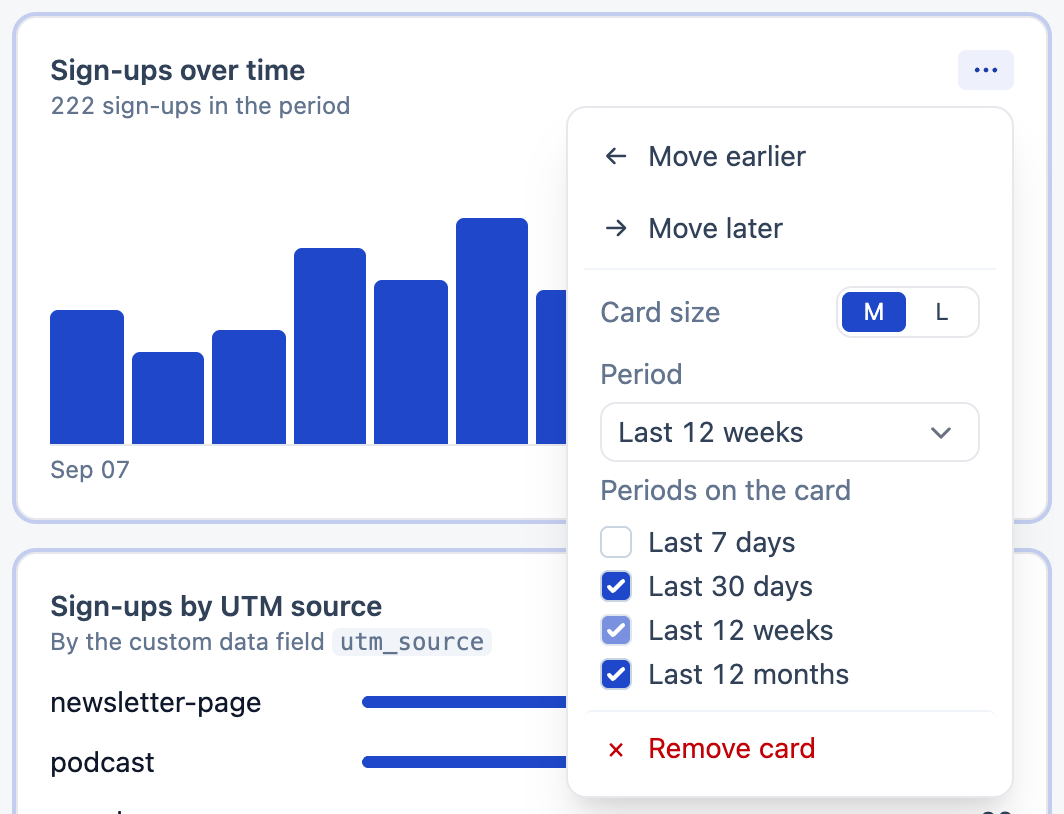
The card then has a small period menu in its header. Change from 12 weeks to 12 months without Customize, and Broadcast keeps your pick for next time.
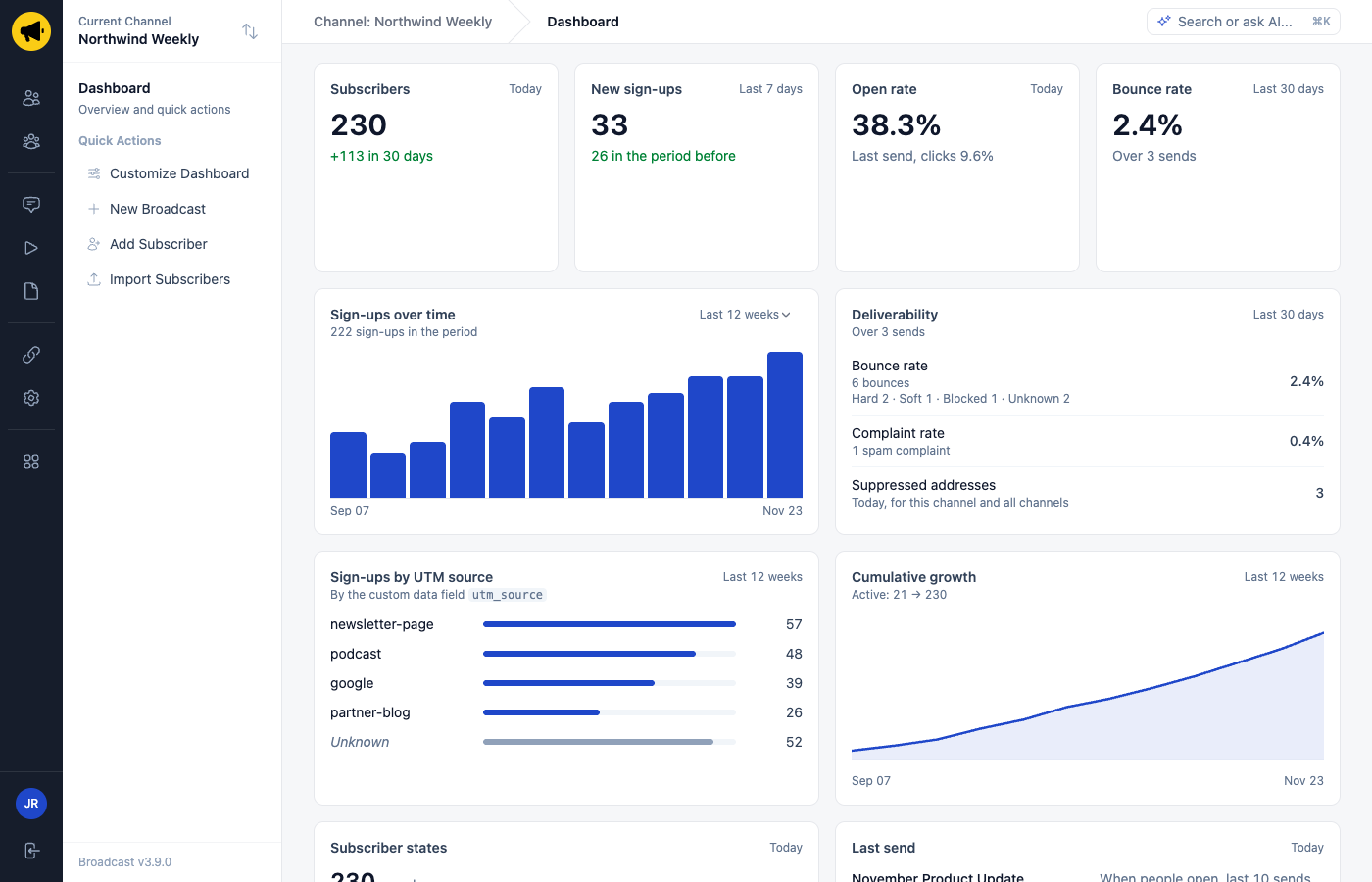
The opt-in forms also keep the UTM source, medium and campaign of the page a person signed up on. The Sign-ups by UTM source card counts them, so you see whether the podcast or the partner blog brought more readers.
A bounce now says what kind it was
Until now, Broadcast stored that an email bounced and the reason text the provider sent. It did not say what kind of bounce it was. A mailbox that does not exist and a mailbox that is full for a day are very different problems.
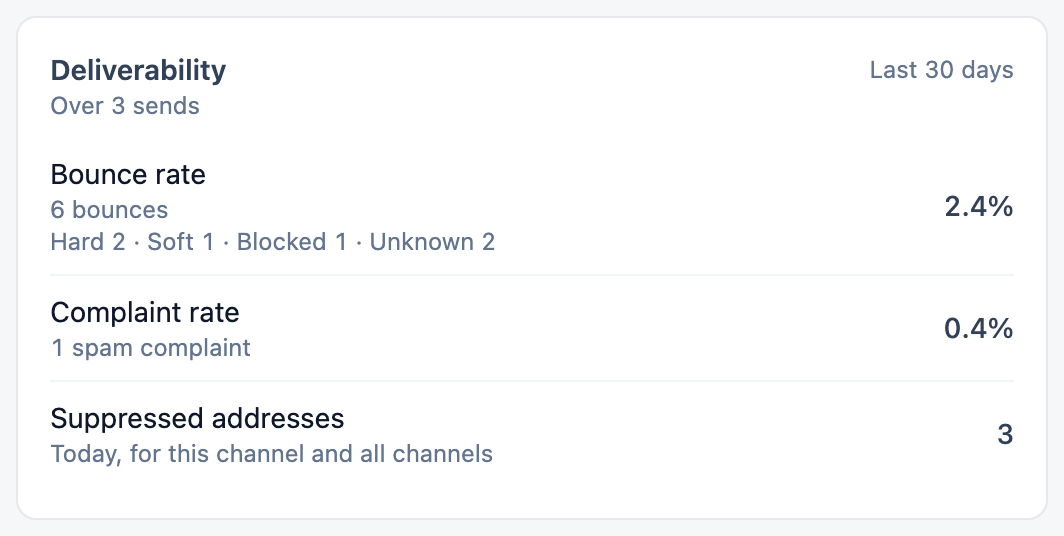
Now each bounce gets a class from the provider’s own fields: hard, soft, blocked or unknown. Amazon SES, Mailgun, SendGrid, Postmark, SMTP.com and Inboxroad each describe bounces their own way. Broadcast reads each provider’s fields first, then the SMTP status code, then the words in the reason. You see the class on the broadcast and sequence activity lists and on the subscriber page.
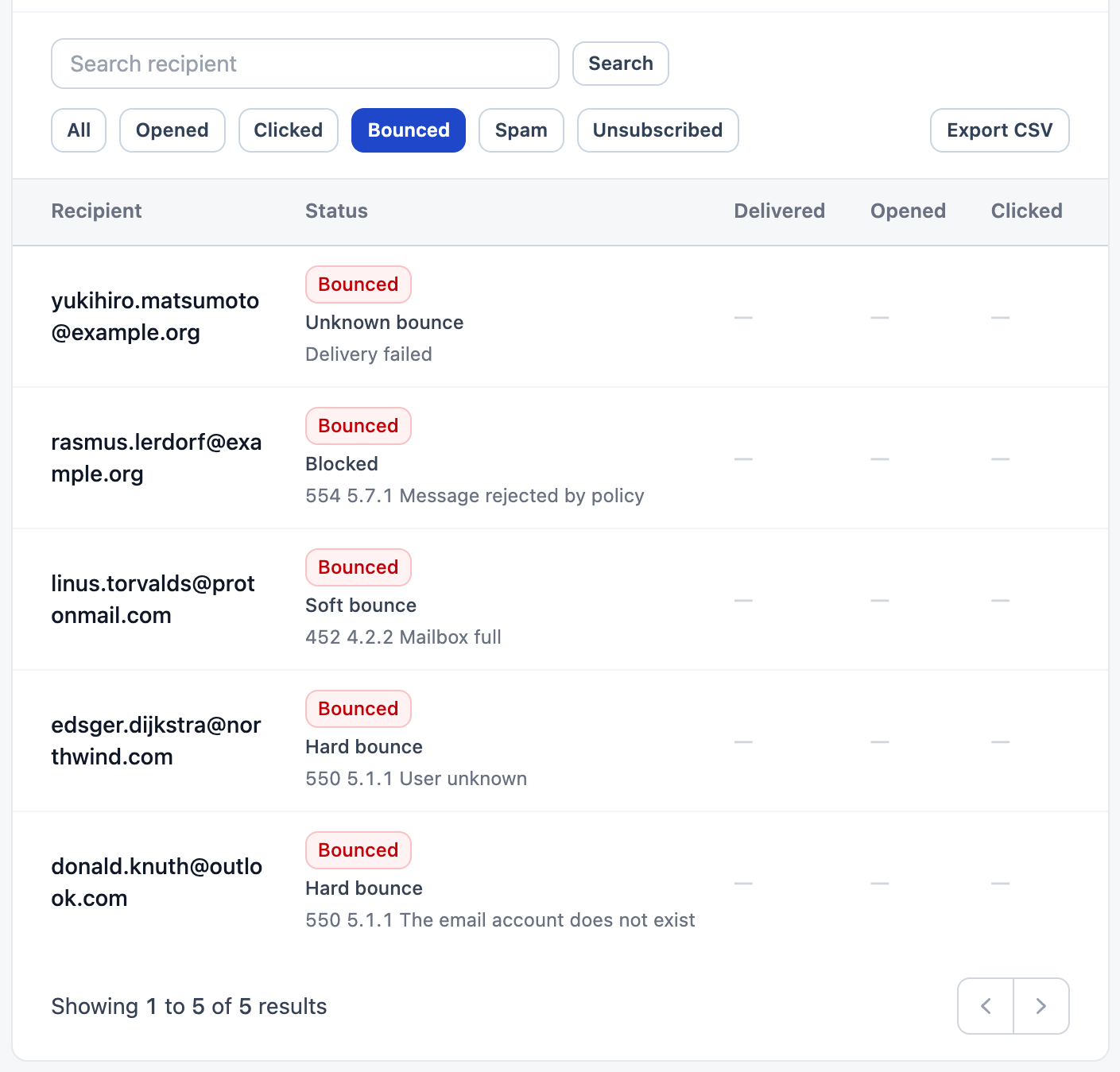
The Deliverability card splits the bounces of the period by class, so a rise in blocked mail stands out from the normal few addresses that went bad.
A full mailbox is not a dead address
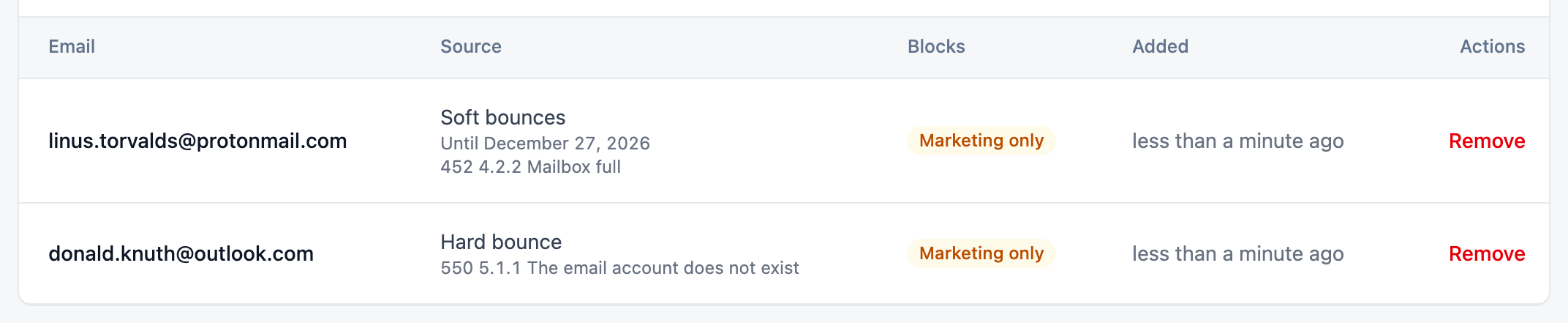
Only a hard bounce now suppresses an address for good. Three soft bounces in a row, for example a mailbox that stays full, pause the address in that channel for 30 days. The suppression list shows when the pause ends. After that date Broadcast sends to the address again, and the person stays a subscriber the whole time.
One more fix in this area: when an email provider refuses one invalid address in a broadcast, Broadcast now skips that address and records a hard bounce. Before, one bad address could stop the whole send.
Bounces from before the upgrade get their class in the background, from the reason they stored. Nothing you need to do.
What this looks like in practice
A two-person newsletter: one of them opens the dashboard to Growth KPIs, with sign-ups by UTM source first. The other uses Email technicals, with bounce rate and Deliverability at the top. Each sees their own layout on the same channel.
A shop sends a sale to 40,000 people and the bounce rate is 3%. The Deliverability card shows that most of it is blocked, not hard. That points to a reputation or content problem with one mailbox provider, not to a stale list.
A reader’s work mailbox is full during a long holiday. Three issues bounce soft, and the address pauses for 30 days. When they come back and clear their inbox, the next issue after the pause reaches them, and nobody had to add them again.
The navigation and dashboard docs explain Customize, presets and periods, and the suppression list docs explain the bounce classes and soft-bounce pauses. For how a bounce blocks an address in every channel, see blocking a bounced address everywhere.