Navigation and Quick Jump
This page shows how to move around Broadcast: the sidebar menu, quick jump, the dashboard and the channels page.
The sidebar menu
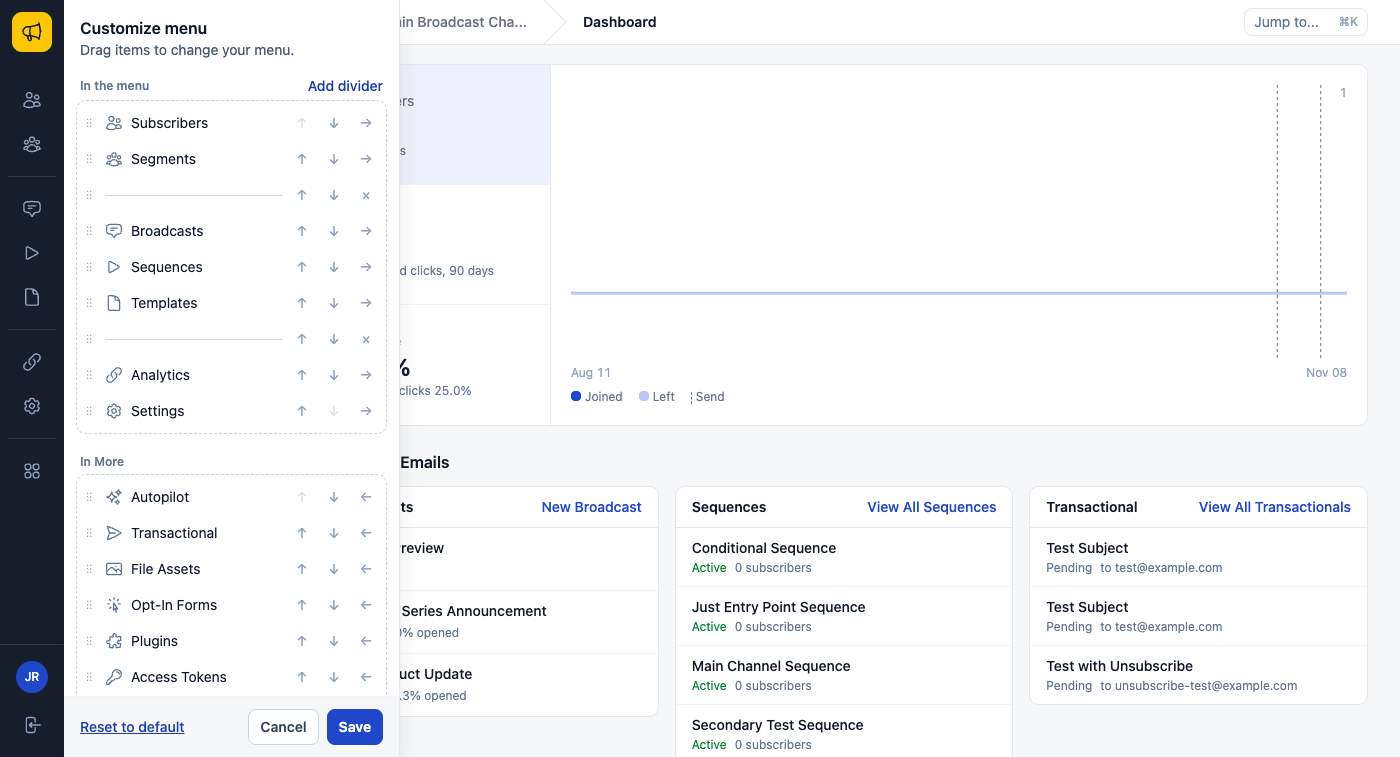
The narrow menu on the left has the main areas of Broadcast, in four groups: Audience, Sending, Content and Admin. The items that are not in the menu are under More. Type in the Filter items box at the top of More to find an item by name.
You see only the items that your permissions allow. See Users & Permissions.
Change your menu
Each user has their own menu. A change to your menu does not change the menu of other users.
- Click More.
- Click Customize menu. A side panel opens.
- Drag items between In the menu and In More, or drag an item up or down to move it.
- Click Add divider to put a line between two groups of items.
- Click Save.
To use the default menu again, click Reset to default in the same panel. If you see Your menu was not saved, click Save again.
Quick jump
Quick jump finds a page, a channel or a record by name. To open it:
- Press Cmd+K on a Mac, or Ctrl+K on Windows and Linux.
- Or click Jump to… at the top right of the page, next to the breadcrumbs.
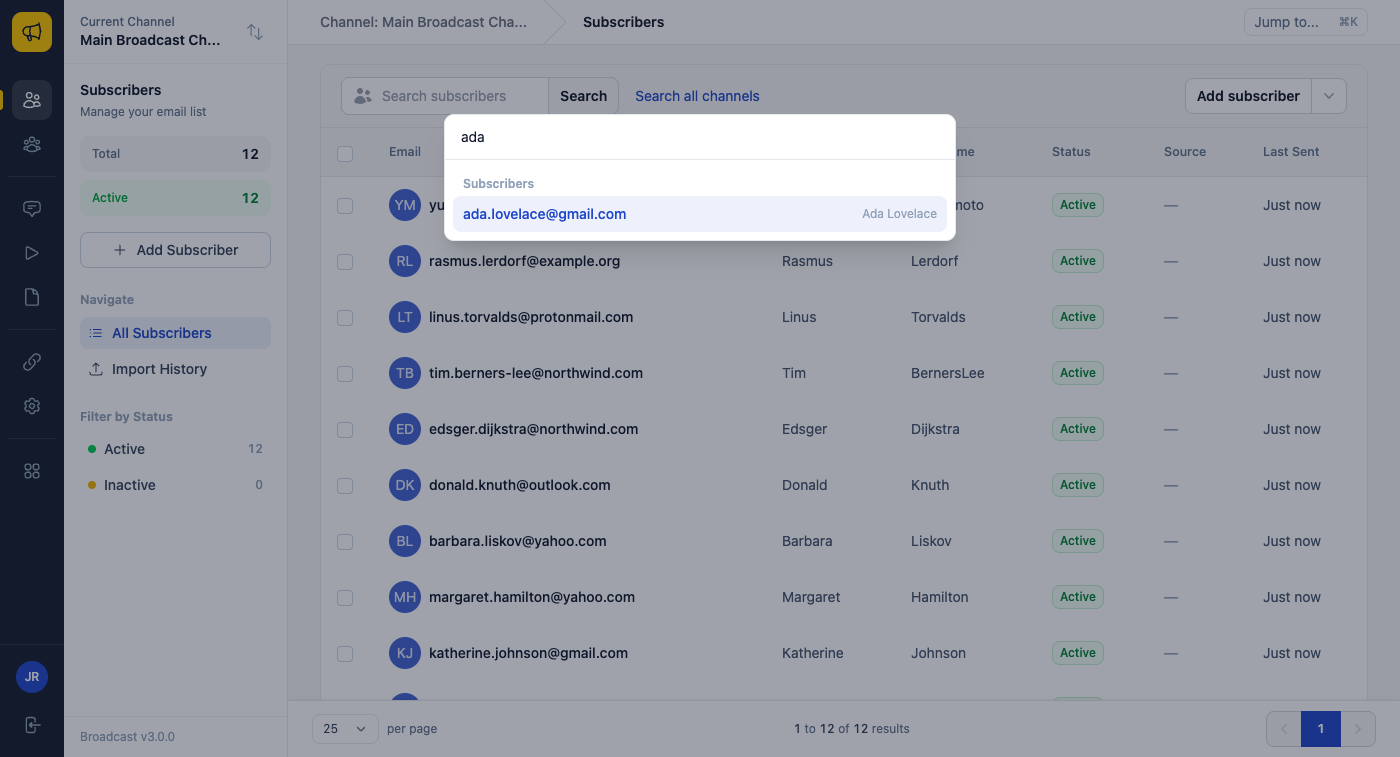
Type a word, for example “email servers”, a channel name or an email address. The results show in groups:
| Group | What it finds |
|---|---|
| Pages | Every page of the sidebar that you can open |
| Channels | Your channels. Pick one to switch to it |
| Subscribers | Email address, first name or last name. Starts at 3 characters |
| Broadcasts | Name or subject |
| Sequences | Name |
| Segments | Name |
| Templates | Name |
| Transactional emails | Recipient email address |
The search for records starts at 2 characters, and shows up to 5 results for each group. It looks in the current channel. Text with @ also looks in the other channels that you can open, and those results name their channel.
Quick jump uses your permissions. It shows only the records that you can see on their own pages.
If you see Subscriber search took too long. Type more of the address., the channel has many subscribers and the search stopped. Type more of the address or the name. The other groups still show their results.
Your search text is not kept in the server logs or in the browser address.
The dashboard
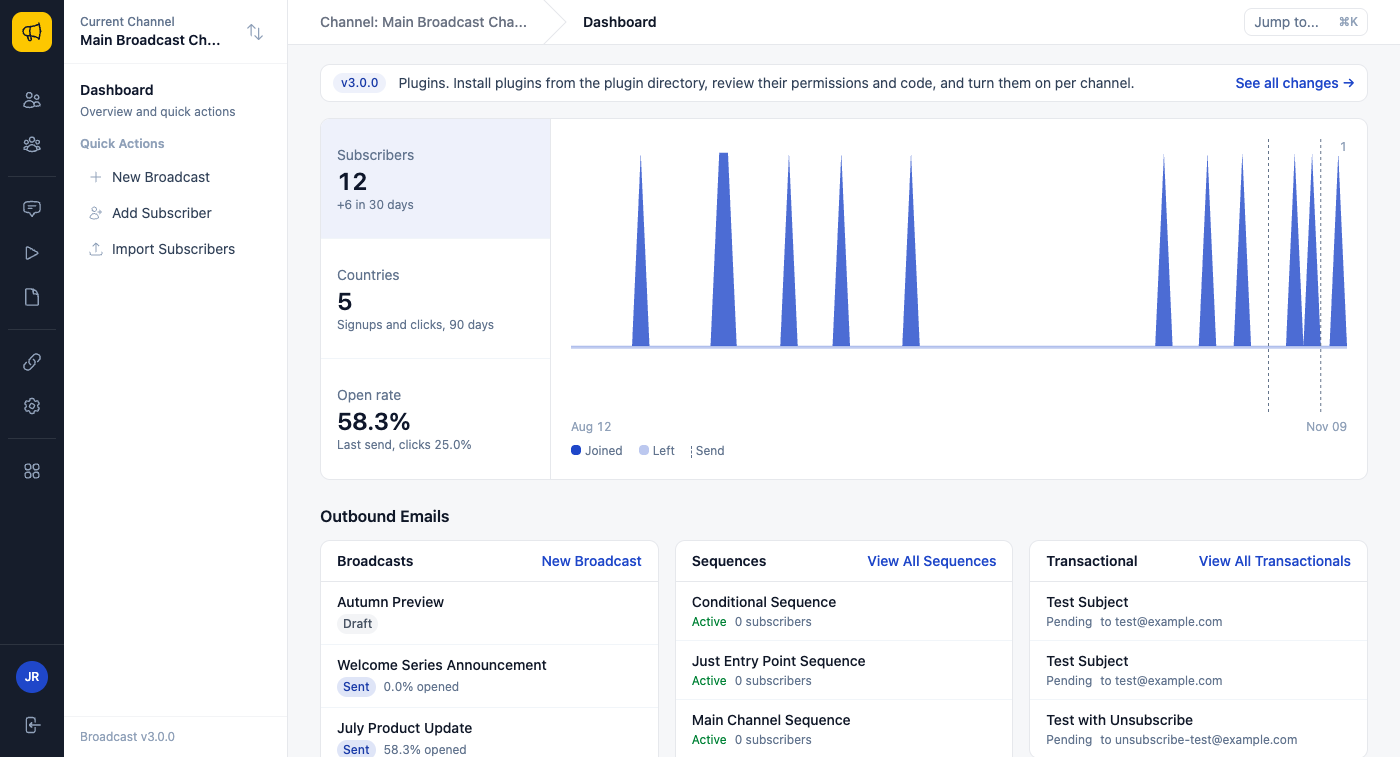
The dashboard of a channel starts with a row of figures for the channel:
- Subscribers, with the change in the last 30 days.
- Countries, on a globe: the countries where people signed up or clicked in the last 90 days. Imported subscribers are not counted.
- Open rate, and the clicks of the last send.
The growth chart under the row shows the people who joined and left each day for 90 days. A mark on the chart shows each send. The last send shows how many emails were sent, opened and clicked, and when people opened the last 10 sends.
Under the chart, broadcasts, sequences and transactional email are in three columns.
People who do not have permission to see subscribers or email data in a channel see a notice in place of those figures.
Release notes
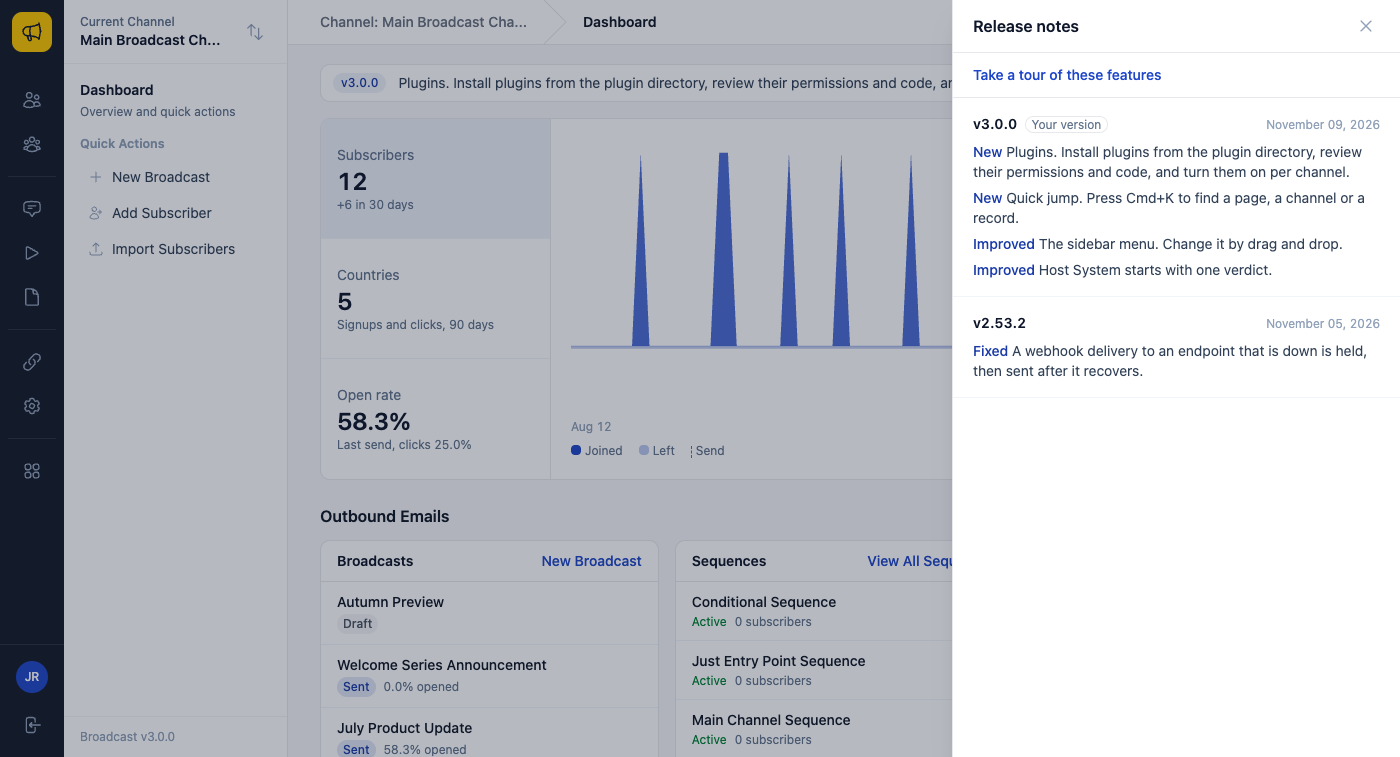
One line on the dashboard names the newest release. Click See all changes to open a drawer with the notes of each release. Your version marks the release that your server runs. Click Take a tour of these features to see the new features of a release.
The channels page
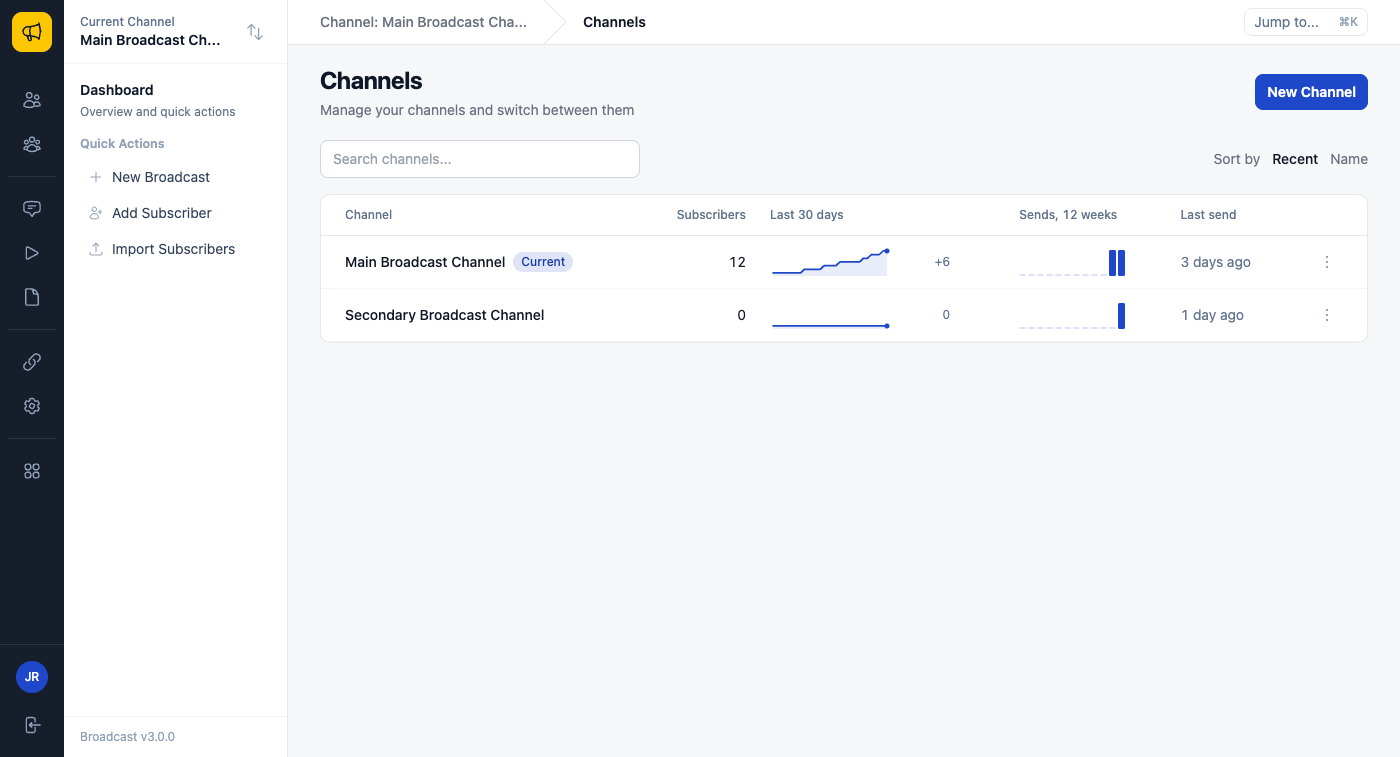
To open the channels page, click the switch icon (two arrows) next to the channel name at the top of the sidebar. Each channel is one row, with:
- The number of subscribers, and a chart of the subscribers in the last 30 days.
- A chart of the sends each week in the last 12 weeks.
- The time of the last send.
Type in Search channels… to find a channel. Use Sort by to sort by Recent or by Name. Click a row to switch to that channel.
To switch channels faster, press Cmd+K and type the channel name. See Channels.