Manage a Subscriber’s Topics by Hand, and Segment by Topic
Topics let each subscriber choose which kinds of email they get: the newsletter, offers, webinar invitations. Since they shipped, the subscriber could change them on the preference page, and you could send a broadcast to one topic. Two things were missing, and a customer running a German list asked for both.
The first was a way to change a topic yourself. A topic is stored as a tag or a custom data field, so the only way to set one by hand was to edit the raw custom data. The second was segments. You could send to a topic, but you could not build a segment from it, so “people who get webinar invitations and opened something this month” was out of reach.
Topics on the profile
The Edit panel on a subscriber’s profile now has a Topics section. A tag topic is a checkbox. A custom data topic is On, Off or Not set, because “not set” means something: the topic’s own setting decides whether people with no value get the email.
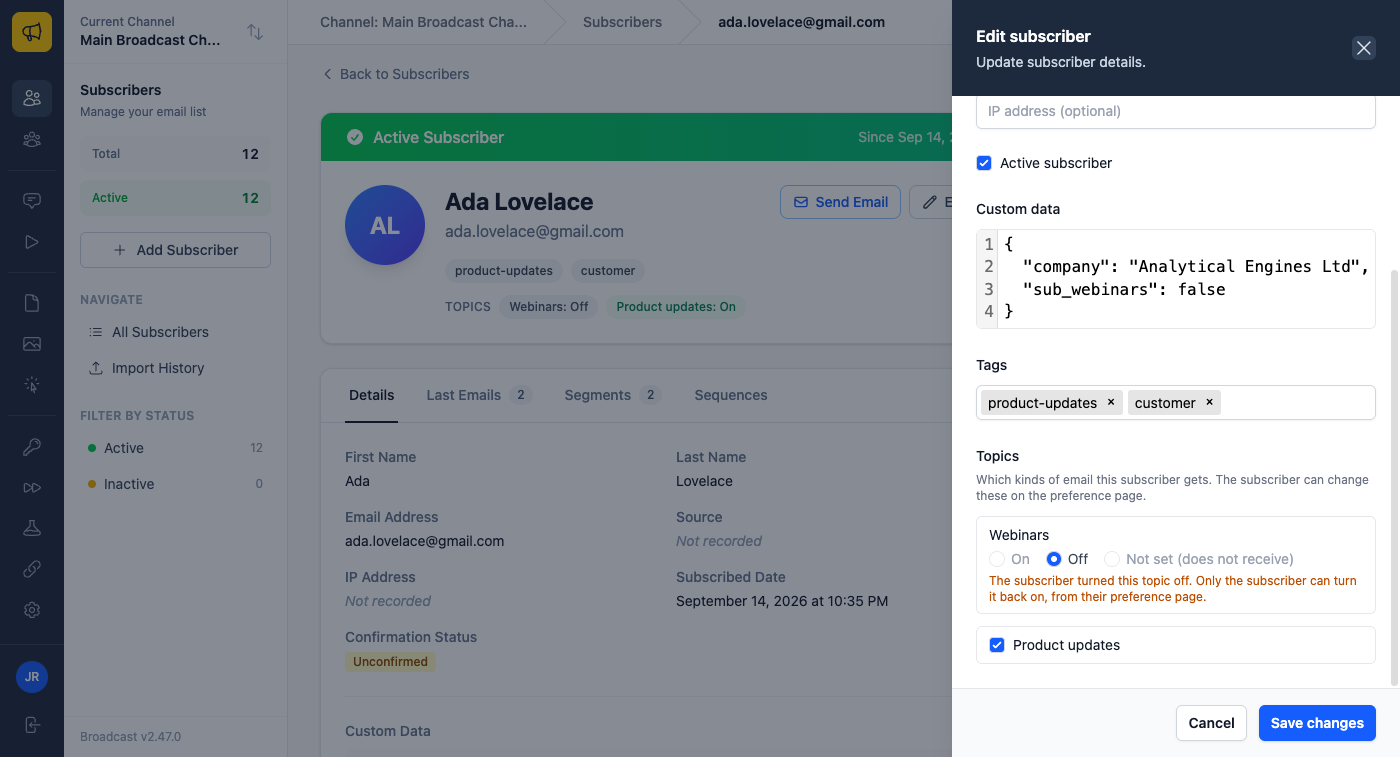
There is one line I drew on purpose. If the subscriber turned a topic off themselves, you cannot turn it back on, and you cannot clear it to “not set” either. Only the subscriber can, from their preference page. That holds everywhere, not just on this panel: the API keeps the stored value and returns a warning, and an import keeps it and notes the row. An opt-out is the subscriber’s decision, and I would rather the software held that line than leave it to whoever has the edit button.
Every change you make is recorded in the subscriber’s activity with your email address, from and to.
Segments by topic
Segment rules have a new Topic field. Pick a topic, then Receives, Does not receive, or Is not set for a custom data topic.
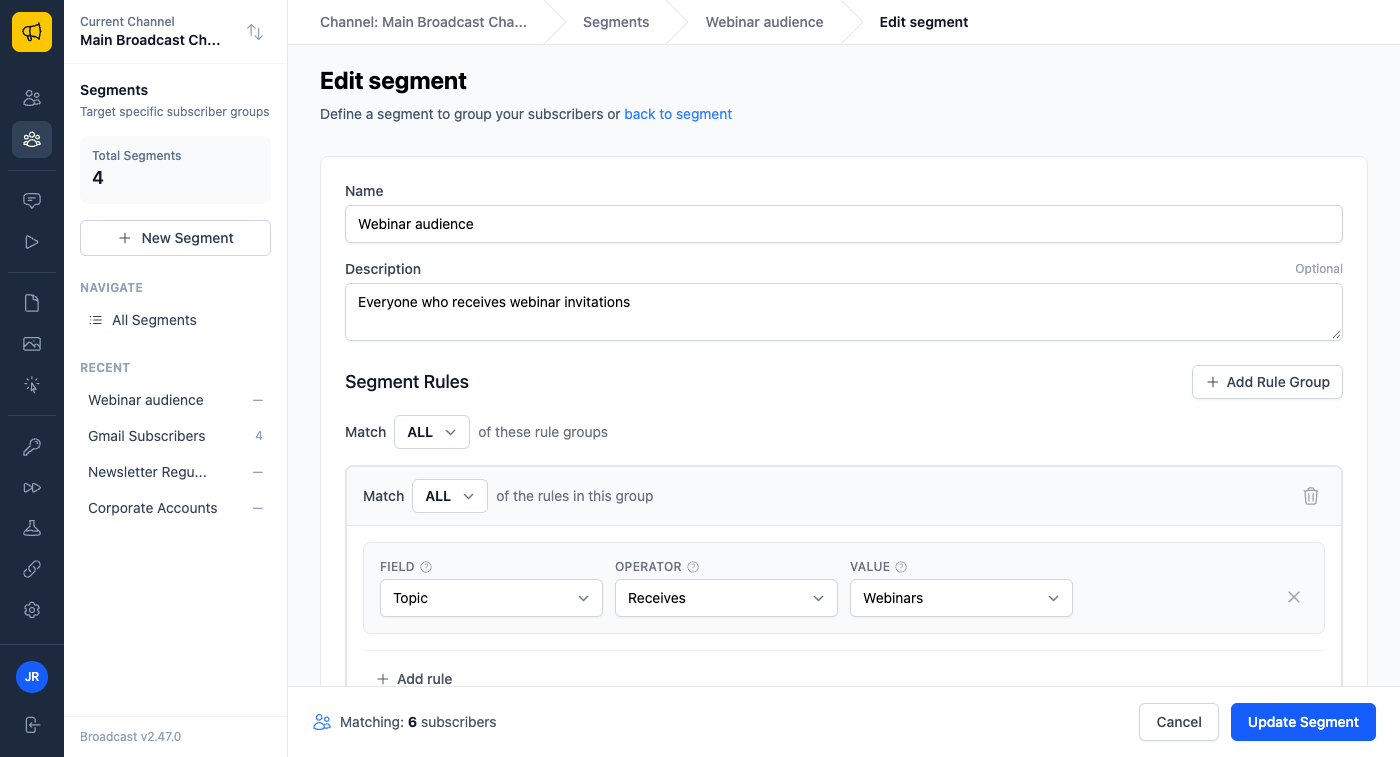
The rule uses the same check as a topic send. So a segment called “receives Webinars” always holds exactly the people an email to the Webinars topic would reach, including the topic’s setting for people with no value. You can combine it with any other rule.
Smaller things in the same release
File Assets takes several images at once. Drop a folder’s worth in, and each one uploads on its own; a file that is not an image is listed with the reason, and the rest still go through.
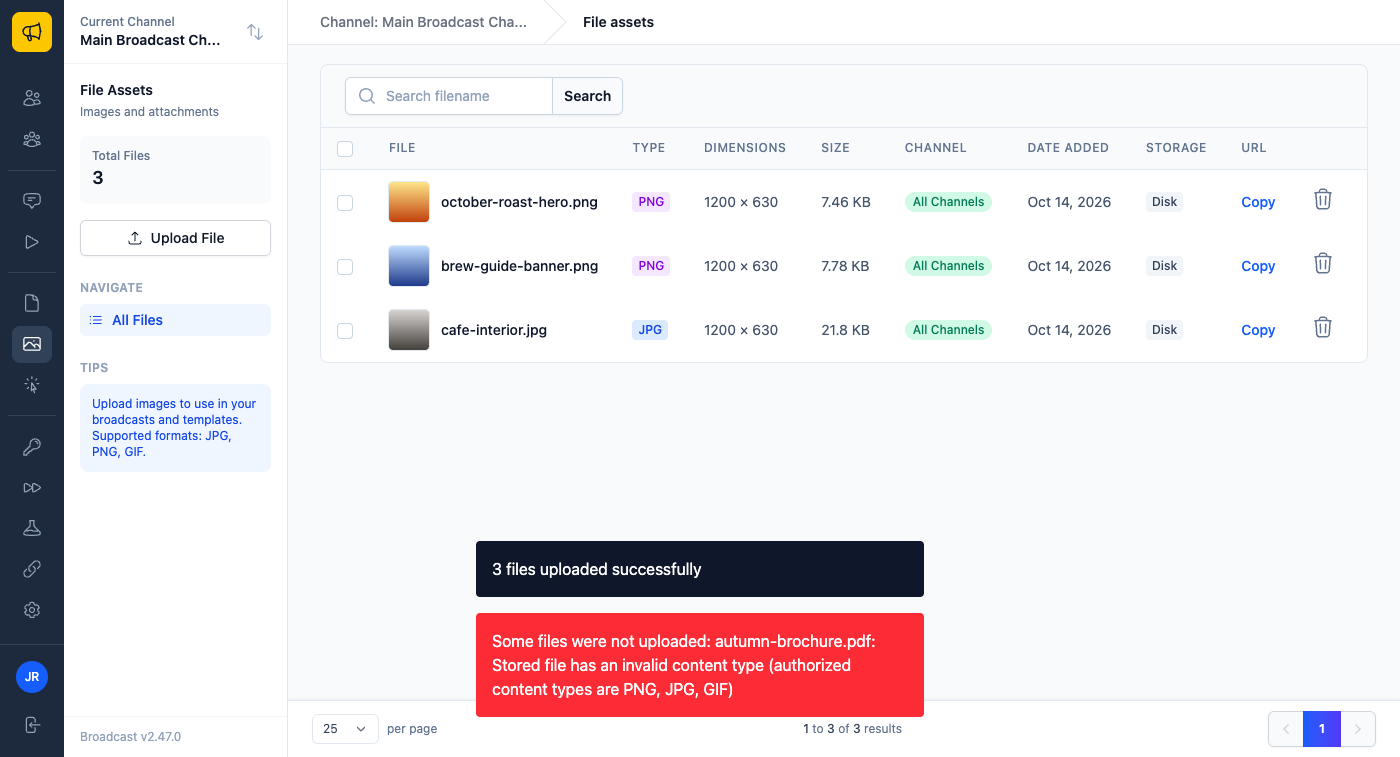
The same customer scripts their templates, but every image still meant a trip to the browser to upload it and copy the URL back out. There is now a File Assets API to list, upload and delete files, and the Ruby, Node, Python and PHP SDKs and the agent CLI all support it. Upload a logo from a script, then set it as the Brand Kit logo with the channel design API.
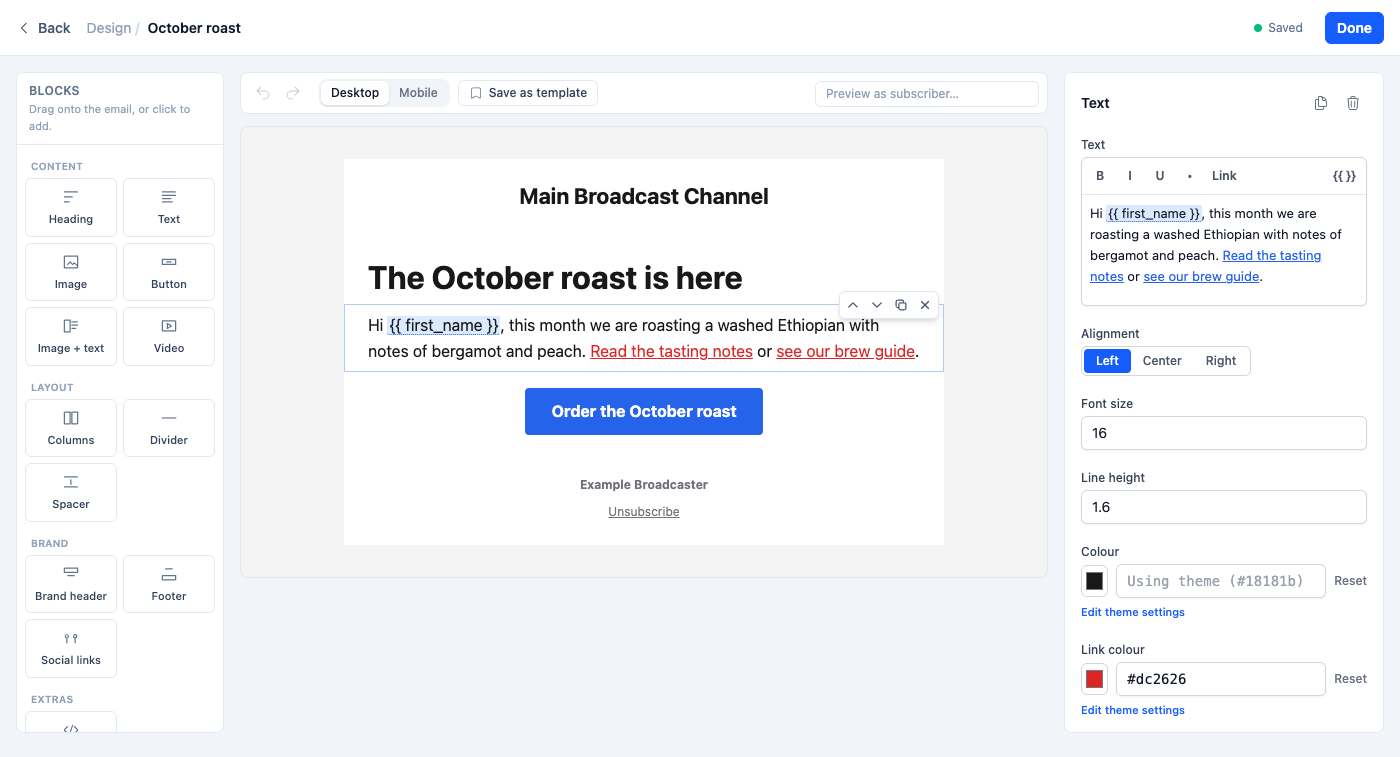
Text and Image + text blocks also have a Link colour setting. Leave it empty and links use your theme’s colour; set it and only that block changes.
Who this helps
A support person gets a reply: “please stop sending me the offers.” They open the profile, set Offers to Off, and the next offers broadcast skips that person. The activity shows who made the change.
A marketer wants to invite only engaged webinar subscribers to a live session. They build a segment with Topic receives Webinars and Last email opened within 30 days, and send to it.
A team that keeps its email templates in a repository adds a step to its deploy script: upload the new header image through the API, and put the returned URL into the template. Nobody opens the browser.
This shipped in 2.48.
The subscriber topics guide covers topics on the profile and in segments, and the File Assets API reference covers uploads. For how topics started, see let subscribers choose which emails they get.