My broadcast is not sending
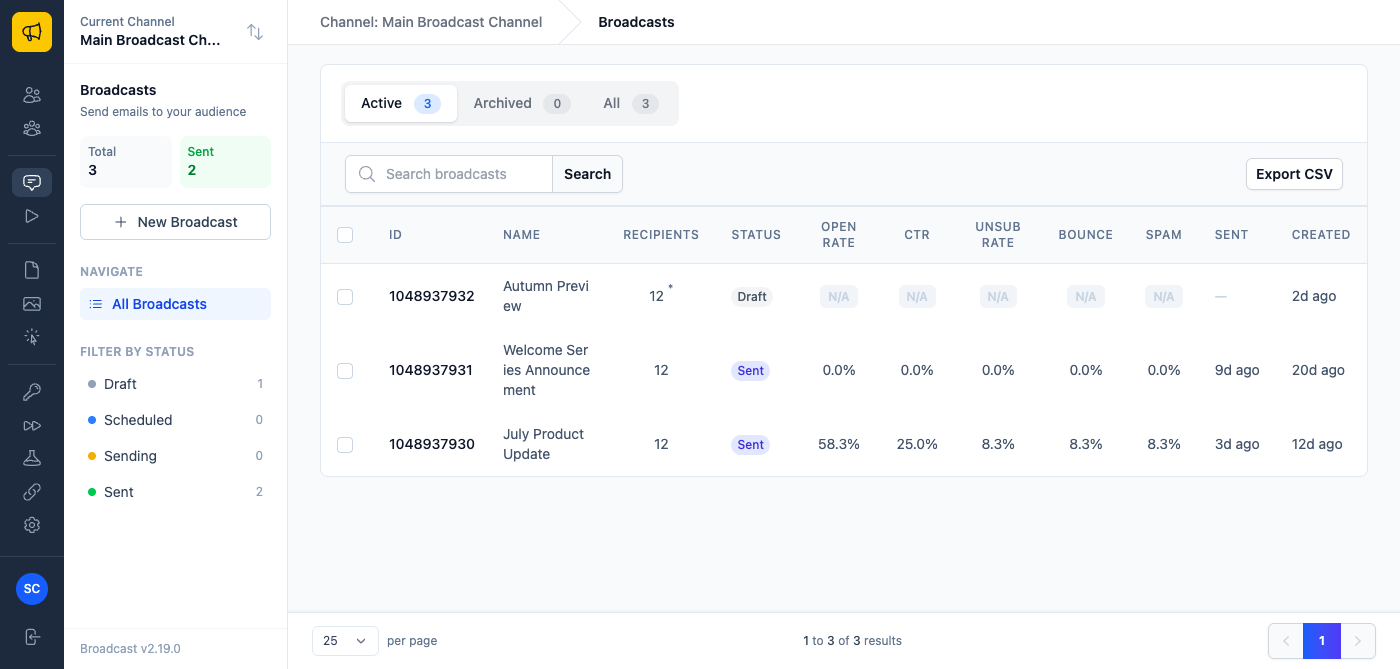
1. Read the status
Every broadcast is in one of five states:
- Draft: still being edited. It will not send. This is the most common answer.
- Scheduled: queued for a future time. Check the time and the timezone.
- Sending: in progress. Large sends take a while, and a rate limit will pace them.
- Sent: finished.
- Failed: errored during sending. The detail page has the reason.
The broadcasts documentation covers each status and the send flow.
2. Check the audience actually matches someone
Open the Audience tab and confirm the segment matches more than zero subscribers. Preview the count rather than assuming. A segment built on engagement will match nobody on a freshly imported list, because engagement history does not migrate.
Also confirm the recipients are active. Unsubscribed subscribers are skipped, as are addresses on your suppression lists.
3. Check the email server
Under Settings → Email Servers, look at the server the channel uses:
- Is its status healthy?
- Are the credentials still valid? Providers expire keys.
- Is there an error on the server detail page?
4. Check the rate limit
Each email server has an emails per hour cap over a rolling one-hour window. When it is reached, sending pauses until older sends age out. The server detail page shows the configured limit, how many have gone out in the current window, and a rate limit reached indicator.
If your provider has raised your allowance, or you have confirmed it is safe, click Reset rate limit. The rate limit documentation covers this.
A send that looks stalled but is really rate-limited is normal behavior, not a fault.

5. Check background jobs
Sending runs in the background. If jobs are not processing, nothing sends and nothing errors visibly. The monitoring documentation covers the background jobs dashboard, the error log, and live log streaming.
This is also where to look after a server restart or an upgrade.
Still stuck
Email us with the broadcast status, the audience count, and anything from the error log. A downloadable log capture from the monitoring page is the single most useful thing you can attach.