Referrals
Referrals is an official Broadcast plugin. It gives each subscriber a personal link. When a new person signs up through that link, the subscriber gets a referral. At a number of referrals that you set, the subscriber earns a reward.
This page is for the owner of a newsletter. To read data from another system, see Referrals API.
Before you start
- Install the Referrals plugin and turn it on in the channel. See Install, Update and Publish Plugins.
- Open the settings of the plugin.
- Enter the Signup page address. This is the page with your signup form. Each personal link points to this page, with the code of the subscriber at the end (
?ref=r1vc5b).
The signup page can have a Broadcast form (see Opt-In Forms) or a form of your own. A Broadcast form keeps the code with no more work. For a form of your own, see A signup form of your own.
The page
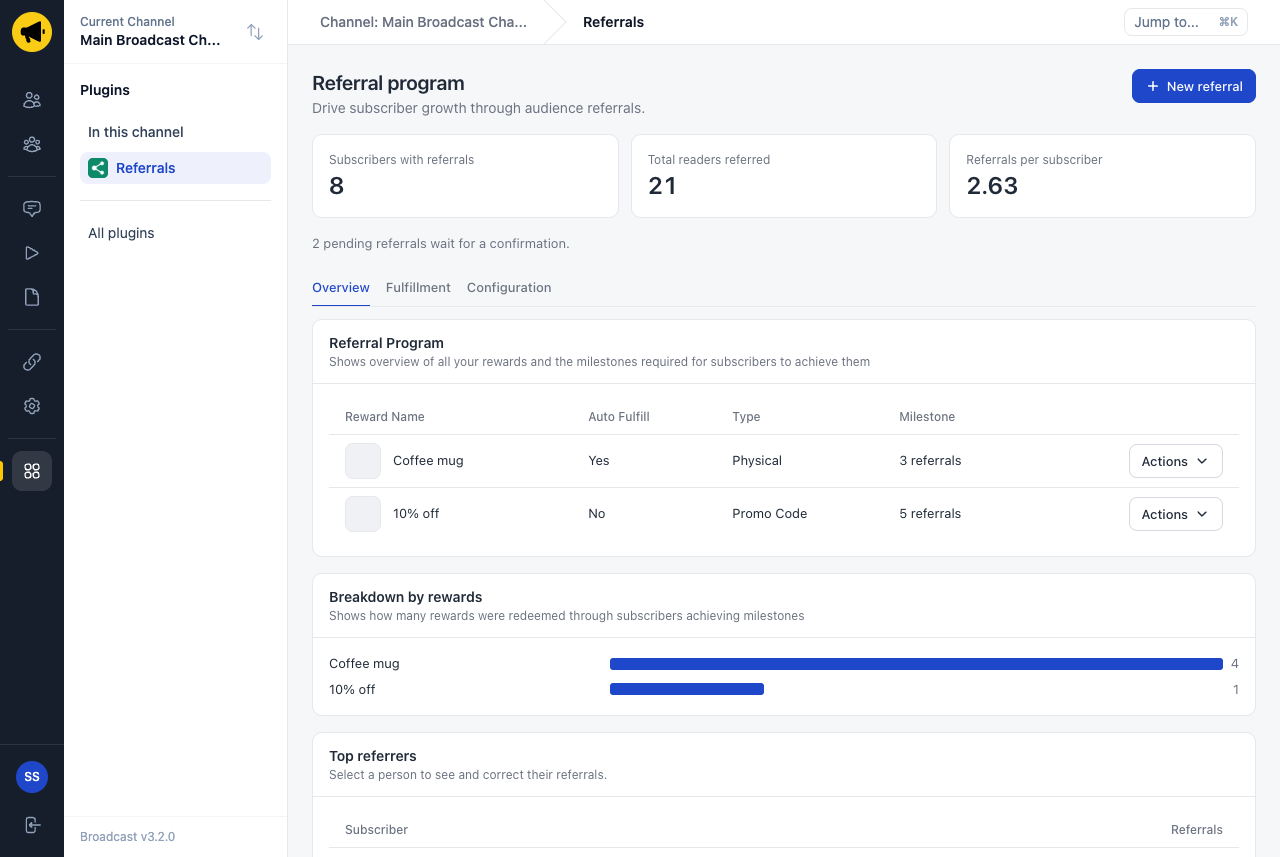
Open Referrals in the plugins menu of the channel. The page has three numbers and three tabs.
| Number | Meaning |
|---|---|
| Subscribers with referrals | The subscribers who referred one person or more |
| Total readers referred | The referrals that count |
| Referrals per subscriber | The second number divided by the first |
A line under the numbers shows the pending referrals. A pending referral is a person who signed up through a link and is not confirmed.
| Tab | What it has |
|---|---|
| Overview | The rewards, how often each reward was earned, and the top 100 referrers |
| Fulfillment | Each reward that a subscriber earned, with a status |
| Configuration | The program switch and the referral block of your emails |
Create a reward
- Select New referral.
- Fill in the Reward tab.
- Select Save reward.
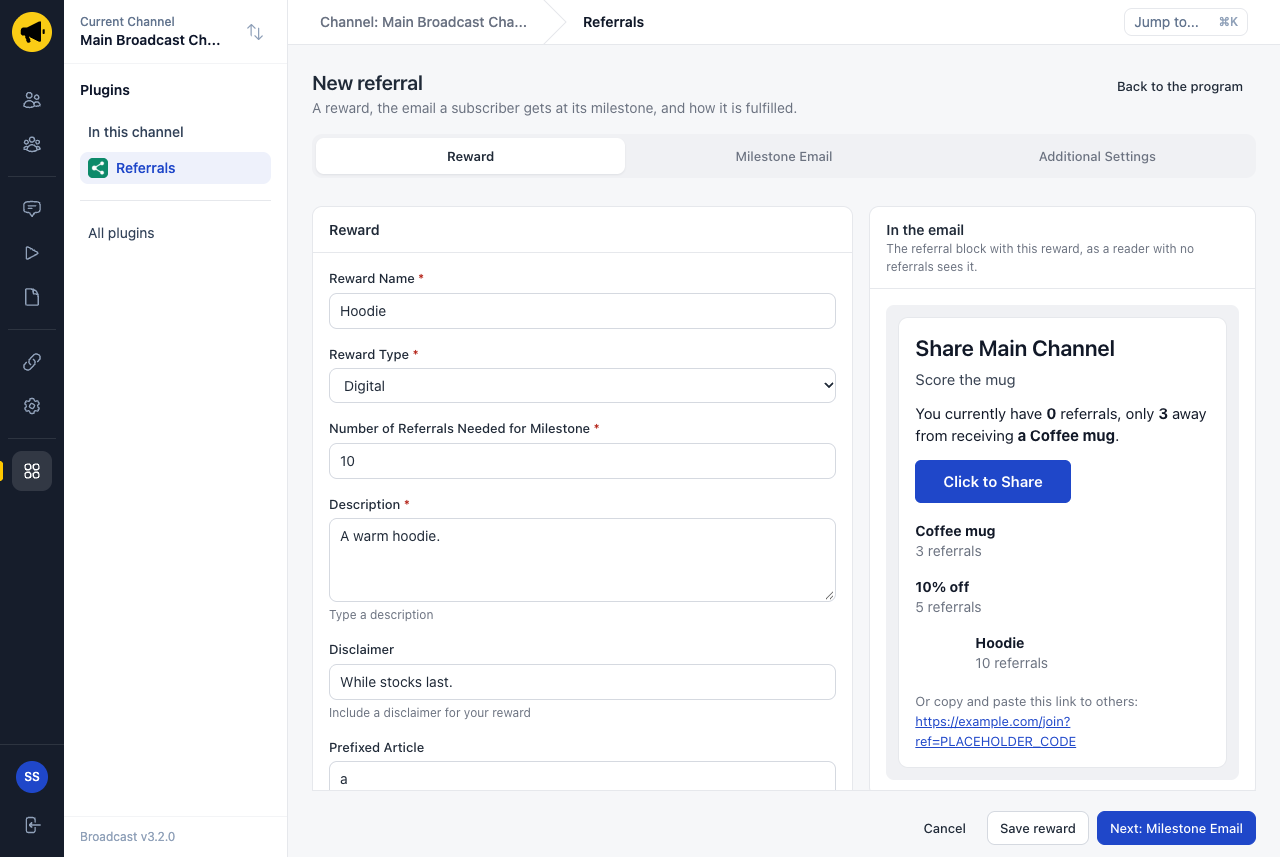
The form has three tabs. You can open them in any order. The preview at the right shows the referral block with the new reward, as a reader with no referrals sees it.
The Reward tab
| Field | Required | Meaning |
|---|---|---|
| Reward Name | Yes | The name that readers see, up to 100 characters |
| Reward Type | Yes | Physical, Digital or Promo Code |
| Number of Referrals Needed for Milestone | Yes | 1 to 100000 |
| Description | Yes | Up to 500 characters |
| Disclaimer | No | Up to 300 characters |
| Prefixed Article | No | The word before the name in a sentence, for example “a” in “3 away from receiving a Coffee mug” |
| Image | No | The address of a picture (https://). A square or landscape picture is best |
| Tag | No | Broadcast adds this tag to the subscriber at the milestone. A sequence can start from the tag (see Email Sequences) |
A tag that is a topic is refused, because a topic is consent. The plugin log shows the refusal, and the referral still counts.
The Additional Settings tab
This tab has one switch, Auto Fulfill. With it, an earned reward is marked fulfilled at once. Use it for a reward that needs no work from you, such as a promo code. A Promo Code reward with no code left waits as pending.
The Milestone Email tab
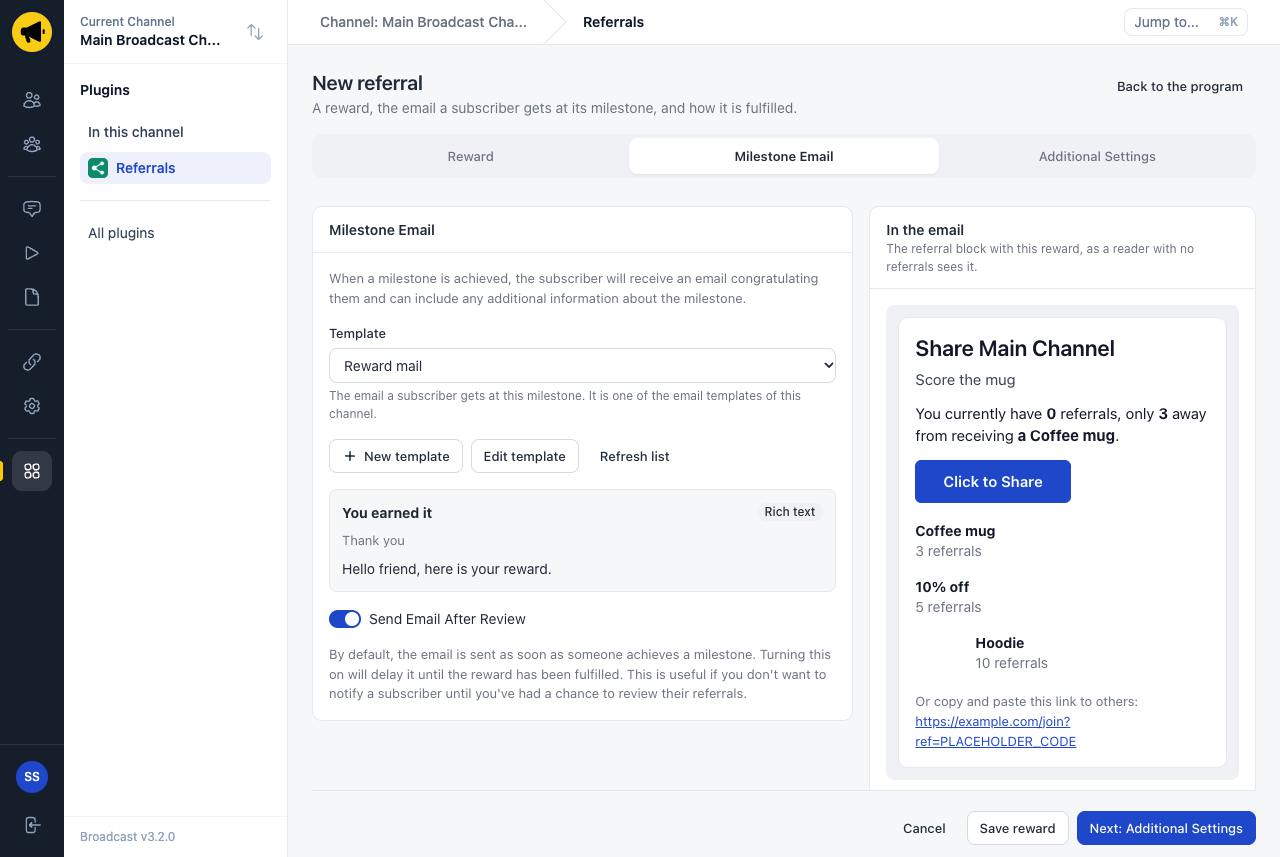
The milestone email is one of the email templates of the channel (see Email Templates).
- Choose a template in Template.
- New template and Edit template open the template editor of Broadcast in a new tab. Select Refresh list when you come back.
- Turn on Send Email After Review to hold the email until you mark the reward as fulfilled.
Warning
Referrals 2.0 saves the template of each reward, but it does not send the milestone email yet. To send an email at a milestone today, give the reward a Tag and start a sequence from that tag.
New in 3.3
Referrals 2.1 sends the milestone email. It needs Broadcast 3.3, and it asks for one more permission, Send your email templates.
- The subscriber gets the email when they reach the milestone.
- With Send Email After Review, the subscriber gets the email when you mark the earned reward as fulfilled. A reward with Auto Fulfill is fulfilled at once, so its email goes at once.
- Each earned reward sends one email.
- The email is a transactional email of the channel, and it has an unsubscribe link. The channel needs a sender and an email server for transactional email (see Transactional Emails).
- A subscriber who is unsubscribed or inactive gets no email.
In the template, these merge tags show the reward that the subscriber earned:
| Merge tag | Value |
|---|---|
{{ plugins.broadcast_referrals.data.reward_name }} |
The name of the reward |
{{ plugins.broadcast_referrals.data.reward_description }} |
The description of the reward |
{{ plugins.broadcast_referrals.data.promo_code }} |
The promo code of the subscriber. It is empty for a reward of another type |
{{ plugins.broadcast_referrals.data.referrals }} |
The number of referrals of the milestone |
The other merge tags of the plugin work in the template too (see Merge tags). These four tags are empty in an email that the plugin does not send, for example in a broadcast that uses the same template.
Note
Broadcast lets a plugin send 1,000 emails an hour in a channel, and 10 emails a day to one subscriber.
Rules for rewards
- A subscriber earns a reward one time.
- A reward that you make after a subscriber passed its number is not given to that subscriber.
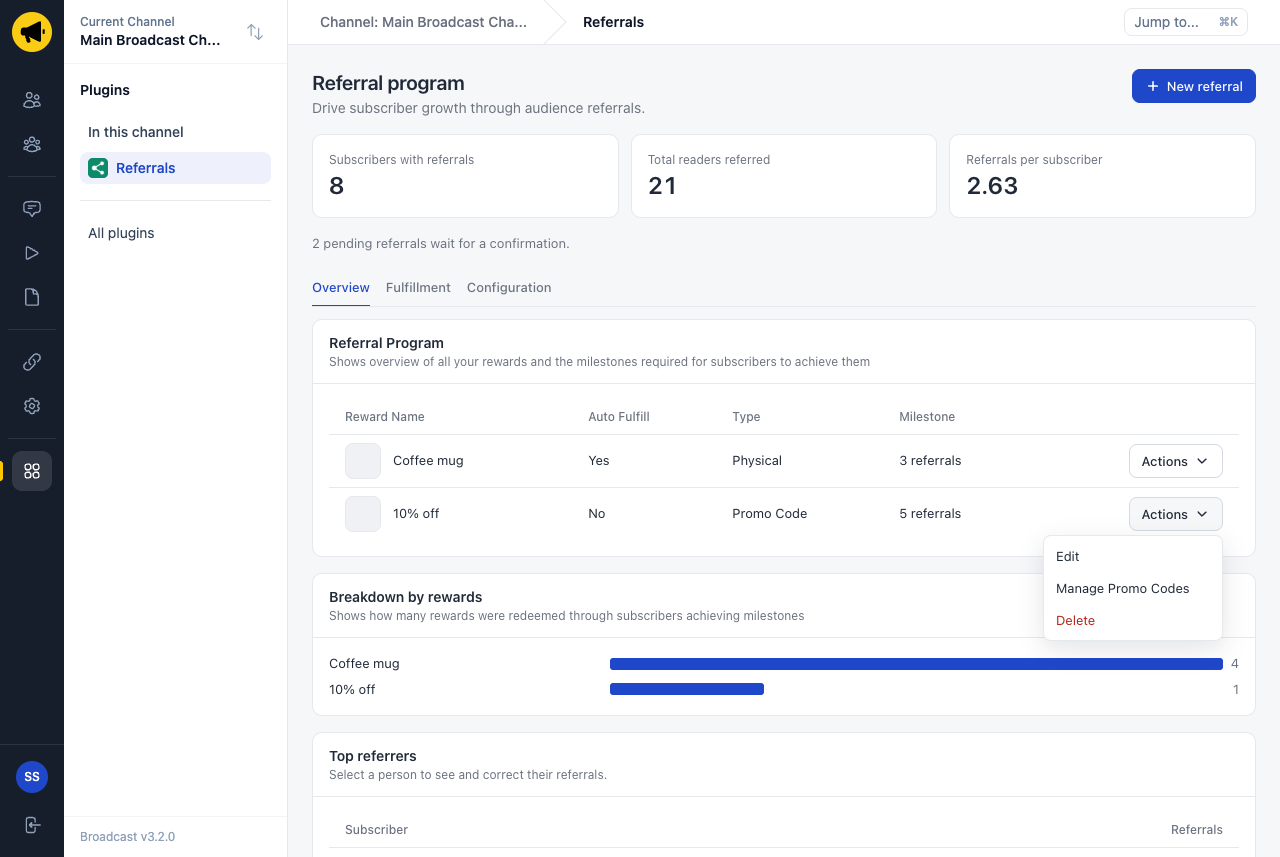
- Actions in the rewards table has Edit, Delete and, for a Promo Code reward, Manage Promo Codes.
Promo codes
A Promo Code reward has a pool of codes. Each subscriber who earns the reward gets one code from the pool, one time.
- In the rewards table, select Actions, then Manage Promo Codes.
- Enter the codes, one on each line. You can add up to 1,000 codes at a time.
- Select Add codes.
The dialog shows how many codes are left, for example “3 of 4 codes left”.
A code that is already in the pool is not added again. When the pool is empty, the earned reward waits as pending and the plugin log says so. The log also warns when 5 codes or fewer are left.
The Fulfillment tab
The Fulfillment tab lists each reward that a subscriber earned, newest first.
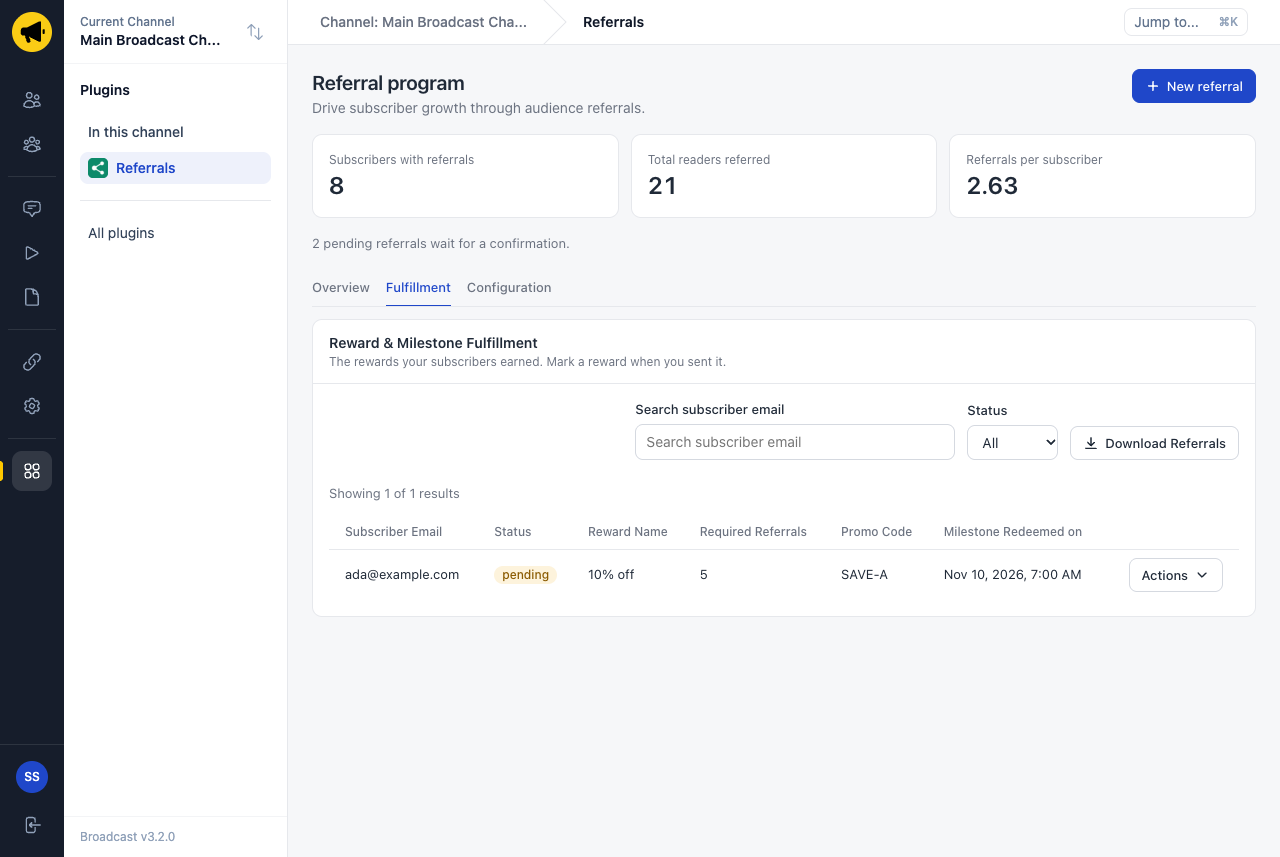
| Status | Meaning |
|---|---|
| Pending | The subscriber earned the reward and you did not send it yet |
| Fulfilled | You sent the reward, or the reward has Auto Fulfill |
| Ignored | You decided not to give the reward |
Actions on a row has these commands:
- Mark as Fulfilled, Mark as Ignored and Mark as Pending set the status.
- Manage Referrals shows the people whom the subscriber referred. Add 1 and Remove 1 correct the count by hand.
You can search by email and filter by status. The list shows 25 rows on a page and reads the newest 1,000 earned rewards.
New in 3.3
The column Milestone Email shows what happened to the email of each earned reward:
| Text | Meaning |
|---|---|
| Sent | Broadcast took the email for sending. You find it under Transactional |
| Not sent: unsubscribed | The subscriber is unsubscribed or inactive, so they got no email |
| Failed | Broadcast refused the email. The plugin log says why. Mark as Fulfilled sends it again |
| (empty) | The reward has no template, or the email waits for Mark as Fulfilled |
Download Referrals copies the list to the clipboard as CSV. Paste it into a spreadsheet or a text file.
The referral block in your emails
The referral block is the part of an email that shows the reader their link, their count and their next reward.
Set up the block
Open the Configuration tab.
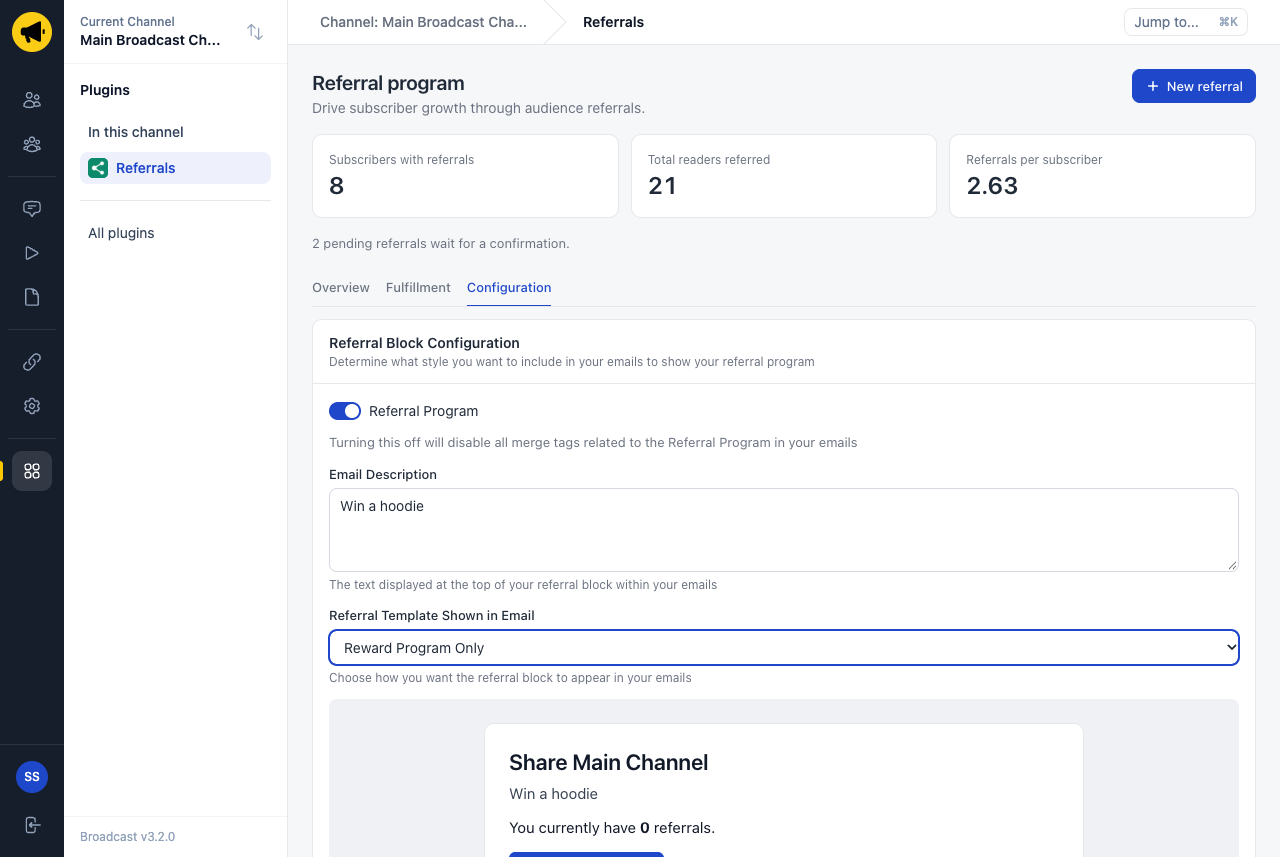
| Setting | Meaning |
|---|---|
| Referral Program | The switch of the program. When it is off, each merge tag of the plugin is empty |
| Email Description | The text at the top of the block |
| Referral Template Shown in Email | What the block shows (see the table below) |
| Template | The block shows |
|---|---|
| Default | The count and the button |
| Upcoming Milestone Only | Also the picture of the next reward |
| Reward Program Only | Also the list of all rewards |
| Upcoming Milestones and Reward Program | The picture of the next reward and the list of all rewards |
The preview under the settings changes as you choose.
Insert the block
- Open a broadcast, a sequence email or a template in an editor.
- Select Insert from a plugin. In the block editor, the block is under From plugins.
- Select Referral program.
- Select Insert referral block.
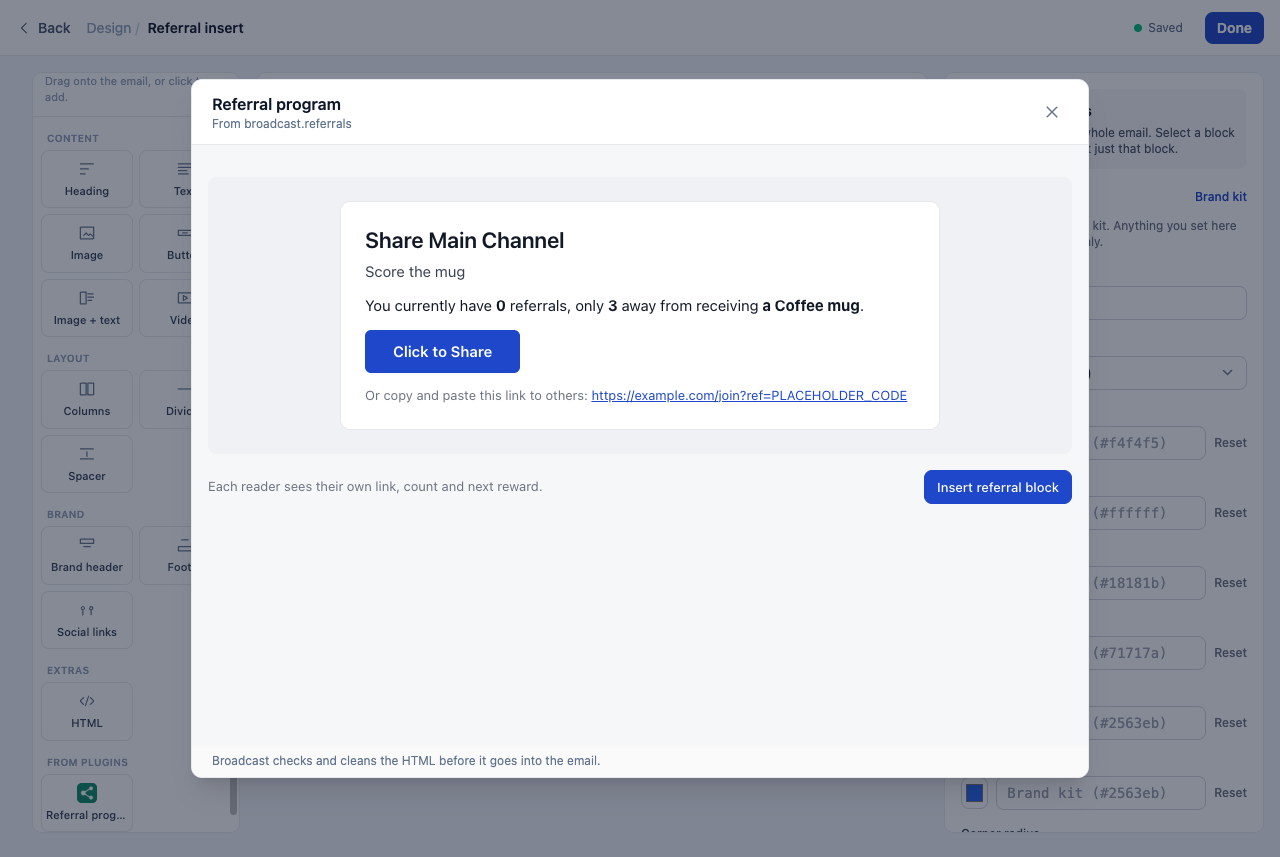
Each reader sees their own link, their own count and their own next reward. The texts of the block are in the language of the channel.
Click to Share opens a new email with the reader’s link in it.
New in 3.3
Click to Share opens the hub of the reader (see The reader hub).
Merge tags
You can also write your own text with the merge tags of the plugin.
| Merge tag | Value |
|---|---|
{{ plugins.broadcast_referrals.referral_block }} |
The complete block |
{{ plugins.broadcast_referrals.referral_link }} |
The personal link |
{{ plugins.broadcast_referrals.referral_code }} |
The personal code |
{{ plugins.broadcast_referrals.referral_count }} |
The number of referrals |
{{ plugins.broadcast_referrals.referrals_until_next_reward }} |
How many referrals the next reward still needs |
{{ plugins.broadcast_referrals.next_reward_name }} |
The name of the next reward |
{{ plugins.broadcast_referrals.next_reward_image }} |
The picture address of the next reward |
New in 3.3
Referrals 2.1 adds {{ plugins.broadcast_referrals.hub_url }}: the address of the reader’s hub.
The reader hub
New in 3.3
With Referrals 2.1, each reader has a hub. It is a page on the address of your Broadcast server, with the branding of the channel and in the language of its subscribers. The reader opens it with Click to Share in the referral block, or with a link that you make from the merge tag hub_url.
The hub shows:
- The number of referrals of the reader, and how many the next reward still needs.
- The personal link of the reader, with a Copy button.
- Buttons to share the link by email, on WhatsApp and on X.
- Each reward, with a bar for the progress of the reader.
- The promo codes that the reader earned, each with a Copy button. The hub shows the 3 newest codes.
- The Email Description of the Configuration tab.
- How many referrals wait for a confirmation.
Rules of the hub:
- Broadcast signs the link for each subscriber. A reader cannot open the hub of another subscriber without that subscriber’s link.
- The hub only shows data. It changes nothing, so a mail scanner that opens the link does no harm.
- A reader who unsubscribed sees that referrals no longer count.
- When the program is off, or the signup page address is empty, the hub says that the program is not open.
- The link is empty in a test email and on a server with no domain. Click to Share then opens a new email with the reader’s link in it.
When a referral counts
- A referral counts when the new person is confirmed. Until then it is pending.
- A person counts one time.
- A person cannot refer themselves.
- A code that does not exist is ignored. The signup still works.
The plugin keeps the email of each referrer and of each referred person. When you delete a subscriber, the plugin deletes these records too.
A signup form of your own
A form of your own creates the subscriber with POST /api/v1/subscribers (see Subscribers API). It must pass the code on:
- Read
reffrom the address of your signup page. - Send it as
signup_refinsidesubscriber.
{
  "subscriber": { "email": "new@example.com", "signup_ref": "r1vc5b" },
  "double_opt_in": true
}
With double_opt_in, the referral counts when the person confirms.
A subscriber that you create with no double opt-in is never confirmed, so the referral stays pending. If your form works that way, turn on Count a referral at signup in the settings of the plugin. The referral then counts when the person signs up.
Note
Leave Count a referral at signup off when you can. A confirmation is what stops made-up signups from earning rewards.
Limits
- The Fulfillment tab reads the newest 1,000 earned rewards.
- The Overview tab shows the top 100 referrers.
- The plugin keeps its data in the plugin store of the channel, which holds 10 MB. Each referred person uses two small rows.